

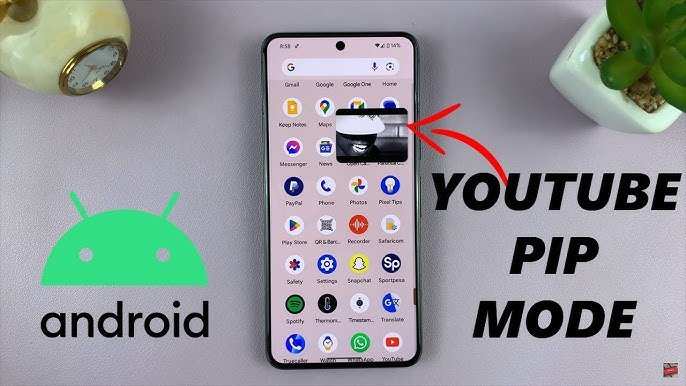
To keep YouTube playing on Android, the simplest solution is to activate the Picture-in-Picture (PiP) mode. **This allows videos to continue playing even when you switch to other apps.** If PiP isn’t enough, you can also use third-party apps or tweak settings for a seamless experience.
Knowing how to make YouTube keep playing on Android helps you multitask effortlessly. Whether you’re listening to music or following tutorials, staying connected with your content becomes a breeze.

How to Make YouTube Keep Playing on Android
When you want to listen to music or podcasts on YouTube without interruptions, it can be frustrating if the video stops playing when you switch apps, turn off your screen, or lock your device. Fortunately, there are several ways to keep YouTube playing on your Android device seamlessly. Whether you’re trying to enjoy videos in the background, or want to avoid interruptions during long listening sessions, this guide will walk you through practical solutions in detail.
Understanding Why YouTube Stops Playing
Before diving into the solutions, it’s helpful to understand why YouTube tends to stop playing when you’re on Android. Here are some common reasons:
- App Limitations: The free version of YouTube doesn’t support background playback officially.
- Battery Optimization Settings: Android’s battery saving features can stop apps from running in the background.
- System Restrictions: Some devices or Android versions restrict background activity for certain apps.
- Screen Lock Behavior: YouTube videos often pause when the screen turns off or is locked unless specific settings are enabled.
Knowing these causes helps you decide on the best approach to keep your YouTube content playing smoothly.
Using YouTube Premium for Continuous Playback
One straightforward way to ensure YouTube keeps playing in the background is subscribing to YouTube Premium. This paid service offers several benefits related to background play:
Benefits of YouTube Premium
- Background playback: Play videos while using other apps or when the screen is off.
- Ad-free experience: No interruptions from ads.
- Offline downloads: Save videos for offline viewing.
Getting Started with YouTube Premium
- Open the YouTube app on your Android device.
- Tap on your profile icon in the top right corner.
- Select “Get YouTube Premium” from the menu.
- Follow the instructions to subscribe – there’s usually a free trial period for new users.
- Once subscribed, go to Settings within the app, then tap on “Background & Downloads.”
- Enable the “Background Play” option.
With these steps, your videos will continue playing even when you switch apps or turn off your screen.
Background Playback Without YouTube Premium
If you prefer not to pay for YouTube Premium, there are still ways to keep YouTube playing in the background, but they are a bit more technical or involve third-party tools. Here are some options:
Using the Desktop Site Method
Many Android browsers can trick YouTube into thinking you’re on a desktop computer, which often enables background playback. Here’s how:
- Open your preferred browser (like Chrome or Firefox) on your Android device.
2. Navigate to youtube.com.
3. Tap the three dots (menu) icon in the top right corner of the browser.
4. Select “Desktop site” or “Request desktop site” in the menu.
5. Find the video you want to play, and start it.
6. Press the home button or switch to another app. The video might pause — but if you swipe down from the top to access the notification panel, you’ll often see a media control with a play button that allows you to resume playback.
This method works because some browsers allow media to continue playing in the background when set to desktop mode.
Using Third-party Apps
There are apps available on the Google Play Store that facilitate background playback of YouTube videos. These apps often act as a wrapper or browser for YouTube:
- NewPipe: A free, open-source app that allows background play and downloads without using the official YouTube app.
- Musicolet Player: A music player that can integrate with your device to play YouTube music in the background.
- Vanced: An unofficial mod of YouTube that enables background playing, ad-blocking, and other features. (Note: Vanced is not officially supported and may risk security issues. Use at your own discretion.)
When using third-party apps, always make sure to download from trusted sources to protect your device.
Adjusting Android Settings for Background Playback
Sometimes, system-level configurations prevent apps from running in the background. Tweaking these settings can help:
Disable Battery Optimization for YouTube
Android’s battery saver can restrict background activity:
- Open your device’s Settings app.
- Tap on “Apps & notifications” or “Applications.”
- Select “See all apps” if needed, then find and tap on “YouTube.”
- Choose “Battery” or “Battery usage.”
- Tap “Battery optimization.”
- Find “YouTube” in the list, and select “Don’t optimize” or “Allow.”
This setting prevents the system from stopping YouTube when the screen is off or when the app is running in the background.
Allow Background Data Usage
Enable background data for YouTube to ensure it can play content seamlessly:
- Go to Settings.
- Tap on “Network & internet” or “Connections.”
- Choose “Data usage” or “Mobile data & Wi-Fi.”
- Locate YouTube in the list of apps.
- Ensure that “Background data” or “Allow background data usage” is turned on.
This ensures your data connection remains active for YouTube, even when the app isn’t open on the screen.
Playing YouTube Videos in the Background on Lock Screen
Android devices usually restrict media playback on the lock screen for security reasons. To enable YouTube to keep playing in the background:
- Make sure you’ve enabled background playback via YouTube Premium or the desktop browser method.
- Use the media controls in the notification panel: When a video is playing, you should see playback controls that work from the lock screen, allowing you to pause, play, or skip videos without unlocking your device.
- For third-party apps, some may provide their own lock screen controls or widgets.
Note that some device brands or Android versions may have additional restrictions, so always keep your device updates in mind.
Tips for Better Background Playback Experience
To enjoy uninterrupted YouTube listening sessions:
- Keep your device’s battery charged or plugged in, as background play can drain power quickly.
- Close other apps running in the background to free up system resources.
- Ensure your internet connection is stable to prevent buffering interruptions.
- Adjust screen timeout settings; setting a longer screen timeout can prevent the device from sleeping too quickly.
- Use a good quality, reliable browser or app that supports background media playback.
By following these tips, you can make YouTube keep playing on your Android device without frustration.
Common Troubleshooting Steps
Sometimes, despite following all these steps, YouTube may still stop playing in the background. Here’s what to do:
- Restart your device to clear temporary glitches.
- Update your YouTube app, browser, or third-party app to the latest version.
- Reinstall the app if necessary, especially if issues persist.
- Check your device’s battery settings again, making sure all restrictions are lifted for YouTube.
- Ensure your Android system is fully updated to avoid compatibility issues.
Regularly maintaining your device and apps helps ensure smooth playback.
Summary
Keeping YouTube playing on Android requires understanding system restrictions and choosing the right method for your needs. Subscribing to YouTube Premium is the easiest and most reliable way for effortless background play. If that isn’t an option, using browsers in desktop mode or third-party apps can help. Adjusting system battery and data settings also makes a significant difference in preventing playback interruptions. Remember to troubleshoot and keep your apps and device updated for the best experience.
By following these detailed steps, you can enjoy listening to your favorite YouTube content without constantly worrying about playback stopping, unlocking your device, or switching apps. Whether you’re listening to music, podcasts, or long videos, these solutions provide a seamless viewing experience.
Frequently Asked Questions
How can I prevent YouTube from pausing when my screen turns off on Android?
To keep YouTube playing when your screen turns off, you can enable the background playback feature. If you are using the free version of YouTube, consider subscribing to YouTube Premium, which allows background play. Alternatively, you can use a third-party app or browser that supports background playback. Also, check your device settings to ensure that battery optimization for YouTube is disabled, which can prevent the app from being paused to save power.
What settings should I adjust to keep YouTube videos playing in the background on Android?
Adjust the app and device settings to allow background playback. First, make sure you are signed into a YouTube Premium account, as this feature is restricted to subscribers. If you are, go to your device’s settings, navigate to ‘Apps’ or ‘Applications,’ find YouTube, and disable battery optimization for the app. Additionally, open the YouTube app, start playing a video, then switch to another app or turn off the screen to see if the video continues. Using a browser with YouTube in desktop mode can also help maintain playback while multitasking.
How can I use third-party apps to keep YouTube videos playing in the background on Android?
Some third-party apps allow you to play YouTube videos in the background without a premium subscription. These apps often work by creating a floating window or using a browser with background playback features. To use them, download a reputable app from the Google Play Store, follow the app’s instructions to open YouTube videos, and activate background playback. Keep in mind that using third-party apps may violate YouTube’s terms of service, so proceed with caution and understand potential risks.
Is there a way to keep YouTube playing during multitasking on Android without additional apps?
Yes, you can use the feature called Picture-in-Picture (PiP) mode available on Android 8.0 and above. When watching a YouTube video, tap the home button or use the gesture to go to the home screen while the video is still playing; the video will appear in a small window. You can then continue browsing or use other apps while the video plays in the background. To enable PiP, go to your device’s system settings, find ‘Apps & notifications,’ then ‘Special app access,’ and enable Picture-in-Picture mode for YouTube.
Final Thoughts
Pour que YouTube continue à jouer sur Android, utilisez la fonctionnalité de lecture en arrière-plan ou la version YouTube Premium. Activez la lecture en arrière-plan dans les paramètres de l’application ou utilisez une application tierce compatible. Assurez-vous également que votre appareil n’interrompt pas la lecture pour économiser la batterie ou gérer les notifications.
En résumé, pour faire en sorte que YouTube keep playing on Android, configurez les options de lecture en arrière-plan ou optez pour YouTube Premium. Ces méthodes vous permettent de continuer à écouter vos vidéos sans interruption, même lorsque vous quittez l’application.
