

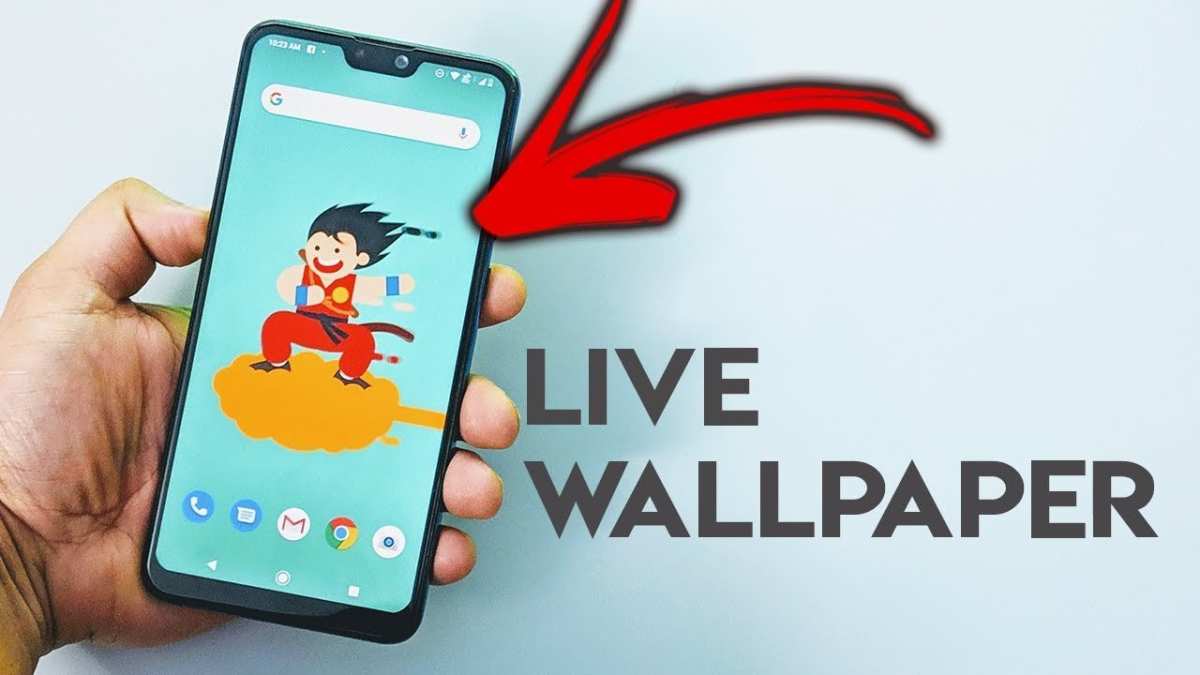
To make your wallpaper move on Android, you can use live wallpaper apps or set animated wallpapers directly. **This is a simple process that requires just a few taps.** First, browse the Google Play Store for popular live wallpaper apps like Walloop or Forest Live. After installing, select your preferred animated wallpaper and set it as your background. With these quick steps, your Android wallpaper will come alive and add a dynamic touch to your device.

How to Make Your Wallpaper Move on Android
Creating a lively and engaging background on your Android device can make your phone feel more personal and fun. Moving wallpapers, also called live wallpapers, add dynamic motion to your home screen and lock screen, making your phone more interactive and visually appealing. If you’ve ever wondered how to make your wallpaper move on Android, you’re in the right place. This guide will walk you through everything you need to know, from choosing the right live wallpaper app to customizing your animated backgrounds for the best experience.
Understanding Live Wallpapers and Moving Backgrounds on Android
Before jumping into how to set a moving wallpaper, it helps to understand what live wallpapers are. Unlike static images, live wallpapers are animated or interactive backgrounds that run continuously or respond to touch and device motion. They bring your home screen to life, offering various effects from gentle waves to complex animated scenes.
Live wallpapers can be categorized into two main types:
- Preloaded Live Wallpapers: Some Android devices come with built-in live wallpapers. These are available directly from your device settings or wallpaper chooser. Examples include animated landscapes, abstract designs, or interactive themes.
- Third-Party Live Wallpapers: You can download additional live wallpapers from apps and websites. These offer a wide variety of animations, from nature scenes to animated characters.
Understanding these options will help you decide which type suits your style and preferences.
How to Set a Live Wallpaper on Your Android Device
Setting a moving wallpaper is straightforward but can vary slightly depending on your device model and Android version. Here’s a simple step-by-step guide:
Using Built-In Live Wallpapers
- Access your device’s Settings menu.
- Tap on Wallpaper & Style or just Wallpaper.
- Select Live Wallpapers. If your device doesn’t show this option, tap Change Wallpaper and look for a tab or option for live wallpapers.
- Browse the available live wallpapers and tap on the one you want to set.
- Confirm by tapping Set Wallpaper, and choose whether to apply it on your home screen, lock screen, or both.
Using Third-Party Live Wallpaper Apps
- Open the Google Play Store and search for live wallpaper.
- Browse the top-rated apps, read reviews, and choose one that offers features you like. Popular options include Wallpapers Abyss, Muzei Live Wallpaper, and KLWP Live Wallpaper Maker.
- Download and install your chosen app.
- Open the app and browse its collection of animated wallpapers.
- Follow the app’s instructions to set the wallpaper on your device. Usually, this involves selecting a wallpaper and tapping a Set Wallpaper button.
- Adjust any available settings, such as animation speed, effects, or interactivity.
Customizing Your Moving Wallpaper for Better Visuals
Once you get a moving wallpaper set, you can often customize it further. Good customization can make your wallpaper even more engaging without draining your device’s resources too much. Here are some tips:
Adjust Animation Speed
Many live wallpaper apps allow you to control how fast animations play. Slowing down the movement can make the wallpaper less distracting, while speeding it up adds energy.
Choose Interactive Wallpapers
Some live wallpapers respond to your touch or device movement. Experiment with these to find options that feel natural and fun to interact with.
Optimize Battery Usage
Moving wallpapers can consume more battery than static images. To conserve power:
- Disable live wallpapers when not needed.
- Use lightweight wallpapers designed for low power consumption.
- Adjust settings to reduce animation complexity or turn off animations when the battery is low.
Best Live Wallpaper Apps for Moving Backgrounds on Android
Choosing the right app can simplify the process of making your wallpaper move. Consider these popular options:
- Wallpapers Abyss: Offers mesmerizing swirling patterns and animated scenes that are easy to set and customize.
- Muzei Live Wallpaper: Provides artworks and photo feeds that change periodically, with options for animated effects.
- KLWP Live Wallpaper Maker: A flexible app allowing you to create custom animated wallpapers from scratch or using templates.
- Forest Live Wallpaper: Brings calming animated nature scenes with moving trees and flowing water.
Experiment with different apps to find one that fits your style and provides a smooth, lively background.
Tips for Making Your Moving Wallpaper Look Great
Here are some practical tips to enhance your moving wallpaper experience:
- Match your wallpaper style with your overall device theme. For example, use nature scenes for a calming background or abstract animations for a modern look.
- Use high-quality wallpapers to avoid pixelation or blurriness in animations.
- Adjust brightness and contrast for better visibility and aesthetic appeal.
- Be mindful of performance: Too many moving elements can slow down your device, so opt for simpler animations if you notice lag.
Creating Your Own Moving Wallpaper
If you have a creative streak, you can even craft your own animated wallpaper. Apps like KLWP Live Wallpaper Maker allow you to design personalized backgrounds with animated elements.
Basic steps to create custom wallpapers:
- Download and install a live wallpaper maker app.
- Choose a base image or background color.
- Add animated layers, such as moving shapes, text, or images.
- Configure animation effects and timing.
- Preview your creation within the app and make adjustments as needed.
- Save and set your custom wallpaper directly from the app.
Creating personalized moving wallpapers adds a unique touch to your Android device and keeps your home screen fresh and exciting.
Handling Common Issues with Moving Wallpapers on Android
Sometimes, live wallpapers may not work as expected. Here’s how to troubleshoot common problems:
- Live wallpapers not showing up: Ensure you’ve selected the wallpaper for the correct screen (home or lock). Restart your device if needed.
- Battery drain: Switch to static wallpapers or disable live wallpapers when your battery is low.
- Lag or slow performance: Choose simpler animations or ensure your device has enough free memory.
- App crashes or glitches: Update your wallpaper app or clear cache/data if problems persist.
By following these tips, you can make sure your experience remains smooth and enjoyable.
—
With these steps and tips, you now have the knowledge to make your Android wallpaper move and add a splash of motion to your device. Whether you opt for built-in options, third-party apps, or custom creations, you can enjoy a lively background that reflects your personal style and makes your device truly yours.
Frequently Asked Questions
Can I set a live wallpaper from my gallery on Android?
Yes, you can select a video or animated image from your gallery to use as a live wallpaper. Use a third-party app or your device’s built-in wallpaper settings that support animated images, and follow the prompts to choose your preferred media file.
What apps are available to help make my wallpaper move on Android?
Several apps like Walloop, Walpy, and Muzei allow you to set animated or live wallpapers easily. Download one of these apps from the Google Play Store, browse their collection, and follow the app instructions to apply moving wallpapers to your device.
How can I customize the motion effects of a live wallpaper on my Android device?
Some live wallpaper apps offer customization options such as adjusting the speed, direction, or style of the motion. Open the app or wallpaper settings, explore available options, and tweak the settings to match your preference for how the wallpaper moves.
Is there a way to make a static wallpaper appear animated without extra apps?
Android devices sometimes feature built-in effects like parallax, which creates a slight movement effect when you tilt your device. Enable these options in your wallpaper settings under the ‘Motion’ or ‘Parallax’ section if available, to add a sense of movement without installing additional apps.
Can I set a GIF as my moving wallpaper on Android?
Yes, you can set a GIF as your wallpaper by using specialized apps that support GIF wallpapers. Download a compatible app, select the GIF you want, and follow the prompts to set it as your animated wallpaper, giving your screen a lively appearance.
Final Thoughts
To make your wallpaper move on Android, start by choosing a live wallpaper or download one from the Play Store. Adjust the settings to suit your preferences, such as animation speed and effects. Always ensure your device supports live wallpapers for optimal performance.
In conclusion, how to make your wallpaper move on android is simple with the right app and settings. Follow these steps, and you’ll enjoy a dynamic background that adds personality to your device.
