

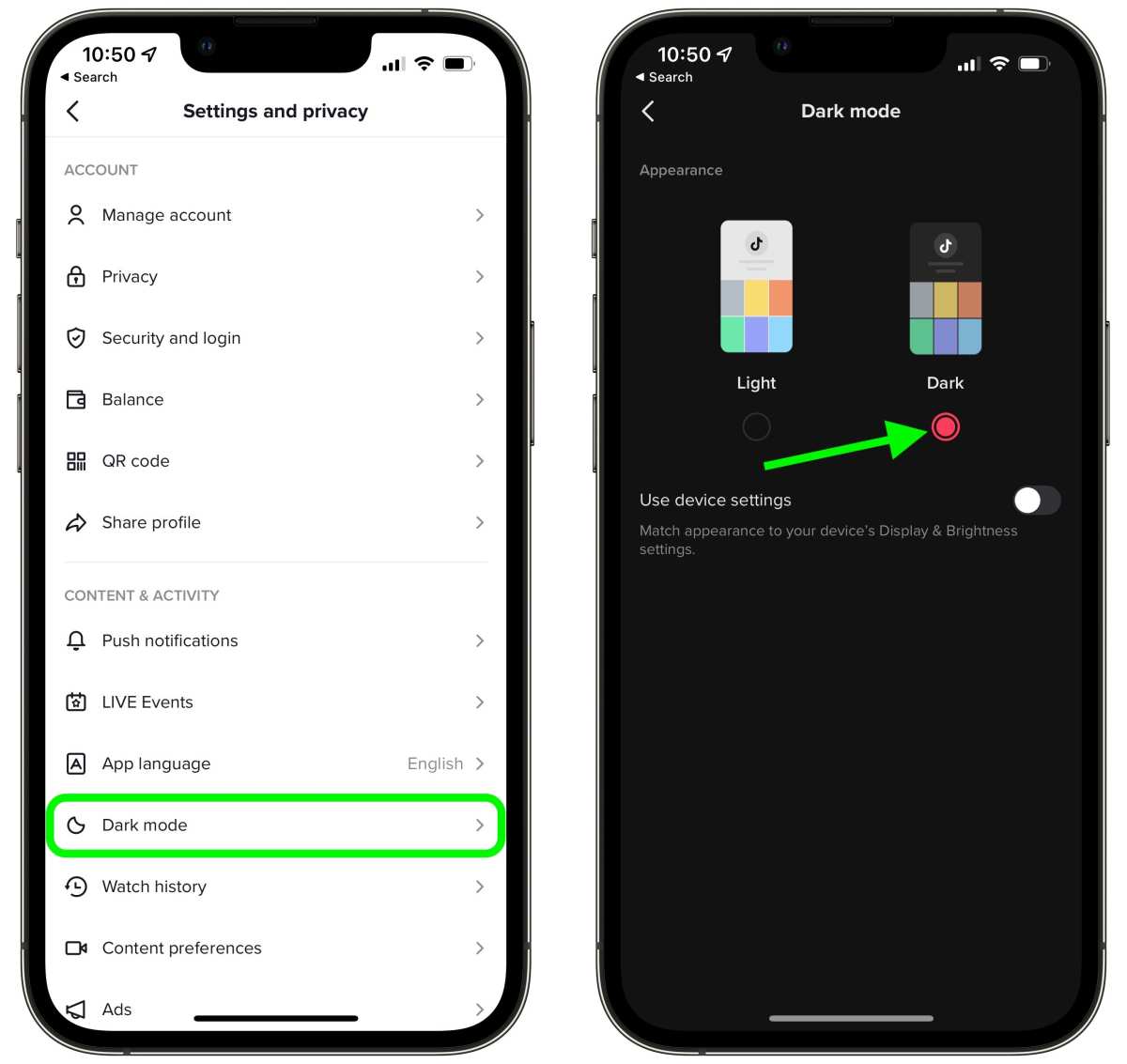
To make your TikTok dark mode on Android, simply go to the app settings and toggle on the dark mode option. It’s a straightforward process that improves viewing comfort and saves battery life. If you’re searching for how to make your TikTok dark mode on Android, this quick switch makes the app easier on your eyes. Just open TikTok, tap your profile, select Settings, and turn on Dark Mode. With a few taps, you enjoy a sleek, darker interface that’s perfect for late-night scrolling.

How to Make Your TikTok Dark Mode on Android
Many TikTok users prefer using dark mode because it’s easier on the eyes, especially in low-light environments. It also helps conserve your device’s battery life and gives the app a sleek, modern look. If you’re wondering how to activate dark mode on TikTok while using your Android device, you’re in the right place. This guide will walk you through the simple steps to enable dark mode on TikTok, explore its benefits, and troubleshoot common issues to ensure you get the most out of this feature.
Understanding Darkness Mode on TikTok
Before diving into the steps, let’s clarify what dark mode actually does. When you switch TikTok to dark mode, the app’s background turns dark gray or black, and text appears in lighter colors. This change creates a visually comfortable experience that reduces eye strain. Unlike some app settings, TikTok’s dark mode often relies on your device’s global theme settings, which means enabling dark mode might also involve adjusting your Android system settings.
The benefits of using TikTok’s dark mode include:
- Less eye fatigue during extended viewing sessions
- Reduced screen glare at night or in dark environments
- Potential battery savings on devices with OLED screens
- A modern aesthetic that many users find appealing
Now, let’s check how to turn this feature on step by step.
Preparing Your Android Device for Dark Mode
Most Android devices now offer system-wide dark mode settings. Turning on dark mode at the device level can automatically apply the theme to supported apps, including TikTok.
Here are the basic steps:
- Open your device’s **Settings** app.
- Scroll down and tap on **Display**.
- Look for an option called **Dark theme** or **Dark mode** and toggle it on.
- Some devices may offer scheduled dark mode options, allowing you to enable dark theme automatically during certain hours.
Remember, enabling system-wide dark mode often makes apps that follow device themes, like TikTok, also switch to dark mode automatically. However, TikTok has a dedicated toggle within the app, which we’ll cover next.
Enabling Dark Mode Directly in TikTok
While some Android phones change app themes automatically when dark mode is enabled on the device, TikTok provides an in-app toggle that allows users to switch themes without adjusting system settings. Here’s how to do it:
Step-by-step guide:
- Open **TikTok** on your Android device.
- Tap on your profile icon in the bottom right corner.
- Click the three-dot menu icon (or the hamburger menu) in the top right corner to access **Settings**.
- Scroll down and select **Appearance** or **Display** (depending on your app version).
- Tap on **Dark Mode** or similar option.
- Choose **On** to enable dark mode immediately.
Once activated, TikTok’s interface will switch to a darker color scheme, making videos easier to watch for longer periods, especially at night.
How to Use System-Wide Dark Mode for TikTok
If you prefer a seamless experience where all your apps follow the same theme, enabling system-wide dark mode is the best approach. This makes your Android device more cohesive and saves you from toggling dark mode on each app individually.
Here’s how to enable it:
- Follow the earlier steps to turn on **Dark Theme** in your device’s **Settings** > **Display**.
- Check your system version; newer Android versions (Android 10 and above) support native dark themes.
- Some devices, such as Samsung or Google Pixel, have dedicated options to schedule dark mode or turn it on automatically based on time or ambient light.
When you activate system-wide dark mode, TikTok automatically adjusts its appearance if it’s set to follow system settings, providing a uniform look across all compatible applications.
Customizing Dark Mode Settings for Better Experience
Every user has different preferences, so it’s helpful to explore additional options for customizing dark mode in TikTok or on your device.
Adjusting Brightness and Contrast
Even with dark mode enabled, sometimes brightness levels or contrast need fine-tuning:
- Use your device’s brightness slider for comfortable viewing.
- Most Android devices include blue light filters or night mode settings, which can further reduce eye strain.
Scheduling Dark Mode
Many Android systems allow scheduling dark mode during specific hours:
- In **Settings** > **Display**, look for **Dark mode schedule**.
- Set your preferred hours—e.g., from sunset to sunrise or custom times.
This ensures you get the benefits of dark mode automatically, aligning with your daily routines.
Troubleshooting Common Issues with TikTok Dark Mode
Sometimes, turning on dark mode may not work as expected. Here are common issues and how to solve them:
Dark Mode Not Activating
If TikTok’s dark mode doesn’t turn on after enabling the feature:
- Make sure your app is updated to the latest version from the Google Play Store.
- Check whether your device’s system-wide dark mode is enabled, especially if TikTok is set to follow system theme.
- Restart your device—sometimes, a quick reboot helps settings take effect.
Dark Mode Turns Off Unexpectedly
If dark mode switches off automatically or intermittently:
- Verify if your device is set to automatically switch themes based on time or ambient light.
- Ensure no third-party apps are overriding your display settings.
- Update TikTok and your device’s operating system if available.
Additional Tips for Enhancing Your Dark Mode Experience
To maximize your comfort while using TikTok in dark mode:
- Use a blue light filter in conjunction with dark mode for softer lighting.
- Adjust font sizes if needed through **Settings** > **Display** > **Font size** to ensure readability in dark mode.
- Consider customizing your app’s background or theme if your device allows for further personalization.
Remember, enabling dark mode isn’t just about aesthetics—it helps protect your eyes and makes using TikTok more comfortable, especially during night hours. Whether you prefer toggling it manually or scheduling it with system settings, both options offer flexibility and convenience.
By following these detailed instructions and tips, you can easily switch your TikTok app to dark mode on Android and enjoy a more comfortable viewing experience, no matter where or when you’re browsing your favorite videos.
Frequently Asked Questions
What steps can I follow to enable dark mode for TikTok on an Android device?
To turn on dark mode on TikTok, open the app and go to your profile. Tap the three-dot menu icon to access settings and privacy. Find the “Display” or “Appearance” option, then select “Dark Mode” and toggle it on. If you don’t see this option, ensure your TikTok app is updated to the latest version.
Are there specific settings I should adjust in Android to improve dark mode visibility on TikTok?
Yes, you should enable system-wide dark mode on your Android device. To do this, go to Settings > Display > Dark theme and activate it. Once your device is in dark mode, TikTok usually adjusts automatically, providing a consistent dark interface.
Can I schedule dark mode to turn on automatically on TikTok for Android?
Currently, TikTok does not offer a built-in scheduling feature for dark mode. However, if your device supports automatic theme switching based on time, enabling system-wide dark mode will allow TikTok and other apps to adapt accordingly.
What should I do if the dark mode option doesn’t appear on my TikTok app?
If dark mode isn’t visible, first ensure you have the latest TikTok app installed. Clear the app cache through your device settings, or try reinstalling the app. Additionally, verify that your device’s system settings are set to dark mode, as TikTok may rely on these settings to display dark UI.
Does enabling system-wide dark mode affect other applications on my Android device?
Yes, enabling system-wide dark mode often changes the appearance of supported apps, including TikTok, social media platforms, and system menus. It helps reduce eye strain and conserves battery life on devices with OLED screens.
Final Thoughts
To make your TikTok dark mode on Android, start by opening the app and tapping on your profile icon. Next, access the settings menu by clicking the three dots in the top right corner. Find the ‘Appearance’ option and select it.
Choose ‘Dark Mode’ from the available options. If your device supports system-wide dark mode, TikTok will automatically switch to dark mode when enabled on your device.
In conclusion, how to make your tiktok dark mode on android is simple and quick. Just enable dark mode in the app or your device settings, and enjoy a comfortable viewing experience.
