

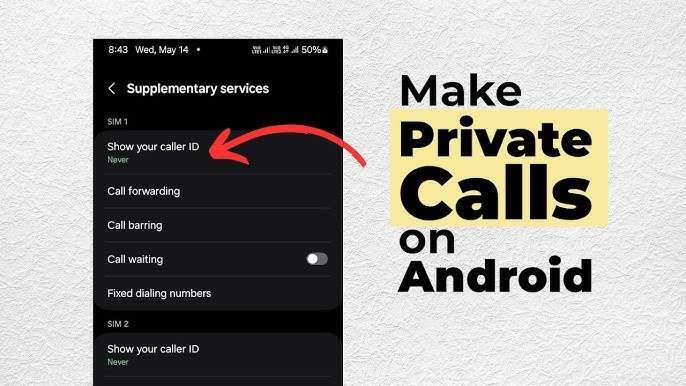
To make a private call on Android, simply enable the caller ID hiding feature in your settings or dial *67 before the number. **This instantly blocks your number from appearing on the recipient’s device.** Knowing how to make private call on Android can save your privacy when needed.
You can also adjust your settings for a more permanent solution or use third-party apps for added features. With these simple steps, maintaining your privacy during calls becomes effortless.

How to Make Private Call on Android
Making your phone call private on an Android device is a common need for many users. Whether you want to keep your number hidden for a personal reason or protect your privacy during business calls, knowing how to make a call private can be very useful. This section will walk you through all the steps, options, and tips to help you make sure your caller ID stays anonymous whenever you want.
Understanding Caller ID and Its Role in Privacy
Before diving into how to make calls private, it’s helpful to understand what caller ID is. When you make a call, your phone number is usually visible to the person you’re calling. This is called the caller ID. If you want to keep this information hidden, you’ll need to adjust your settings.
Why Hide Your Number?
People choose to hide their number for various reasons, including:
- Protecting personal privacy
- Having confidential conversations
- Avoiding spam calls or telemarketers
- Making anonymous calls during work or personal situations
Knowing your reasons can help you decide which method is best for your needs.
Methods to Make Private Calls on Android
There are multiple ways to hide your number when making a call on Android. Here, we’ll explore each method in detail so you can pick the one that suits you best.
Using the Camera Icon in the Phone App
Most Android phones allow you to temporarily hide your number directly from the dialing screen.
How to Do It
- Open the default Phone app on your Android device.
- Enter the phone number you want to call.
- Tap on the three-dot menu icon or the ‘More’ option.
- Select Call Settings or Settings.
- Look for Additional Settings or More Settings.
- Find the Caller ID option.
- Choose Hide number or Never (hide caller ID).
- Return to the main dial pad and make your call.
This method hides your number for that specific call and is useful when you want to keep your number private temporarily.
Using the Phone’s Settings to Make Calls Private Permanently
If you prefer to keep your number hidden for all outgoing calls, you can change your caller ID setting permanently.
Steps to Set It Up
- Open your Phone app.
- Tap the menu icon (three dots) in the top right corner.
- Select Settings.
- Navigate to Calls or Calling Accounts.
- Tap on Calling or Additional Settings.
- Look for Caller ID.
- Select Hide number.
Once you activate this setting, your number remains hidden for all outgoing calls until you change it back.
Using Your Carrier’s Service Code
Many mobile carriers have special codes that you can dial before entering a number to make a call private temporarily.
Common Codes
- Hide caller ID for one call: Dial *67 before the number.
- Unhide caller ID for a call: Dial *82 before the number (if previously hidden).
How to Use
- Open your Phone app.
- Dial *67, then enter the phone number (e.g., *67123456789).
- Press the call button.
This method is quick and effective when you need to hide your number for just one call.
Adjusting Settings for Specific Callers or Situations
Sometimes, you might want your number visible for regular calls but hidden for certain contacts. Android allows you to customize this through third-party apps or built-in features.
Using Third-Party Apps
Apps like *Hide My Number* or *Caller ID Block* provide more flexible control over when and how your number is displayed or hidden.
Features of These Apps
- Quick toggle for hiding or showing your number.
- Schedule automatic privacy for specific contacts or times.
- Keep your privacy settings separate for different contacts.
Always ensure you download apps from trusted sources like Google Play Store and check user reviews before installation.
Using Phone Profiles or Do Not Disturb Modes
Some Android devices let you create custom profiles where you can configure your call privacy settings.
Setting Up Profiles
- Go to your device’s Settings.
- Select Sound & Vibration or Sound.
- Look for Do Not Disturb or Sound Profiles.
- Set up a profile with caller ID hiding enabled.
- Activate this profile during specific times or situations.
This method is ideal for managing multiple privacy scenarios without manually changing settings each time.
Troubleshooting Common Issues
Even after following these steps, you might encounter some issues when trying to hide your number.
Why Your Number Still Shows
- Your carrier might override device settings.
- The person you’re calling has caller ID screening enabled on their end.
- There could be a temporary network issue.
- You haven’t correctly applied the settings.
How to Fix These Problems
- Contact your carrier to confirm that caller ID blocking is supported and active.
- Double-check your Android settings for caller ID options.
- Use the service code (*67) for one-time hiding if settings don’t work.
- Test with different contacts or numbers to identify if the problem persists across the board.
Additional Tips to Maintain Privacy
– Always verify your caller ID settings before making important or sensitive calls.
– Remember that some people may have caller ID blocking turned off on their devices, so your number might still display despite your settings.
– Be cautious when sharing your number publicly if maintaining privacy is a concern.
– Regularly update your phone’s software and apps to access the latest privacy features.
Making private calls on Android is straightforward once you understand the different options available. Whether you want to hide your number just for a single call or set it to be hidden permanently, Android offers flexible methods to manage your caller ID. Using built-in settings, carrier codes, or third-party apps, you can easily control your privacy and keep your calls confidential whenever needed. Remember to test your settings and stay updated on privacy features so you can communicate with confidence.
Frequently Asked Questions
How can I hide my caller ID before making a call on Android?
To hide your caller ID on Android, go to the Phone app and tap the three-dot menu or settings icon. Select ‘Settings’ or ‘Call Settings,’ then find and choose ‘Additional Settings’ or ‘More Settings.’ Tap on ‘Caller ID’ and select ‘Hide number.’ Your number will now be concealed when making outgoing calls.
What steps should I follow to make a call private using a third-party app?
Download a reputable call privacy app from the Google Play Store, such as a number mask or call anonymizer. Open the app, follow the setup instructions, and enable the feature to hide your number during calls. When making a call through the app, your number remains hidden, ensuring privacy for each call.
Is it possible to make a one-time anonymous call on Android?
Yes, you can make a one-time anonymous call without changing your default settings. Dial *67 followed by the phone number you want to call. This code temporarily blocks your caller ID for that specific call, keeping your number private from the recipient.
How do I prevent my number from being displayed during a group call on Android?
Before starting a group call, navigate to your Phone app settings and set your caller ID to ‘Hide number’ as described earlier. For ongoing calls, you may need to disable caller ID in call options or settings during the call to ensure your number isn’t visible to all participants.
Can I make private calls directly from my Android contacts without changing settings each time?
Yes, you can assign a dedicated line or use a secondary SIM card for private calls if your device supports dual SIMs. Otherwise, setting your caller ID to ‘Hide number’ once will hide your number for all outgoing calls until you revert the setting. Some Android devices also offer quick toggle options in the notification shade for instant privacy during calls.
Final Thoughts
Making a private call on Android is simple and effective. First, open the dialer app and access the settings menu. Enable the option to hide your caller ID. Alternatively, dial *67 before your contact’s number to block your number temporarily.
You can also set your phone to always show private calls by adjusting your network settings. This way, every call you make can stay anonymous without additional steps each time.
In summary, how to make private call on android involves either changing your caller ID settings or using the *67 prefix. These methods keep your number hidden easily and quickly.
