

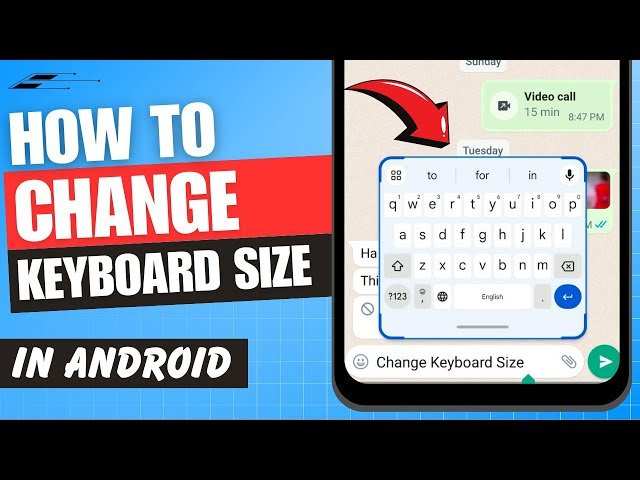
To make your keyboard larger on Android, simply access the settings menu within your keyboard app, then adjust the size slider. **This quick step makes typing easier and more comfortable.** If your keyboard doesn’t have this option, try switching to a third-party keyboard that allows customization. Knowing how to make keyboard larger on Android can significantly improve your texting experience, especially if you find small keys frustrating. With just a few taps, you can customize your keyboard for better accessibility and convenience.

How to Make Keyboard Larger on Android
Many Android users find it tricky to see or press the keys properly, especially when they have smaller screens or vision difficulties. A common way to fix this is to make the keyboard larger so it’s easier to read and type. In this article, we will explore multiple methods to increase the size of your Android keyboard. We will go through simple steps you can take within your device settings, as well as tips on downloading third-party keyboards that offer larger keys and customizable sizes. Keep reading to learn how to make your Android keyboard bigger step by step, and find the best solution that works for you.
Understanding Why Your Android Keyboard Might Be Too Small
Before jumping into fixing the problem, it helps to understand why your keyboard might be too small in the first place. Here are some common reasons:
- Screen size: Smaller phones naturally display smaller keyboards, making it harder for some users to type comfortably.
- Display settings: If your display size or font size is set to small, the keyboard may also appear smaller.
- Default keyboard limitations: Some keyboards don’t allow much customization in size unless you change the settings or install an alternative keyboard.
- Visual impairments: If you have trouble seeing small text or keys, increasing keyboard size can make a big difference.
Now, let’s walk through different solutions to make your Android keyboard larger.
Adjusting Font and Display Size on Your Android Device
One of the easiest ways to make your keyboard larger is to increase the overall display size and font settings on your phone. This method doesn’t directly change the keyboard size but makes all text and interface elements, including keyboard keys, more visible.
Change Display Size
Follow these steps to increase the display size:
- Open your device’s Settings.
- Scroll down and tap on Display.
- Select Display size or Screen size (depending on your device).
- Use the slider to increase the size. Moving it to the right enlarges icons, text, and the keyboard keys.
- Preview the changes on the screen and adjust accordingly.
- Tap OK or exit to save the settings.
Increase Font Size
This option makes text, including keyboard characters, larger:
- Go to Settings > Display.
- Tap on Font size or Font size and style.
- Adjust the slider to set a larger font size.
- Review the changes in your keyboard while typing.
By increasing both display and font size, you often make the keyboard more comfortable to use without needing third-party apps.
Changing Keyboard Settings for Larger Keys
Many keyboard apps have built-in options to change the size of the keys directly, giving you more control over how big your keyboard appears.
Using Gboard (Google Keyboard) Settings
Gboard is one of the most popular keyboards on Android, and it offers options to adjust keyboard height:
- Open the Gboard app in your device’s app drawer or go to Settings > System > Languages & input.
- Select Keyboard & input methods and then tap on Gboard.
- Tap on Preferences.
- Look for the Keyboard height or Keyboard size option. If available, slide or toggle it to increase the size.
- Return to your keyboard and check if the keys are larger.
*Note:* If your version of Gboard doesn’t support size adjustment, consider using a different keyboard app that does.
Adjusting Keyboard Height in Samsung Keyboard
Samsung devices often come with their own keyboards, which sometimes allow resizing:
- Open Settings on your Samsung device.
- Navigate to General management > Samsung Keyboard settings.
- Tap on Keyboard height and layout.
- Use the slider to make the keyboard taller or larger.
- Test the new size in the keyboard when typing.
Installing Third-Party Keyboards with Larger Keys
If your current keyboard lacks size customization options, you can try installing third-party keyboards designed with larger keys and better visibility features.
Popular Keyboard Apps for Larger Keys
Here are some keyboard apps that focus on accessibility and larger key sizes:
- Big Keyboard: Specifically designed for users who need bigger keys. It offers large letters and buttons to make typing easier.
- Big Keyboard +: Provides customizable button sizes, making it great for those with vision impairments or difficulty typing.
- AnySoftKeyboard: An open-source keyboard that allows extensive customization, including key size and layout.
- TouchPal Keyboard: Offers resize options and themes to enhance visibility.
How to Install and Set Up a Third-Party Keyboard
Follow these easy steps:
- Download your preferred keyboard app from the Google Play Store.
- Open Settings > System > Languages & input.
- Tap on On-screen keyboard or Keyboard & apps.
- Select Add keyboard or Manage keyboards.
- Enable the new keyboard by toggling it on.
- Tap on Default keyboard and select the newly installed app.
- Open the keyboard app or test it in any messaging app to customize size settings if available.
Using third-party keyboards gives you a lot of flexibility, including the ability to enlarge the keys further than stock options allow.
Additional Tips for Better Typing Experience
Besides enlarging your keyboard, consider these tips to improve your typing:
- Enable keyboard zoom: Some keyboards support pinch-to-zoom gestures to enlarge specific sections temporarily.
- Use high contrast themes: Choose themes that provide greater contrast between keys and background for better visibility.
- Auto-correct and predictive text: Enable these features to reduce typing errors, especially when keys are bigger and easier to hit.
- Keep your screen clean and bright: Proper lighting and a clean screen improve visibility, making larger keys more effective.
Summary of Steps to Make Keyboard Larger on Android
To quickly recap:
- Adjust display and font size through your device settings.
- Use keyboard preferences to increase keyboard height if supported.
- Install third-party keyboards with customizable key sizes.
- Optimize your typing environment with accessibility features and good lighting.
By following these steps, you can make your Android keyboard larger and more comfortable to use, enhancing your overall typing experience. Whether through built-in settings or third-party apps, increasing your keyboard size is a simple change that can make a big difference in how you use your device daily.
Frequently Asked Questions
Can I change the size of the keyboard on my Android device through accessibility settings?
Yes, you can adjust the keyboard size by enabling accessibility features. Go to Settings > Accessibility > Text and display > Font size or display size, and increase the size options. Some Android devices also offer specific options within the keyboard settings to enlarge keys for better visibility and easier typing.
Are there third-party keyboards that offer larger layouts for Android?
Absolutely. Many third-party keyboard apps like Gboard, SwiftKey, and Fleksy provide customization options, including larger key layouts. Download your preferred keyboard from the Google Play Store, install it, and then explore its settings to adjust size and layout according to your needs.
How can I quickly make my keyboard larger while typing on Android?
Most Android keyboards allow you to change size temporarily or permanently via the settings menu. Open your keyboard, tap on the gear icon or settings icon, navigate to the layout or appearance options, and select a larger size. Some keyboards also offer a resize handle or pinch-to-zoom feature for quick adjustments.
Is it possible to increase the font size on the keyboard for better visibility?
Yes, increasing the font size on your keyboard makes characters more visible. Access your keyboard settings, typically through the gear icon, then go to the text or appearance section. Adjust the font size slider to a larger setting to improve readability without changing the overall keyboard layout.
Can I customize the height of the keyboard for easier typing?
Many Android keyboards allow you to modify the height or row spacing. Enter the keyboard settings, find the layout or size options, and select a higher or more spacious layout. This customization helps reduce strain and makes typing more comfortable, especially on larger devices.
Final Thoughts
To make keyboard larger on android, start by opening your device settings. Navigate to the language and input section, then select your keyboard app. Many Android keyboards, like Gboard, allow you to adjust the size easily within their settings.
Adjust the keyboard height or VOICE input options to find a comfortable size. This small tweak enhances your typing experience and reduces strain.
In summary, knowing how to make keyboard larger on android helps you type comfortably and efficiently. These simple steps improve usability and boost productivity with minimal effort.
