

To make a custom ringtone on Android, you just need a music file and the built-in editing tools or a simple app. **You can easily trim any song or sound to create a unique ringtone.** Knowing how to make custom ringtone Android allows you to personalize your device effortlessly. Just select your preferred clip, save it as a ringtone, and set it directly in your settings. It’s quick, straightforward, and puts you in control of your phone’s sound.

How to Make Custom Ringtone Android
Creating a custom ringtone for your Android device might seem challenging at first, but it’s actually quite simple once you know the right steps. Personalizing your phone’s ringtone allows you to enjoy unique sounds that better reflect your personality or mood. Whether you want a favorite song, a funny clip, or a special sound, this guide will walk you through the process step by step, ensuring you can easily make a custom ringtone on your Android phone.
Understanding Ringtone Files and Formats
Before diving into the process, it’s helpful to understand what types of files work as ringtones on Android devices. Most Android phones support common audio formats such as:
- MP3: The most widely used audio format for ringtones. It offers good sound quality and small file size.
- OGG: An open-source audio format known for efficient compression and high sound quality.
- WAV: High-quality audio files, but larger in size, making them less ideal for storage-constrained devices.
- M4A: Often used for iTunes music, compatible with many Android devices.
To create a custom ringtone, your audio file should be one of these formats, and ideally, under 40 seconds long to ensure it fits well as a ringtone.
Selecting or Creating Your Audio Clip
The first step involves choosing or creating the sound you want to set as your ringtone. Here are some options:
- Use a favorite song or clip: Pick your favorite part that you find catchy or funny.
- Edit existing audio: Use audio editing software to trim or cut specific parts of a song or sound clip.
- Record your own sound: Use your phone’s voice recorder app to capture a sound or voice message.
When selecting or creating your audio, keep the following tips in mind:
- Make sure the clip is clear and free of background noise.
- Trim the audio to a duration of around 30-40 seconds for optimal performance.
- Save the file in a supported format, typically MP3 or OGG.
Editing Audio Files for Ringtone Use
Often, you will need to trim or edit your audio to get the perfect part of the sound. Here are some user-friendly tools and steps:
Using a Mobile App
Many Android apps offer easy-to-use editing features:
- Ringdroid: A popular free app for editing and creating ringtones directly on your device.
- MP3 Cutter and Ringtone Maker: Simple app that allows trimming and saving audio clips as ringtones.
- InShot or WaveEditor: More advanced options with additional editing features.
Steps to Edit Audio
- Open your chosen app and import the audio file.
- Select the part of the audio you want to use as your ringtone.
- Preview the clip to ensure it sounds good.
- Save the edited clip, preferably in MP3 or OGG format.
This process typically takes just a few minutes and allows you to customize your sound precisely.
Transferring the Ringtone to Your Android Device
Once you have your audio file ready, the next step is to transfer it to your Android phone if you created or edited it on a computer. Here are common transfer options:
- Using USB Cable: Connect your device to your computer with a USB cable. Copy the file to the ‘Ringtones’ folder in your device’s internal storage.
- Using Cloud Storage: Upload the file to services like Google Drive or Dropbox, then download it onto your phone.
- Using Bluetooth: Pair your device with another Bluetooth-enabled device, then send the file directly.
Once the file is on your device, you’re ready to set it as your ringtone.
Setting the Custom Ringtone on Android
Now that your sound file is on your phone, follow these steps to set it as your ringtone:
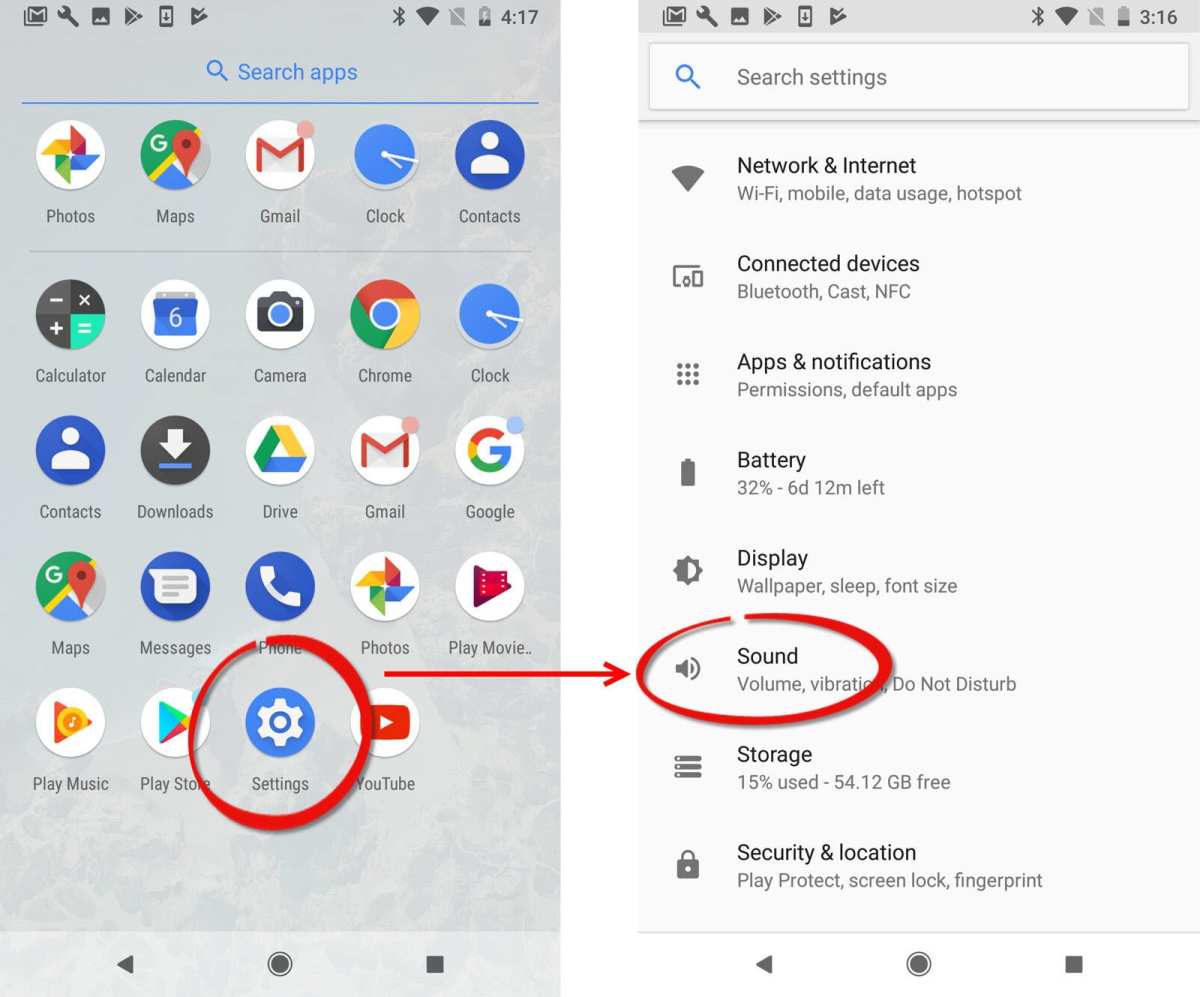
Accessing Sound Settings
- Open your device’s Settings.
- Tap on Sound & Vibration or just Sound.
- Look for options like Ringtone, Phone Ringtone, or similar.
Applying the New Ringtone
- Tap Ringtone or Phone Ringtone.
- Scroll through the list of available ringtones. If your file appears, select it. If not, choose Add ringtone or Choose local file.
- Navigate to the location where you saved the custom ringtone. Select your file.
- Tap OK or Save.
Your new custom ringtone is now active. When someone calls you, your selected sound will play.
Using Third-Party Apps for More Customization
For more advanced features, some Android users prefer third-party apps that make managing ringtones more convenient. These apps often allow you to:
- Set different ringtones for individual contacts.
- Create playlist ringtones or combine sounds.
- Preview sounds before setting them as your ringtone.
Some popular apps include:
- Zedge: Offers a large library of ringtones and wallpapers, with options to set custom sounds directly.
- Ringtone Maker: Lets you create and set multiple ringtones easily.
- Myxer: Provides access to a wide variety of free ringtones and customization options.
Using these apps can make the process more flexible and fun, especially if you like to switch sounds often.
Tips for Creating the Perfect Custom Ringtone
Here are some practical tips to help you make the best custom ringtone:
- Keep it short: A duration of about 20-30 seconds is enough not to annoy you and ensures quick recognition.
- Choose clear sounds: Avoid recordings with background noise or muffled audio.
- Match your mood: Select sounds that reflect your personality or current mood for an authentic feel.
- Use high-quality files: Better sound quality means a more pleasant listening experience.
Troubleshooting Common Issues
Sometimes, you might encounter problems when setting a custom ringtone. Here are solutions for common issues:
- The file doesn’t appear in the ringtone list: Ensure the file is in the correct folder, such as ‘Ringtones’ or ‘Notifications’.
- Sound plays but not when calling: Double-check that the default ringtone is set to your new file.
- File format issues: Make sure the audio file is in a supported format like MP3 or OGG.
If problems persist, restarting your device or re-adding the ringtone can often resolve the issue.
Keeping Your Ringtones Organized
As you create more custom sounds, organizing them becomes helpful. Here are some tips:
- Create a dedicated folder named Ringtones in your internal storage.
- Label your files clearly, such as FavoriteSong.mp3 or FunnySound.ogg.
- Back up your custom ringtones to cloud storage or your computer to avoid losing them.
By maintaining an organized collection, changing ringtones becomes quicker and easier.
The Benefits of Custom Ringtones
While it’s fun to create your own sounds, having a personalized ringtone offers other advantages too:
- Quickly identify callers: Different sounds for family, friends, or work contacts help you know who’s calling without looking at your screen.
- Express your personality: Custom sounds reflect your style and mood.
- Say goodbye to generic sounds: Stand out with unique and memorable notifications and ringtones.
Making your own ringtone is a straightforward way to personalize your Android device and make everyday interactions more enjoyable.
Just follow these steps, and you’ll have a unique sound ready for any call or notification. Remember, the key is choosing or creating high-quality audio, editing it to the right length, transferring it correctly, and setting it up in your device’s settings. With a little practice, creating custom ringtones will become a quick and satisfying part of customizing your phone experience.
Frequently Asked Questions
What are the steps to create a custom ringtone from a song on your Android device?
To create a custom ringtone, first select the audio file you want to use. Use a built-in editor or a third-party app to trim the song to the desired length, typically 30 seconds or less. Save the trimmed clip in your device’s ringtone folder or a location accessible to your phone. Then, go to your device’s sound settings, select ‘Ringtone,’ and choose your custom clip from the list of available tones.
Can I use a third-party app to make a custom ringtone on Android, and which ones are reliable?
Yes, third-party apps can simplify the process of creating custom ringtones. Popular options like Ringtone Maker, Zedge, or MP3 Cutter provide user-friendly tools to select, trim, and save audio clips directly on your device. Always download apps from trusted sources such as the Google Play Store to ensure security and reliability.
How do I set a custom ringtone for specific contacts on Android?
Open the Contacts app and select the contact you want to customize. Tap on the edit option, then look for the ‘Ringtone’ setting within the contact details. Choose your desired custom ringtone from your saved tones. Save the changes, and this contact will now have a unique ringtone assigned.
Final Thoughts
Making a custom ringtone on Android involves selecting or editing a music file and saving it as a notification tone. Use a reliable app or your device’s built-in tools to trim the audio to your preferred length. Once edited, set the file as your ringtone through your phone’s sound settings.
In summary, learning how to make custom ringtone android isn’t complex. Follow these simple steps to personalize your device easily.
