

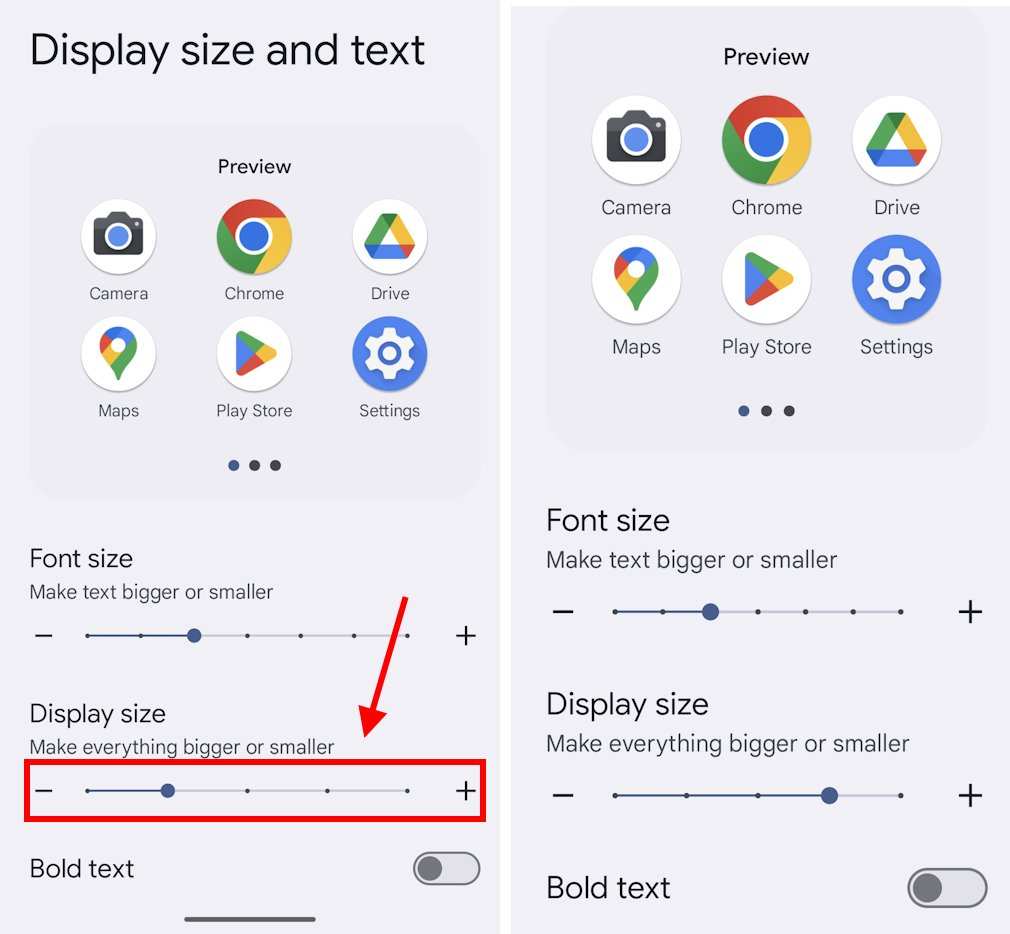
To make Android icons bigger, simply adjust the display settings or use accessibility options. **You can change icon size directly through the display or home screen settings.** This provides an easy way to customize your device for better visibility and easier navigation.
If you’re wondering how to make Android icons bigger, start by opening your device’s settings. Navigate to display or home screen options, then adjust icon size or font scaling. It’s quick and makes a noticeable difference for your user experience.

How to Make Android Icons Bigger
When your Android phone feels a little small in the icon department, it’s easy to get frustrated. Sometimes, those tiny icons can be hard to see or tap accurately, especially if you have trouble with small details. Luckily, making your Android icons bigger is a straightforward process, and it can significantly improve your user experience. This guide covers everything you need to know about how to make Android icons larger, ensuring your device looks just the way you want it to—more accessible, easier to navigate, and visually appealing.
Understanding Why Android Icons Are Small by Default
Before diving into how to enlarge your icons, it’s helpful to understand why they are often small. Android design guidelines favor sleek, minimalistic visuals, which include compact icons. This approach helps fit more apps and widgets on your home screen but can sometimes make icons harder to see, particularly on devices with large screens or older eyes.
Some common reasons why you might want larger icons include:
- Difficulty reading or tapping small icons
- Personal preference for bigger visuals
- Using a device with a high-resolution screen where icons appear smaller
- Accessibility needs to reduce strain or enhance readability
Fortunately, Android offers several solutions for increasing icon size, giving you control over your home screen’s appearance.
Adjusting Icon Size Through Display Settings
The simplest way to make icons bigger on most Android devices involves adjusting the display settings. These settings work by increasing your overall font size and display scaling, which, in turn, makes icons and other screen elements larger.
Changing Font Size and Display Scaling
Follow these steps to enlarge icons via display settings:
- Open your device’s Settings app.
- Scroll down and select Display.
- Look for options like Font Size or Display Size.
- Use the slider to increase the font size. As you do this, icons on your home screen and app drawer will also become larger.
- Some devices have a separate Display Size setting. Adjust it to make all on-screen items, including icons, size up.
- Once satisfied, exit the settings. Your icons should now appear bigger across the device.
Note: The exact menu names and options may vary depending on your device manufacturer and Android version.
Using Accessibility Features for Bigger Icons
Android’s accessibility options provide another way to enhance icon size:
- Go to Settings.
- Select Accessibility.
- Look for options like Display Size or Magnification.
- Adjust the display zoom or magnification gestures to make icons more prominent.
This approach is especially useful for users with visual impairments or those who prefer larger visuals without changing the entire display scale.
Customizing Your Home Screen with Launchers
If you want more control over icon sizes and layout, customizing your home screen with a launcher can be the best solution. Launchers are third-party apps that replace your default home screen and offer extensive customization options.
Popular Launchers with Larger Icon Support
Some popular launchers that allow you to easily increase icon size include:
- Nova Launcher
- Apex Launcher
- Action Launcher
These launchers typically offer options to change icon size through their settings menu:
- Download and install your preferred launcher from the Google Play Store.
- Set the launcher as your default home app.
- Access the launcher’s settings menu.
- Navigate to the Appearance or Home Screen section.
- Find the Icon Size option and increase it according to your preference.
- Apply the changes, and your icons will appear larger on the home screen.
Custom launchers give you the flexibility to make icons as big as you like, along with other aesthetic adjustments like icon shape and grid size.
Using Widget-Based Solutions for Larger Icons
Widgets are another approach to customizing your home screen’s appearance, including icon size. Although widgets don’t directly increase the size of app icons, they allow you to add larger, touch-friendly icons for quick access.
Creating Custom Icon Widgets
Here’s how to use widgets for bigger icons:
- Press and hold on your home screen until the options menu appears.
- Select Widgets.
- Find widgets for your preferred apps or choose a custom icon widget if your launcher supports it.
- Drag the widget to your home screen.
- Resize the widget to your desired size, making it large enough to serve as a visible, touch-friendly icon.
- Customize the widget or icon appearance if options are available, often through the widget’s settings.
This method is handy for creating oversized, easily tappable icons with a personalized look.
Modifying Icon Size via File Managers and Icon Packs
For users who want a more advanced solution, customizing icons with icon packs or editing app icons directly can help. Some icon packs come with larger icons, and you can replace default icons with these.
Installing Icon Packs
Follow these steps:
- Download a compatible icon pack from the Google Play Store that offers bigger icons.
- Open the launcher’s settings and navigate to the icon customization section.
- Select the icon pack you installed.
- Apply it to replace your default icons. The pack’s larger icons will now appear throughout your device.
Custom icon packs not only modify the size but also enhance your device’s visual theme.
Best Practices for Making Icons Bigger
To ensure that increasing icon size improves your device experience without causing clutter, consider the following tips:
- Adjust icon size gradually to find the perfect balance between visibility and screen space.
- Use larger icons only on the home screen, keeping app drawer icons proportionate for easier navigation.
- Keep your icons organized by grouping similar apps to avoid clutter.
- Test different launcher settings and icon packs to see what feels most natural for your usage.
- Remember to back up your current settings before making extensive changes, so you can revert if needed.
Making icons bigger can significantly improve your device’s usability, especially if you prefer or need larger visuals.
Summary of Key Steps
To recap, here are the main methods to make Android icons larger:
- Use display settings to increase font size and display scaling.
- Activate accessibility features like display zoom and magnification.
- Install and customize a launcher for more control over icon size.
- Utilize widgets to create large, touch-friendly icons on your home screen.
- Download icon packs that include larger icons for app replacement.
Each method serves different needs; choose the one that best suits your preferences and device capabilities.
Adjusting the size of your Android icons makes your device easier to use and more comfortable to look at. Whether you prefer tweaking display settings, using a custom launcher, or replacing icons entirely, there’s a solution suited for everyone. Take your time experimenting with different options until you find the perfect balance for your screen. Making these adjustments can make your Android experience more enjoyable and accessible, ensuring you can navigate your device comfortably and confidently.
Frequently Asked Questions
Can I change the size of app icons directly from the home screen?
Most Android devices do not allow changing individual app icon sizes directly from the home screen. However, you can adjust the overall icon size by modifying your device’s display settings or using a custom launcher that offers more flexibility with icon sizing. Check your launcher settings if available, as some support icon size customization.
What steps should I follow to increase icon size through display settings?
To increase icon size via display settings, go to your device’s Settings menu, select Display, then look for options like Font Size and Screen zoom. Adjust the slider to make icons and other UI elements bigger. Keep in mind that this may also increase text size and other visual elements, providing a larger overall interface.
Are there any third-party launchers that allow customizing icon sizes?
Yes, many third-party launchers such as Nova Launcher, Action Launcher, and Lawnchair offer options to customize icon sizes easily. Install your preferred launcher from the Google Play Store, set it as your default launcher, then access its settings to find icon size adjustment options. These launchers give you more control over how icons appear on your home screen.
How do icon size settings differ across various Android device brands?
Icon size options vary depending on the device brand and Android version. Some brands like Samsung provide built-in options within the display or home screen settings to change icon size. Others may require you to use a custom launcher or adjust display zoom for similar results. Always check your device’s user manual or support resources for specific instructions.
Can I resize icons for specific apps without affecting the entire home screen?
Most Android devices do not allow resizing icons for individual apps independently. To customize specific app icon sizes, consider using a launcher that supports individual icon customization. These launchers let you resize, replace, or organize app icons differently based on your preferences, without affecting other icons.
Final Thoughts
To make Android icons bigger, you can adjust the display size in your device settings. Navigate to Settings > Display > Font size and display size, then increase the slider for larger icons. Alternatively, some launchers allow customization of icon size directly within their settings.
Custom launchers like Nova Launcher also enable you to easily resize icons for better visibility. Simply access the launcher’s settings, select the ‘Home screen,’ and choose ‘Icon size’ to enlarge them.
In conclusion, how to make android icons bigger involves changing display settings or using a customizable launcher. These methods help improve readability and navigation, ensuring a more comfortable user experience.
