

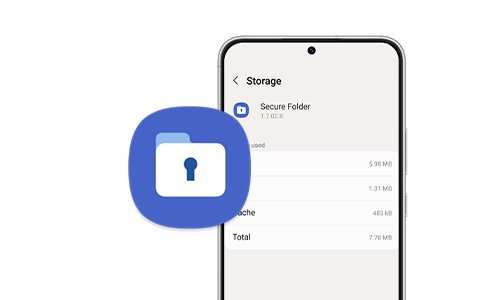
To create a secure folder on Android, you can use built-in features like Samsung Secure Folder or third-party apps such as Nova Launcher. **The process involves setting up a password or biometric lock to keep your files safe.** Knowing how to make a secure folder on Android ensures your private data remains protected from prying eyes.
Start by opening your device’s security settings or app drawer. Follow the prompts to establish a protected space, then add your sensitive files or apps. It’s a straightforward way to keep your information private and secure.

How to Make a Secure Folder on Android
Creating a secure and private space on your Android device helps protect sensitive information, photos, and apps from prying eyes. Whether you want to keep certain files hidden from others or simply want an extra layer of security, setting up a secure folder is a smart choice. In this guide, we will walk you through various methods to make a secure folder on Android, explain the features involved, and give you tips to keep your data safe.
Understanding Why a Secure Folder Is Important
Before diving into the how-to instructions, it’s helpful to understand why having a secure folder matters. With more of our lives being stored digitally, protecting personal information becomes critical. A secure folder:
- Prevents unauthorized access to private photos and messages
- Hides sensitive documents and files from others
- Provides an added layer of security for banking and payment apps
- Helps organize confidential data in one protected space
By creating a dedicated secure folder, you give yourself peace of mind that your private data stays just that—private.
Built-in Security Features on Android Devices
Many Android phones come with built-in tools to help create a secure space. Here are some options:
Samsung Secure Folder
Samsung devices include a feature called “Secure Folder” that creates a separate encryption zone. It is protected by Samsung Knox security, adding an extra layer of privacy.
Google Files App – Locked Folder
Google’s Files app offers a ‘Locked Folder’ feature to hide and lock files with fingerprint or PIN.
Third-Party Apps
If your device doesn’t have built-in options, or if you want more features, you can use third-party apps to create secure folders.
Setting Up a Secure Folder Using Samsung Secure Folder
If you own a Samsung device, setting up a Secure Folder is straightforward:
Step-by-Step Guide
- Open the Settings app on your phone.
- Scroll down and select Biometrics and Security.
- Tap on Secure Folder. If you don’t see it, look for it under the Advanced features menu.
- Follow the prompts to sign in with your Samsung account or create one if you haven’t already.
- Set up your lock method, such as PIN, password, or pattern.
- Your Secure Folder will now be created. You can add apps, files, or images to this folder by opening it and selecting Add Files or Add Apps.
Customizing the Secure Folder
– **Rename the folder** to something discreet if you prefer.
– **Add or remove apps** based on your needs.
– **Set up notifications** to manage how apps inside the secure folder alert you.
Using Google Files App for a Locked Folder
If your phone supports Google Files, you can lock specific files without creating a full folder:
Steps to Lock Files
- Open the Google Files app.
- Select the files or photos you want to hide.
- Tap on the More options (three dots) and choose Lock.
- Set a PIN, pattern, or biometric authentication when prompted.
- Now, the files are stored in a hidden, protected space accessible only via your authentication method.
Third-Party Apps for Creating Secure Folders
If you prefer more customization and control, several third-party apps can create secure folders:
Popular Options
| App Name | Features |
|---|---|
| Private App Lock | Locks individual apps, folders, and files with PIN or fingerprint. |
| Secure Folder | Creates a separate encrypted space for apps and files. |
| Vault-Hide Apps Photo | Hides photos, videos, and apps behind a PIN or fingerprint. |
Choosing the Right App
When picking an app, consider:
- Ease of use
- Level of security (encryption standards)
- Compatibility with your device
- Reviews and ratings
Best Practices for Maintaining Your Secure Folder
Creating the folder is just the start—keeping it secure requires regular maintenance:
Use Strong Authentication
Choose complex PINs, passwords, or biometric options like fingerprint or facial recognition.
Update Your Apps and System
Keeping your device and security apps updated reduces vulnerabilities.
Don’t Share Access Credentials
Avoid sharing your PIN or password with others to prevent unauthorized access.
Be Careful with Permissions
Limit app permissions within your secure folder to necessary ones only.
Backup Your Secure Data
Regularly back up important files stored inside your secure folder to a safe cloud service or external device.
Additional Tips for Enhanced Security
– **Enable Two-Factor Authentication**: For apps inside the secure folder that support it, turn on two-factor authentication for added protection.
– **Disable Notifications**: Turn off notifications for sensitive apps if that could reveal private info.
– **Lock Your Device When Not in Use**: Always lock your Android phone with a secure method when you are not actively using it.
– **Be Wary of Public Wi-Fi**: Avoid accessing sensitive information over unsecured Wi-Fi networks.
Understanding Potential Limitations
While creating a secure folder enhances privacy, it’s important to be aware of potential limitations:
- Some apps may not work properly inside a secure folder.
- Security depends heavily on the strength of your lock method.
- Third-party apps might not offer the same level of security as built-in features.
- Massive data inside a secure folder could slow down device performance.
By understanding these limitations, you can implement additional security measures or choose the best method suited for your needs.
Setting up a secure folder on Android devices provides a practical way to keep your personal data private and protected. Whether you leverage built-in features like Samsung Secure Folder or Google Files Lock, or opt for third-party apps, the key is to choose a method that fits your privacy needs and comfort level. Regularly updating your security settings, using strong authentication, and being cautious about permissions and sharing help maintain your data’s safety. Taking these steps ensures you create a secure environment on your Android device where your private files and apps stay protected from unwanted access.
Frequently Asked Questions
What steps should I follow to set up a secure folder on my Android device?
First, locate the built-in feature for secure or private folders on your device, such as Samsung’s Secure Folder or similar options. Open the feature and follow the prompts to create a new secure space. You’ll typically need to verify your identity through a password, PIN, or biometric authentication. Once set up, move sensitive files and apps into this folder to keep them protected from unauthorized access.
Are there any third-party apps that help create secure folders on Android?
Yes, several trusted third-party applications can create secure folders on Android devices. Apps like AppLock, Folder Lock, or Norton Mobile Security offer options to lock specific files, folders, or app access with PINs, passwords, or biometric verification. Always choose apps from reputable developers, read reviews, and ensure they maintain high privacy and security standards before installing.
Can I protect specific files within my regular folders without using a dedicated secure folder?
Absolutely. Many Android apps allow you to set password protection or encryption for individual files or folders. For instance, file manager apps often include a feature to lock or encrypt files. Using such tools, you can keep certain documents or media private without creating a separate secure environment, providing an additional layer of security within your existing storage.
What should I consider when choosing a method to secure my files on Android?
Consider the level of security offered, user-friendliness, and compatibility with your device. Opt for methods that use strong encryption and require multi-factor authentication. Ensure the solution you pick is regularly updated to address security vulnerabilities. Also, choose a method that allows easy access for you but remains difficult for others to bypass.
Is it possible to hide the secure folder from appearing in app lists or file managers?
Many secure folder features and third-party apps provide options to hide the folder or app from main screens, app drawers, or file managers. This extra step helps prevent casual users from discovering protected content. Check the app settings or device options to enable hiding features, making your secure storage less visible to prying eyes.
Final Thoughts
Creating a secure folder on Android protects your private data and keeps your information safe. Use built-in features like Samsung Knox or secure storage options in your device settings. Alternatively, install trusted third-party apps for added security.
Remember to use strong passwords and enable two-factor authentication where available to enhance protection.
In summary, knowing how to make a secure folder on Android helps safeguard your files effortlessly. This simple step provides peace of mind and ensures your sensitive data remains private.
