

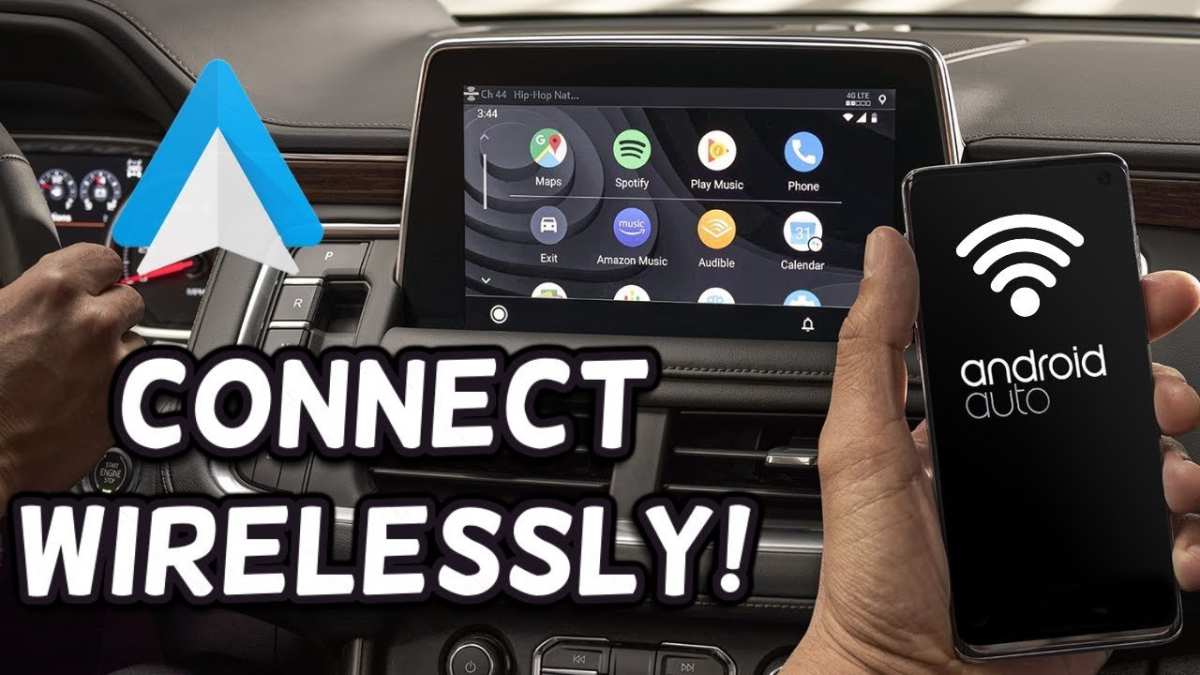
To make Android Auto wireless, you just need compatible devices and a few simple setup steps. **Connecting your phone to your car’s system without cables is straightforward once you ensure both support wireless Android Auto.** First, verify your phone and vehicle support wireless connections. Then, enable Bluetooth and Wi-Fi on your phone and pair them with your car. Follow the prompts on your vehicle’s screen, and you’ll be ready to go without tangled cords. Learning how to make Android Auto wireless saves time and makes every drive more convenient.

How to Make Android Auto Wireless: A Complete Guide
If you own an Android phone and a compatible car, you might have heard about Android Auto. It helps you connect your phone to your car’s dashboard, so you can get directions, listen to music, and send messages safely while driving. But did you know you can use Android Auto without plugging in a cable? That’s called Android Auto Wireless, and it makes your driving experience much easier. In this guide, we will walk through how to make Android Auto wireless work smoothly. We’ll cover everything from checking your car’s compatibility to setting up your phone and troubleshooting common problems.
Understanding What Android Auto Wireless Is
Before diving into the setup, let’s understand what Android Auto Wireless means. Normally, you connect your phone to your car with a USB cable. This wired connection allows your car’s screen to mirror your phone’s interface, so you can use apps like navigation, music, and messaging hands-free.
However, with Android Auto Wireless, you don’t need a cable. Instead, your phone connects to the car via Wi-Fi, giving you the same functionalities without fumbling with cords. This setup provides a cleaner look, reduces cable clutter, and lets you focus more on the road.
Is Your Car Compatible with Android Auto Wireless?
Not every car supports Android Auto Wireless. Compatibility depends on your vehicle’s hardware and software. Here are some factors to check:
- Built-in Android Auto Wireless Support: Your car must have the latest version of Android Auto built-in or support wireless connections. Many newer cars, especially from 2018 onward, include this feature.
- Wi-Fi Capabilities: The car’s infotainment system needs to support 5 GHz Wi-Fi connections for stable performance.
- Bluetooth Support: Bluetooth is usually required for initial setup and authentication.
Check your car’s manual or contact the manufacturer’s customer service to confirm if your vehicle supports Android Auto Wireless.
Ensure Your Smartphone Meets the Requirements
Your Android phone also needs to meet certain criteria:
- Android Version: The phone should run Android 11 or higher. Many newer phones are compatible, but double-check your device’s software version.
- Supporting Hardware: The phone must support Wi-Fi tethering and be able to connect to 5 GHz Wi-Fi networks.
- Apps and Settings: Make sure Android Auto app is installed and up to date. Also, ensure Bluetooth and Location services are enabled.
To verify your Android version, go to Settings > About Phone > Software Information.
Preparing Your Car for Wireless Connection
Before setting up, you should prepare your vehicle:
- Update Your Infotainment System: Make sure it runs the latest firmware to support Android Auto Wireless. Check for updates via your car’s settings or manufacturer’s app.
- Enable Wi-Fi and Bluetooth: Turn on Wi-Fi and Bluetooth in your car’s system settings.
- Park in a Safe Location: For initial setup, park the vehicle where you have a stable Wi-Fi (if using a hotspot) or good Bluetooth connection.
Having a stable Wi-Fi connection, either from your phone or an external hotspot, is essential for a seamless experience.
How to Set Up Android Auto Wireless
Now, let’s go step-by-step through the setup process:
Step 1: Connect Your Phone to Your Car with a Cable First
– Start by plugging your Android phone into your car with a USB cable.
– Open the Android Auto app on your phone.
– Follow the prompts to allow permissions and pair the device with your vehicle.
– This initial wired connection helps your car remember your device and establish trust.
Step 2: Enable Wireless Android Auto
– Disconnect the USB cable.
– On your car’s infotainment screen, navigate to the Android Auto settings menu.
– Look for the “Wireless Android Auto” option and enable it.
– Your phone should now attempt to connect automatically via Wi-Fi.
Step 3: Pair Your Phone with Your Car’s Wi-Fi
– Ensure Bluetooth is enabled on both your phone and your car.
– Your car will prompt you to select your device from Bluetooth pairing options.
– Confirm the pairing code if it appears on both screens.
– After pairing, your phone should connect via Wi-Fi automatically.
Step 4: Confirm the Connection
– Once connected, the Android Auto interface appears on your car’s dashboard.
– Test by opening navigation or music apps.
– If everything works, you’re all set for wireless Android Auto.
Troubleshooting Common Setup Issues
Sometimes, things don’t go smoothly. Here are common issues and how to fix them:
- Connection Drops or Doesn’t Connect: Ensure your phone supports 5 GHz Wi-Fi, and both devices are close to each other. Restart both your car and phone, then try again.
- Android Auto Not Showing Wireless Option: Update your car’s firmware and the Android Auto app. Also, verify that your phone’s Android version and hardware support wireless mode.
- Can’t Pair via Bluetooth: Clear previous Bluetooth pairings and try again. Sometimes, removing old devices helps establish a fresh connection.
Enhancing Your Wireless Android Auto Experience
Once set up, you can improve your experience:
- Use a Car Mount or Holder: Keep your phone in a safe spot to prevent distractions.
- Secure a Strong Wi-Fi Connection: Use your phone’s hotspot feature if your car lacks a stable Wi-Fi network. Ensure your data plan can support streaming and navigation tasks.
- Optimize Settings: Adjust navigation and media preferences for quick access. Disable unnecessary notifications to prevent interruptions.
Maintaining Your Android Auto Wireless Setup
To keep everything running smoothly:
- Regularly update your Android Auto app and your car’s firmware.
- Ensure your phone’s software stays current.
- Check your Wi-Fi connection periodically to avoid disconnects during drives.
- Re-pair devices if new issues emerge or after software updates.
Final Tips for a Seamless Wireless Connection
– Keep your phone charged. Wireless connections can drain battery faster.
– Use high-quality cables for initial wired setup.
– Always verify that both your car and phone meet software and hardware requirements.
– Be patient during setup. Sometimes, it takes a few tries to establish a stable connection.
By following these steps and tips, you can enjoy the convenience of Android Auto without the mess of cables. Wireless Android Auto makes your daily drives safer and more enjoyable, letting you focus on the road ahead.
Frequently Asked Questions
What steps should I follow to enable wireless Android Auto on my car?
To set up wireless Android Auto, ensure your vehicle supports wireless connections. Turn on Bluetooth and Wi-Fi on your phone, then connect your phone to your car’s Wi-Fi network if prompted. Open the Android Auto app and follow the on-screen instructions to complete the setup. Make sure your phone has the latest version of Android Auto installed for a smooth connection.
How can I troubleshoot connection issues with wireless Android Auto?
If you experience connectivity problems, restart both your phone and vehicle’s infotainment system. Confirm that your phone remains connected to your car’s Wi-Fi and Bluetooth during use. Update the Android Auto app and your vehicle’s firmware if necessary. Clearing cache or reinstalling the app can also resolve persistent issues.
Are there specific phone or car model requirements for wireless Android Auto?
Yes, you need a phone running Android 11 or higher with at least 3GB of RAM, and your vehicle must support wireless Android Auto, which is typically available in newer models or via software updates. Check your car manufacturer’s specifications to confirm compatibility, and verify that your phone’s software is up to date.
Can I use wireless Android Auto when my phone’s data connection is limited?
Wireless Android Auto requires a stable internet connection for features like navigation and streaming. If your data plan has limitations, consider connecting to Wi-Fi networks whenever possible or download offline maps and media beforehand. This approach ensures continuous access without exceeding your data limits.
Is it possible to switch between wireless and wired Android Auto modes easily?
Yes, you can switch manually between wireless and wired modes. Disconnect your phone from the car’s Wi-Fi and connect it via a USB cable for wired connectivity. Conversely, enable Wi-Fi and disable USB debugging to switch back to wireless mode. Adjust settings within the Android Auto app or vehicle interface as needed to facilitate the change.
Final Thoughts
To make android auto wireless, ensure your car supports wireless Android Auto and your phone runs Android 11 or higher. Enable Bluetooth and Wi-Fi on your device, then connect your phone to your car’s infotainment system. Follow the prompts on both devices to establish a seamless connection.
Remember to keep your phone updated and ensure your car firmware is current. This setup allows you to use Android Auto without cables, providing convenience during your drives.
In conclusion, learning how to make android auto wireless simplifies your in-car experience and enhances connectivity. Just follow these steps, and you’ll enjoy wireless Android Auto effortlessly.
