

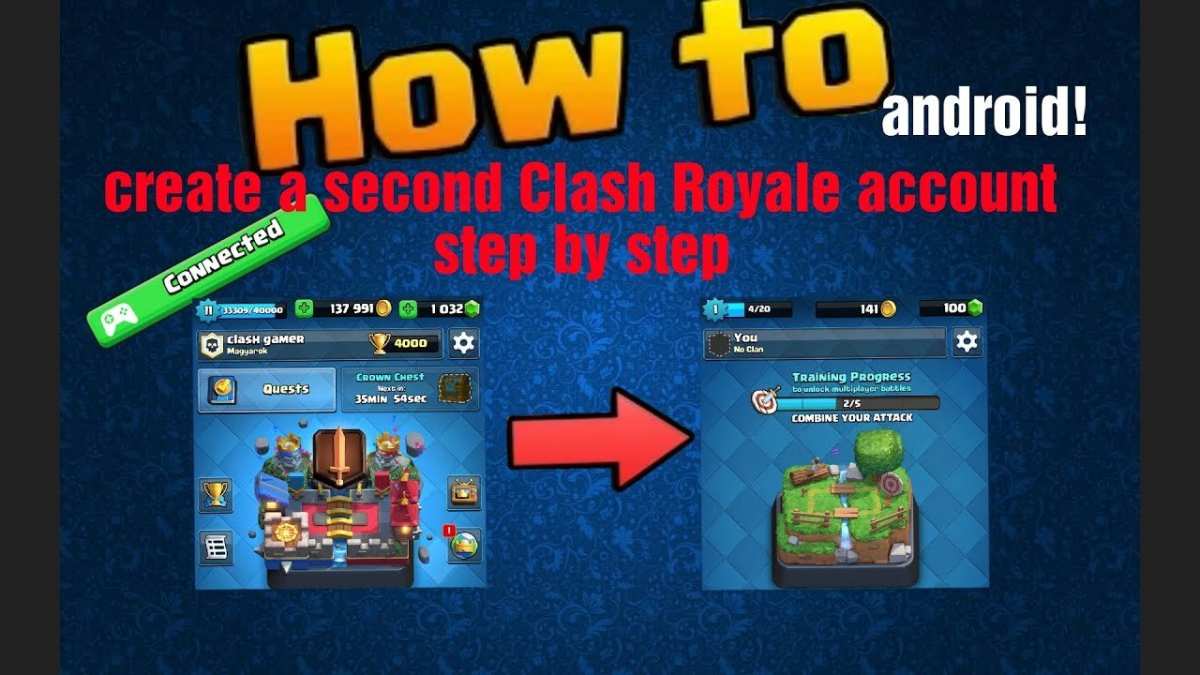
To make a second Clash Royale account on Android, you simply need to create a new Google account or use guest mode. **This is the quickest way to set up a second account.** If you want to know how to make a second Clash Royale account Android, start by opening the game and signing out. Then, either add a new Google account in your device settings or select guest mode when launching the game. This process keeps your accounts separate and easy to manage.

How to Make a Second Clash Royale Account on Android
Creating a second Clash Royale account on your Android device can seem complicated at first, but it’s actually quite straightforward once you understand the steps involved. Whether you want to have a separate account for practice, different game strategies, or to share with friends, having multiple accounts offers great flexibility. In this guide, we will walk you through everything you need to know to set up a new Clash Royale account on your Android device effectively.
Understanding Why You Might Want a Second Clash Royale Account
Before diving into the process, it’s useful to clarify why you might want to create a second account. Here are a few common reasons:
- Practicing new strategies without risking your main account
- Sharing with friends or family to compare progress
- Trying out different deck configurations
- Starting fresh if you’re unhappy with your current progress
- Participating in different clans or tournaments simultaneously
Knowing your goals helps determine the best method to set up your second account and ensures you get the most out of it.
Methods to Create a Second Clash Royale Account on Android
There are multiple strategies to set up a second Clash Royale account on your Android device. Each method has its advantages, and selecting the right one depends on your needs.
Using Multiple Google Accounts
One of the simplest ways is to create a new Google account and link it to your second server account. Here’s how:
- Create a new Google account
Go to your device Settings > Accounts > Add account > Google. Follow the prompts to set up a new account. - Download Clash Royale with the new Google account
Log out of your current Google account, then log in with the new Google account in your device settings. - Install or open Clash Royale
If you already have Clash Royale installed, clear the app data through Settings > Apps > Clash Royale > Storage > Clear data. Then open the app, ensuring it is linked to the new Google account. - Link the new account within the game
When you launch Clash Royale after clearing data, you will be prompted to connect to a Google account. Choose the new account to start a fresh game profile.
> **Note:** Each Google account maintains its own game data. This method is convenient but requires switching accounts within your device settings if you want to switch between profiles.
Using Clash Royale’s Guest Mode
Another effective way to create a second account is through the game’s Guest Mode:
- Open Clash Royale on your Android device.
- Tap the settings icon in the game (usually a gear icon).
- Find the Guest option and select it to start playing without linking to any Google account.
- Create your new game profile by playing as a guest.
- Save your progress by linking your new account to a Google account later, or keep playing as a guest if preferred.
> **Important:** Guests are not linked to any account, so if you uninstall the game or clear data, your progress may be lost unless you link a Google account later.
Using Multiple Devices or Dual App Features
Many Android phones support dual app features or app cloning, which allows running two instances of Clash Royale on the same device:
- Check if your device supports dual apps or app cloning. This feature is often found in Settings > Apps > Dual Apps or Clone Apps.
- Create a clone of Clash Royale using this feature.
- Open the cloned app and set up a new account as a guest or through a new Google account.
- Switch between the original and second app to manage multiple accounts seamlessly.
> **Note:** This method is highly effective for phones with built-in dual app features or third-party clone apps.
Linking Multiple Accounts for Easy Switching
Managing multiple accounts can be complicated if you don’t set up easy switching options. Here are some tips:
- Create separate Google accounts for each account you want to manage.
- Link each account within Clash Royale by opening the game, navigating to Settings, and selecting the Google account option.
- Use different device profiles or user accounts on your Android device to keep accounts separate.
- Use third-party apps like Parallel Space or Dual Apps to run multiple instances of Clash Royale, making it easier to switch between accounts without logging out.
Managing Multiple Clash Royale Accounts Safely
While creating multiple accounts is straightforward, you should keep some best practices in mind to avoid issues:
- Never share your login credentials with anyone to protect your accounts.
- Regularly back up your game data if possible, especially if linked to Google Play Games or Supercell ID.
- Use different Google accounts or device profiles for distinct accounts to prevent accidental logins or data loss.
- Be cautious when using third-party apps or cloning features, as some may violate Supercell’s terms of service.
Advantages of Using Supercell ID for Multiple Accounts
Supercell ID is a handy feature to manage multiple Clash Royale accounts securely:
- Allows you to log in and switch between different accounts easily within the game.
- Prevents data loss if you switch or reinstall the game.
- Provides a safe way to manage multiple accounts without relying solely on Google accounts or device features.
To set up Supercell ID:
- Open Clash Royale and go to Settings.
- Tap on Supercell ID and create an account with your email address.
- Link your existing accounts or create new ones under different email addresses.
- When you want to switch between accounts, simply log out and log back in with the desired Supercell ID.
Summary of Steps to Make a Second Clash Royale Account on Android
Creating a second account involves choosing the right method:
- Set up a new Google account and link it in Clash Royale.
- Use Guest Mode for temporary or test accounts.
- Utilize device features like dual app or app cloning for seamless management.
- Leverage Supercell ID for safe, easy switching between multiple accounts.
Remember, each method has its pros and cons, so determine which suits your needs best.
Final Tips for a Better Multi-Account Experience
To make managing multiple Clash Royale accounts a smooth experience:
- Keep track of your login credentials for each account.
- Use consistent naming conventions to identify accounts easily.
- Regularly update the game to avoid bugs and ensure compatibility with account management features.
- Stay within the terms of service to prevent your accounts from being banned or disabled.
Creating a second Clash Royale account on Android is fairly simple once you understand the available options. Whether you prefer using multiple Google accounts, app cloning, or Supercell ID, each method offers flexibility. Just be sure to manage your accounts responsibly and securely for an enjoyable gaming experience.
Frequently Asked Questions
How can I create a new Clash Royale account on my Android device without affecting my current account?
You can set up a second Clash Royale account by installing the game on a different user profile or using a guest mode if available. Alternatively, use app cloning features offered by some Android devices or third-party apps to run multiple instances of Clash Royale. This allows you to switch between accounts without deleting or reinstalling the game.
What steps should I follow to switch between two Clash Royale accounts on Android?
Start by logging out of your current account within the game settings. Then, open the app clone or multi-user feature on your device to launch a separate instance. Log into your second account in that instance. To switch back, simply close the secondary app or switch user profiles and log into your primary account. Regularly backing up your account data through Google Play Games helps prevent data loss.
Is it possible to link multiple Clash Royale accounts to a single Google account on Android?
Clash Royale allows you to link your game progress to a Google account, but only one account can be linked at a time. To manage multiple accounts, you need to log out and log in with different Google accounts where each account’s progress is saved separately. Alternatively, use device profiles or third-party app cloners to run multiple game instances linked to different accounts simultaneously.
Are there any risks involved in creating a second Clash Royale account on Android?
Creating multiple accounts generally does not violate the game’s terms if you manage them responsibly. However, if you use third-party apps or tools improperly, you risk violating the game’s policies, which could lead to account suspension. Always ensure you follow official guidelines and back up your accounts regularly to prevent data loss.
Can I use the same email or Google account for multiple Clash Royale accounts?
No, Clash Royale requires a unique Google Play Games account or email for each game progress profile. Using the same account for multiple game instances can cause data overlap or overwrite issues. To have separate accounts, you should create or use different Google accounts for each Clash Royale profile.
Final Thoughts
To make a second Clash Royale account on Android, start by creating a new Google account or using an existing one. Install Clash Royale on your device and tap “Play Without an Account” to set up a fresh profile. This process allows you to enjoy multiple accounts without any hassle. Remember, how to make a second Clash Royale account android is straightforward when following these steps, providing you with more flexibility and fun in the game.
