

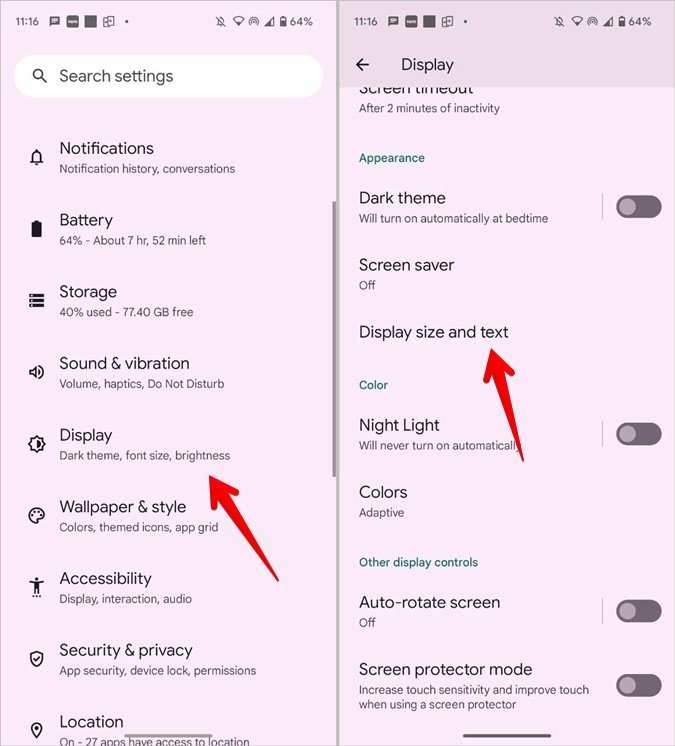
To make font larger on Android, simply go to Settings, select Display, then Font Size, and adjust the slider to your preferred size. If you’re wondering how to make font larger on Android, this quick change can make reading easier instantly.
Adjusting font size helps reduce eye strain and improves readability. You don’t need to navigate complex menus — a few taps make a significant difference. This simple step ensures your Android device feels more comfortable for everyday use.

Contents
How to Make Font Larger on Android
If you’ve ever had trouble reading text on your Android device because the font is too small, you’re not alone. Many users want an easier way to see their content comfortably without straining their eyes or squinting at the screen. Luckily, Android offers multiple options for increasing font size, helping you customize your device to fit your visual preferences. In this guide, we’ll walk through everything you need to know about how to make font larger on Android, including step-by-step instructions, tips, and troubleshooting advice. Whether you’re using an older model or a newer device, you’ll find simple solutions to improve your readability.
Understanding Why Font Size Matters
Before diving into the how-to steps, let’s talk about why changing font size is important. When text is too small, it can cause eye strain, especially during extended use. For older users or those with visual impairments, larger fonts make a significant difference. Adjusting font size enhances overall readability, making your device more user-friendly. Besides, customizable font options can help you reduce squinting and improve comfort, whether you’re reading articles, texting friends, or browsing social media.
Adjusting Font Size Using Device Settings
One of the easiest ways to enlarge fonts on Android involves using the built-in display settings. Every Android device, regardless of brand, provides options for font customization. Here’s how to do it:
Step-by-Step Guide to Change Font Size
- Open the “Settings” app on your Android device. You can usually find it on your home screen or in the app drawer.
- Scroll down and tap on “Display.” This section contains options related to your screen, brightness, and font size.
- Locate and tap on “Font size” or “Font size and style,” depending on your device.
- You will see a slider that allows you to adjust the font size. Drag the slider to the right to make the text larger or to the left to make it smaller.
- Preview the changes by looking at the sample text displayed above the slider. When satisfied, tap “Apply” or simply exit the settings; changes are usually saved automatically.
Additional Tips for Adjusting Font Size
- Some devices offer a “Preview” feature which lets you see how the font looks before confirming your choice.
- If you want a larger font without affecting system-wide text, check if your device offers separate options for “Display size” or “Screen zoom” in the same menu.
- Remember, increasing font size might alter the layout of your home screens and apps, so you might need to adjust your app icons or layout to fit the larger text.
Using Accessibility Features to Make Font Larger
Android includes powerful accessibility tools designed for users with visual difficulties. These features can make fonts substantially larger and text easier to read.
Enabling Font Size and Display Size in Accessibility Settings
- Open the “Settings” app and select “Accessibility.” If you don’t see it directly, look for it under “Additional Settings” or “Advanced Settings,” depending on your device.
- Tap on “Font size” or “Display size” options. Many Android versions provide sliders similar to the general display settings, allowing you to increase text size significantly.
- Move the slider to the right to enlarge fonts and display elements. Some devices also have an option called “Magnification” or “Magnification gestures,” which allows temporarily enlarging parts of the screen with gestures.
- Test the changes by viewing different screens, such as messaging apps or web pages, and adjust as needed.
Using Magnification Gestures
Magnification gestures are useful for temporarily enlarging sections of the screen:
- Enable magnification gestures in the Accessibility menu.
- To zoom in, triple-tap the screen with two fingers. To zoom out, triple-tap again.
- This feature is handy when you want to read small text without changing overall font settings for the entire device.
Installing Third-Party Apps for Enhanced Text Customization
If you’re seeking more advanced font customization options, several third-party apps can offer a broader range of fonts and size controls.
Popular Apps to Make Fonts Larger on Android
- Big Font: Specifically designed to increase font size system-wide easily. It offers options to enlarge text for notifications, settings, and other areas.
- iFont: Allows you to change system fonts, including font size adjustments, with a variety of free and paid font styles.
- FontFix: Provides custom fonts and the ability to tweak font size for different apps and system text.
How to Use These Apps Effectively
- Download and install the app from the Google Play Store.
- Open the app and grant the necessary permissions.
- Follow in-app instructions to select or customize your preferred font size.
- Apply changes, which may require a device restart or system restart in some cases.
- Test different apps to ensure the font size increases uniformly across your device.
Adjusting Font Size for Specific Apps
Sometimes, you might want larger fonts only for certain applications like your messaging app or social media. Here’s how to do that:
Using App Settings or Accessibility Features
- Many apps have built-in font size options. Explore each app’s settings menu for font or text size adjustments.
- For apps without built-in options, Android’s accessibility settings may affect the entire system. For individual control, consider third-party apps that customize app appearances.
Customizing via Developer Options
While not recommended for beginners, enabling developer options can give you extra control:
- Go to “Settings” > “About phone.”
- Tap on “Build number” seven times to activate developer options.
- Open “Developer options” and look for options related to font scaling or display metrics.
- Adjust the relevant settings to suit your needs, then restart your device.
Tips for Maintaining Readability After Making Fonts Larger
Once you’ve increased your font size, some adjustments can help ensure a seamless experience:
- Check app layouts; larger fonts can sometimes cause overlapping or text truncation.
- Adjust icon sizes or screen zoom if available, to prevent cluttering the screen.
- Clear cache from apps if they don’t display text correctly after changes.
- Update your device’s software regularly, as updates often include improved accessibility features.
Potential Challenges and Troubleshooting
While enlarging fonts is straightforward, users occasionally encounter issues. Here are some common problems and how to fix them:
Fonts Not Changing as Expected
- Ensure that you’ve saved your settings after making adjustments.
- Restart your device to apply changes fully.
- Update your device to the latest software version for better compatibility.
Text Overlapping or Clipping
- Try reducing other display size settings to balance the layout.
- If specific apps don’t support larger fonts, check if they have their own font size settings.
Performance Issues After Changing Font Size
- Revert to default settings if you notice lag or crashes.
- Clear cache and data for affected apps.
- Consider resetting your device to factory settings as a last resort.
Summary of Methods to Make Font Larger on Android
To sum up, here are the main options:
- Adjusting font size directly in device settings.
- Using accessibility features like display size, font size, and magnification gestures.
- Installing third-party apps for customized font styles and sizing.
- Modifying app-specific font settings where available.
By exploring these options, you can tailor your Android device to make reading easier and more comfortable. Remember, the best approach depends on your device model, Android version, and personal preferences. Don’t hesitate to experiment with settings to find the perfect balance for your eyes and usage habits.
Frequently Asked Questions
How can I increase the font size for apps on my Android device?
Go to your device’s Settings, then tap on Display. Select Font size or Font size and style. Use the slider to adjust the font size to your preferred level. Some devices also offer a preview to see how the text looks before finalizing the change.
What steps should I follow to enlarge text for better readability in menus and system UI?
Open Settings and navigate to Accessibility. Tap on Text and Display, then select Font size or Display size. Adjust the sliders to increase the size of text and UI elements. These changes help improve visibility across menus and system screens.
Is it possible to make text larger specifically within certain apps like messages or browsers?
Yes, many apps have their own font size settings. For example, in messaging apps, go to Settings and look for Display or Font options to change text size. In browsers, you can usually find zoom controls or font size options in the menu to increase readability within web pages.
How do I enable larger font options if my device’s default settings aren’t sufficient?
If default settings don’t meet your needs, you can enable magnification gestures or use accessibility features like Large Text or High Contrast Text. These options are available in the Accessibility section of Settings, allowing you to customize the text size beyond the default limits.
Can I change the font style along with size to enhance readability?
Yes, some Android devices allow you to select different font styles in the Display settings. Changing to a more legible font style can improve reading comfort. To do this, go to Settings > Display > Font style, and choose a font that suits your preferences.
Final Thoughts
To make font larger on Android, start by opening the Settings app. Navigate to Accessibility or Display options depending on your device. Adjust the font size slider until you reach your preferred size for comfortable reading.
You can also enable the Font Size or Display Size feature for more extensive changes. Some apps might have their own text size settings for better customization.
In conclusion, knowing how to make font larger on Android helps improve readability and user experience. Simple adjustments in settings make text easier to see, ensuring a more comfortable device use.
