

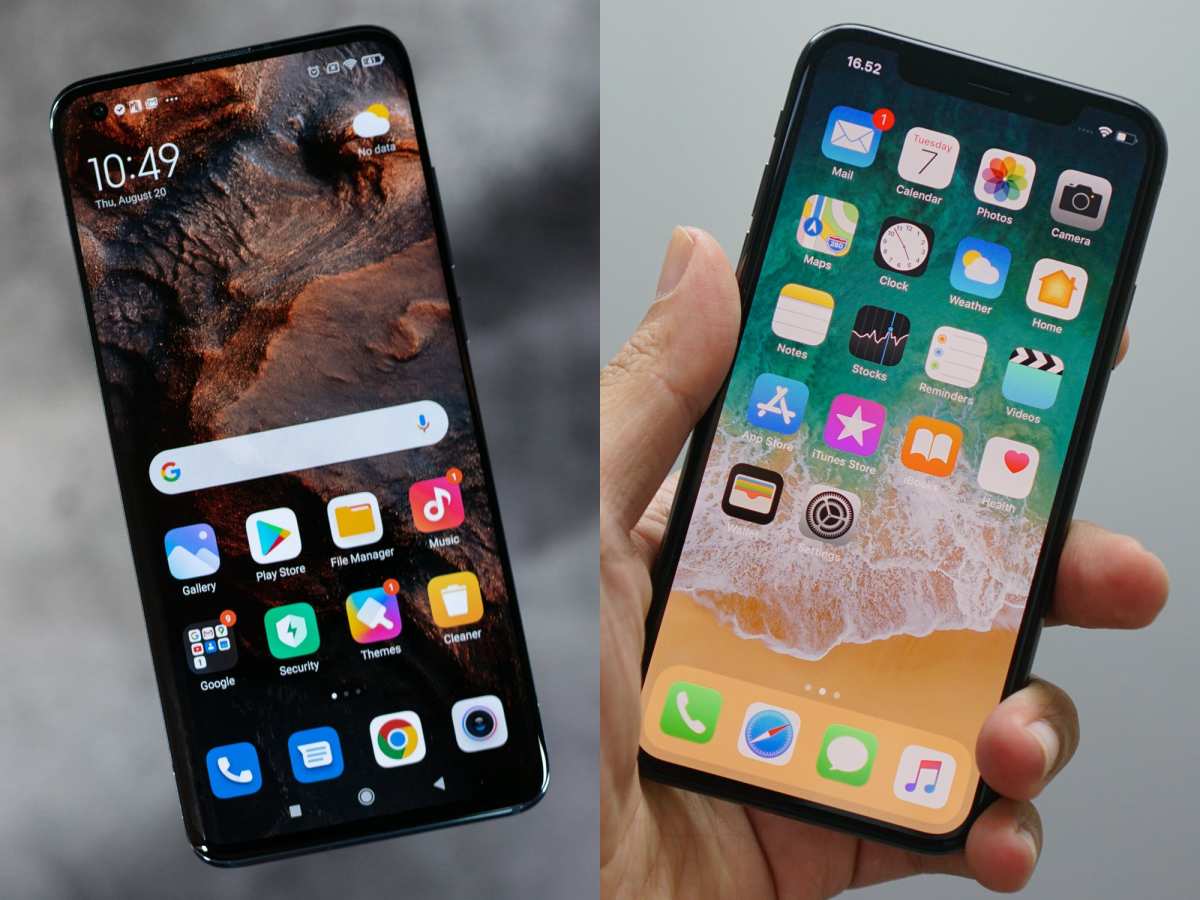
To make Android resemble an iPhone, you can easily customize your device with specific launchers, icons, and widgets. **Installing a launcher like Nova or Apex and applying iPhone-style icon packs instantly gives your Android a sleek, clean look.** Changing the wallpaper to high-quality images adds to the aesthetic. Adjusting app icons and layout completes the transformation, making your Android feel more like an iPhone. With simple steps, you can enjoy a fresh, Apple-inspired interface without switching devices.

How to Make Android Look Like iPhone
Transforming your Android device to resemble an iPhone might seem like a complex task, but with the right tools and steps, it’s entirely achievable. Many Android users admire the sleek, minimalistic design of iPhones and wish to replicate that experience on their phones. Whether you’re aiming to get the iconic iOS icons, the clean wallpaper, or the smooth animations, this guide will walk you through detailed steps to make your Android look just like an iPhone.
Choosing the Right Launcher for a Pure iPhone Feel
The most noticeable feature that makes an Android device look like an iPhone is the home screen layout and icon style. To emulate this, selecting a proper launcher is essential.
What is a launcher?
A launcher is an app that controls the home screen, app drawer, and overall look of your device. By installing a custom launcher, you can change how everything appears without affecting your phone’s core functions.
Best launchers to mimic iPhone interface
- iOS Launcher: Designed specifically to imitate iPhone OS, this launcher offers iOS-like home screens, icons, and even the swipe gestures.
- Phone X Launcher: Provides a sleek iPhone X style interface with smooth animations, transparent widgets, and iOS-like icons.
- X Launcher: Known for its close resemblance to iOS, it mimics app icons, control center, and more.
How to install a launcher
- Open the Google Play Store on your Android device.
- Search for the desired iPhone-like launcher, such as “iOS Launcher.”
- Download and install the app.
- Follow the setup instructions inside the launcher app, and set it as your default home app.
Customizing Icons and App Drawer
Icons play a significant role in creating an iPhone-like appearance. You can replace your default app icons with iOS-specific icons.
Using icon packs for iOS-style icons
Download icon packs that mimic iOS icons from the Play Store:
- Search for “iOS Icon Pack” in the Play Store.
- Choose a high-rated pack compatible with your launcher.
- Apply the icon pack through your launcher settings.
Organizing your app drawer
iPhones display apps in a neat grid without clutter. To replicate this:
- Arrange your apps in a grid layout within your launcher options.
- Remove or hide unnecessary apps from your home screen to keep it minimal.
- Use folders to organize apps neatly, similar to iOS folders.
Setting Up iOS-Like Wallpapers
Wallpaper is a simple way to give your device an iPhone feel instantly.
Choosing the perfect wallpaper
– Search online for “iPhone wallpapers” or visit wallpaper apps that offer high-quality iOS wallpapers.
– Download wallpapers that are minimalistic, bright, and characteristic of iPhone backgrounds.
– Set the wallpaper through your device’s display settings.
Adding dynamic wallpapers for a more lively look
Some apps offer dynamic or live wallpapers resembling those on iPhones, which can add a touch of realism to your transformation.
Implementing iOS Notifications and Control Center
Getting similar notifications and control center features enhances the iPhone look.
Adding a Control Center
– Download apps like “Control Center iOS 14” or “iOS 14 Control Center” from Play Store.
– Configure the control panel to match iOS style.
– Use gestures or shortcuts to access this control center quickly.
Customizing notification style
– Adjust notification settings within your launcher or notification management apps.
– Use themes to make notification pop-ups resemble iPhone alerts.
Enabling iOS-Style Animations and Gestures
Smooth animations are a hallmark of iOS devices, and replicating that smoothness improves the overall feel.
Using animation apps and settings
– Use launchers that support animation settings, such as “Nova Launcher” or “Microsoft Launcher.”
– Adjust transition effects to mimic iOS animations.
– Enable gestures for quick app switching and multitasking, similar to iPhone.
Custom gestures for effortless navigation
– Set up swipe gestures for returning home, opening the app drawer, or multitasking.
– Many launchers allow gesture customization, making the experience feel more like an iPhone.
Adding iOS-Like Features and Functionalities
Mirror other iPhone features, such as the camera interface, Siri, or the App Store.
Installing a Siri-like assistant
– Download “Google Assistant” and customize its voice or appearance to resemble Siri.
– Some apps emulate Siri’s visual style and responses.
Using App Store design themes
– While you can’t replace the Google Play Store, you can use third-party app stores (like Aurora Store) that display a cleaner, simpler interface akin to iOS.
Creating a messaging experience similar to iMessage
– Use messaging apps that support iMessage-like features, such as SMS, RCS, or third-party chat apps with minimalistic UI design.
Additional Tips for a Complete iPhone Look
– Keep your home screen clean and organized.
– Disable or minimize app badges that look different from iOS.
– Set up privacy and security features similar to iPhone settings.
– Regularly update your theming and apps to keep the look fresh.
Changing your Android device to look like an iPhone involves a combination of selecting the right launcher, customizing icons, wallpapers, and functional features. It’s a fun process that lets you enjoy the sleek style of iOS while still using the flexibility and customization options that Android provides. With patience and a few apps, your Android phone can mimic the iconic iPhone look in a way that feels natural and visually appealing. Remember, the key is in the details—small adjustments in icons, wallpapers, and animations create the overall illusion of an iPhone, giving you a fresh new look every time you pick up your device.
Frequently Asked Questions
How can I make my Android device’s home screen resemble an iPhone?
To make your Android home screen look like an iPhone, install a launcher app that offers an iPhone-style interface, such as the “iLauncher” or “X Launcher.” Customize your app icons, layout, and widgets to match the iPhone aesthetic. You can also use themes and icon packs from the app store to enhance the similarity. Rearrange your apps to follow the iPhone style and set the default icons to complete the look.
What steps should I take to change Android icons to iPhone-style icons?
Download icon packs designed specifically to mimic iPhone icons from your app store. Then, select a launcher that allows icon customization, such as Nova Launcher or Apex Launcher. Long-press on your app icon, choose the edit option, and replace the icon with the one from your downloaded pack. Repeat this process for all apps to achieve a consistent iPhone-like appearance.
How do I enable iPhone-like gestures and features on my Android phone?
Install apps such as “Gesture Control” or “All in One Gestures” to add iPhone-style gestures. Configure these apps to trigger actions like opening the notification center, switching between apps, or returning to the home screen with gestures similar to those on an iPhone. Some launchers also come with built-in gesture options that you can customize for a smoother experience.
Can I replicate the iPhone’s notification style on Android?
Yes, you can simulate the iPhone notification style by using a notification bar or alert style app that mimics iOS. Apps like “iOS Notification Style” allow you to customize the appearance of notifications, including their layout, icons, and behavior. Additionally, adjusting your system settings and using notification themes can help create a consistent iOS-like notification experience.
How do I make my Android device’s lock screen look like an iPhone?
Download a lock screen app that offers iPhone-style lock screens, such as “iOS Lock Screen.” These apps replace your default lock screen with one that resembles iOS, complete with familiar slide-to-unlock features and similar visuals. You can further customize the wallpapers, shortcuts, and font styles to match the iPhone lock screen appearance.
Final Thoughts
To make android like iphone, start by customizing your home screen with a clean, minimalistic launcher. Use icon packs and widgets that mimic iOS design for a seamless look. Adjust settings to replicate the iPhone user experience, like gesture controls and app arrangements. By applying these simple steps, you create an android environment that closely resembles an iPhone, making the transition smooth and enjoyable.
