

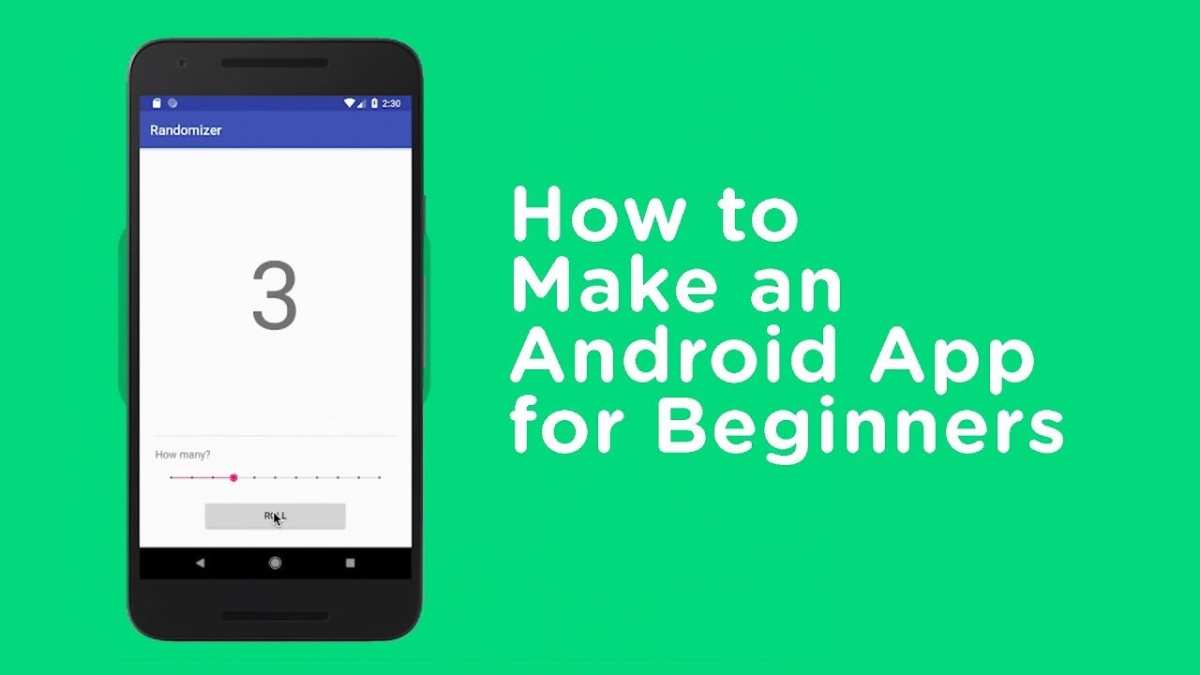
To make an android app, start by learning the basics of Java or Kotlin and setting up Android Studio. **This is the quickest way to get started with app development.** Once you install the IDE, you can follow tutorials to design your app’s interface and add functionality.
Focus on understanding how to organize your code and test your app on real devices. Creating an app becomes easier when you keep experimenting and refining your skills. Knowing how to make an android apps involves continuous learning and practice, but it’s entirely achievable.

How to Make an Android App
Creating an Android app might sound like a big project, but when you break it down into simple steps, it becomes much easier to understand. Whether you want to build a fun game, a useful tool, or a helpful app, knowing the process can guide you from idea to finished product. In this chapter, we’ll explore each step of making an Android app, explaining what you need to do, what tools to use, and tips to keep in mind along the way.
Understanding the Basics of Android Development
Before diving into building your app, it’s important to understand what Android development really involves. Android apps are written using programming languages like Java or Kotlin and built within a development environment called Android Studio. This software helps you write code, design your app’s appearance, and manage resources such as images and sounds.
Some key points to consider:
- Programming Languages: Java has been the main language for Android apps for many years, but now Kotlin is also popular because it’s more modern and easier to work with.
- Development Environment: Android Studio is the official software for creating Android apps. It provides tools for coding, testing, and debugging your app.
- Operating System: Android Studio works on Windows, Mac, and Linux, making it accessible to many developers.
Knowing these basics prepares you to start your journey into Android app creation.
Setting Up Your Environment
The first step to actually building an app is setting up your workspace. Here’s how to do it:
Download and Install Android Studio
Visit the official Android developer website and download the latest version of Android Studio. Follow these simple steps:
- Click on the download link for your operating system.
- Open the installer file and follow the on-screen instructions.
- Once installed, launch Android Studio.
Configure Necessary SDKs and Emulators
After installing Android Studio, you need to set up the Software Development Kits (SDKs) and an emulator:
- SDKs contain the tools and APIs needed to develop and test Android apps.
- The emulator allows you to run your app on a virtual device, simulating different phones and tablets.
To set this up:
- Open Android Studio and go to the SDK Manager via the toolbar.
- Download the latest SDK packages recommended.
- Create a new virtual device through the AVD (Android Virtual Device) Manager.
- Select a device profile, like a Pixel, and choose a system image (Android version).
Using an emulator allows you to test your app without needing a physical device.
Designing Your App’s User Interface
The user interface (UI) is how your app looks and how users interact with it. Designing a simple and friendly UI is key to keeping users engaged. Android Studio offers a visual editor that makes designing apps easier.
Understanding the Layouts
Layouts determine how elements like buttons, text, and images appear on the screen. Some common layout types are:
- LinearLayout: Arranges elements in a straight line vertically or horizontally.
- RelativeLayout: Positions elements relative to each other or the parent container.
- ConstraintLayout: Offers flexible positioning with constraints to other elements, making your design adapt to different screen sizes.
Creating an Example UI
Suppose you want to create a simple app with a button and a text label:
- Open the layout editor in Android Studio.
- Drag a Button and a TextView into the layout.
- Set properties such as text labels and alignments.
- Use constraints to position elements properly on different screens.
Good UI design includes clear labels, organized layout, and easy navigation for the user.
Writing the Core Functionality
Once the layout is ready, you need to add behavior to your app. This involves writing code that makes the app respond to user actions.
Understanding Activities and Event Handling
In Android, each screen is called an “Activity.” When a user taps a button, the associated code runs in that activity.
To connect your button to code:
- Create or open a Java or Kotlin class that extends AppCompatActivity.
- Find your button in the code with its ID.
- Set an OnClickListener to handle button presses.
Example in Kotlin:
val button = findViewById
Additions for More Functionality
You can add features like:
- Taking input from users with TextViews or EditTexts.
- Storing data using SharedPreferences or a database.
- Playing sounds or animations for a more engaging experience.
The key is to plan your app’s features clearly and implement them step-by-step.
Managing Resources and Files
Apps use images, sounds, and other files for visual appeal and interaction. Managing these resources properly makes your app professional and easy to maintain.
Adding Images and Icons
To include images:
- Place image files in the res/drawable folder in your project.
- Use them in your layout by referencing their name, like @drawable/my_image.
- Adjust size and positioning to fit your design.
Using Text and Strings Effectively
Store all user-facing text in the strings.xml file. This allows easy updates and supports multiple languages.
Testing and Debugging Your App
Testing helps catch mistakes and ensures your app works well on different devices.
Running on an Emulator
Use the virtual device you set up earlier to test your app:
- Click the Run button in Android Studio.
- Select your emulator from the device list.
- Observe how your app behaves and look for issues.
Testing on a Physical Device
You can also run your app on your actual phone:
- Enable developer options and USB debugging on your device.
- Connect your device via USB.
- Allow your computer to access your device.
- Select your device as the deployment target in Android Studio.
Debugging Common Errors
Some issues you might encounter include:
- Build errors due to missing resources or typos.
- App crashes from runtime exceptions.
- Layout problems on different screen sizes.
Resolve these by checking your code, reviewing logs, and testing on various devices.
Publishing Your App to the Google Play Store
Once your app is ready, you can share it with the world.
Preparing for Release
Steps include:
- Signing your app with a secure key.
- Optimizing your app’s size and performance.
- Creating high-quality app icons and screenshots.
Uploading Your App
Use the Google Play Console:
- Create a developer account.
- Fill out app details, descriptions, and upload resources.
- Upload your signed APK or app bundle.
- Set the pricing and distribution options.
- Publish and monitor your app’s performance.
Remember, promoting your app and getting user feedback helps it grow and improve.
Tips for Successful Android App Development
– Start small. Build a simple app first and add features gradually.
– Focus on user experience. Make your app easy to use and visually appealing.
– Keep learning. Android development is constantly evolving, so stay updated with new tools and best practices.
– Use online resources. The Android developer website, forums, and tutorials are great places to find help.
– Test frequently. The more you test your app on different devices, the fewer issues you’ll face in real-world use.
Making an Android app takes time and effort, but breaking the process into manageable steps helps you stay organized. With patience and practice, you can create apps that are fun, useful, and ready to share with others.
Frequently Asked Questions
What tools are essential for developing an Android app?
To develop an Android app, you need a few key tools. First, download and install Android Studio, which is the official integrated development environment (IDE) for Android development. It provides all necessary features such as code editing, debugging, and testing. You will also need the Java Development Kit (JDK) or Kotlin SDK, depending on your preferred programming language. Additionally, having a device or emulator to test your app helps ensure it runs smoothly across different Android versions and device types.
How do I design a user interface for my Android application?
Start by planning the layout of your app, considering user experience and flow. Use Android Studio’s Layout Editor to visually create interfaces with drag-and-drop components like buttons, text fields, and images. Write XML code to define the structure of your layouts, customizing attributes to match your design. Make sure your UI is responsive by testing on various screen sizes and orientations. Incorporate Material Design principles to create a clean and intuitive interface that users will find easy to navigate.
What are the best practices for testing an Android app during development?
Consistently test your app on multiple devices and emulator configurations to identify compatibility issues. Use Android Studio’s built-in testing tools to write unit tests for individual components and UI tests to verify user interactions. Automate testing processes with frameworks like Espresso. Perform manual testing to observe app behavior in real-world scenarios, ensuring stability and responsiveness. Regular testing helps you catch bugs early and improve overall app quality before launching.
How can I optimize my app for better performance?
Focus on writing efficient code by minimizing unnecessary computations and memory usage. Use profiling tools within Android Studio to monitor your app’s resource consumption and identify bottlenecks. Optimize images and assets to reduce load times. Implement lazy loading for data-heavy features and avoid blocking the main thread to maintain smooth UI interactions. Also, keep your dependencies up to date and remove unused code to keep your app lightweight and responsive.
What steps should I follow to publish my Android app on the Google Play Store?
Begin by thoroughly testing your app to ensure it meets quality standards. Create a signed APK or App Bundle using Android Studio’s build tools, signing it with your developer key. Prepare store listing details such as app descriptions, screenshots, and icons. Set up a developer account on the Google Play Console, then upload your app files and fill out necessary information, including content ratings and privacy policies. Once submitted, Google reviews your app, and upon approval, it becomes available for download by users worldwide.
Final Thoughts
To make an android app, start by setting clear goals and planning your app’s features. Choose Java or Kotlin, the primary programming languages, and familiarize yourself with Android Studio. Design an intuitive user interface to enhance user experience.
Next, write your code, integrate necessary APIs, and test your app thoroughly. Fix bugs and optimize performance to ensure a smooth operation.
In conclusion, knowing how to make an android apps involves careful planning, coding, and testing. Focus on the user experience and functionality to create a successful application.
