

To make a VPN on Android, you simply need to set up a VPN app or manually configure the connection. **The process involves choosing a reliable VPN service or creating your own VPN server.** Once you have the app, download and install it, then follow the prompts to connect. It’s a straightforward way to enhance your online privacy and access restricted content on your device.

How to Make a VPN on Android
Building a VPN on your Android device might sound complicated, but it’s actually quite manageable once you understand the steps involved. A VPN, or Virtual Private Network, creates a secure connection between your device and the internet. This helps protect your privacy, keeps your data safe, and allows you to access content from different regions. Whether you’re interested in creating your own VPN or using existing tools, this guide will walk you through everything you need to know.
Understanding What a VPN Does and Why You Might Want One
Before diving into the how-to, let’s clarify what a VPN does for you:
- Protects your online privacy: Keeps your browsing activity hidden from hackers, ISPs, and even government agencies.
- Secures your data: Encrypts your internet traffic, making it unreadable for anyone trying to intercept it.
- Access to blocked content: Bypasses geographic restrictions, letting you watch shows or visit websites that are limited in your country.
- Safer public Wi-Fi use: Ensures your information remains safe when connected to public networks.
Knowing these benefits helps you understand why setting up a VPN on your Android device can be very valuable.
Options for Making a VPN on Android
There are multiple ways to create a VPN on your Android device. The most common methods include:
- Using a VPN service provider: Downloading their app or configuring manually.
- Creating your own VPN server: Setting up a server at home or on cloud platforms, then connecting your device to it.
- Using built-in Android options: Android offers native support for VPN profiles you can set up manually.
Each method varies based on your needs, technical skills, and how much control you want over your VPN connection.
Using a VPN Service Provider for Android
Most users find the easiest way to set up a VPN on Android is by subscribing to a VPN provider. Here’s how to do it:
Selecting a VPN Service
Start by choosing a provider that fits your needs. Important factors include:
- Speed and stability: Ensures smooth browsing and streaming.
- Privacy policies: Make sure they don’t log your activity.
- Server locations: More options give you better access to global content.
- Ease of use: An app should be simple and intuitive.
Popular options include ExpressVPN, NordVPN, and Surfshark. Many offer free trials or money-back guarantees.
Downloading and Installing the VPN App
Once you select a provider:
- Open the Google Play Store on your Android device.
- Search for the VPN provider’s app.
- Download and install the app.
- Open the app and sign in with your account details.
Most apps guide you through initial setup, including selecting a server location.
Connecting to a VPN Server
After signing in:
- Choose a server location based on your needs (for example, country or region).
- Tap the connect button.
- Allow necessary permissions if prompted.
- Once connected, your internet traffic is encrypted, and your IP address appears to be from the selected location.
This setup provides instant privacy and access to geographically restricted content.
Setting Up a Personal VPN Server on Android
If you want more control, creating your own VPN server is a great option. You can set up a server at home or use cloud services like AWS, Google Cloud, or DigitalOcean.
Advantages of a Personal VPN Server
- Full control over your data: You decide who accesses it.
- No ongoing subscription fees: Once set up, it’s free to use.
- Customization: Tailor the connection to your specific needs.
Steps to Create Your Own VPN Server
While this process involves some technical steps, here’s the simplified overview:
- Select a server platform: Use a physical device at home or rent cloud server space.
- Install VPN server software: Popular options include OpenVPN, WireGuard, or SoftEther.
- Configure server settings: Set up user accounts, encryption protocols, and network configurations.
- Set up port forwarding: Make sure your router allows traffic to reach your VPN server.
- Create VPN profiles on your Android device: Download the corresponding VPN client app (e.g., OpenVPN Connect or WireGuard app).
- Import VPN configuration: Use your server’s config files to connect your Android device.
While setting up your own VPN server takes more effort, it’s an excellent way to control your online privacy deeply.
Configuring Android Built-in VPN Settings
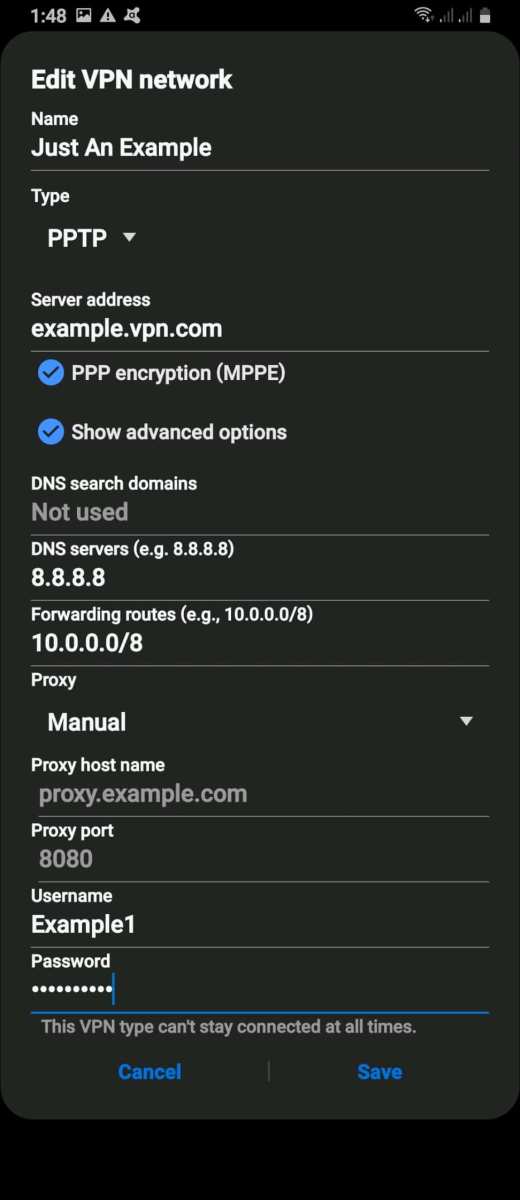
Android devices offer a native way to set up VPN profiles manually, ideal if you already have access to VPN credentials or want to connect to a workplace VPN.
Adding a VPN Profile
Here’s how to configure a VPN manually:
- Go to Settings > Network & Internet > VPN.
- Tap on “Add VPN” or the “+” icon.
- Enter the VPN details, including:
- Name: A recognizable name for your VPN profile.
- Type: Choose the protocol (e.g., PPTP, L2TP/IPsec, etc.).
- Server address: The IP or domain name of your VPN server.
- Username and password: Your login credentials if required.
- Save the profile and tap to connect.
This method works well if you have the VPN credentials and server info from your provider or administrator.
Ensuring Proper Security and Privacy
Creating or choosing a VPN isn’t just about access; it’s about safety too. Follow these tips:
- Use strong passwords: For VPN accounts and server access.
- Employ secure protocols: Prefer protocols like OpenVPN or WireGuard over PPTP, which are less secure.
- Stay updated: Keep your VPN apps and Android OS updated to patch vulnerabilities.
- Avoid free VPNs: Many free services compromise your privacy or are unreliable.
By maintaining good security practices, you ensure your VPN provides maximum protection.
Troubleshooting Common VPN Issues on Android
While most VPN setups work smoothly, you might encounter some problems:
Connection Failures
Advice:
- Check your internet connection.
- Ensure you’ve entered correct server details and credentials.
- Switch to a different server location.
- Update your VPN app or try reinstalling it.
Slow Speeds
Advice:
- Select a server closer to your location.
- Use a less congested server.
- Limit background app activity that consumes bandwidth.
- Switch to a different protocol if available.
Privacy Concerns
Advice:
- Review your VPN provider’s privacy policies.
- Switch to a more transparent provider if needed.
- Regularly update your apps and OS.
By following these tips, you can maintain a reliable and safe VPN connection on your Android device.
Learning how to create a VPN on Android opens up a world of safer browsing and greater access to content. Whether you choose a service provider, set up your own server, or configure built-in settings, you gain control over your online privacy. Remember to pick the method that best suits your comfort level and needs, and always prioritize security and privacy. With the right setup, you can enjoy a safer, more open internet on your Android device every day.
Frequently Asked Questions
What are the steps to configure a VPN manually on an Android device?
To set up a VPN manually, go to your device’s Settings, then tap on ‘Network & Internet’ and select ‘VPN.’ Tap on ‘Add VPN’ and choose the VPN type (such as PPTP, L2TP, or IPsec). Enter the necessary server information, your username, and password provided by your VPN service. Save the configuration, then toggle the VPN switch to connect. Ensure your credentials are correct to establish a successful connection.
Is it possible to use a third-party VPN app on Android without root access?
Yes, most third-party VPN applications are designed to work on Android devices without requiring root access. You can download trusted VPN apps from the Google Play Store, install them, and follow their setup instructions. These apps typically handle all necessary configurations, making it straightforward to connect securely without modifying your device’s software.
What security settings should I consider when creating a VPN connection on Android?
When configuring a VPN, use strong authentication methods like usernames and complex passwords. Enable options such as ‘Always-on VPN’ for continuous protection. Ensure that the VPN protocol selected supports robust security features, like IKEv2 or OpenVPN, and avoid outdated protocols like PPTP. Regularly update your VPN app and device software to patch security vulnerabilities and maintain safe browsing habits.
Final Thoughts
To make a VPN on Android, start by downloading a reliable VPN app from the Google Play Store. Install and open the app, then follow the setup instructions provided by the service. Configure your desired server location and VPN settings.
Connecting to your chosen server will secure your connection and protect your privacy. Remember, creating a VPN on Android is straightforward when you follow these steps. In summary, how to make a VPN on Android involves choosing a trustworthy app, installing it, and connecting to a server.
