

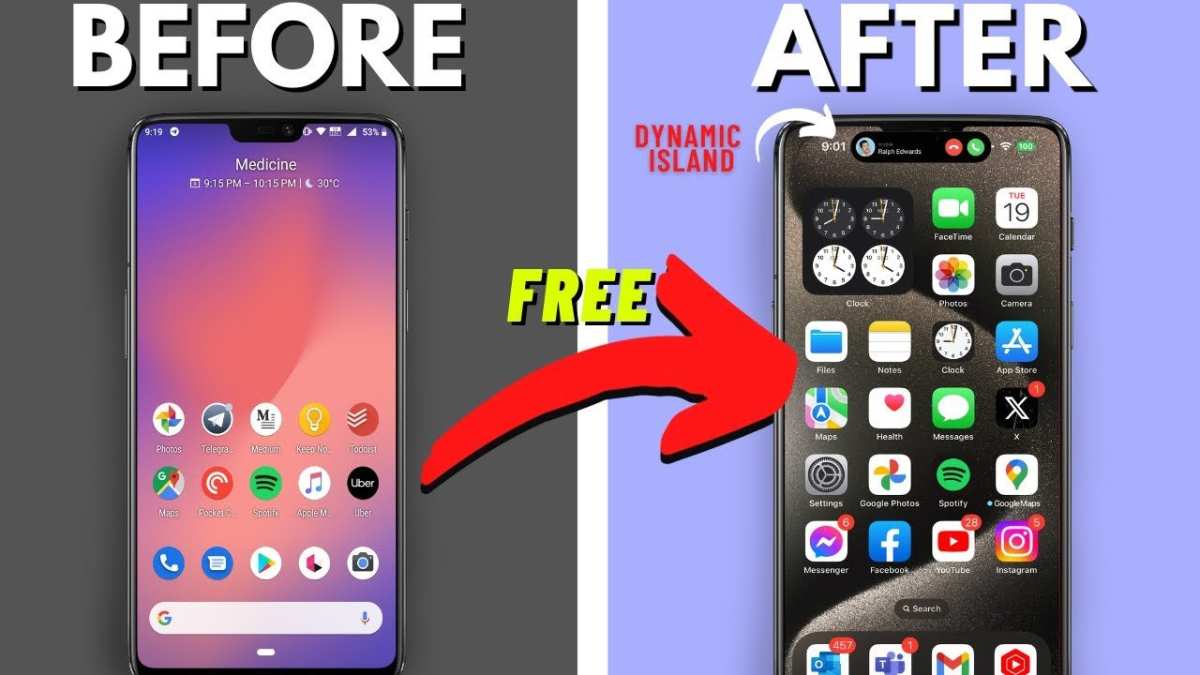
To make your Android look like an iPhone, you simply need to customize your interface with specific apps and settings. **Installing a launcher that mimics iOS, changing the icons, and adjusting the home screen layout** can give your device a sleek, iPhone-like appearance.
Start by downloading a popular iOS-style launcher from the app store. Once installed, you can tweak your icons and widgets to match the iPhone aesthetic. This quick setup helps your Android resemble an iPhone without complex processes or rooting.

How to Make Your Android Look Like an iPhone
If you love the sleek look and simple interface of an iPhone but prefer to use an Android device, you’re in luck. Many apps and tweaks can help you mimic that classic iPhone aesthetic on your Android phone. In this guide, we’ll walk you through several steps to give your Android device the same elegant appearance as an iPhone, covering everything from customizing your home screen to changing icons and wallpapers. Whether you want a full iPhone makeover or just a few touches, this tutorial has you covered.
Understanding the Differences Between Android and iPhone Interfaces
Before diving into customization, it helps to understand what makes the iPhone interface unique. iPhones streamline navigation with a clean home screen, uniform app icons, and a simple control center.
Some key features include:
- Consistent icon design with rounded edges
- Dock with a few frequently used apps at the bottom
- Minimalistic control center accessible by swiping down
- Clear wallpapers that complement the icons
- App icons with a uniform design language
To mimic this experience, focus on recreating these visual elements and functionalities.
Choosing the Right Launcher for iPhone Look
The first step to making your Android resemble an iPhone is selecting a launcher that supports iPhone-style layouts and customization options. Here are some of the most popular options:
iLauncher
– Designed specifically to imitate iOS interface
– Offers iPhone-style app icons and control center
– Supports custom wallpapers and icon packs
Nova Launcher
– Extremely flexible with extensive customization
– Supports icon packs, grid layouts, and gesture controls
– Can be configured to resemble iPhone’s layout
Smart Launcher
– Simplifies app management
– Provides smooth transitions and aesthetic themes that resemble iPhone UI
Once you select a launcher, download it from the Google Play Store and set it as your default launcher.
Installing iPhone-Style Icon Packs
Icons play a significant role in creating the iPhone look. You can find numerous icon packs designed to imitate iOS icons.
- Search for iOS icon packs on Google Play Store, such as ‘iOS Icon Pack’ or ‘iPhone Icons Pack.’
- Download and install the icon pack that suits your style.
- Apply the icon pack within your launcher settings. Typically, you can do this through the launcher’s theme or appearance menu.
For a more authentic feel, look for icon packs with rounded edges and uniform sizes, similar to those on iOS.
Customizing Your Home Screen and App Layout
To emulate iPhone’s clean home screen, you need to arrange your apps carefully.
– **Remove unnecessary apps** from the home screen to keep it minimal.
– **Arrange apps in a grid format** with evenly spaced icons.
– Place your most-used apps in the dock at the bottom, similar to iOS.
– Use a **single wallpaper** that complements the icons for a seamless look.
Adjust grid size and icon size within your launcher settings to resemble the iPhone’s app layout.
Changing Wallpapers to Match iPhone Style
Wallpapers are essential to making your device feel like an iPhone. Many iPhone wallpapers feature minimalistic backgrounds or dynamic images.
– Search for **‘iPhone wallpapers’** online, or use apps like Zedge.
– Choose wallpapers with subtle colors or simple gradients.
– Set the wallpaper through your launcher or Android’s wallpaper settings.
– Consider using high-resolution images for a crisp appearance.
This consistency in wallpaper style creates a uniform look that matches iPhone aesthetics.
Configuring the Control Center
The iPhone control center provides quick access to settings like Wi-Fi, Bluetooth, brightness, and music controls. You can replicate this with widgets or apps.
– **Download an app like ‘Control Center iOS 15’** from the Play Store.
– Configure the widget to appear on your home screen.
– Place the widget in a convenient spot for easy access.
– Customize the control options as needed.
Alternatively, some launchers have built-in options to add a control center that mimics iOS.
Creating a Notification Center Similar to iOS
Even though Android notifications look different, you can make them resemble iOS’s clean notifications.
– Use notification shade customization apps like **Material Notification Shade**.
– Choose themes that provide a more iOS-like look.
– Arrange notifications to appear unobtrusively and neatly.
Adjusting Fonts for a Consistent Look
Fonts contribute significantly to the overall aesthetic.
– Download a font similar to iOS, such as **San Francisco** if available.
– Use font apps or launcher settings to change the system font.
– Keep the font size moderate for readability and consistency.
Adding iPhone-Like Sound Effects
Sound effects also deepen the illusion of an iPhone interface.
– Download sound packs that mimic iOS sounds.
– Set notification and ringtone sounds to iOS tones through your sound settings.
– Most customization apps allow you to change the system sounds easily.
Additional Tips for a Truly iPhone-Like Experience
– Limit customization of your notification panel to keep it simple.
– Use widgets with a clean, minimal appearance.
– Keep app icons uniform and avoid clutter.
– Regularly update your wallpaper and icon collection for variety.
Summary
Transforming your Android into an iPhone involves several steps: choosing the right launcher, customizing icons, arranging your home screen, setting wallpapers, and adjusting notifications and sounds. With a bit of patience and the right apps, you can achieve a look that is very close to the iPhone aesthetic, all while enjoying the flexibility and features of Android.
Remember, each Android device differs slightly, so some customization options may vary. Experiment with different launchers, icon packs, and themes until you find the perfect combination that makes your device look just the way you want. The best part is, once your setup is complete, you’ll get that sleek, minimalistic iPhone vibe every time you pick up your Android.
Frequently Asked Questions
What launcher apps can help mimic the iPhone interface on an Android device?
Launcher apps like Nova Launcher, Action Launcher, and Smart Launcher allow you to customize your Android home screen to resemble an iPhone. These apps offer features such as app icons, grid layouts, and animations that replicate the iPhone experience. After installing a launcher, set it as your default, and customize the icon pack and layout to match iOS aesthetics.
How can I replicate the iPhone’s app icon style on my Android phone?
You can download icon packs specifically designed to imitate iOS icons from the Google Play Store. Installing a compatible launcher will enable you to apply these icon packs easily. Adjust the icon size and grid layout within the launcher settings to achieve a more authentic iPhone look with uniform app icons and clean spacing.
What steps should I follow to change my Android’s wallpaper and widgets to resemble iOS?
Select wallpapers that resemble those used in iOS, available through various wallpaper apps or online sources. Use widgets that imitate iOS features, such as the date or weather widgets, which can be added via the launcher or third-party widget apps. Position these widgets on your home screen to reflect the typical iPhone layout for a cohesive appearance.
Can I customize my Android navigation controls to look like those on an iPhone?
Yes, you can disable Android’s navigation buttons and use gesture controls provided by custom launchers or system settings. Additionally, some launchers allow you to replace navigation icons with those resembling iPhone gestures, giving your device a more seamless and similar navigation experience.
Are there any specific apps that help replicate iOS features on Android devices?
Several apps emulate iOS features, such as iOS-style lock screens, control centers, and notification styles. Apps like iNoty, Control Center OS 14, and iOS 15 Launcher can be installed to add these elements, making your Android device look and feel more like an iPhone.
Final Thoughts
To make your android look like an iphone, start by changing your home screen to a clean, minimalist launcher that mimics iOS. Install icon packs and widgets that resemble those on iPhone, and customize your wallpaper for a smooth, sleek appearance. Adjust your app icons and layout to match iOS style and remove unnecessary clutter.
By following these simple steps, you can easily give your Android device an iPhone-like aesthetic. Remember, how to make your android look like an iphone is all about customizing your interface to reflect the iOS design. Enjoy your personalized, stylish smartphone!
