

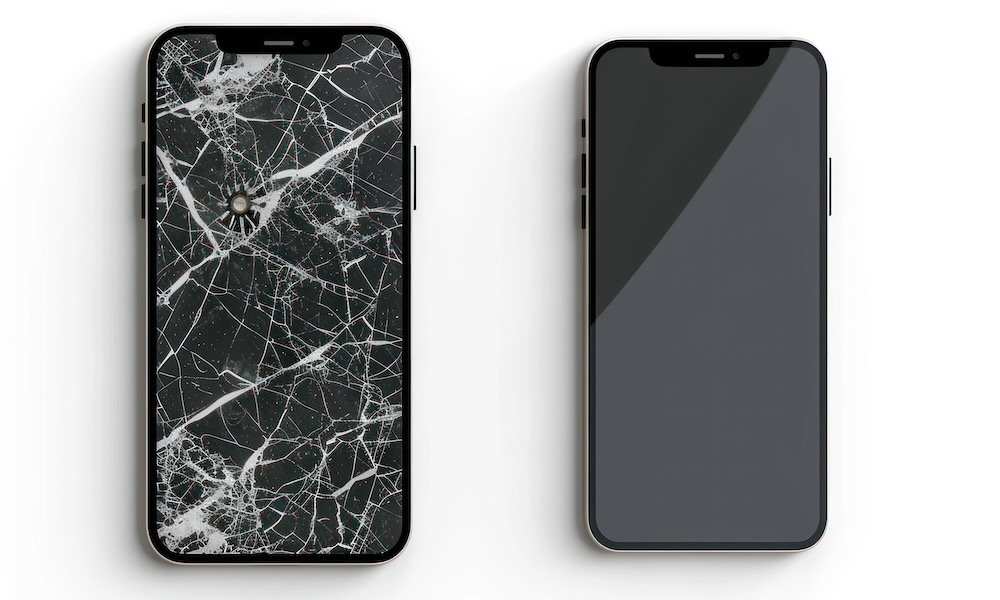
If your iPhone screen repair not working, the first step is to check if the repair was done correctly and whether the screen is compatible. **Sometimes, the issue stems from poor installation or a faulty replacement part.** Try restarting your device or performing a soft reset to see if the issue persists. If problems continue, visiting an experienced technician can identify hardware or software conflicts. Addressing these early prevents further damage and ensures your iPhone functions smoothly again.

iPhone Screen Repair Not Working: What You Need to Know
When your iPhone screen isn’t working after a repair, it can be extremely frustrating. You rely heavily on your phone for communication, navigation, and entertainment, so a malfunctioning screen disrupts your daily life. Understanding why this problem occurs and what steps to take can help you fix it effectively and avoid future issues. This comprehensive guide walks you through common causes of iPhone screen repair problems, troubleshooting tips, and what options you have if your repair isn’t holding up.
Common Causes of iPhone Screen Repair Not Working
Many factors can lead to an iPhone screen not functioning properly after a repair. Recognizing these causes helps you figure out whether you need professional help or can fix the problem yourself.
Poor Quality Replacement Parts
One of the most frequent reasons for screen problems after a repair is the use of low-quality or incompatible parts. Cheaper screens might look similar but often lack the durability and responsiveness of original Apple components.
- Substandard screens can cause touch sensitivity issues
- Lower-quality adhesives can lead to loose screens or water damage
- Faulty connectors or improperly fitted parts may cause display glitches
Incorrect Installation
Even the best parts won’t work properly if not installed correctly. During a repair, if the technician doesn’t handle components properly, it can cause issues such as unresponsive touch, flickering, or black screens.
- Damaging delicate connectors
- Not aligning components properly
- Using excessive force during reassembly
Electrical or Hardware Damage During Repair
Sometimes, the repair process itself can inadvertently cause other issues:
- Short circuits from static electricity
- Damaging the motherboard or other internal parts
- Overheating components during soldering or reassembly
Software Conflicts or Bugs
If your phone’s software isn’t updated or corrupted after a repair, it might cause display issues:
- Incompatibility with new hardware
- Corrupted system files from improper setups
- Pending updates that fix known bugs
Troubleshooting Your iPhone Screen Repair Issues
Before rushing to the repair shop again, try these troubleshooting steps. Sometimes, issues are software-related or simple adjustments that you can do yourself.
Check for Response and Display Quality
Test your screen thoroughly:
- Tap different areas to see if the screen responds
- Check for flickering, dead spots, or discoloration
- Try restarting your device
If the screen doesn’t respond or shows inconsistent behavior, move to the next steps.
Perform a Force Restart
Sometimes, a simple restart can fix glitches caused during repair:
- For iPhone 8 or later: press and quickly release volume up, then press and quickly release volume down, then hold the side button until the Apple logo appears
- For iPhone 7 or 7 Plus: press and hold both the volume down button and the sleep/wake button until the Apple logo appears
- For older iPhones: press and hold the home button and the power button until the Apple logo appears
Update or Restore Your Software
Compatible software can often resolve issues caused by bugs:
- Connect your iPhone to a Wi-Fi network
- Open Settings and navigate to General > Software Update
- Download and install any available updates
- If updates don’t work, consider restoring your device via iTunes or Finder (make sure to back up your data first)
Check for Physical Damage
Even if your screen looks fine, internal damage can cause problems:
- Look for cracks or chips on the glass
- Inspect for water damage or corrosion
- Verify that the screen connector is secure inside the device
When to Seek Professional Help
If troubleshooting doesn’t resolve the problem, it’s time to consult with experts. Here are signs that your iPhone needs professional repair:
Persistent Touch Issues or No Response
When your screen remains unresponsive or only responds intermittently, a professional can diagnose the internal connection or component faults.
Display Flickering or Dead Pixels
Flickering screens or dead spots often indicate defective display components or connector problems that require specialist attention.
Unusual Signs After Repair
Any new problems that appear immediately after a repair, like strange colors, black screens, or complete failure, suggest that something went wrong during the repair process.
Water Damage or Impact
If your device experienced water exposure or a fall during or after repair, internal damage might have occurred that needs precise repair or replacement.
Choosing the Right Repair Service
Picking the right repair shop can make a big difference. Here are some tips:
- Look for certified technicians: Choose shops that are authorized by Apple or certified by reputable repair organizations.
- Check reviews and ratings: Read customer reviews on Google, Yelp, or other platforms.
- Ask about parts used: Ensure they use genuine or high-quality replacement parts.
- Warranty and guarantees: Reputable shops often provide warranties on their repairs.
What to Expect During an iPhone Screen Repair
Understanding the repair process helps you feel confident in your decision:
Initial Diagnosis
Technicians will examine your device to identify the root cause of issues and determine if the repair will succeed.
Repair Procedure
Depending on your device and issue, technicians may:
- Remove the damaged screen carefully
- Inspect internal components for damage
- Replace the screen with genuine parts
- Reassemble your phone, ensuring all connectors are secure
Testing and Quality Check
After reassembly, your device gets tested thoroughly to confirm that the screen works perfectly, and no new issues appear.
Final Hand-Over
Once everything checks out, technicians will give your phone back with instructions on care and warranty details.
The Long-Term Impact of Poor iPhone Screen Repairs
Choosing the wrong repair method or shop can cause long-term damage:
- Recurrent screen problems
- Reduced device lifespan
- Potential internal component damage
- Higher repair costs over time
Investing in quality repairs and parts ensures your iPhone stays functional longer and performs better.
Preventing Future Screen Problems
Prevention is always better than repair. Here are some tips:
- Use and store your iPhone in protective cases and screen protectors
- Avoid exposing your device to water and extreme temperatures
- Handle your phone carefully to prevent drops and impact
- Keep your software updated for optimal performance
Regular maintenance and careful handling can significantly reduce the chances of needing another repair.
If you are experiencing screen issues after a repair, understanding these causes and solutions can help you make informed decisions. Always opt for trusted service providers, and remember that quality parts and professional installation make a big difference in how long your repaired iPhone will last. Taking proactive steps now can save you time, money, and frustration in the future.
Frequently Asked Questions
What should I do if my iPhone screen stops responding after repair?
If your iPhone screen becomes unresponsive after a repair, first ensure the device is updated with the latest software version. Restart your iPhone to see if the issue resolves. If it persists, contact the repair service to check if the replacement part was installed correctly or if there is a hardware problem. Avoid attempting further repairs yourself, as this could cause additional damage.
Why is my new iPhone screen displaying flickering or ghost touches?
Flickering or ghost touches often indicate a faulty connection or a defective display component. It might be due to improper installation or a damaged digitizer. Return to the repair technician to have them verify the connections and test the replacement parts. In some cases, replacing the screen again may be necessary to fix the issue.
Can software updates fix problems caused by a faulty screen repair?
While software updates can resolve many issues on your iPhone, problems caused by a faulty screen repair usually stem from hardware issues. Updating the device might help with minor glitches, but for hardware-related problems like unresponsive or flickering screens, you need to have the hardware inspected and repaired by a professional.
How long should a properly repaired iPhone screen last before problems occur?
A correctly installed iPhone screen should last several years with proper care. If you notice issues shortly after repair, it could be due to poor installation or defective parts. Regularly handle your device carefully, avoid exposing it to extreme conditions, and have any new problems checked promptly by a qualified technician.
Is it safe to continue using my iPhone if the screen repair didn’t fix the issue?
If the repair doesn’t resolve your screen problems, it’s best to stop using the device until a professional evaluates it. Continuing to use a malfunctioning screen can lead to further damage, such as affecting internal components or causing additional display issues. Seek assistance from an authorized repair provider to ensure your device remains safe and functional.
Final Thoughts
In summary, troubleshooting an ‘iPhone screen repair not working’ issue requires patience and precise steps. Confirm the replacement parts are genuine and properly installed. If problems persist, visit a professional technician to avoid further damage. Addressing these concerns helps restore your device’s functionality efficiently.
