

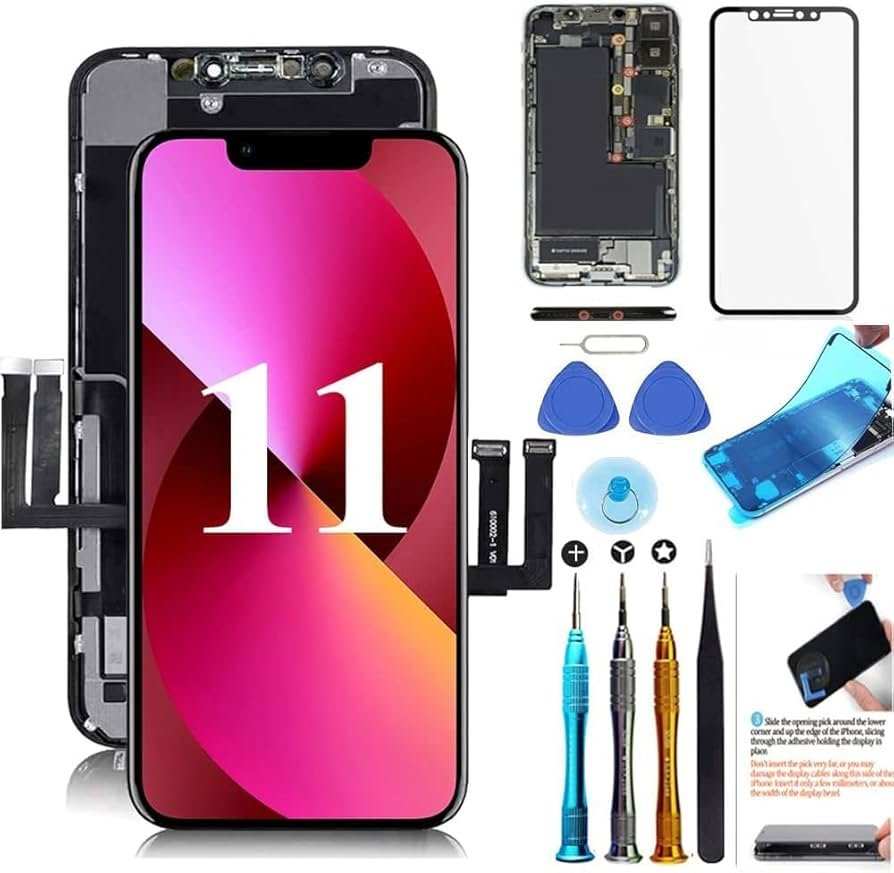
If your iPhone 11 screen replacement isn’t working, the first step is to check the connections and ensure the display is properly seated. **Most issues stem from improper installation or faulty parts.** Sometimes, a software reset or updating your iPhone can resolve display recognition problems. When faced with persistent issues, consulting a professional technician often provides the quickest fix and peace of mind.

Understanding Why iPhone 11 Screen Replacement Might Not Be Working
When you decide to replace the screen on your iPhone 11, you expect it to work perfectly afterward. But sometimes, the new screen doesn’t function as it should. Your touch might be unresponsive, display issues might occur, or the screen might not turn on at all. This situation can be frustrating, especially after spending time and money on the repair. Let’s explore the common reasons why an iPhone 11 screen replacement might not work and what you can do about it.
Common Causes of iPhone 11 Screen Replacement Failures
Understanding what causes a new screen to malfunction helps you troubleshoot effectively. There are several reasons why a replacement might not work as expected:
- Poor Installation: If the screen wasn’t fitted properly, it might lead to touch issues, display problems, or both.
- Damaged Flex Cables: During the replacement process, flex cables connecting the display to the motherboard can be damaged or disconnected.
- Compatibility Issues: Using a non-original or incompatible replacement screen can cause problems with touch sensitivity and display quality.
- Water Damage or Internal Short Circuits: If your device had prior water exposure, internal damage might prevent the replacement from functioning correctly.
- Defective Replacement Screen: Occasionally, the new screen itself could be faulty or defective right out of the box.
- Battery or Power Issues: Problems with the battery or power delivery can sometimes make it seem like the screen isn’t working, especially if the device doesn’t turn on.
This list covers the major reasons, but a detailed look at each will give you better insights into what might be happening.
Installation Mistakes That Cause Screen Problems
Even experienced technicians can sometimes make mistakes during installation. Some common errors include:
Incorrect Handling of Flex Cables
Flex cables connect the display to the logic board and are delicate. If these cables aren’t carefully reconnected or are damaged during removal, the screen can become unresponsive or not display anything at all.
Using Improper Tools or Techniques
Using the wrong tools or applying too much force can crack the new screen or damage internal components. Always use high-quality, compatible tools designed for iPhones to avoid accidents.
Poor Adhesive Application
The adhesive holds the screen securely in place. If it isn’t applied properly, the screen may shift or not make good contact, leading to touch or display issues.
Signs That Your Replacement Screen Isn’t Functioning Properly
Knowing the symptoms can help pinpoint what’s wrong:
- The screen remains black even after powering on the device.
- Touch responsiveness is inconsistent or completely unresponsive.
- Display flickering or distorted colors.
- Unusual lines, dead pixels, or discoloration on the screen.
- The device shows signs of power but the display remains blank.
- No response from touch gestures or areas of the screen.
These signs often point to hardware issues rather than software problems, especially if they occur immediately after installation.
Steps to Troubleshoot a Non-Working iPhone 11 Screen
If your new screen isn’t working, you can try a few troubleshooting steps to identify or resolve the issue:
Check Connections Carefully
Remove the screen and reconnect the flex cables, ensuring they click into place properly. Sometimes, a loose connection causes the problem.
Test the Device Without the New Screen
Reinstall the original screen (if still available) to ensure the device powers on and functions as expected. If it does, the problem likely lies with the new screen or its installation.
Inspect the New Screen for Damage
Look for cracks, chips, or signs of manufacturing defects. If you notice any damage, it’s best to replace the screen again.
Verify Compatibility and Quality
Ensure the replacement screen is compatible with the iPhone 11 model. Using high-quality, original screens helps avoid issues caused by inferior parts.
Update or Reset Your Device
Sometimes, software glitches can mimic hardware problems. Perform a soft reset or update your iPhone to see if the issue resolves.
Additional Troubleshooting Tips and Solutions
Apart from the basic steps, there are other ways to troubleshoot:
- Check for Water or Dirt Damage: Clean around the connectors and inspect for corrosion or debris.
- Perform a Hard Reset: Hold down the power and volume buttons simultaneously to restart the device.
- Restore Your iPhone: Connect it to a computer and restore via iTunes or Finder, especially if a software conflict is suspected.
- Seek Professional Help: If all else fails, visit a certified repair shop or Apple Store for diagnostics.
When to Seek Professional Assistance
If troubleshooting on your own doesn’t solve the problem, it’s time to turn to experts:
- If the screen remains unresponsive despite proper installation and testing.
- When you notice physical damage to internal components or flex cables.
- In cases of persistent display issues after multiple attempts to fix the problem.
- If your device shows signs of internal water damage that may affect the screen’s functioning.
Professional technicians have specialized tools and experience to diagnose complex issues beyond typical repairs.
Preventing Future Screen Replacement Problems
Preventing issues with your iPhone 11 screen replacement is essential. Here are tips to ensure smoother repairs in the future:
- Use high-quality replacement parts that are compatible with your device model.
- Follow detailed repair guides and tutorials from reputable sources.
- Handle internal components with care and avoid applying excessive force.
- Keep your workspace clean and organized to prevent accidents or component damage.
- Consider professional repair services if you aren’t experienced with iPhone repairs.
Summary of Important Points
– Proper installation is critical. Carefully reconnect flex cables and ensure all components fit snugly.
– Use high-quality, compatible replacement screens to avoid defects.
– Troubleshoot by testing the original screen first.
– Check for software issues that might mimic hardware failures.
– Seek professional help when in doubt.
By following these steps and understanding the possible causes, you can better navigate the tricky situation of an iPhone 11 screen that’s not working after replacement. Remember, patience and careful handling make a significant difference in repairs. Whether you’re fixing it yourself or seeking expert assistance, being informed helps you make better decisions and get your device back in working order.
Frequently Asked Questions
Why does my iPhone 11 screen appear unresponsive after a replacement?
If your iPhone 11 screen does not respond after a replacement, it could be due to improper installation or a faulty connection. Ensure that all flex cables are securely connected and that no debris or damage is present. Sometimes, the replacement part itself may be defective, so testing with a different screen can help identify if the issue stems from the part.
How can software issues cause my new iPhone 11 screen not to work properly?
Software glitches can interfere with the touchscreen’s functionality, especially after hardware repairs. Restart your device, update iOS to the latest version, or perform a factory reset if necessary. If the problem persists, restoring your device via iTunes might resolve software conflicts affecting the display.
What steps should I take if my iPhone 11’s display remains blank after replacement?
If the display stays blank post-replacement, check the display connector for proper seating. Confirm that the battery is sufficiently charged and that the device is turning on by observing sounds or vibrations. If issues continue, consider consulting a professional technician to inspect the internal connections and ensure compatibility of the replacement screen.
Could compatibility issues cause my iPhone 11 screen replacement to fail?
Yes, using a screen that isn’t fully compatible with the iPhone 11 model can result in malfunctioning or no display output. Always verify that the replacement part matches your device’s specifications. Original or high-quality third-party screens designed specifically for iPhone 11 tend to perform more reliably.
Why does my iPhone 11 screen flicker or have lines after replacement?
Flickering or lines on the display often indicate a loose connection or a damaged display connector. Re-seating the display connector carefully might resolve the issue. If problems continue, the replacement screen may be defective, or there could be an underlying hardware fault requiring professional assessment.
Final Thoughts
In summary, dealing with an ‘iPhone 11 screen replacement not working’ can be frustrating. Often, such issues stem from improper installation or subpar replacement parts. Double-check all connections and ensure compatibility before attempting repairs again. If problems persist, consulting a professional technician is the best course of action. Addressing the root cause promptly prevents further damage and saves time. Remember, a failed screen replacement doesn’t mean the end of your device; proper troubleshooting restores functionality efficiently.
