

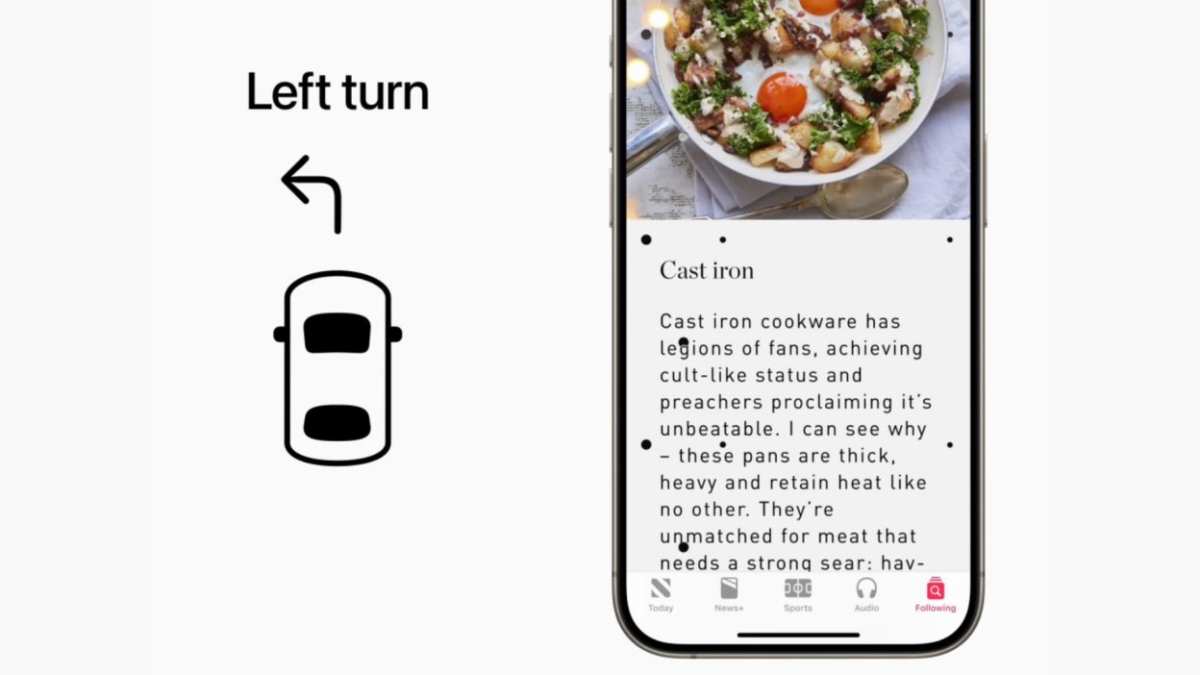
If you experience motion sickness while using your iPhone, adjusting certain settings can help. **Turning on the Reduce Motion feature minimizes animations and movement that trigger discomfort.** Navigating to Settings > Accessibility > Motion allows you to enable this option easily. This simple tweak can make your screen experience calmer and more comfortable. By customizing your iPhone settings for motion sickness, you can enjoy your device without unnecessary nausea or dizziness.

iPhone Setting for Motion Sickness
If you are someone who gets dizzy, nauseous, or uncomfortable when using your iPhone, you’re not alone. Many people experience motion sickness from the visuals or movement on their screens. Fortunately, Apple has integrated several settings and features that can help reduce these symptoms and make your iPhone experience more comfortable. In this section, we will explore how to adjust your iPhone so that it minimizes the chances of motion sickness and makes your device more user-friendly for sensitive users.
Understanding Motion Sickness and Its Causes on iPhone
Before diving into the settings, it’s helpful to understand what causes motion sickness on your iPhone. When you use your device, certain animations, transitions, or visual effects might make your brain feel like you’re moving when you’re actually stationary. This disconnect between your visual cues and your inner ear balance can make you feel sick.
Common causes include:
- Fast-moving animations or transitions
- Parallax effects (background shift as you tilt the phone)
- Inconsistent or sudden visual changes in apps
- Bright, flickering, or overly stimulating screens
Recognizing these triggers helps you know what to adjust and what to avoid.
How to Modify iPhone Settings to Reduce Motion Sickness
Apple provides several built-in options that can help reduce visual motion, making your iPhone easier on your eyes and less likely to cause nausea. Here’s a detailed guide on how to set up your iPhone for less motion.
Turning on Reduce Motion
Reduce Motion minimizes the movement of user interface elements. When turned on, it disables many animations and parallax effects that could trigger motion sickness.
To enable Reduce Motion:
- Open the Settings app on your iPhone.
- Scroll down and tap Accessibility.
- Tap Motion.
- Switch on Reduce Motion.
Once enabled, your iPhone will:
- Stop bouncing or sliding animations in menus
- Disable the parallax effect on the home screen
- Reduce transitions between apps and screens
You might notice your device feels less “busy” and more calming. If you find some animations are still too intense, consider adjusting other display settings.
Disabling Parallax and Other Visual Effects
The parallax effect creates a sense of depth but can be overwhelming for some users. Turning it off reduces background movement as you tilt your iPhone.
Steps:
- Go to Settings.
- Tap Accessibility.
- Select Display & Text Size.
- Turn off Reduce Motion (if not already enabled).
- Additionally, toggle off Perspective Zoom if you see it in specific apps or your wallpaper settings.
Experimenting with these options helps you find the right balance for your comfort.
Adjusting Brightness and Color Settings
Bright screens with vibrant colors can sometimes trigger nausea or discomfort. You can tweak the display to be gentler on your eyes.
Enabling Night Mode or True Tone Display
Night Mode reduces blue light, which can contribute to eye strain and discomfort.
Steps:
- Open Settings.
- Tap Display & Brightness.
- Toggle on Night Shift to shift colors to warmer tones, or turn on True Tone for adaptive color adjustments that match your environment.
Reducing Brightness and Adjusting Auto-Bainting
Keeping your screen at an optimal brightness level helps prevent glare and overstimulation.
Steps:
- In Display & Brightness, adjust the slider to reduce brightness manually.
- Enable Auto-Brightness so your device adjusts lighting based on ambient light conditions.
Using warmer colors and less intense contrast can also lower discomfort.
Using Accessibility Features to Enhance Comfort
Apple offers additional options to customize your device for better comfort.
Enabling Color Filters
Color filters can help reduce visual stress by altering color schemes.
Steps:
- Open Settings.
- Tap Accessibility.
- Choose Display & Text Size.
- Tap Color Filters.
- Turn on Color Filters and select a filter like Grayscale for a simpler visual experience.
Setting Up Reduce White Point
This setting dims bright colors and reduces glare.
Steps:
- Navigate to Settings.
- Select Accessibility.
- Tap Display & Text Size.
- Enable Reduce White Point.
- Use the slider to adjust the level of dimming.
Customizing Text Size and Bold Text for Better Readability
Adjusting text size improves clarity and reduces eye strain.
Steps:
- In Display & Text Size, increase the text size.
- Enable Bold Text for sharper, clearer characters.
These adjustments make reading easier and help prevent discomfort.
Optimizing App Usage and Content Display
The way content appears can influence motion sickness. Here are some tips for browsing and app interaction.
Limiting Animations in Specific Apps
Some apps have their own animation settings. Check for options within app settings to reduce movements.
Using White Backgrounds and Simple Layouts
Dark backgrounds or minimalistic designs lessen glare and visual stimulation.
Adjusting Text Size and Fonts in Apps
Many apps allow you to change font size and style. Larger, clearer fonts can make reading more comfortable, reducing eye strain and nausea.
Additional Tips to Prevent Motion Sickness While Using iPhone
Aside from device settings, consider these tips for a better experience:
- Take breaks regularly to avoid prolonged exposure to intense visuals.
- Use a stand or mount to reduce the need for continuous holding, which can help minimize nausea.
- Maintain a comfortable environment with good lighting to lessen the strain on your eyes.
- Stay hydrated and avoid using your device when feeling unwell or overly tired.
Monitoring Your Response and Making Adjustments
Every person reacts differently to visual stimuli. Pay attention to how your body responds after changing settings. If symptoms persist, consider further adjustments or consult a healthcare professional for personalized advice.
By customizing your iPhone with these settings and tips, you can enjoy your device with less discomfort. Making small adjustments can significantly improve your experience and help you stay connected without feeling sick. Remember, your comfort matters most, so don’t hesitate to experiment with different configurations to find what works best for you.
Frequently Asked Questions
How can I adjust break settings to reduce motion sickness on my iPhone?
You can reduce motion sickness by enabling the “Reduce Motion” feature in your iPhone settings. To do this, go to Settings > Accessibility > Motion, then toggle on “Reduce Motion.” This setting minimizes the movement of UI elements and animations, which can help prevent dizziness and discomfort during prolonged use.
What display adjustments can help lessen visual disturbances for sensitive users?
Adjusting display settings such as enabling “Reduce Transparency” and decreasing the brightness can make the screen more comfortable. To activate “Reduce Transparency,” navigate to Settings > Accessibility > Display & Text Size, then switch it on. Lowering brightness in Settings > Display & Brightness reduces glare, helping to prevent visual strain and motion-related discomfort.
Are there ways to customize the animation effects on my iPhone for better comfort?
Yes. You can minimize animation effects to make your iPhone easier to use. Head to Settings > Accessibility > Accessibility Shortcut, then select “Reduce Motion.” Once activated, your device will limit motion effects like parallax and screen transitions, which can help reduce symptoms of motion sickness.
Can changing the display contrast or color filters help with motion sensitivity?
Adjusting contrast or applying color filters can reduce visual complexity and aid users sensitive to motion. To do this, go to Settings > Accessibility > Display & Text Size. Here, you can enable “Increase Contrast” or set color filters that simplify the visual experience, helping to decrease stress on your eyes during use.
Is it possible to use alternative settings or features for a more comfortable viewing experience?
Yes, you can explore features like “Dark Mode” in Settings > Display & Brightness, which reduces overall screen glare. Additionally, enabling “Night Mode” or adjusting auto-brightness can create a softer display environment, making it easier for sensitive users to navigate their device without experiencing discomfort.
Final Thoughts
In conclusion, adjusting your iPhone settings for motion sickness can greatly improve your comfort. Turning off unnecessary motion effects and reducing transparency helps minimize visual triggers. These simple changes make your device more accommodating to sensitive users. Optimizing your iPhone setting for motion sickness ensures a more pleasant experience, especially during prolonged use.
