

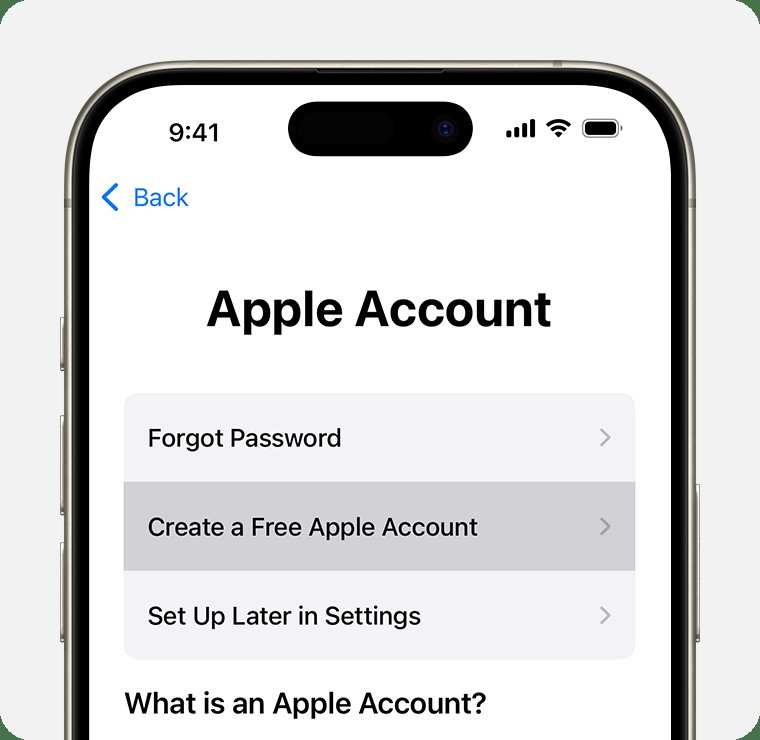
To set up an Apple ID on a new iPhone, you simply follow the prompts during initial setup or go to Settings afterward. **Creating or signing into your Apple ID is quick and straightforward.** When you’re setting up a new iPhone, the process of setting up an Apple ID is seamless and essential for accessing apps, backups, and services. If you’re not sure where to start, this guide will walk you through each step to make the setup easy and stress-free.

New iPhone Setting Up Apple ID
When you get a brand-new iPhone, one of the most important steps is setting up your Apple ID. Your Apple ID is the key to accessing all Apple services such as the App Store, iCloud, iMessage, FaceTime, and more. Setting it up correctly from the start ensures you get the most out of your device. In this guide, we will walk you through each step of the process, explaining everything in detail so you can set up your Apple ID confidently and smoothly.
Understanding the Importance of Your Apple ID
Before diving into the setup steps, it’s helpful to understand why your Apple ID is so vital:
- Access to Apple Services: Use iCloud to store photos, contacts, and documents. Download apps, music, movies, and books from the App Store and iTunes.
- Device Syncing: Sync your data across multiple Apple devices such as iPads, Macs, and Apple Watch.
- Security and Privacy: Protect your data with two-factor authentication and manage your account settings securely.
- Personalization: Customize your device experience with personalized settings, app preferences, and more.
Knowing these benefits motivates you to set up your account correctly, making your iPhone experience more enjoyable.
Preparing to Create or Sign In to Your Apple ID
Before you start setting up your Apple ID, gather the necessary information:
- Email Address: You will need an existing email address or create a new one, which will serve as your Apple ID.
- Password: Think of a secure password combining uppercase, lowercase, numbers, and special characters.
- Security Questions: Prepare answers to security questions for account recovery.
- Payment Method: Optional, but helpful for purchasing apps or content. You can skip this during setup.
- Device Details: Make sure your iPhone is charged and connected to Wi-Fi.
Gathering this information beforehand makes the setup quicker and easier.
Setting Up Your Apple ID on Your New iPhone
Once your device is ready, turn it on and follow the on-screen instructions. You will be prompted to sign in or create a new Apple ID during the initial setup process.
Starting the Setup Process
– Power on your iPhone by pressing and holding the side or top button until the Apple logo appears.
– Follow the on-screen prompts to select your language and country.
– Connect to a Wi-Fi network to proceed. Wi-Fi connection is crucial for verifying your account and updating your device.
– When asked, tap Sign in with your Apple ID.
Creating a New Apple ID
If you do not already have an Apple ID, select the option to create a new one:
- Tap on Don’t have an Apple ID or forgot it?
- Choose Create Apple ID.
- Enter your personal details, such as your name, birthdate, and email address.
- Create a strong password and confirm it.
- Set up security questions and provide answers.
- Agree to the Terms and Conditions.
- Verify your email address through the confirmation email sent to your provided email account.
Once verified, you’re ready to use your new Apple ID on your iPhone.
Signing Into an Existing Apple ID
If you already have an Apple ID, follow these steps:
- Enter your Apple ID email address and password.
- Tap Next and wait for the account to verify.
- If prompted, complete two-factor authentication using a trusted device or phone number.
- Accept the terms and conditions shown on the screen.
Your device will now synchronize with your Apple account, allowing access to all linked services.
Configuring Your Apple ID Settings
After signing in, you should customize your settings to optimize your experience.
Enabling Two-Factor Authentication
Two-factor authentication adds an extra layer of security:
- Go to Settings > [Your Name] > Password & Security.
- Tap Turn On Two-Factor Authentication and follow prompts.
- Verify your trusted phone number that will receive verification codes.
This feature keeps your account safe even if someone gets your password.
Adding Payment and Shipping Information
Although optional, adding payment info enhances your ability to buy apps and content seamlessly:
- Navigate to Settings > [Your Name] > Payment & Shipping.
- Tap Add Payment Method and enter your credit/debit card details.
- Set up your shipping address if you plan to purchase physical items or subscription services.
You can skip this step if you prefer to add payment info later.
Managing Privacy and Data Sharing Settings
Your privacy matters:
- Go to Settings > [Your Name] > Privacy & Security.
- Review options like Location Services, Analytics Sharing, and App Permissions.
- Adjust settings to control what data sharing occurs and which apps have access to certain features.
Taking time to review these options helps protect your personal information.
Verifying Your Apple ID
Once everything is set up, verify that your Apple ID works correctly:
- Open the App Store or iTunes Store.
- Try downloading a free app or song to confirm your account is active and properly linked.
- Check iCloud by opening Settings > [Your Name] and reviewing your synced data.
If any issues arise, go to Apple’s support site or contact customer service for assistance.
Common Problems and Troubleshooting Tips
Setting up your Apple ID on a new iPhone can sometimes bring challenges. Here are common problems and simple solutions:
Unable to Verify Apple ID
– Make sure your device has a strong Wi-Fi connection.
– Double-check that your Apple ID and password are correct.
– Reset your password if needed by visiting the Apple ID account page.
Two-Factor Authentication Not Working
– Ensure your trusted device or phone number is accessible.
– Restart your device and try again.
– Make sure your device’s date and time are set correctly.
Issues with Payment Methods
– Verify the card details are correct.
– Contact your bank if payments are declined.
– Remove and re-add your payment method.
Final Tips for a Smooth Setup
To make setting up your Apple ID easier:
- Use a reliable Wi-Fi connection during setup to avoid interruptions.
- Keep your Apple ID email and password handy.
- Note your security questions and answers safely.
- Take your time reviewing settings for privacy and security.
Setting up your Apple ID can seem overwhelming at first, but following these steps carefully makes the process straightforward. Once completed, you will enjoy the full range of features your new iPhone offers, all linked seamlessly through your Apple ID.
By understanding each part of the setup process thoroughly, you ensure your device is configured correctly and your data is secure. Remember, your Apple ID isn’t just an account—it’s the gateway to your personalized Apple experience.
Frequently Asked Questions
What are the initial steps to set up an Apple ID on a new iPhone?
To set up an Apple ID on your new iPhone, turn on the device and follow the on-screen prompts. When prompted, choose to sign in and either enter your existing Apple ID credentials or create a new account. You will need to provide your email address, create a password, and verify your identity through a verification code sent to your email or phone number. Completing these steps allows you to access Apple services seamlessly.
How can I create a new Apple ID directly on my iPhone during setup?
You can create a new Apple ID during the initial setup process by selecting the option to create a new account when prompted. Enter your personal details, such as your name, date of birth, and email address. Set a secure password, choose security questions, and agree to the terms and conditions. Verifying your email address completes the creation process, allowing you to start using your new Apple ID immediately.
What should I do if I forget my Apple ID password during setup?
If you forget your Apple ID password while setting up your iPhone, tap the “Forgot Password” option on the login screen. Follow the instructions to reset your password by verifying your identity through your email or trusted phone number. Once you reset your password, return to the setup process and sign in with your new credentials to continue setting up your device.
How do I link my existing Apple services to a new Apple ID during setup?
During setup, after signing in with your Apple ID, your device automatically links to existing Apple services associated with that account, such as iCloud, Apple Music, and App Store. If you want to connect to different services or switch accounts, you can do so later in the Settings app. Ensure you sign in with the Apple ID that holds your desired content and subscriptions to access all your data.
Can I skip setting up an Apple ID during the initial iPhone setup?
Yes, you can skip signing in with an Apple ID during the initial setup by selecting the “Set Up Later” option when prompted. However, keep in mind that some features, like iCloud backups, app downloads, and messaging, require an Apple ID. You can add or sign in to your Apple ID later through the Settings app whenever you are ready.
Final Thoughts
setting up your new iPhone and creating your Apple ID is straightforward. Follow the on-screen prompts, enter your details, and verify your account. This process ensures seamless access to all Apple services.
In conclusion, understanding the steps for ‘new iphone setting up apple id’ helps you quickly start using your device. Clear instructions guide you through each stage, making setup simple and efficient.
