

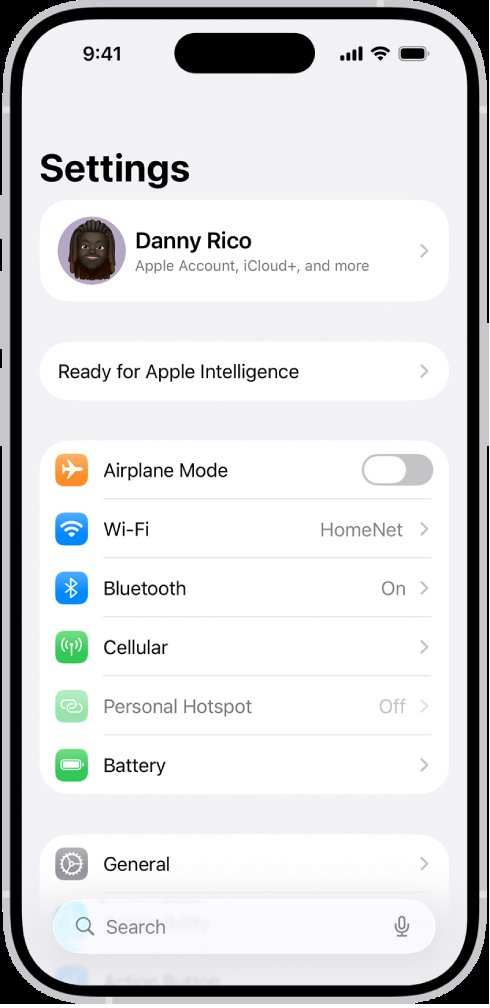
Setting up your Apple iPhone can seem daunting, but most features are quick to customize. **The best way to start is by exploring the Settings app directly.** Here, you can adjust everything from notifications to privacy options with ease.
Navigating the Apple iPhone setting options allows you to personalize your device to fit your needs perfectly. Spend a few minutes tweaking your preferences, and your iPhone will feel more intuitive and efficient to use.

Understanding and Customizing Your Apple iPhone Settings
Getting the most out of your Apple iPhone starts with understanding its settings. These options help you personalize your device, improve security, manage notifications, and optimize performance. Whether you’re new to iPhones or just want to explore some hidden features, diving into the settings can make your experience smoother and more enjoyable.
Getting Started with Basic Settings
When you first turn on your iPhone, a lot of options are available to customize. Let’s walk through some essential settings to set up right away.
Connecting to Wi-Fi and Cellular Data
Connecting to the internet is fundamental for using your iPhone effectively. To do this:
- Open the Settings app on your home screen.
- Tap Wi-Fi and ensure it’s turned on. Select your network from the list, then enter the password if needed.
- Scroll back to the main Settings menu and tap Cellular to enable or disable cellular data and manage usage.
Setting Up Your Apple ID
Your Apple ID connects you to services like iCloud, App Store, and iMessage.
- Go to Settings and tap your name at the top of the screen.
- Select Sign in to your iPhone and enter your Apple ID and password.
- Follow prompts to verify your account and set up two-factor authentication for added security.
Adjusting Date & Time
Correct date and time ensure apps work properly.
- Navigate to Settings, then tap General.
- Select Date & Time.
- Choose Set Automatically for your timezone or manually adjust the settings.
Personalizing Your Display and Appearance
The look of your iPhone can be tailored to suit your style and comfort.
Changing Wallpaper
Customize your background wallpaper:
- Open Settings and tap Wallpaper.
- Select Choose a New Wallpaper.
- Pick from Apple’s images, your photos, or live wallpapers. Tap on your choice and then Set.
Adjusting Brightness and Text Size
Enhance visibility and reading comfort:
- Go to Settings and tap Display & Brightness.
- Move the Brightness slider to your preferred level.
- For text size, select Text Size and adjust the slider accordingly.
Enabling Dark Mode
Dark Mode reduces eye strain and save battery:
- Navigate to Settings, then tap Display & Brightness.
- Choose Dark under Appearance.
Managing Notifications and Alerts
Notifications keep you updated without overwhelming you.
Customizing Notification Settings
Control how and when notifications appear:
- Open Settings and tap Notifications.
- See a list of apps; tap an app to change how it notifies you.
- Choose alert styles, sounds, and whether notifications show on the lock screen.
Setting Do Not Disturb
Avoid interruptions during meetings or sleep:
- Go to Settings and select Focus.
- Tap Do Not Disturb and toggle it on.
- Set specific schedules or allow calls from favorites.
Optimizing Security and Privacy
Your iPhone has many tools to keep your information safe.
Creating a Strong Passcode or Face ID
To lock your device:
- Visit Settings and select Face ID & Passcode.
- Choose Turn Passcode On and follow prompts to set a secure passcode.
- Alternatively, set up Face ID for quick authentication.
Managing App Permissions
Control what apps can access:
- Open Settings and go to Privacy & Security.
- Tap on categories like Location Services or Camera.
- Review the list of apps with access and change permissions as needed.
Enabling Find My iPhone
In case your device gets lost:
- Go to Settings, tap your name, then Find My.
- Select Find My iPhone and toggle it on.
- You can also enable Send Last Location to share your device’s location before it runs out of power.
Controlling App Settings and Usage
Managing app permissions and defaults ensures your device operates efficiently.
Managing Default Apps for Browser, Email, and Messaging
Set your preferred apps for common tasks:
- Go to Settings.
- Scroll down to find specific apps like your preferred browser or email app.
- Tap on each and select Default Browser App or Default Email App to set your favorites.
Limiting Background App Refresh
Save battery life and improve performance:
- Navigate to Settings and tap General.
- Select Background App Refresh.
- Choose Wi-Fi or turn it off for apps you don’t need updating constantly.
Using Accessibility Features for Improved Usability
Apple includes tools to help users customize their experience based on needs.
Enabling VoiceOver and Hearing Features
- Open Settings, tap Accessibility.
- Activate VoiceOver for spoken descriptions of what’s on the screen.
- Explore options like Sound Recognition or Hearing Devices.
Adjusting Touch and Display Settings
- Within Accessibility, find Touch to modify assistive touch options.
- Change display settings like Color Filters or Reduce Motion for comfort.
Managing Storage and Battery Life
Keeping your iPhone running smoothly means managing space and power.
Monitoring Storage
- Visit Settings, then General.
- Select iPhone Storage.
- Review which apps use the most space and delete unnecessary data.
Extending Battery Life
- Enable Low Power Mode in Settings > Battery.
- Limit background activity and reduce screen brightness when needed.
- Close unused apps by swiping up from the bottom (or double-clicking the Home button for older models).
Updating Your iPhone Software
Regularly updating your device keeps it secure and functioning well.
- Navigate to Settings, then tap General.
- Select Software Update.
- If an update is available, follow the prompts to download and install.
Exploring Advanced Settings for Personalization
Once basic settings are smooth, explore deeper customization options.
Setting Up Siri and Voice Commands
- Go to Settings and tap Siri & Search.
- Activate Listen for “Hey Siri” and configure voice commands.
Customizing Control Center
- Open Settings, go to Control Center.
- Add or remove controls like Screen Recording, Low Power Mode, or accessibility shortcuts.
Adjusting Notification Styles and Sounds
- Under Settings > Sounds & Haptics, change ringtone and alert tones.
- Set vibrations, system sounds, and sound effects to match your preferences.
Delving into your iPhone’s settings allows you to create a device that works perfectly for you. From securing your personal information to customizing how your phone looks and feels, exploring these options enhances your overall experience. Take your time to go through each section, experiment with different configurations, and enjoy the many features your Apple iPhone offers.
Frequently Asked Questions
How do I customize notifications on my iPhone?
To customize notifications, go to Settings and select Notifications. Choose the app you want to modify and adjust the notification style, sounds, and alert preferences. You can also set whether notifications appear on the lock screen or as banners, ensuring you receive alerts in a way that suits your needs.
What steps should I follow to change the display brightness on my iPhone?
Open the Control Center by swiping down from the top right corner of your screen (or swipe up from the bottom on older models). Tap the brightness slider and slide it up or down to increase or decrease the screen brightness. Alternatively, you can navigate to Settings > Display & Brightness to make adjustments manually.
How can I manage privacy settings on my iPhone effectively?
Access privacy controls by going to Settings and selecting Privacy. Here, you can manage permissions for location services, camera, microphone, contacts, and other apps. Review each category and toggle permissions on or off based on your comfort level, ensuring your data remains secure.
What is the process for adding or removing Wi-Fi networks on my iPhone?
Go to Settings and tap Wi-Fi. A list of available networks appears; tap the network you want to connect to and enter the password if prompted. To remove a network, tap the ‘i’ icon next to it and select Forget This Network. This keeps your device from automatically connecting to that network in the future.
How do I adjust the sound and vibration settings for notifications?
Navigate to Settings > Sounds & Haptics. Here, you can modify the ringtone, text tone, and other alert sounds. To customize vibration patterns, tap Vibration and select a pattern or create a new one. These settings help you identify notifications through sound and tactile feedback.
Final Thoughts
In summary, understanding the apple iphone setting helps improve your device experience. Adjusting settings like notifications, privacy, and display makes your iPhone more personalized and efficient. Familiarity with these options empowers you to navigate your device confidently.
Focusing on the apple iphone setting ensures you optimize your iPhone’s performance and convenience. Staying updated with these configurations allows you to enjoy a smoother, more tailored user experience.
