

Did you know there’s a secret iPhone setting that boosts your privacy instantly? **Enabling the ‘Sign in with Apple’ feature ensures your email stays private when using apps and websites.** This simple tweak offers greater control over your personal information.
The secret iPhone setting everyone should know also includes customizing your control center for quick access to essential functions. With a few taps, you can tailor your device to fit your needs perfectly.
Don’t miss out on these hidden features—adding them to your routine makes your iPhone more efficient and secure.

A Secret iPhone Setting Everyone Should Know
When you first get your iPhone, it’s tempting to stick with the basic features everyone uses daily. However, behind those simple screens lie hidden settings that can greatly enhance how you use your device. These settings aren’t obvious, but once you find out about them, they can make your iPhone experience more secure, more efficient, and more personalized. In this article, we will explore some of the best-kept secrets on your iPhone that you should definitely be aware of.
Accessing the Hidden Settings Menu
Before diving into specific secrets, it’s important to know how to access some of these features. While most settings are found in the Settings app, there are hidden menus and shortcuts that give you quick control over various functions.
- Control Center Customization: By going to Settings > Control Center, you can add or remove controls like screen recording, flashlight, or even a quick access to your favorites. This allows you to tailor what you see when you swipe down from the top-right corner (or swipe up on older models).
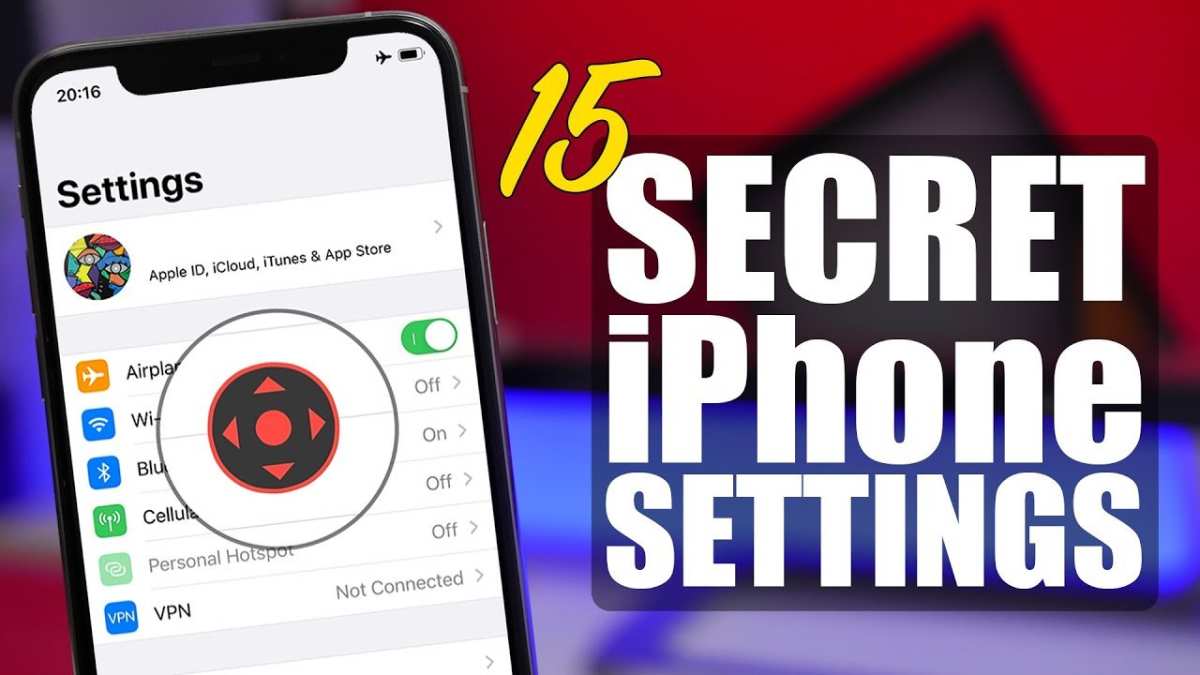
- AssistiveTouch: Enable this in Settings > Accessibility > Touch > AssistiveTouch. It adds a virtual button on your screen that gives quick access to volume controls, gestures, or even custom shortcuts.
- Shortcuts App: Download and set up the Shortcuts app to automate tasks like sending messages, setting reminders, or opening apps with a single tap. You can find and customize pre-made shortcuts or create your own.
Understanding how to access these hidden menus saves you time and opens up new ways to use your iPhone more efficiently.
Secret Settings for Privacy and Security
Your iPhone offers many tools to keep your data safe and your privacy protected. Some of these are deeply buried but well worth enabling.
Limit Ad Tracking
This setting prevents advertisers from creating a profile based on your activity:
- Go to Settings > Privacy > Apple Advertising
- Toggle off Personalized Ads
Disable Location for Specific Apps
Not all apps need your GPS data. Restrict location sharing to enhance your privacy:
- Visit Settings > Privacy > Location Services
- Select individual apps and set location access to “Never” or “While Using.”
Use App Privacy Reports
This feature shows you what apps are accessing your camera, microphone, and location:
- Enable in Settings > Privacy > App Privacy Report
- This report provides transparency and helps you identify any suspicious activity.
Hidden Features to Improve Your Daily Use
Besides privacy, your iPhone packs a variety of lesser-known features designed to make everyday activities easier.
Customize Do Not Disturb and Focus Modes
Focus modes help you filter notifications based on your activity:
- Go to Settings > Focus
- Create custom modes for work, personal time, or sleep. You can specify who can contact you and which notifications are allowed during each mode.
- Schedule automatic activation to save time.
Use Back Tap for Quick Actions
This feature allows you to assign functions to a double or triple tap on the back of your iPhone:
- Navigate to Settings > Accessibility > Touch > Back Tap
- Choose actions such as opening an app, taking a screenshot, or running a shortcut.
Set Up Emergency Bypass
Prevent important contacts from being silenced:
- Open Contacts and select a contact.
- Tap Edit > Ringtone or Text Tone.
- Enable Emergency Bypass to make sure calls and messages from this person ring through even when your iPhone is on silent.
Battery and Performance Tweaks
To extend your iPhone’s battery life and keep it running smoothly, consider these settings.
Optimize Battery Charging
This feature reduces battery aging:
- Go to Settings > Battery > Battery Health & Charging
- Turn on Optimize Battery Charging.
Reduce Motion and Animations
Cutting down on visual effects can improve performance:
- Navigate to Settings > Accessibility > Motion
- Toggle on Reduce Motion.
Manage Background App Refresh
Limiting background activity saves power:
- Visit Settings > General > Background App Refresh
- Select Wi-Fi or turn it off for specific apps.
Secret Camera and Photo Features
Your iPhone camera has hidden capabilities that can boost your photography:
Enable Grid for Better Composition
This helps you align shots:
- Go to Settings > Camera
- Turn on Grid.
Use the Hidden Timer and Burst Mode
Capture moments more easily:
- Tap the timer icon in the Camera app to set a delay (3 or 10 seconds).
- Hold down the shutter button to activate Burst mode automatically, capturing rapid images to choose your best shot.
Optimize Photos with Hidden Settings
Edit photos more effectively:
- Use the built-in editing tools for cropping, adjusting brightness, or applying filters.
- Tap “Adjust” for fine control over shadows, highlights, and other parameters.
Advanced Tips for Power Users
If you love digging into your iPhone’s details, these tips cover some advanced tricks:
Enable Dark Mode for Eye Comfort
Switch to darker interfaces:
- Settings > Display & Brightness
- Select Dark mode or schedule it to turn on automatically at sunset.
Use Safari Extensions and Reader Mode
Enhance web browsing:
- Install Safari extensions from the App Store for ad blocking or note-taking.
- Tap the “AA” icon in Safari to activate Reader Mode, which strips away clutter and makes articles easier to read.
Set Custom Text Tones and Vibrations
Make notifications more personal:
- Go to Settings > Sounds & Haptics > Ringtone or Text Tone.
- Select or buy new tones, or create custom vibrations in Settings > Accessibility > Touch > Vibration.
Your iPhone has a treasure chest of settings that many users never explore. From privacy controls to daily productivity boosts and photography tricks, knowing these secrets helps you get the most out of your device. Spend some time tinkering with these options, and you’ll notice how much more personalized and useful your iPhone can become. This knowledge will make your device safer, easier to use, and more tailored to fit your lifestyle perfectly.
Frequently Asked Questions
How can I customize my iPhone’s Control Center to access frequently used features quickly?
Go to Settings > Control Center. Tap “Customize Controls” and add or remove shortcuts based on your preferences. You can include toggles for Wi-Fi, Bluetooth, screen recording, or other features, allowing you to access them swiftly without navigating through multiple menus.
What setting allows me to manage app permissions more effectively?
Navigate to Settings > Privacy. Here, you can see which apps have access to features like Location, Camera, Microphone, and more. Adjust permissions individually to enhance your privacy and control over app functionalities, preventing unnecessary data sharing.
Is there a way to optimize battery life with a hidden setting?
Yes, enabling Low Power Mode saves battery by reducing background activity, visual effects, and downloads. Access it via Settings > Battery and toggle on Low Power Mode. Turn it on when your battery is running low to extend usage without sacrificing essential functions.
How can I improve Siri’s responsiveness on my iPhone?
Go to Settings > Siri & Search. Enable “Listen for ‘Hey Siri'” and “Press Home or Side Button for Siri” for easier activation. Additionally, train Siri to recognize your voice more accurately through the setup prompts, which improves its responsiveness to commands.
What is a secret setting to reduce distractions from notifications?
Use the Focus modes available in Settings > Focus. You can customize modes like Do Not Disturb, Personal, Work, or Sleep, and schedule them based on your routine. This feature helps you limit notifications during specific times or activities, allowing for less interruption and better focus.
Final Thoughts
The secret iphone setting everyone should know enhances your device’s efficiency and privacy. Activating this feature is simple and can significantly improve your user experience. Taking a moment to explore this setting ensures you utilize your iPhone to its fullest potential. Focus on this hidden gem to make daily tasks easier and more secure.
