

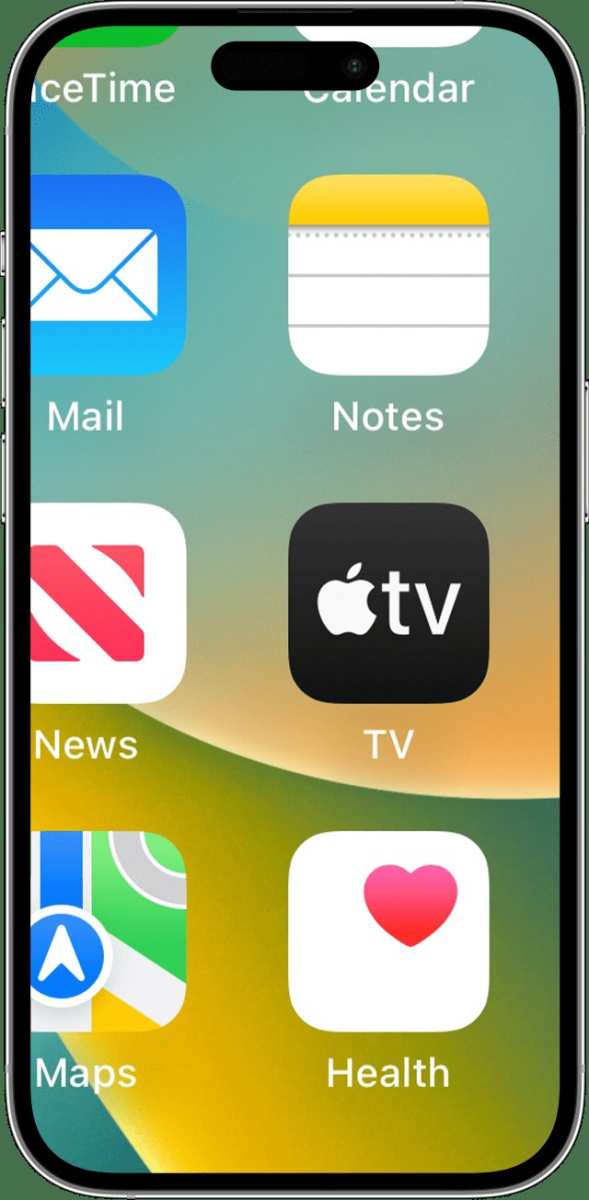
If your iPhone screen appears zoomed in unexpectedly, **simply double-tap the screen with three fingers** to revert it back to normal. The zoomed in iphone screen fix is often just a quick gesture away. Sometimes, accidental activation of the Accessibility zoom feature causes this issue, but it’s easy to solve.
You can also turn off zoom in Settings under Accessibility > Zoom, ensuring it doesn’t happen again. This small adjustment restores your screen to its original view without hassle.

Zoomed in iPhone Screen Fix: How to Fix a Screen That’s Too Close or Enlarged
Sometimes, your iPhone screen suddenly looks like it’s zoomed in too much. Instead of seeing everything clearly, parts of your screen appear enlarged or cropped. This can make it hard to read messages, view photos, or use your favorite apps. Don’t worry—this problem is common, and there are simple ways to fix it.
In this guide, we’ll explore what causes a zoomed-in iPhone screen and how to fix it quickly. Whether your screen is zoomed in accidentally or due to settings, we’ll cover all you need to know to get your display back to normal.
Understanding Why Your iPhone Screen Looks Zoomed In
Before rushing to fix your screen, it’s good to understand why it might appear to be zoomed in. Several reasons can cause this issue, and knowing the root can help you choose the right fix.
Accidental Enablement of Zoom Accessibility Setting
Your iPhone has an accessibility feature called “Zoom,” which enlarges everything on the screen to help users with visual challenges. Sometimes, this feature gets turned on accidentally, making your screen look zoomed in.
Display Zoom Settings
iPhones have a feature called “Display Zoom” that adjusts the way icons and interface components appear. If set to “Zoomed,” your screen may look larger and closer than usual. Changes to this setting can happen after updates or accidental taps.
Unintentional Pinch or Swipe Gestures
Sometimes, a simple pinch gesture might unintentionally zoom into your screen. This often happens if you are exploring your phone or trying to zoom into photos.
Software Glitches or Bugs
Occasionally, a bug or glitch causes the display to behave abnormally. Restarting your iPhone can clear temporary issues that might cause the zoomed-in view to stick.
How to Fix a Zoomed In iPhone Screen
Now that you understand possible reasons, let’s discuss how to fix the zoomed-in screen. The solutions are straightforward and require no technical experience.
Disable the Zoom Accessibility Feature
If your screen is zoomed in because of the accessibility setting, turning it off is quick:
- Go to Settings
- Tap Accessibility
- Choose Zoom
- Toggle the switch off
This turns off the zoom feature and restores your screen to normal size.
Adjust Display Zoom Settings
If your iPhone uses Display Zoom, changing it back will solve the problem:
- Open Settings
- Tap Display & Brightness
- Scroll to Display Zoom
- Select View
- Choose Standard (or the default setting)
- Tap Set to confirm
Your screen will refresh, and the size of icons and text will go back to normal.
Reset Screen Zoom Using Gestures
If accidental pinch gestures caused your screen to zoom, try:
- Touch the screen with two fingers
- Spread your fingers apart to zoom out
- Use the same gesture repeatedly until the screen appears normal
This is often the fastest way to fix minor zoom issues caused by gestures.
Restart Your iPhone
A simple restart can resolve temporary glitches:
- Press and hold the power button and volume button (or side button for older models)
- Slide to power off
- Turn your iPhone back on after a few seconds
This refreshes the device and often clears bugs that affect display settings.
Update Your iPhone Software
Software updates fix bugs and improve device stability:
- Open Settings
- Go to General
- Select Software Update
- Download and install if an update is available
Keeping your iPhone updated can prevent screen issues caused by software bugs.
Tips to Prevent the Screen from Getting Too Zoomed In
Prevention is better than cure. Here are some tips to stop accidental zooming or settings changes:
Be Careful with Gestures
– Avoid pinching or double-tapping with force
– Use gentle gestures to navigate your device
Set Up Accessibility Settings Correctly
– Review your Accessibility options periodically
– Turn off Zoom if you don’t need it
– Enable “Triple-click Home” or “Side Button” shortcuts for quick access
Adjust Display Settings
– Set your display to default zoom under Display & Brightness
– Avoid changing zoom settings unless needed
Keep Your iPhone Updated
– Software updates include fixes for display bugs
– Regular updates improve overall performance
What to Do If Your Screen Remains Zoomed In After Trying Fixes
Sometimes, fixes don’t work right away, or the problem persists. If your screen still appears zoomed in even after trying the above steps, consider:
Reset All Settings
This resets preferences without deleting your data:
- Go to Settings
- Tap General
- Select Reset
- Choose Reset All Settings
Remember, this resets Wi-Fi passwords, display settings, and accessibility options but keeps your apps and files safe.
Restore Your iPhone from Backup
If issues persist, restoring your iPhone might help:
- Connect your iPhone to a computer with iTunes or Finder
- Select your device
- Choose Restore Backup
- Select a recent backup and restore
This is a more advanced step and should be done carefully to avoid data loss.
Visit an Apple Store or Authorized Service Provider
If your screen still appears zoomed in after all these steps, the problem might be hardware-related. A professional technician can diagnose and fix potential hardware issues, such as a damaged display or faulty sensors.
Summary of Key Fixes for a Zoomed In iPhone Screen
| Fix Method | Description | How to Perform |
|————–|————–|—————-|
| Disable Zoom | Turns off accessibility zoom | Settings > Accessibility > Zoom |
| Adjust Display Zoom | Changes screen size preferences | Settings > Display & Brightness > Display Zoom |
| Use Gestures | Manually zoom out | Pinch finger gesture |
| Restart iPhone | Refreshes device | Power off and on |
| Update Software | Fixes bugs | Settings > General > Software Update |
| Reset Settings | Resets preferences | Settings > General > Reset > Reset All Settings |
| Restore iPhone | Reverts to factory state | iTunes/Finder restore |
Always remember to back up your data before making major changes or resets to your device.
By following these detailed steps, you can handle most issues related to a zoomed-in iPhone screen effectively. Quick fixes like toggling accessibility or adjusting display settings often do the trick, but more complex issues might require professional help. Taking care with gestures and settings will also help prevent this issue from happening again.
If your screen continues to act up despite trying everything, don’t hesitate to seek support from Apple or a trusted repair shop. Your device should work perfectly, giving you a clear and comfortable view every time you pick it up.
Frequently Asked Questions
Why does my iPhone screen appear zoomed in even when I haven’t changed any settings?
If your iPhone screen looks zoomed in without you adjusting any settings, it may be due to the accessibility feature called Reachability or a display zoom setting being enabled. Sometimes, accidental taps or hardware issues can also trigger this mode. Check the display settings to see if zoom or accessibility options are activated and disable them if necessary.
How can I adjust the screen zoom level on my iPhone?
To change the zoom level, go to Settings > Display & Brightness > View. You’ll see options for Standard and Zoomed views. Select Standard to revert to the default display. Tap ‘Set’ to confirm your choice, and your screen will adjust accordingly. If the zoom persists, restarting your device can help reset display settings.
What steps should I take if the screen remains zoomed in after trying to change settings?
If your screen remains zoomed in, try force restarting your iPhone. For most models, press and quickly release the volume up button, then press and quickly release the volume down button, followed by holding the side button until the Apple logo appears. If this doesn’t work, check for any software updates or consider resetting your display settings. In persistent cases, contacting Apple Support is advisable.
Could a software update fix issues related to the zoomed display?
Yes, updating your iPhone’s software can resolve bugs that cause display issues. Go to Settings > General > Software Update and follow instructions to install any available updates. Software updates often include fixes for accessibility features and display problems that may be causing the zoomed appearance.
Is it possible that an accessibility setting is causing the screen to appear zoomed in?
Absolutely. Accessibility options like Magnifier, Display Zoom, or Zoom could accidentally be turned on. Navigate to Settings > Accessibility > Zoom and make sure it’s turned off if you do not need this feature. Disabling such settings will restore your screen to its normal view.
Final Thoughts
In summary, resolving a zoomed in iPhone screen fix is straightforward with the right steps. Whether it’s adjusting display settings or performing a force restart, these simple solutions often resolve the issue quickly.
Knowing how to fix this problem helps prevent unnecessary repairs or replacements. Be sure to follow the recommended troubleshooting methods to restore your screen to normal. The ‘zoomed in iphone screen fix’ can be achieved efficiently with patience and the correct approach.
