

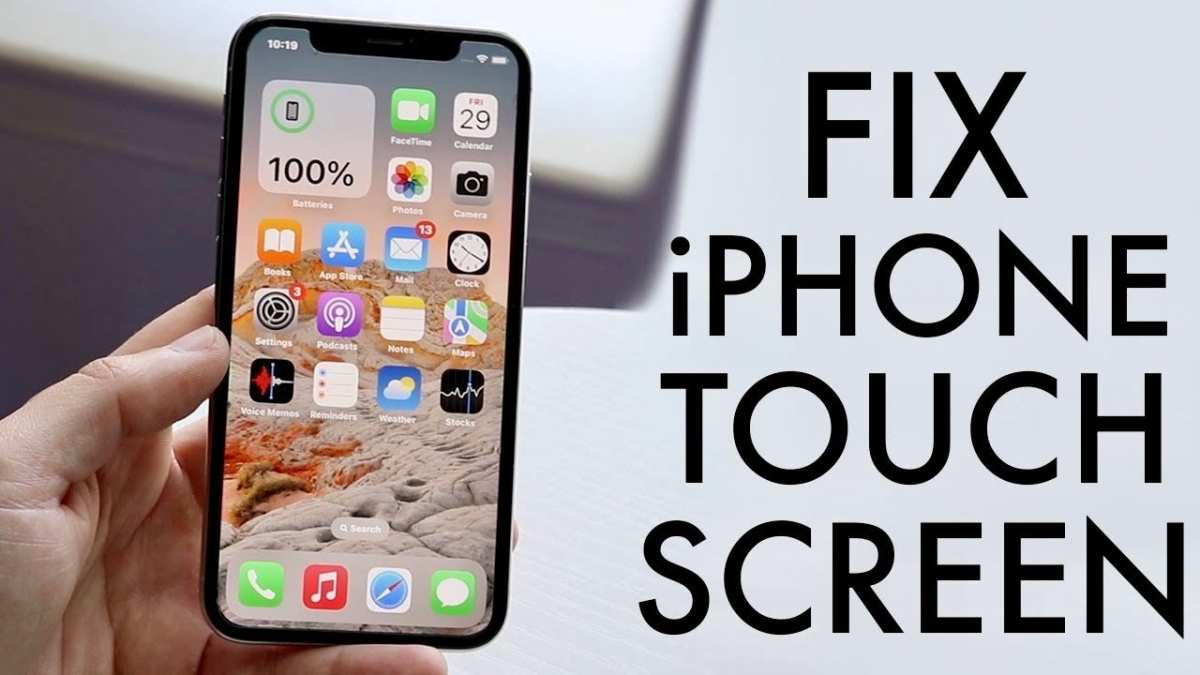
If your iPhone screen has suddenly stopped working, **a simple restart or force restart often resolves the issue.** The iPhone screen stopped working fix can sometimes be as easy as updating your software or removing a faulty app. In many cases, hardware issues like a broken display or loose connection require professional repair, but try these quick troubleshooting steps first. Addressing the problem promptly can save you time and frustration, so let’s walk through practical solutions to get your device back in action.

iPhone Screen Stopped Working Fix: How to Repair Your iPhone Screen Quickly and Easily
When your iPhone screen suddenly stops responding or goes completely black, it can feel very frustrating. You rely on your phone for everything—calling friends, checking emails, taking photos, and even using it for work. If your iPhone screen isn’t working, don’t worry. There are several ways to fix it that are simple and budget-friendly. In this guide, we’ll explore what causes iPhone screens to stop working and share step-by-step solutions you can try at home. Whether your screen is frozen, unresponsive, cracked, or completely dead, we’ll help you get your iPhone back in working order.
Understanding Why Your iPhone Screen Might Stop Working
Before jumping into fixes, it’s important to understand the common reasons an iPhone screen can stop functioning. This knowledge can help you decide the best approach to repair it.
Physical Damage
– Cracks or shattered glass from drops or impacts
– Damage from pressure or bending
– Exposure to water or other liquids
Software Issues
– Apps causing the device to freeze
– Operating system bugs or glitches
– Failed update or installation problems
Hardware Failures
– Faulty display connectors
– Malfunctioning screen components
– Battery issues affecting the display
Other Causes
– Overheating
– Extreme cold or hot environments
– Poor charging habits causing power issues
Initial Troubleshooting Steps for a Non-Responsive iPhone Screen
When your iPhone screen is not working, try these quick tricks first. Often, these steps resolve the problem without needing repairs.
Force Restart Your iPhone
– For iPhone 8 or newer: Quickly press and release the volume up button, then quickly press and release the volume down button. Finally, press and hold the side button until the Apple logo appears.
– For iPhone 7 and 7 Plus: Press and hold both the volume down button and the Sleep/Wake button. Keep holding until the Apple logo shows.
– For iPhone 6s or earlier: Press and hold the Home button and the Sleep/Wake button simultaneously until the Apple logo appears.
This method often fixes temporary software glitches that prevent the screen from working.
Check for Physical Damage
– Carefully inspect your screen for visible cracks or bends.
– Look for discoloration or strange lines, which may indicate hardware damage.
– If you notice any damage, avoid trying to turn it on repeatedly as it might worsen the issue.
Charge Your iPhone
– Connect your iPhone to a charger and wait for a few minutes.
– Sometimes, a drained battery can cause the screen to stay black.
– Make sure you’re using an official or reputable charger and cable.
Connect to iTunes or Finder
– Connect your iPhone to a computer using a Lightning cable.
– Open iTunes (Windows or older macOS) or Finder (macOS Catalina and later).
– If the device appears connected, try restoring or updating your iPhone.
*Note:* Restoring your iPhone erases all data. Use this as a last resort if troubleshooting doesn’t work.
DIY Fixes for a Stuck or Dead iPhone Screen
If basic steps don’t solve the problem, you can try some simple DIY fixes. These methods often repair common issues like screen freezes, unresponsiveness, or minor hardware glitches.
Reboot Your iPhone in Recovery Mode
This can fix stubborn software problems that prevent the screen from working.
– Connect your iPhone to your computer.
– For iPhone 8 or newer:
* Press and quickly release the volume up button.
* Press and quickly release the volume down button.
* Press and hold the side button until the recovery mode screen appears.
– For iPhone 7 and 7 Plus:
* Press and hold both the volume down button and the Sleep/Wake (side) button.
* Keep holding until the recovery mode screen appears.
– For iPhone 6s or earlier:
* Press and hold the Home button and the Sleep/Wake button.
* Keep holding until the recovery mode screen shows.
Once in recovery mode, you can choose to update or restore your iPhone via iTunes or Finder.
Check and Replace Your Screen if Necessary
– If your screen shows signs of physical damage, replacing the screen might be necessary.
– You can order replacement kits online or visit a professional repair shop.
– Replacing the screen involves removing the damaged display and installing a new one, which requires some tools and careful handling.
– For safety and quality reasons, consider seeking professional help unless you are confident in doing it yourself.
Perform a Hard Reset (if applicable)
– Sometimes, a simple hard reset can fix unresponsive screens.
– Follow the force restart procedures listed earlier based on your iPhone model.
When to Seek Professional Repair Services
If your efforts don’t bring your iPhone screen back to life, or if you notice serious hardware damage, it’s best to see a professional. Here’s when you should consider professional repair:
- The screen has visible cracks or shattering.
- The display is completely black, but the phone still vibrates or rings.
- The touch functionality doesn’t work even after restarting.
- There is water damage or corrosion visible inside the device.
- You’re uncomfortable opening the device or performing repairs yourself.
Most Apple Store locations or authorized repair shops can replace your screen efficiently. Often, they offer warranty options and guarantees on their work.
Preventive Measures to Protect Your iPhone Screen
To avoid future screen issues, consider these helpful tips:
- Use a durable screen protector to guard against scratches and cracks.
- Always handle your phone carefully, especially around edges and when dropping it.
- Avoid exposing your device to extreme temperatures or liquids.
- Keep your software updated to prevent bugs that could affect display functions.
- Make sure your phone is charged properly and avoid using damaged charging cables.
Summary of Key Tips
– Try force restarting your iPhone first.
– Inspect your device for visible damage.
– Use iTunes or Finder to troubleshoot software issues.
– Replace the screen if physical damage is present.
– Seek professional repair if needed to avoid further damage.
By understanding the causes and following these steps, you can fix many iPhone screen issues on your own or know when to seek professional help. Remember, patience and careful handling go a long way in keeping your device in top shape. Whether it’s a minor freeze or a shattered screen, proper troubleshooting can save you time and money, bringing your iPhone back to life quickly.
Frequently Asked Questions
What should I do if my iPhone screen is frozen and unresponsive?
If your iPhone screen becomes frozen or unresponsive, performing a force restart can often resolve the issue. For most models, press and hold both the volume down button and the side button until the Apple logo appears. For older models with a Home button, press and hold the Home button along with the side or top button until the Apple logo shows. This method resets the device temporarily, allowing the screen to become responsive again.
How can I check if a software update might fix my screen problem?
Updating your iPhone to the latest iOS version can resolve bugs that cause the screen to stop working. Head to Settings > General > Software Update. If an update is available, tap Download and Install. Always ensure your device is connected to Wi-Fi and has sufficient battery life before initiating the update. Software updates often include fixes for display-related glitches, improving overall device stability.
What are the steps to troubleshoot hardware issues causing my iPhone screen to malfunction?
Begin by inspecting your device for physical damage, especially cracks or water exposure. If you see any, professional repair may be necessary. Remove any case or screen protector that might be interfering with the display. Restart the device to check if the screen responds. If problems persist, visiting an authorized service center for a detailed hardware diagnosis helps identify underlying issues, such as a faulty display connector or damaged screen components.
Is it safe to replace my iPhone screen myself if it’s not responding?
Replacing an iPhone screen requires specialized tools and skills. Attempting a DIY repair without proper knowledge can cause further damage or void your warranty. If your screen is unresponsive due to hardware failure, it’s better to seek assistance from certified technicians or authorized service providers. They can perform safe repairs using genuine parts, ensuring your device functions correctly afterward.
Can extreme temperatures affect my iPhone screen’s operation?
Yes, exposure to very hot or cold environments can impair your iPhone’s display functionality. High temperatures may cause the screen to become unresponsive or display distorted images, while cold temperatures can temporarily reduce touch sensitivity. To fix this, move your device to a more moderate environment and give it some time to return to normal. If issues continue, a professional checkup can determine if temperature damage caused hardware problems.
Final Thoughts
In summary, troubleshooting your iPhone screen stopped working fix involves simple steps like restarting your device or checking for software updates. If these don’t work, consider a factory reset or visiting an authorized repair center. Addressing hardware issues promptly can prevent further damage. Following these tips helps you restore your iPhone’s display quickly and efficiently.
