

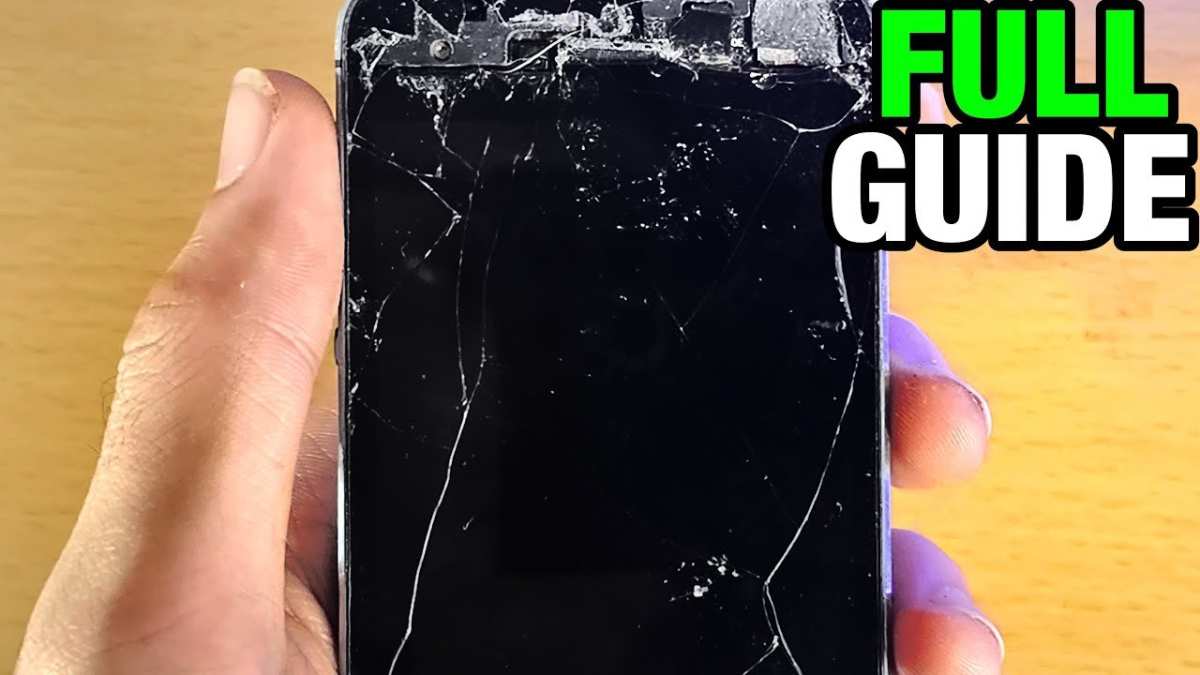
If your iPhone screen is broken, you can still access your device with a few simple steps. **Connecting your iPhone to a computer and using iTunes or Finder allows you to control your phone even with a damaged screen.**
Knowing how to access iPhone screen broken helps you retrieve important data or prepare for repairs quickly. Try using a lightning-to-USB cable to connect your iPhone to a computer, then follow the on-screen prompts. This method provides an immediate workaround until you can get a screen replacement.

How to Access an iPhone Screen That Is Broken
Having a broken screen on your iPhone can feel like a nightmare. Whether it’s a spider web crack, a completely shattered display, or just black and unresponsive, it creates a major obstacle. But don’t worry—there are ways to access your data and use your iPhone even when its screen isn’t working properly. In this article, we’ll walk through different methods to access your iPhone with a broken screen, from basic tricks to more advanced solutions. We’ll also cover important tips to keep your data safe and options for repairs. By the end of this guide, you’ll understand how to get into your iPhone without losing important information or files.
Understanding Your iPhone and Why the Screen Breaks
Before diving into how to access your iPhone with a broken screen, it helps to understand why screens crack and what this means for your device.
Your iPhone screen is made of glass, which is fragile. Common causes of screen damage include:
- Accidental drops
- Applying too much pressure on the device
- Impact from objects like keys or coins
- Manufacturing defects or material fatigue over time
When your screen breaks, the damage can range from minor scratches to complete blackouts. Some screens stay responsive even after cracks appear, but others become unresponsive or turn black completely.
Knowing the extent of the damage helps you decide which method to use to access your data or operate the device. For example:
- If the touchscreen stops responding but the display is still visible, you might still be able to control your iPhone with some tricks.
- If the display is completely black but the device still works, you can try connecting it to other devices for access.
Understanding your specific situation allows you to choose the right approach.
Initial Steps Before Trying to Access a Broken iPhone
Before attempting any methods, take these precautionary steps:
- Make sure your iPhone is charged, so it has enough power during troubleshooting.
- Identify the extent of the damage—can you see still some display or is it completely dark?
- If possible, turn off your device to prevent further damage or accidental inputs.
- Gather necessary tools, such as a Lightning cable, computer, or compatible adapters.
Having these ready will make subsequent steps easier.
Using a Computer to Access Your iPhone Data
One of the most straightforward ways to access data on a broken iPhone is via a computer. Depending on whether you use a Mac or a Windows PC, there are different options to consider.
Connecting Your iPhone to a Mac via Finder or iTunes
If your device is recognized by your Mac:
- Connect your iPhone to your Mac using a Lightning cable.
- Open Finder (on macOS Catalina and later) or iTunes (on older macOS versions and Windows).
- If your iPhone appears in the sidebar or iTunes window, you can back up your device or access files.
- Choose “Back Up Now” to save your data locally.
**Note:** Sometimes, a broken screen prevents your Mac from recognizing your device. In such cases, continue reading for other options.
Using Third-Party Data Recovery Software
If your iPhone isn’t recognized or the screen is completely unresponsive, third-party tools can help:
- Research reliable software like Dr.Fone, iMobie PhoneRescue, or Tenorshare UltData.
- Connect your iPhone to the computer.
- Follow software instructions to scan and recover data.
These tools often work even when the screen is broken, but ensure you install them beforehand or on a different device for setup.
Accessing iPhone via Screen Mirroring and External Devices
If your screen is unresponsive but the device powers on:
- Using an External Display with a Lightning to HDMI Adapter
- Steps to connect:
- Get a compatible Lightning to HDMI adapter or an Apple Digital AV Adapter.
- Connect your iPhone to the adapter, then hook it up to an HDMI display.
- The screen should mirror your iPhone, allowing you to control it with the touchscreen or external keyboard/mouse if supported.
This method allows you to see your iPhone screen on a larger monitor, making it easier to navigate.
Using AssistiveTouch for Better Navigation
If your touchscreen responds partially:
- Try enabling AssistiveTouch, which provides on-screen controls for navigation.
- Go to Settings > Accessibility > Touch > AssistiveTouch, and turn it on.
- This feature creates a virtual home button and shortcuts, helping you navigate even with limited touchscreen response.
Using Voice Control to Operate Your iPhone
Voice commands can help you control your iPhone if the screen is unresponsive:
- Open Settings > Accessibility > Voice Control to enable it.
- Once active, you can give commands like “Open Photos,” “Scroll down,” or “Back.”
- This approach is especially useful if the touchscreen doesn’t work but the display still shows content.
Connecting External Keyboard and Mouse
For devices that support external accessories:
- Use a Lightning to USB or Bluetooth keyboard/mouse.
- Connect the accessories to your iPhone.
- This setup allows you to navigate and select options without relying on the touchscreen completely.
Screen Replacement or Repair Options
Sometimes, the best way to access your iPhone fully involves fixing the broken screen:
- Visit an Apple Store or authorized repair center for professional screen replacement.
- Ask about temporary replacement screens or parts if you need quick access urgently.
- Consider third-party repair shops for potentially lower costs, but verify their credibility.
Precautions When Trying to Access a Broken iPhone
Always remember:
- Avoid using excessive force when connecting cables or adapters to prevent additional damage.
- Back up your data regularly to prevent loss in case of future accidents.
- If the device is physically damaged, handle it carefully to avoid injury from shattered glass.
- Keep your device away from water or extreme temperatures during troubleshooting.
Summary of Key Methods
Here’s a quick overview of options to access a broken iPhone:
| Method | Best For | Requirements |
|---|---|---|
| Connecting to a computer via iTunes or Finder | Accessing and backing up data | Lightning cable, computer, software |
| Using third-party recovery tools | Data recovery when device isn’t recognized | Software installation, USB connection |
| Screen mirroring with adapters | Viewing and controlling iPhone display | Lightning to HDMI adapter, external display |
| Enabling AssistiveTouch and Voice Control | Navigation when touchscreen is partially responsive | Accessible via Settings |
| Connecting external keyboard/mouse | Navigation without touchscreen | Compatible accessories |
| Screen repair or replacement | Full device access and usability | Professional repair services |
By understanding these options and preparing accordingly, you can prevent data loss and keep control of your iPhone even when the screen is broken.
—
Frequently Asked Questions
What options are available if the iPhone screen is shattered but the device still responds to touch?
If your iPhone screen is broken but responds to touch, you can connect your device to a computer and use iTunes (on Windows or older macOS) or Finder (on macOS Catalina and later) to back up your data. You might also use screen mirroring tools or external displays with compatible adapters to access your content. Additionally, third-party software can help recover data from a damaged screen if your device responds to touch accurately.
How can I access my iPhone data if the screen is completely unresponsive?
If the screen doesn’t respond at all, you can connect your iPhone to a computer with iTunes or Finder and perform a backup. If the device is recognized, you can save your data without needing to see the screen. For devices with Face ID, connecting to a computer can sometimes enable data access even if the screen remains unresponsive, provided you’ve previously trusted the computer.
Are there hardware tools that facilitate using an iPhone with a broken screen?
Yes, hardware tools like external display adapters or HDMI connectors can help. By connecting your iPhone to an external monitor, you can view the display and navigate the device with an external keyboard or mouse. These tools are especially useful if the touch functionality is still working but the display is unreadable or damaged, allowing you to retrieve important information or perform repairs more easily.
Can third-party apps assist with managing an iPhone that has a broken screen?
Some third-party applications enable you to control or access certain features of your iPhone even if the screen is damaged. These apps often require prior installation and authorization. They can help transfer files, back up data, or activate screen recording features, giving you an alternative means to manage your device when the screen is inaccessible.
What should I do if I want to replace the screen but still access my data?
Final Thoughts
To access an iPhone screen broken, you can try connecting your device to a computer using a USB cable and using specialized software to retrieve your data. If the display is unresponsive, enabling VoiceOver or Siri can help navigate your phone.
Seeking professional repair services is another effective option, especially if data recovery is urgent.
how to access iphone screen broken involves different techniques depending on your specific situation. Following these steps can help you regain access quickly and efficiently.
