

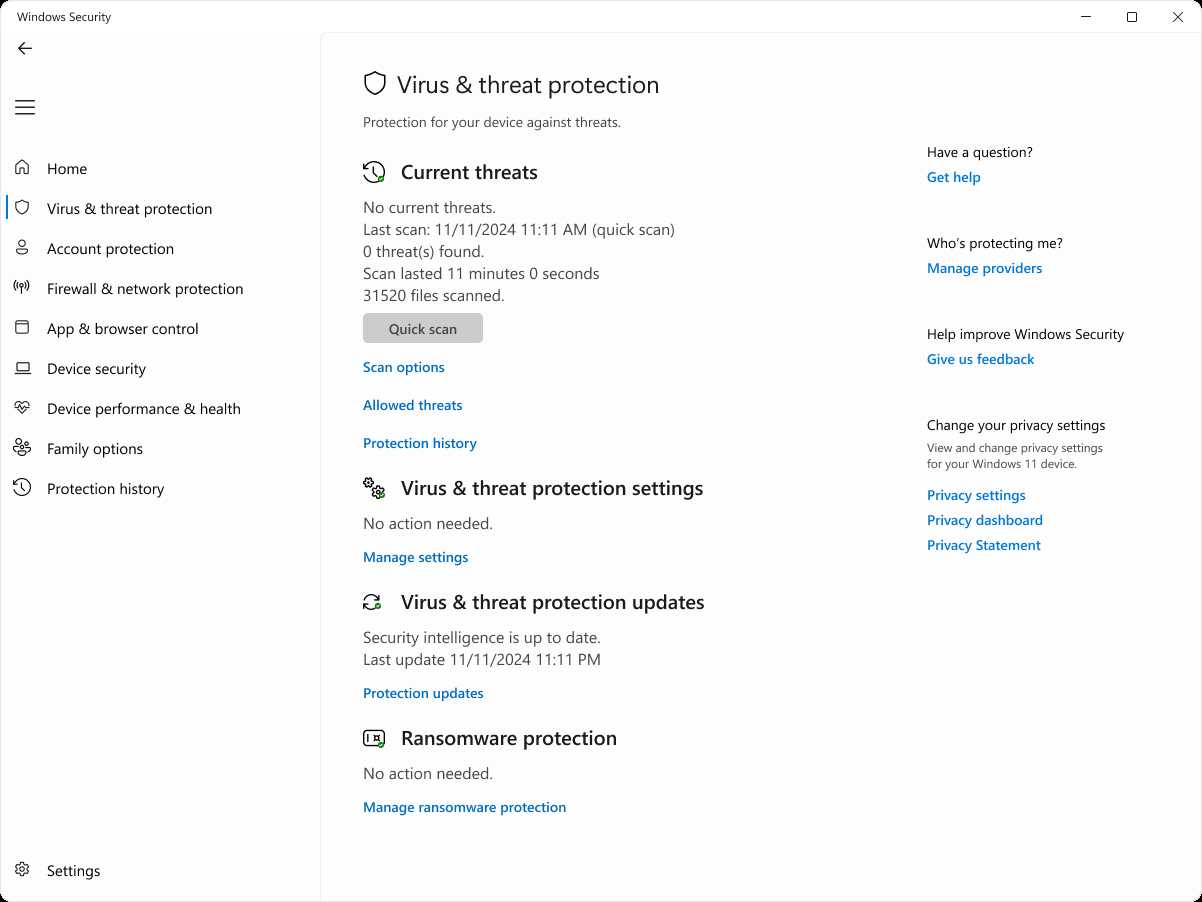
To quickly check for malware and security threats, run a trusted antivirus scan, monitor unusual system behavior, and keep your software updated. Regularly scanning your device with reliable security tools and staying alert to signs like slow performance or strange pop-ups can help detect threats early.
In short, the best way to check for malware is to use reputable antivirus programs to scan your system, stay vigilant for odd activity, and keep your software current. These steps can help identify and eliminate potential security risks before they cause serious damage.
If you’re concerned about malware or security threats on your device, don’t panic. Recognizing the signs early and taking immediate action can save you from data loss, privacy breaches, and costly repairs. In this guide, we’ll walk through practical, easy-to-follow steps to detect and address malware, ensuring your digital environment stays safe and secure. Whether you’re a casual user or managing a business network, understanding how to identify threats is crucial in today’s risk-filled online world.

How to check for malware and security threats
Understanding Malware and Security Threats
Malware is malicious software designed to harm your computer or steal your information. It includes viruses, spyware, ransomware, and worms. Security threats are various dangers that can compromise your data and privacy. Recognizing these threats is the first step in protecting your device and personal information.
Signs Your Device Might Be Infected
Your device may show several warning signs if infected with malware. These include a sudden slowdown in performance, unexpected pop-up windows, or unfamiliar programs appearing. Other signs are frequent crashes, strange emails sent from your account, or unusual network activity.
Step-by-Step Guide to Check Your Device for Malware
1. Use Built-in Security Tools
Most operating systems come with built-in security features. For Windows, use Windows Defender. On Mac, utilize XProtect and Gatekeeper. These tools can scan your system automatically or manually for threats. Make sure they are updated to detect the latest malware.
2. Run a Full System Scan
Perform a **full system scan** to thoroughly examine all files and processes. This helps uncover hidden malware that might not be detected during quick scans. Schedule regular scans to maintain ongoing security.
3. Check for Unusual Activity
Open your task manager or activity monitor. Look for unfamiliar or high-resource-consuming processes. Next, check your browser extensions and programs. Remove anything suspicious or unfamiliar.
4. Use Malware Removal Tools
Download reputable malware removal tools like Malwarebytes, Norton Power Eraser, or AdwCleaner. Run these tools to scan your device and delete any detected threats. Keep these tools updated, so they recognize the newest malware variants.
How to Recognize and Respond to Specific Threats
Viruses and Worms
Viruses attach themselves to files and can replicate. If your files become corrupted or disappear, it may be a virus. Run a thorough scan and quarantine affected files to prevent spreading.
Spyware and Adware
These programs track your activity or bombard you with ads. Look for sudden pop-ups or redirects. Use anti-spyware tools to detect and remove this type of malware.
Ransomware
Ransomware encrypts your files and demands payment. If your files are inaccessible and a ransom note appears, disconnect your device immediately. Contact security professionals and avoid paying the ransom.
Protecting Your Device from Future Threats
Keep Software Updated
Regular updates patch security flaws that malware can exploit. Enable automatic updates for all programs and your operating system.
Create Strong Passwords
Use complex passwords that combine letters, numbers, and symbols. Avoid reuse across multiple sites and consider a password manager for convenience.
Backup Your Data Regularly
Store copies of important files on external drives or cloud services. Regular backups ensure you can restore data if infected or compromised.
Best Practices for Safe Internet Usage
Avoid clicking on suspicious links or downloading files from untrusted sources. Use secure websites (HTTPS) and steer clear of pop-up ads. Turn on two-factor authentication wherever possible to add extra security layers.
Monitoring Network Traffic for Security Threats
Use network monitoring tools to observe data flow. Unusual activity, such as large data uploads or connections to unknown IP addresses, can signal a security breach. Regularly review your network logs to identify any irregularities.
Understanding and Using Antivirus Software Effectively
Choose reputable antivirus software and keep it current. Schedule regular scans and perform real-time protection checks. Many antivirus programs also offer web protection and email scanning features.
Checking for Unauthorized Access
Review account activity logs for your email, bank, or social media accounts. Look for login locations or devices you don’t recognize. Update passwords if you suspect any unauthorized access.
Investigating Suspicious Files or Emails
Be cautious with email attachments and links, especially from unknown sources. Use online virus scanners like VirusTotal to analyze suspicious files before opening. Never open attachments or click links unless you are sure they are safe.
Additional Tips for Maintaining a Secure System
– Use a firewall to block unwanted connections.
– Disable unnecessary services and ports.
– Educate yourself about common scams and phishing tactics.
– Set up security alerts for your accounts to get notified of suspicious activity.
Summary of Key Tools and Resources
| Tool/Resource | Purpose |
|---|---|
| Windows Defender | Built-in Windows security for virus and threat scanning |
| Malwarebytes | Malware detection and removal |
| AdwCleaner | Adware and unwanted program removal |
| VirusTotal | Online file analysis for malware |
| Secure VPN | Protects your online privacy and secures internet connection |
Final Advice
Regularly checking your device for signs of malware and security threats keeps your data safe. Combine multiple strategies, including software tools and cautious internet habits. Staying vigilant helps prevent infections and keeps your information secure.
Windows has a hidden malware removal tool | #shorts #trending #mrt #malware
Frequently Asked Questions
What signs indicate that my device might be infected with malware?
Unusual slowdowns, frequent crashes, unexpected pop-ups, and programs launching automatically are common signs of malware infection. Additionally, increased data usage or unauthorized changes to your settings can also suggest a security threat. Paying attention to these symptoms helps identify potential malware issues early on.
How can I perform a manual check for malware on my system?
Start by reviewing running processes and installed programs for any unfamiliar items. Use built-in tools like Task Manager on Windows or Activity Monitor on Mac to monitor active processes. Check your browser extensions and settings for any unfamiliar additions. Running a full scan with a reputable antivirus or anti-malware program allows you to detect and eliminate threats effectively.
What are effective tools or practices for identifying security threats on my network?
Use network monitoring tools to analyze traffic and identify suspicious activity. Regularly update your firewall settings and run vulnerability scans on your network devices. Keep your router firmware and security software current, and review connected devices for unauthorized access. These practices help maintain the integrity of your network and prevent malware intrusion.
Should I check my system logs for signs of malware activity?
Yes, examining system logs can reveal unusual activities, errors, or access attempts that indicate malware presence. Look for recurring error messages, failed login attempts, or unexpected changes in system files. Analyzing logs helps you understand potential threats and respond appropriately to mitigate risks.
How often should I conduct malware scans to keep my device secure?
Perform comprehensive malware scans weekly or bi-weekly, especially if you frequently download files or access suspicious websites. Additionally, run quick scans daily using your security software to catch threats early. Routine checks help maintain ongoing protection and reduce the chances of infections spreading undetected.
Final Thoughts
Checking for malware and security threats involves regularly scanning your device with trusted antivirus programs. Update your software to ensure detection of the latest threats.
Monitor your system for unusual activity, such as slow performance or pop-up ads. Be cautious when opening unknown emails or links.
In conclusion, knowing how to check for malware and security threats helps protect your data. Regular scans, vigilance, and software updates are essential to stay secure.
