

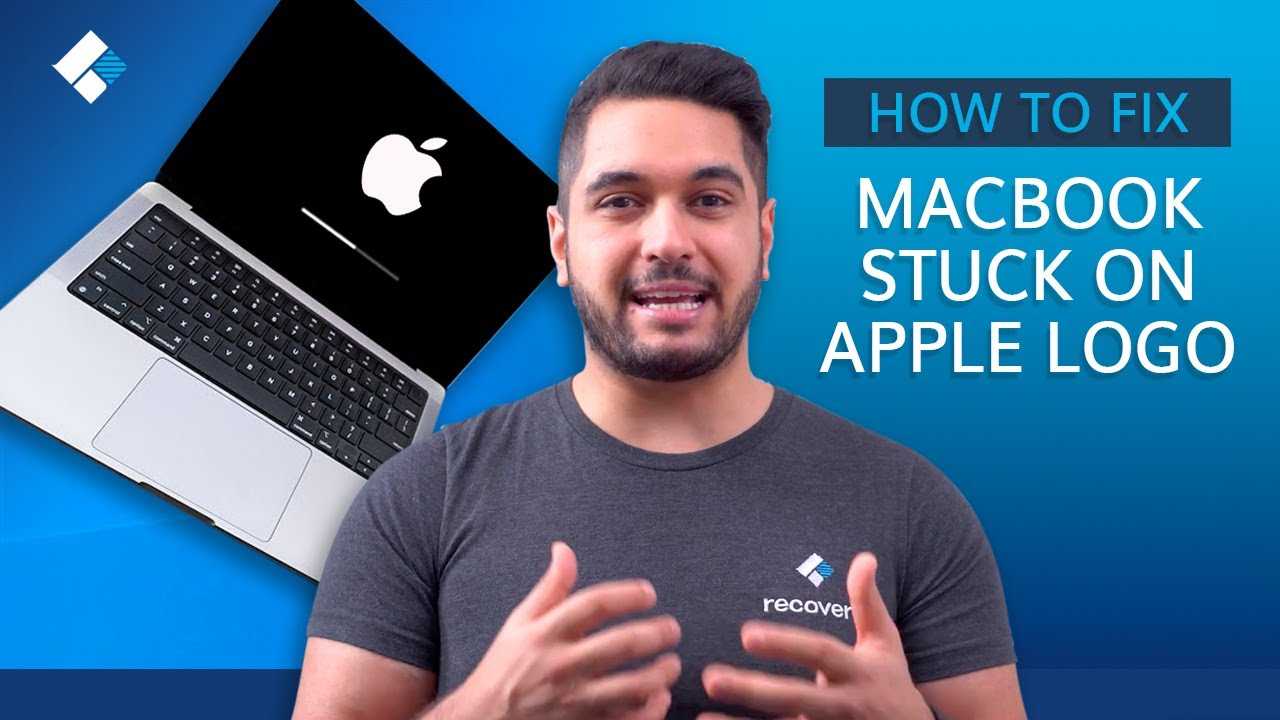
If your MacBook is stuck on the Apple logo, don’t panic—this is a common issue that can often be fixed with some simple troubleshooting steps. The key is to identify whether the problem stems from software glitches, hardware issues, or corrupted files. Usually, performing a forced restart, booting into safe mode, or resetting the NVRAM and SMC can resolve the issue quickly. In some cases, reinstalling macOS or seeking professional help might be necessary. By following these straightforward steps, you can get your MacBook up and running again without much hassle.
If your MacBook is frozen on the Apple logo during startup, try force restarting your device first. If that doesn’t work, boot into safe mode to troubleshoot, or reset certain hardware settings like NVRAM and SMC. If the problem persists, consider reinstalling macOS or visiting an authorized service provider.
A MacBook stuck on the Apple logo can be caused by various issues, from software conflicts to hardware failures. Luckily, you don’t need to be a tech guru to fix it—many problems can be resolved with simple steps that you can do yourself. This article will guide you through effective solutions to get your MacBook back to normal without losing your data or getting frustrated. Whether your device is new or aging, understanding these troubleshooting tips will help you navigate the problem confidently and restore your Mac’s performance swiftly.

How to Fix MacBook Stuck on Apple Logo
Understanding Why Your MacBook Gets Stuck on the Apple Logo
Many users experience their MacBook hanging on the Apple logo during startup. This issue usually appears after updates, or when attempting to troubleshoot. Knowing the common causes can help you choose the right solution quickly.
Software Glitches and Updates
Sometimes a macOS update can cause conflicts or errors. These glitches prevent the system from completing startup and result in the Mac being stuck on the logo. In some cases, incomplete updates or corrupt files can also be the cause.
Corrupted Startup Disk
The startup disk holds crucial system files. If these files become corrupted or missing, your Mac might fail to load the operating system properly. This can happen due to improper shutdowns or hardware issues.
Hardware Problems
Hardware issues such as faulty RAM, storage drive failures, or other internal components can interfere with startup. If your Mac’s hardware is damaged, it might not be able to complete the boot process.
Preliminary Troubleshooting Steps
Before diving into complex solutions, try some simple checks. These can often fix the issue without needing advanced tools.
Check External Devices
Disconnect all external devices like printers, drives, or USB accessories. Sometimes these peripherals can cause conflicts during startup.
Force Shutdown and Restart
Hold down the power button until your Mac turns off. Wait a few seconds, then press the power button again to restart. This can clear minor glitches.
Safe Mode Boot
Boot your Mac into Safe Mode by turning it on and holding the Shift key. Safe Mode loads only essential files and can fix minor software issues, possibly allowing your Mac to boot normally afterward.
Using Recovery Mode to Fix the Issue
If simple steps don’t work, recovery mode provides powerful tools to diagnose and repair your Mac.
Entering macOS Recovery
Turn off your Mac. Turn it on while holding Command (⌘) + R keys until the Apple logo appears. Release the keys once you see the macOS Utilities window.
Disk Utility Repair
Select Disk Utility from the recovery menu. Choose your startup disk and click “First Aid” to repair potential disk errors. This process can fix corrupted files preventing startup.
Reinstall macOS
If repairing the disk doesn’t work, opt for reinstalling macOS. It will replace missing or damaged system files without erasing your data. Follow the on-screen instructions carefully.
Reset NVRAM/PRAM and SMC
Resetting system management controllers can resolve hardware-related startup problems.
Resetting NVRAM/PRAM
Shut down your Mac. Turn it on and immediately press Option + Command + P + R keys. Hold for about 20 seconds until the Mac restarts. This clears cached settings affecting startup.
Resetting SMC
The System Management Controller handles power management. For MacBooks with T2 chips, turn off your Mac. Hold the power button for 10 seconds, then release. Turn on your Mac again. For other models, follow specific reset instructions based on your MacBook model.
Advanced Troubleshooting Methods
When basic fixes don’t work, try these more advanced methods.
Boot into Single User Mode
Turn on your Mac and hold Command + S during startup. This loads a command-line interface where you can run disk checks or repair commands.
Running Terminal Commands
In Single User Mode, execute commands like “fsck -fy” to scan and repair your disk. Exit by typing “reboot” and pressing Enter.
Creating a Bootable Installer
Use another Mac to create a USB installer with macOS. Boot your troubled Mac from this drive by holding the Option key during startup. This method allows you to reinstall or troubleshoot without relying on the internal disk.
When to Seek Professional Help
If none of the above solutions work, hardware may be the underlying problem. Visiting an authorized Apple service provider or Genius Bar is recommended. They can perform hardware diagnostics and repairs.
Preventing Future Issues
To avoid getting stuck on the Apple logo again, keep your macOS updated. Regularly back up your data, and ensure your hardware is in good condition. Proper shutdown procedures and avoiding untrusted software also help maintain your Mac’s health.
Summary of Key Solutions
- Disconnect external devices
- Force shutdown and restart
- Boot into Safe Mode
- Use macOS Recovery to repair disk or reinstall macOS
- Reset NVRAM/PRAM and SMC
- Utilize advanced tools like Single User Mode and bootable installers
Additional Tips
Regular maintenance, such as disk cleanups and software updates, can prevent startup issues. Always keep backups of your important files using Time Machine or other backup solutions.
Dealing with a MacBook stuck on the Apple logo can be frustrating, but most problems are fixable with patience. Always start with simple solutions and escalate to more advanced methods if needed. Remember, professional help is available when hardware problems arise.
How to Fix MacBook Stuck on Apple Logo?
Frequently Asked Questions
What steps can I take to safely restart my MacBook when it’s stuck on the Apple logo?
Press and hold the power button until your MacBook turns off. Wait a few seconds, then press the power button again to turn it on. If the issue persists, consider starting your Mac in Safe Mode by holding the Shift key during startup, which performs a basic check of your system and may resolve the problem.
How can resetting the NVRAM/PRAM help resolve the Apple logo freeze?
Resetting the NVRAM or PRAM clears certain system settings that might cause startup issues. To do this, turn off your Mac, then turn it on and immediately press and hold Option, Command, P, and R keys for about 20 seconds. Release the keys and let your Mac finish starting up. This process can fix potential configuration problems causing the Apple logo hang.
Is there a way to repair disk issues causing my MacBook to freeze on the Apple logo?
Yes, boot into macOS Recovery by restarting your Mac and holding Command + R until the Apple logo appears. Once in Recovery Mode, open Disk Utility from the Utilities menu, select your startup disk, and run First Aid. This process identifies and repairs disk errors that might prevent your Mac from completing the startup process.
What should I do if my MacBook remains stuck after trying basic troubleshooting?
If restarting and running diagnostics do not work, consider reinstalling macOS. Boot into Recovery Mode by holding Command + R during startup. From the macOS Utilities window, select Reinstall macOS and follow the on-screen instructions. This refreshes the operating system without deleting your files, which can fix deeper software issues causing the freeze.
Can hardware issues cause my MacBook to get stuck on the Apple logo, and how can I identify them?
Hardware problems, such as faulty RAM or storage devices, can lead to startup issues. To identify hardware faults, run Apple Diagnostics by turning off your Mac, then turning it on while holding the D key. Follow the prompts to complete the diagnostic test. If errors are found, you may need to consult Apple Support or visit an authorized service provider for repairs.
Final Thoughts
Pour résoudre le problème de MacBook bloqué sur le logo Apple, démarrez en mode de récupération en tenant Command + R lors du démarrage. Ensuite, utilisez l’Utilitaire de disque pour vérifier et réparer le disque dur. Si cela ne fonctionne pas, réinstallez macOS via l’option de réinstallation dans la récupération.
En résumé, pour fixer le problème de MacBook stuck on Apple logo, essayez ces étapes. Si le problème persiste, consulter un professionnel reste la meilleure option.
