

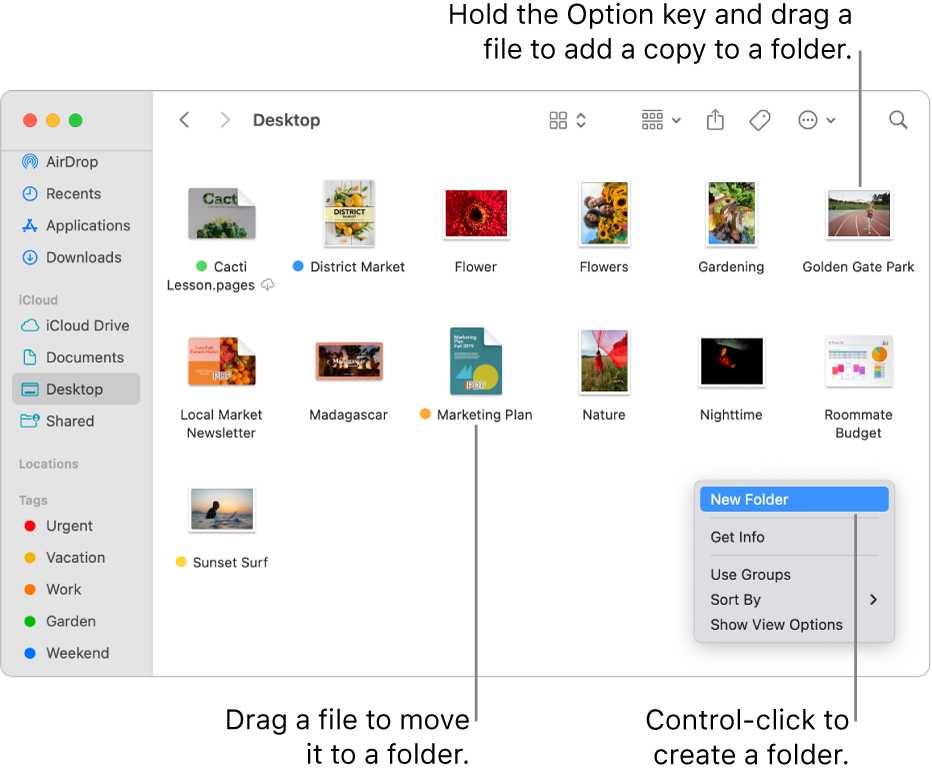
To keep your MacBook clutter-free and boost your productivity, start by creating a simple system for organizing your desktop and files. Use folders, tags, and smart sorting features to keep everything accessible and tidy. Regularly declutter and review your files to maintain this organized space, making it easier to find what you need when you need it.
Organizing your MacBook’s desktop and files doesn’t have to be overwhelming. The key is to develop a consistent method for categorizing your documents, such as creating dedicated folders for work, personal files, and projects. Utilizing tags and setting up automatic sorting can save time and help keep your workspace clean. In this guide, we’ll explore practical tips to streamline your file management process, ensuring your Mac remains a workspace that works for you, not against you.
Clearing clutter from your desktop and organizing files on a MacBook boosts efficiency and reduces stress. By implementing straightforward strategies like folder hierarchies, tags, and regular maintenance, you’ll find it easier to locate documents and maintain a tidy digital environment. Whether you’re a student, working professional, or just someone who loves a neat workspace, these tips will help transform your messy desktop into a well-oiled digital filing cabinet.

How to organize desktop and files on a MacBook
Understanding the importance of a clean and organized desktop
Keeping your desktop tidy can make finding files faster and reduce stress. When your files are scattered everywhere, it’s easy to lose track of important documents. A well-organized desktop helps you stay productive and saves time in the long run.
Start with a plan for your files and folders
Before you begin moving files around, create a plan. Decide how you want to categorize your files based on projects, file types, or frequency of use. This plan guides your organization process and keeps things consistent.
Identify categories that fit your workflow
Think about the types of files you work with daily. Examples include documents, images, videos, and downloads. Group these into main folders to keep similar files together.
Set up main folders for easy access
Create folders named after the categories you identified. Place them in a central location like your Desktop or Finder sidebar for quick access.
Organizing your desktop for better efficiency
A cluttered desktop can slow you down. Keep only the files you’re actively working on visible. Move less important files to appropriate folders.
Use stacks to organize files automatically
macOS offers a helpful feature called Stacks. Right-click on your desktop and select “Use Stacks.” This groups files by categories like type, date, or tags, simplifying your view.
Arrange remaining icons systematically
If you prefer manual organization, align icons by name, kind, or date. Right-click on the desktop, select “Sort By,” then choose your preferred method.
Effective file naming conventions
Consistent naming helps you find files quickly. Use clear, descriptive names that include dates or project details when relevant.
Tips for naming files
– Use underscores or dashes instead of spaces
– Include dates in YYYY-MM-DD format for chronological order
– Avoid vague names like “Document” or “Image”
Utilizing Finder for file management
Finder is your best tool for organizing and locating files on MacBook. Learn how to customize it for better functionality.
Create smart folders for dynamic organization
Smart folders automatically gather files based on specific criteria. For example, set up a smart folder for all PDFs or recent downloads.
Use tags to categorize files
macOS allows you to assign colored tags to files and folders. Use these colors to categorize files by priority, project, or type for visual cues.
Regular maintenance tips for ongoing organization
Keeping your files organized requires periodic checks. Schedule weekly or monthly cleanups to delete unneeded files and rearrange as your needs change.
Empty your Trash frequently
Deleting files moves them to Trash. Empty Trash regularly to free up space and keep your system tidy.
Review and update your folder structure
As your projects evolve, your organization system should adapt. Reassess your folder categories and naming conventions periodically.
Additional tools to enhance organization
Several apps can make managing files on MacBook easier and more efficient.
Third-party apps for file management
– Hazel: Automates organizing and cleaning files based on rules you set
– DropIt: Filters and sorts files automatically
– Disk Inventory X: Visualizes disk space usage to identify clutter
Using cloud storage for backup and access
Services like iCloud, Dropbox, or Google Drive provide additional space and access from multiple devices. Store important files here for safety and convenience.
Customizing your desktop environment
Personalize your workspace to boost productivity. Choose wallpapers, organize docks, and set up quick access tools.
Adding shortcuts and aliases
Create shortcuts or aliases for frequently used folders or files. Right-click on the item and select “Make Alias” to save space on your desktop.
Utilize the Dock for quick access
Pin essential apps and folders to your Dock. Drag folders here for instant opening without navigating through Finder.
Summary of best practices for desktop and file organization
To keep your MacBook organized:
- Create a folder structure aligned with your workflow
- Use macOS features like Stacks and tags for easy sorting
- Maintain naming conventions for quick searches
- Leverage Finder’s smart folders and search capabilities
- Regularly review and clean your files
- Backup important data to cloud services or external drives
Final thoughts
Implementing these organization techniques on your MacBook can make your digital life easier and more productive. Consistency and regular maintenance are key to maintaining an orderly workspace. Take small steps regularly, and you’ll find managing your files becomes second nature.
How To Organize Files On Your Mac
Frequently Asked Questions
How can I effectively categorize my files on a MacBook?
To organize your files efficiently, create dedicated folders for different categories such as work, personal, photos, or projects. Use clear and descriptive names for these folders to easily identify their contents. Additionally, consider utilizing tags to assign color codes or labels to files, making it simpler to locate them quickly without creating excessive folders. Regularly review and clean up your files to prevent clutter from accumulating over time.
What is the best way to keep my desktop tidy on a MacBook?
Keep your desktop clean by minimizing the number of icons and shortcuts. Move files into their respective folders promptly instead of leaving them on the desktop. Use the “Stacks” feature to automatically organize files by type, date, or tags, which groups similar items together. You can also set your desktop to display only essential icons and enable auto-hide for Dock and menu bar to maximize workspace clarity.
How can I use Smart Folders to organize my files without moving them?
Smart Folders on a Mac automatically gather files based on criteria like file type, date, or tags without physically moving the files. To create one, open Finder, select “File,” then click “New Smart Folder.” Set your search parameters to filter the files you want to group. Save the Smart Folder for quick access, and it will update dynamically as you add or modify matching files elsewhere on your system, providing a flexible way to stay organized.
What features does macOS offer to keep my files synchronized across devices?
macOS integrates with iCloud Drive, enabling you to store files in the cloud and access them seamlessly from any Apple device or via the web. Turn on iCloud Drive in System Preferences and select the folders or apps you’d like to sync. This approach ensures your files stay consistent across devices, reduces clutter on local storage, and simplifies sharing and collaboration. Additionally, you can use third-party cloud services like Dropbox or Google Drive for extra storage options.
How can I automate organization tasks on my MacBook?
Use Automator to create custom workflows that handle repetitive organization tasks. For example, you can set a workflow to automatically move files from your downloads folder to specific directories based on file type or date. Schedule these workflows using Calendar alarms or third-party scheduling apps to run at specified times. Automating these processes saves time and helps maintain a tidy file structure effortlessly.
Final Thoughts
Organizing your desktop and files on a MacBook keeps your workspace tidy and improves efficiency. Use folders to categorize documents and delete unnecessary files regularly. Take advantage of tags to mark priority items for quick access.
Create a consistent naming system for files to find them easily later. Use the Stacks feature to automatically group similar file types on your desktop.
In conclusion, how to organize desktop and files on a MacBook becomes simple with these strategies. A clean, well-structured workspace helps you stay focused and productive.
