
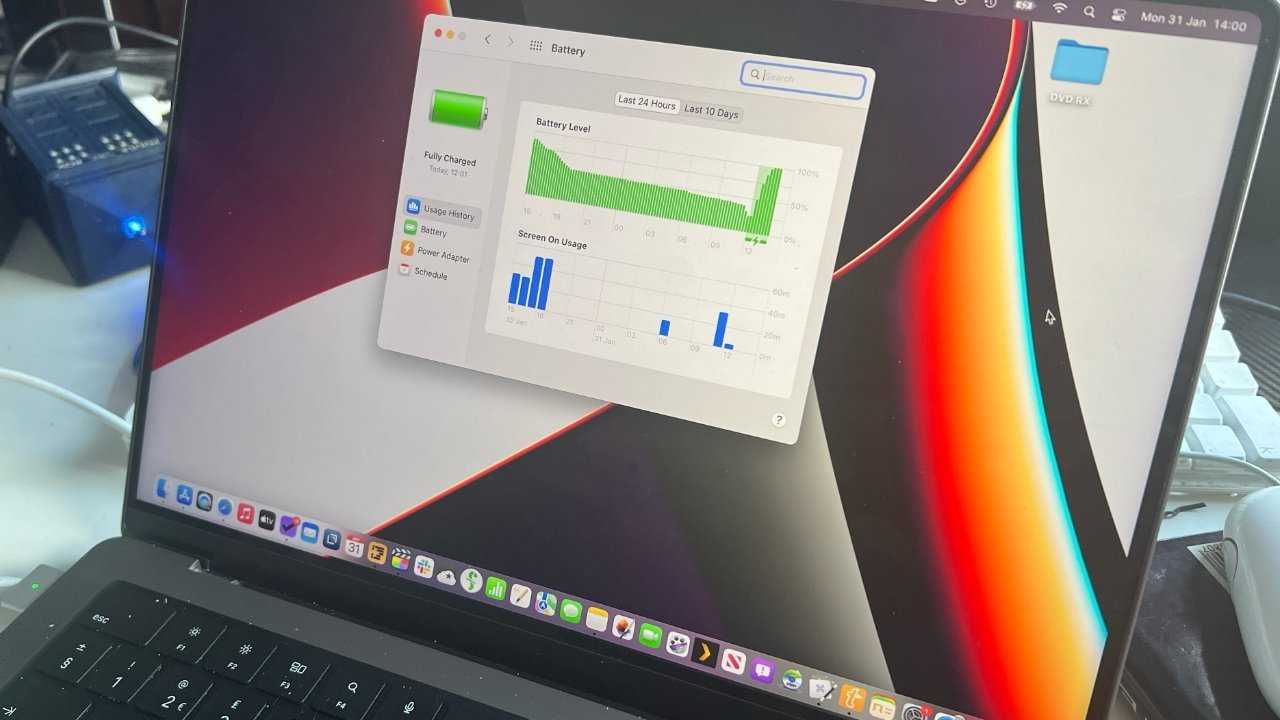
To maximize your MacBook’s battery life, start by adjusting your settings to reduce energy consumption, such as dimming the screen and closing unused apps. Use Battery Health Management and enable low power mode when necessary, and keep your software updated for optimal efficiency. These simple tweaks can significantly extend your device’s battery runtime and keep it running smoothly throughout the day.
If you’re tired of your MacBook dying halfway through your work or entertainment, optimizing your battery is the way to go. With a few easy steps—like managing background processes, adjusting display settings, and keeping your software current—you can make your battery last much longer. It’s not just about charging less; it’s about making smarter choices to preserve power. Whether you’re at home, in the office, or on the go, a well-maintained battery ensures your MacBook stays ready whenever you need it most.

How to optimize battery life on your MacBook
Understanding Your MacBook’s Battery
Knowing how your MacBook’s battery works helps you keep it healthy longer. The battery stores electrical energy that powers your device on the go. Over time, batteries naturally lose capacity, so regular maintenance is essential. Also, your MacBook uses different power management features to save energy during use.
Adjusting Brightness Settings
Your screen brightness is a major energy consumer. Keeping brightness at a comfortable level can significantly extend battery life. You can manually lower the brightness using the keyboard keys or enable automatic brightness adjustment. Automatic brightness adjusts the display depending on ambient light, saving power without sacrificing visibility.
Using Power Saver Mode
Power saver mode reduces background activity and dims the screen. You can activate it from System Preferences or the Control Center. When turned on, it limits processes like automatic downloads, email fetches, and visual effects, all of which consume battery power.
Managing Background Processes and Apps
Background apps can drain your battery without you noticing. Regularly checking activity monitors helps you identify energy-hungry apps. Quit or disable any unnecessary applications or services running in the background. This way, you avoid draining power on apps you don’t need at the moment.
How to check activity using Activity Monitor
Open the Activity Monitor app from Utilities. Sort processes by energy impact to see which apps use the most power. You can then decide to close or limit usage of these apps.
Optimizing Display and Energy Settings
Display settings have a big impact on battery life. Reduce motion effects and transparency to lessen GPU activity. Also, disable features like True Tone and Night Shift if they’re not needed, as they can consume extra power.
Adjust display shutdown times
Set your MacBook to turn off the display after a short period of inactivity. Navigate to System Preferences, then Energy Saver, and adjust the slider so the display turns off sooner when idle. This simple change helps conserve battery life by avoiding unnecessary screen use.
Keeping Software Up-to-Date
Apple regularly releases software updates that improve system stability and battery efficiency. Always install the latest macOS updates to benefit from performance enhancements and bug fixes. These updates often include fixes that reduce energy consumption for various features.
Managing Connectivity Features
Wireless features like Wi-Fi and Bluetooth are handy but can drain your battery quickly if left on unnecessarily. Turn these off when not in use. Also, disable Location Services for apps that don’t need GPS data to save power.
Using Airplane Mode
If you’re in a place with no internet or won’t need connectivity for a while, enable Airplane Mode. This turns off Wi-Fi, Bluetooth, and cellular connections, conserving battery.
Utilizing Battery Health Management
macOS includes a Battery Health Management feature that prolongs your battery’s lifespan. It intelligently manages charging cycles to reduce battery aging. Make sure this feature is active by checking System Preferences under Battery.
How it works
The system learns your charging habits and delays charging past 80% if it predicts you won’t need a full charge soon. This reduces wear caused by constant charging cycles.
Proper Charging Practices
Avoid letting your battery completely drain before charging. Instead, plug in your MacBook when the battery drops to around 20-30%. Keep the device plugged in during intensive tasks but avoid overcharging by unplugging once it reaches 100%.
Charging tips for battery longevity
- Use the original charger for optimal power delivery.
- Unplug your MacBook once fully charged to prevent overcharging.
- Avoid exposing your MacBook to extreme temperatures during charging.
Environmental Considerations
Storing your MacBook in a cool, dry place helps maintain battery health. Excessive heat causes faster battery aging. Also, avoid leaving your MacBook unused for long periods without proper charging or storage in a partially charged state.
Monitoring and Maintaining Battery Health
Regularly checking your battery’s condition helps identify issues early. Use built-in tools like System Information to assess current capacity and cycle count. A healthy MacBook battery has a high maximum capacity and a low cycle count.
What to look for in battery health reports
| Parameter | Ideal Range |
|---|---|
| Maximum Capacity | Above 80% |
| Cycle Count | Within the recommended limit for your model |
If your battery’s capacity drops significantly or the cycle count is high, consider servicing or replacing the battery to restore optimal performance.
Using External Power Sources Effectively
When plugged in for extended periods, your MacBook may occasionally switch to charging only and stop drawing power from the battery. Keep your device connected during intensive work, but disconnect once fully charged to improve battery lifespan.
Additional Tips for Maximizing Battery Life
- Disable keyboard backlighting or reduce its brightness.
- Limit the use of resource-heavy applications such as video editing or gaming.
- Close browser tabs and apps that are not actively in use.
- Reboot your MacBook periodically to clear caches and background processes.
Related Topics: Advanced Power Management Settings
For those interested in further optimizing, explore additional settings like Energy Saver preferences, terminal commands for advanced power management, or third-party apps designed to monitor and control energy use. always remember, small adjustments can make a big difference in your MacBook’s battery longevity.
This comprehensive approach to managing your MacBook’s battery combines good habits, smart settings, and regular checks. Using these tips, you can enjoy longer battery life, maintain better health for your battery, and keep your MacBook working smoothly for years.
3 Important Macbook Settings for Battery Life
Frequently Asked Questions
How can I adjust my MacBook’s display settings to save battery life?
Lower the screen brightness to reduce power consumption, either manually or using the automatic brightness feature. Also, set your display to turn off after a shorter period of inactivity, which helps conserve battery when you’re not actively using the laptop. Reducing the screen’s refresh rate and disabling unnecessary visual effects can further help extend battery life.
What are some app management tips to improve my MacBook’s battery longevity?
Close apps that you are not using to prevent them from consuming background resources. Check for apps running in the background and quit those that don’t need to stay active. Additionally, disable or remove unnecessary startup items that launch automatically, reducing the workload and power drain on your system.
How can system settings be optimized for better battery performance?
Enable energy saver modes through System Preferences, which automatically adjust settings like processor performance and display sleep times. Turn off Wi-Fi, Bluetooth, and location services when not needed. Updating macOS to the latest version can also improve power management features, ensuring your device runs efficiently.
Are there hardware or peripheral considerations to extend my MacBook’s battery life?
Limit the use of external devices such as USB drives, external displays, or connected peripherals, as they draw additional power. Keep your MacBook’s battery calibrated by performing regular charge cycles—full drain followed by a full charge. Ensure your device remains cool, as high temperatures can negatively impact battery capacity over time.
What maintenance routines can help prolong my MacBook’s battery health?
Perform regular battery health checks via System Report and follow recommended usage patterns. Avoid leaving your MacBook plugged in constantly, and try to keep the battery charge between 20% and 80%. Store your device in a cool, dry place if you won’t use it for an extended period, and keep the software updated to benefit from the latest power management improvements.
Final Thoughts
Optimizing battery life on your MacBook is essential for better productivity and device longevity. Start by adjusting display brightness and closing unused apps to reduce power consumption. Enable energy-saving settings in System Preferences to extend battery life further. Keeping your software updated ensures efficiency and fixes bugs that might drain your battery.
Monitoring activity with Activity Monitor helps identify apps that consume excessive power. Regularly calibrate your battery and avoid extreme temperatures to maintain its health. Following these tips ensures you get the most out of your MacBook’s battery.
How to optimize battery life on your MacBook can significantly improve your user experience and device performance over time.
