

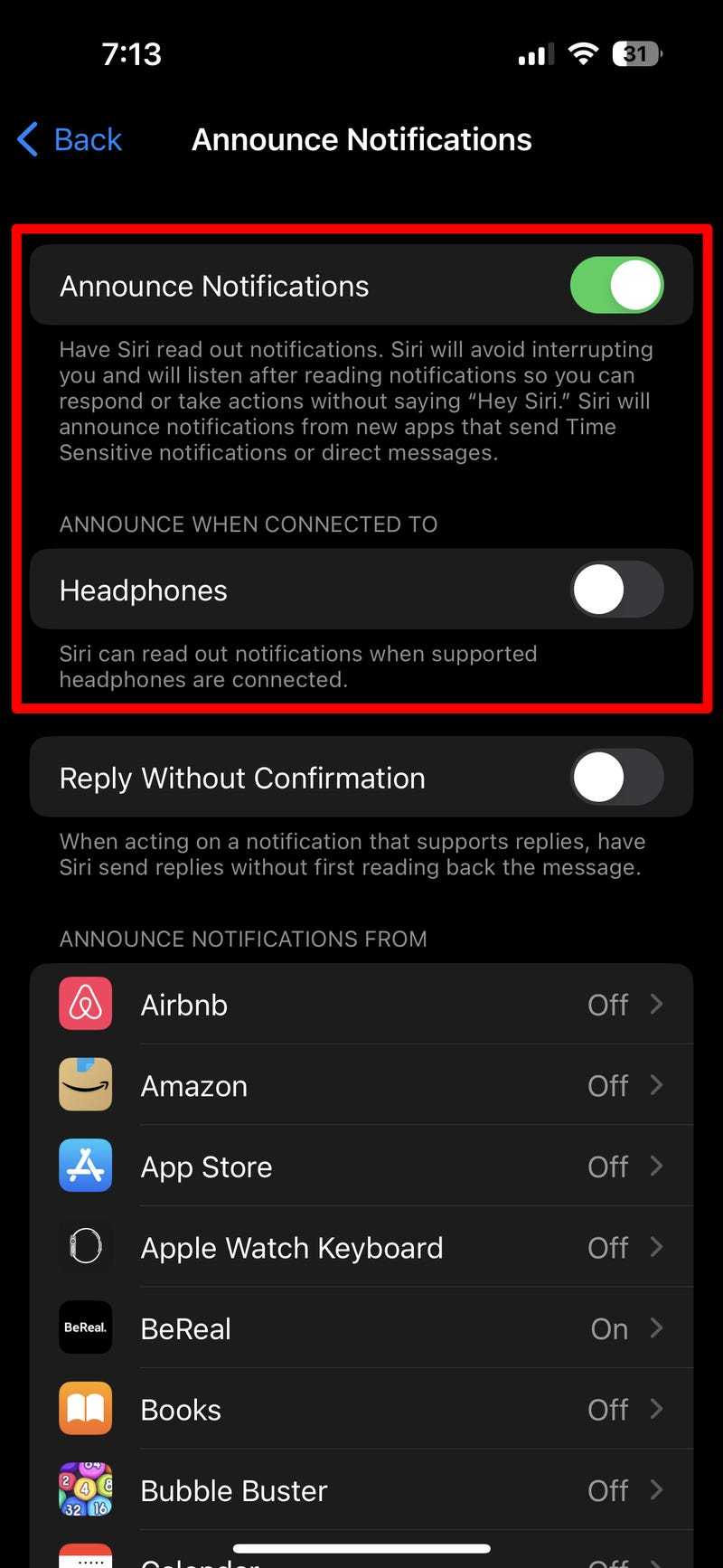
To stop your AirPods from reading out notifications, simply toggle off the “Read Notifications” feature in your device settings or disable the relevant feature in the notification settings for your connected device. This quick adjustment will prevent your AirPods from announcing your alerts without having to disconnect or reset your earbuds.
If you’re tired of your AirPods announcing every notification, the good news is it’s easy to turn off. You just need to tweak a few settings on your iPhone or other connected device. Whether you want to disable all notifications or just specific ones, this guide will walk you through the simple steps to regain your privacy and enjoy a quieter listening experience. No need to worry about missing important alerts—you control what your AirPods read out loud! Ready to silence those notifications? Let’s get started.

How to Stop AirPods Reading Out Notifications
Understanding Why AirPods Read Out Notifications
AirPods are designed to make your life easier by providing quick access to notifications. However, sometimes they read out notifications automatically, which can be distracting. This feature is called “Audio Notifications” and is meant to keep you informed without needing to check your device constantly.
Many users find this feature helpful but also find it intrusive, especially during meetings or quiet environments. Knowing how to disable this feature helps you regain control over your audio experience.
How Do AirPods Read Out Notifications?
AirPods read out notifications through a feature called “Announce Notifications.” When enabled, your AirPods will vocalize alerts from your iPhone, iPad, or other compatible devices. This works via the “Notifications” setting in iOS, which communicates directly with your AirPods.
The feature is typically activated through the “Notifications” settings in the device paired with your AirPods. It uses voice prompts to tell you about incoming messages, calendar events, and other app alerts.
Step-by-Step Guide to Disable Read Out Notifications on AirPods
Disabling notifications from reading out loud involves adjusting settings on your iPhone or iPad. Here’s a simple guide:
- Open the Settings app on your iPhone or iPad.
- Scroll down and tap Notifications.
- Look for and select Announce Notifications.
- Toggle the switch to Off to disable the feature.
Once turned off, your AirPods will no longer read out notifications automatically.
Adjusting Notification Settings on Your iOS Device
Sometimes, you might want to customize which apps can send voice notifications. To do this:
Managing App Notifications
- Go to Settings > Notifications.
- Select the app you wish to modify.
- Disable Allow Notifications or change alert styles.
This allows you to control which alerts are announced and which remain silent.
Using the Control Center to Manage Notifications
You can also quickly manage notification settings through the Control Center:
- Open the Control Center by swiping down from the top-right corner (iPhone X and later) or swiping up from the bottom (older models).
- Press and hold the Notifications icon.
- Adjust settings or toggle Announce Notifications.
This method provides quick access to customization options without navigating through multiple menus.
Disabling Announce Notifications via Siri
You can also use Siri voice commands to turn off notification announcements:
- Say, “Hey Siri, turn off announce notifications.”
- Siri will confirm the action, and notifications will stop being read aloud.
This is a convenient way to control the feature hands-free.
Options for Temporary Mute or Silence Notifications
If you want a quick break from notifications without changing settings permanently, consider these options:
Using Do Not Disturb Mode
- Open Control Center.
- Tap the Moon icon to activate Do Not Disturb.
- All notifications will be silenced, including voice alerts.
This mode is useful during meetings or when you need quiet time.
Setting Focus Modes
iOS offers Focus modes that silence notifications based on your activities:
- Navigate to Settings > Focus.
- Create or select a Focus mode (like Work or Sleep).
- Customize notification settings and scheduling.
This allows tailored control based on your routines.
Updating Your Device and AirPods Firmware
Keeping your devices updated ensures the smooth functioning of notification features. To update:
- For iPhone or iPad: go to Settings > General > Software Update.
- Follow prompts to install any available updates.
Note that firmware updates for AirPods happen automatically when they are connected and charging, but ensuring your device is up to date helps avoid glitches.
Resetting Your AirPods to Fix Notification Issues
If notification features still behave unexpectedly, resetting your AirPods might help:
- Put your AirPods in their charging case and close the lid.
- Wait for about 30 seconds.
- Open the lid and press and hold the setup button on the back of the case until the LED flashes amber, then white.
- Reconnect your AirPods to your device.
This process helps refresh connection settings that could affect notification behavior.
Additional Tips for a Better Audio Experience
To enhance your experience and better control notifications:
- Disable VoiceOver or other accessibility features that may interfere with notifications.
- Regulate notification settings for individual apps based on your preference.
- Use custom sound settings for alerts to make important notifications stand out.
Adjusting these settings ensures your AirPods only announce what you care about.
Related Topics
Other ways to improve your AirPods experience include managing:
- Battery life for longer listening sessions.
- Sound quality adjustments through equalizer settings.
- Connecting multiple devices seamlessly.
Exploring these areas can make your overall audio and notification experience smoother.
Disabling the notifications from reading out loud on your AirPods is straightforward once you understand where to find the controls. Whether through iOS Settings, Siri commands, or quick toggles in the Control Center, you can easily silence or customize voice alerts. Remember to keep your device updated, manage app notifications carefully, and utilize Focus or Do Not Disturb modes for more control. With these tips, you can enjoy your AirPods without unwanted interruptions and maintain privacy when needed.
Frequently Asked Questions
How can I disable notifications from being read aloud by my AirPods?
You can prevent your AirPods from reading notifications aloud by adjusting your iPhone’s notification settings. Open the Settings app, go to Notifications, and select Announce Notifications. Toggle off the switch to stop notifications from being read out loud through your AirPods.
Is there a way to temporarily stop my AirPods from vocalizing notifications during certain activities?
Yes. You can manually disable announcement of notifications when needed. On your iPhone, access the Control Center, press and hold the volume slider, then tap the Announce Notifications icon to turn it off temporarily. Alternatively, adjust Focus modes to silence such announcements during specific activities.
Can I customize which notifications are read aloud by my AirPods?
Absolutely. Navigate to Settings > Notifications > Announce Notifications on your iPhone. Here, you can choose specific contacts or app notifications that you want to be announced or completely turn off announcements for certain apps or contacts to reduce unnecessary interruptions.
Will turning off Announce Notifications on my iPhone stop my AirPods from reading notifications altogether?
Yes. When you disable Announce Notifications in your device settings, your AirPods will no longer read out notifications. This setting applies across all compatible devices connected to your iCloud account, keeping your notifications private.
How do I prevent notifications from being announced when using my AirPods with other devices?
Ensure that the Announce Notifications feature is disabled on each device connected to your AirPods. Check the notification settings on each device individually, particularly on your iPhone and iPad, and toggle off Announce Notifications to prevent notifications from being read aloud across all devices connected to your AirPods.
Final Thoughts
To stop airpods reading out notifications, begin by opening your iPhone’s Settings. Tap on Notifications and locate the app you want to modify. Disable the “Announce Notifications” option to prevent AirPods from reading alerts aloud.
Ensure your AirPods are connected when making these changes to apply them effectively. Turning off this feature offers a quieter, more private listening experience.
In conclusion, to stop airpods reading out notifications, adjust your settings accordingly. This simple change enhances your control over notifications, ensuring they only read aloud when you want them to.
