
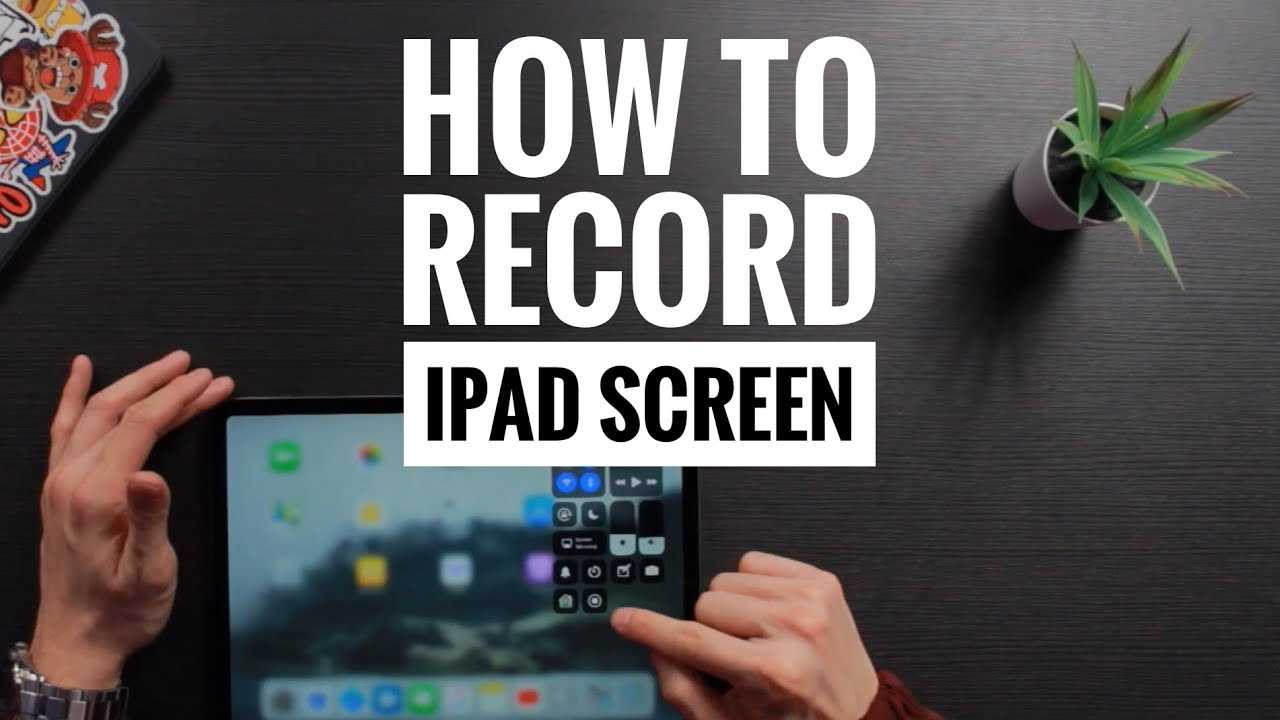
To record your screen on an iPad, simply access the Control Center and tap the Screen Recording button. If it’s not visible, add it via Settings. Start recording by tapping the icon, and stop when you’re done—your video will be saved automatically to your Photos app. This quick method makes capturing any activity on your iPad effortless and hassle-free.
Wondering how to record your iPad screen? It’s easier than you might think. Whether you want to create a tutorial, save a gameplay, or share something interesting, the built-in screen recording feature is your best friend. No need for third-party apps or complicated setups—just a few taps, and you’re ready to capture everything happening on your screen. In this guide, we’ll walk you through the simple steps to start recording your iPad screen and ensure you never miss a moment worth saving.

How Do You Record Your Screen on an iPad? A Complete Guide
Understanding the Built-In Screen Recording Feature
The easiest way to record your iPad screen is by using Apple’s built-in feature, Screen Recording. This tool is included in iOS and iPadOS, making it accessible without any extra downloads. To activate it, users need to add the Screen Recording button to the Control Center. This allows quick access whenever you want to start or stop recording. The feature records everything happening on your screen, including sound from your microphone if you choose so.
Enabling Screen Recording on Your iPad
First, open the Settings app on your iPad. Scroll down and tap on Control Center. Next, find Screen Recording in the list of available controls. Tap the green plus icon next to Screen Recording to add it to your Control Center. Once added, you can access it by swiping down from the top-right corner of the screen (or swiping up if your iPad still uses the older interface). This setup makes it simple to start recording whenever needed.
Starting Your Screen Recording
To begin recording, open the Control Center and tap the Screen Recording icon, which looks like a solid circle within a larger circle. When you tap it, a countdown of three seconds begins, giving you time to prepare. If you want to record sound during your screen capture, press and hold the icon before tapping it. This opens options to turn on your microphone, allowing you to add commentary or capture system sounds.
Recording with Microphone and System Audio
Adding microphone input is useful if you want to explain what’s happening on your screen. To do this, press and hold the Screen Recording icon in Control Center. Tap the microphone icon to turn it on, then tap Start Recording. Be aware that the iPad does not allow recording of internal system audio directly. To record internal audio, you may need third-party apps or specific workarounds.
Stopping and Saving Your Screen Recording
Once your recording is complete, open Control Center and tap the Screen Recording icon again, or tap the red status bar at the top of your screen and choose Stop. Your video will be automatically saved to the Photos app. You can access, edit, or share it from there. It’s quick, simple, and keeps your recordings organized in one place.
Editing Your Screen Recordings
You can trim or make basic edits to your videos directly in the Photos app. Open the recording, tap Edit, and use the sliders to cut parts from the beginning or end. For more detailed editing, share it to third-party video editing apps available on the App Store. These tools offer features like annotations, cropping, and adding music.
Using Third-Party Apps for Advanced Screen Recording
While the built-in feature is handy, third-party apps offer additional benefits. Popular options include Record It, Screen Recorder Plus, and TechSmith Capture. These apps can provide higher quality recordings, live streaming, or advanced editing features. To use them, download an app from the App Store, follow its setup instructions, and grant necessary permissions.
Choosing the Best Recording Settings
Proper settings ensure your videos look good and are easy to share. Use the highest quality available in your recording app or in the iPad’s settings. Make sure your microphone is working if you want sound. Also, choose a resolution that balances quality and file size, especially if you plan to upload or store many recordings.
Managing Storage Space for Screen Recordings
Screen recordings can take up a lot of storage, especially in high resolution. Regularly check your Photos app to manage space. Delete recordings you no longer need or transfer them to cloud storage or your computer. Keeping your storage optimized helps your iPad run smoothly and makes recording more convenient.
Tips for Better Screen Recordings
Ensure your screen is clean and free of notifications before recording. Notifications can appear during recording and interrupt your footage. Enable Do Not Disturb mode in Settings to block pop-ups. Also, plan your recording session to avoid sudden interruptions and make sure your microphone is on if you want commentary.
Recording External Content on Your iPad
If you’re capturing content from other apps, such as gameplay or tutorials, make sure the app permits screen recordings. Some streaming services restrict screen capture due to copyright. Always respect content creators’ rights and use recordings responsibly. Use third-party apps if you need to record internal audio or higher-quality videos.
Sharing Your Screen Recordings
Once saved, you can quickly share your videos via email, messaging apps, or social media directly from Photos. Tap the share icon, select your desired platform, and add any captions or edits. For professional or higher-resolution sharing, consider exporting files to a computer or cloud service first.
Troubleshooting Common Issues
If your screen recording isn’t working, check that Screen Recording is enabled in your Control Center. Restart your iPad to resolve minor glitches. Ensure you have enough storage space and that your iOS or iPadOS is up to date. If the microphone isn’t recording audio, verify permissions in Settings.
Recording your screen on an iPad is straightforward using the built-in features or third-party apps. Following these steps ensures your recordings are effective, clear, and easy to share. Whether for education, entertainment, or work, mastering screen recording helps you capture and communicate your ideas effortlessly.
How to add screen record on your IPAD? #advancetech08 #screenrecord
Frequently Asked Questions
How can I add the screen recording feature to the Control Center on my iPad?
Open the Settings app, tap on Control Center, then select Customize Controls. Find Screen Recording in the list and tap the green plus icon next to it. This adds the feature to your Control Center for quick access.
Is it possible to record sound along with the screen on an iPad?
Yes, you can record audio by pressing and holding the Screen Recording button in the Control Center. When the recording options appear, toggle on the microphone audio and then start recording. This captures both visuals and sound from your device or environment.
Can I record my iPad screen without using the built-in feature?
While the built-in screen recording tool is recommended for its simplicity, you can also use third-party apps available on the App Store. These apps often offer advanced editing tools and additional options, but ensure you download reputable ones for security reasons.
How can I stop a screen recording on my iPad?
Tap the red status bar or the red recording indicator at the top of your screen, then confirm by tapping Stop. The recording automatically saves to your Photos app, where you can view or edit it later.
Does recording my screen drain the battery quickly?
Screen recording can consume more battery power, especially if you’re recording for an extended period or using intensive applications simultaneously. To conserve battery, ensure your device is charged or connect it to a power source during longer recordings.
Final Thoughts
Recording your screen on an iPad is simple and quick. First, ensure the Screen Recording feature is added to your Control Center via Settings. Swipe down from the top right corner, tap the Screen Recording icon, and wait for the countdown. When you finish, tap the icon again or open the Control Center to stop recording.
In summary, how do you record your screen on an iPad? By adding Screen Recording to your Control Center, you can easily start and stop recordings whenever needed. This feature makes capturing your screen effortless and efficient.
