

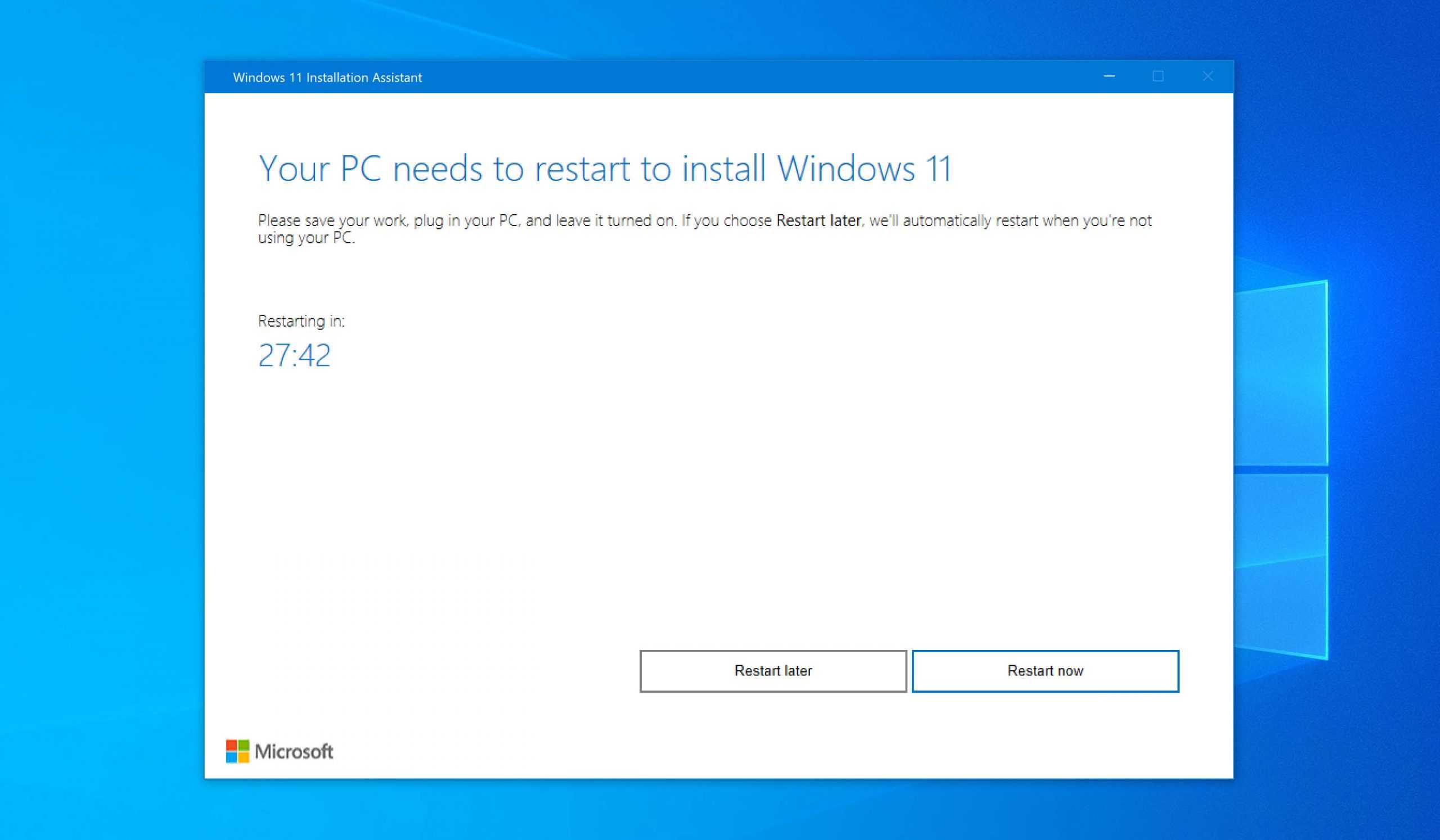
Installing Windows 11 can bring a sleek new look and improved features, but it’s not without potential downsides. You might lose some familiarity with your current setup or face compatibility issues with certain older software and hardware. Additionally, changes in privacy settings and system requirements could impact your experience.
In short, upgrading to Windows 11 may lead to the loss of some old applications, hardware support issues, and adjustments to privacy controls. However, it also offers new functionalities and a modern interface that many users find appealing.
When considering upgrading to Windows 11, it’s important to weigh these potential losses against the benefits. While the new OS promises an enhanced user experience, it might require you to adapt or make sacrifices regarding your existing setup. Compatibility concerns, especially with older devices and software, could mean that some tools or peripherals no longer work as they did before. Privacy settings might also change, giving Windows more access to your data unless you customize them. If you’re relying on legacy applications or hardware, you might want to hold off until they’re confirmed compatible. Understanding these potential trade-offs can help you decide whether the new features outweigh the possible inconveniences.

What will I lose if I install Windows 11?
Introduction to Potential Losses
Installing Windows 11 can bring many exciting features, but it also means giving up some familiar tools and capabilities. Before upgrading, it’s important to understand what might be lost during this transition. Knowing these aspects helps you decide if the upgrade aligns with your needs and expectations.
Compatibility Issues and Hardware Limitations
One of the biggest concerns when installing Windows 11 is hardware compatibility. Windows 11 has stricter requirements than previous versions, which means some older devices might not support it.
Unsupported Hardware
Devices without TPM 2.0 chips, older CPUs, or insufficient RAM may not meet the Windows 11 requirements. If your hardware isn’t compatible, you will need to upgrade components or stick with Windows 10. This could limit your choices or increase costs.
Loss of Support for Some Devices
Certain peripherals or hardware components could become incompatible after upgrading. For example, older printers, webcams, or external drives may not function properly unless updated drivers are available. This could cause inconvenience or require replacing hardware.
Loss of Customization and Features
While Windows 11 offers many new features, some users might find they lose customizable options available in previous versions. Certain control options, widgets, or system behaviors may change.
Limited Control Over User Interface
Windows 11 introduces a centered Start menu and redesigned taskbar. This shift reduces some customization options that were present in Windows 10, such as moving the taskbar to the sides or customizing certain system icons more freely.
Discontinued Features
Some features available in Windows 10 are no longer present in Windows 11. For instance, Live Tiles on the Start menu are replaced with simplified icons. Background customization options might also be reduced, impacting user personalization.
Potential Data and Application Risks
Upgrading to Windows 11 could lead to issues with data, applications, or settings if not managed carefully.
Data Loss During Installation
Even though the upgrade process is designed to preserve files, errors can occur. Power failures, incompatible software, or interrupted installations may result in data loss or corruption.
Application Compatibility
Some older or specialized applications may not work properly on Windows 11. Legacy software designed for Windows 7 or 8 might require updates or could be incompatible, affecting productivity.
Changes in Security and Privacy Settings
Windows 11 emphasizes security, but this might limit some user freedoms or require adjustments.
Increased Privacy Controls
While more privacy options are available, users may need to manually configure settings to avoid data sharing. Default privacy settings might limit some functionalities or require user intervention.
Default Security Settings
Some security features, like hardware-based protections, may restrict certain activities or software that previously ran without issue. This can be frustrating if you rely on certain tools for work or entertainment.
Potential Performance Trade-offs
While Windows 11 aims to be more efficient, some users report performance dips on older hardware.
Slower Performance on Older Devices
If your device is barely meeting the minimum hardware requirements, it might experience lag or slower startup times after upgrading.
Increased Power Consumption
New features and visual effects can drain battery life faster, especially on laptops or tablets, which might reduce portability and usability.
Impacts on Custom Software and Development
For developers or those using specialized software, transitioning to Windows 11 might cause setbacks.
Disruption of Development Environments
Certain development tools, IDEs, or virtual machines might require updates or reconfiguration to work correctly on Windows 11. This can slow workflows temporarily.
Compatibility with Enterprise Systems
Organizations often depend on legacy systems or bespoke software. Upgrading to Windows 11 could mean delays or additional testing before full deployment.
Loss of Certain Backup or Recovery Options
Some backup solutions may not be compatible immediately after an upgrade.
Backup Software Compatibility
Legacy backup tools or third-party recovery programs might require updates to function correctly on the new OS, leading to potential data safety concerns temporarily.
Recovery Partition Changes
The upgrade process can alter or remove existing recovery partitions. This might make future system restore points more complicated or less reliable.
Summary of Key Losses
- Incompatibility with older hardware and peripherals
- Reduced customization options in the user interface
- Discontinuation of some features like Live Tiles
- Potential application incompatibility or the need for updates
- Altered or limited privacy and security settings
- Performance issues on systems that barely meet requirements
- Disruption in existing workflows, especially for developers or enterprise users
- Backup and recovery challenges immediately post-upgrade
While Windows 11 offers many benefits—like improved security, new UI, and enhanced productivity tools—it’s vital to recognize what might be compromised or lost in the process. Carefully reviewing these potential drawbacks helps you make an informed decision about whether to upgrade or stay with your current operating system.
BEFORE you update to Windows 11 – do these 5 things!
Frequently Asked Questions
Will I lose compatibility with older hardware or peripherals after installing Windows 11?
Some older hardware components and peripherals may not have updated drivers that support Windows 11. This could lead to certain devices not functioning properly or being incompatible altogether. Before upgrading, verify that your essential hardware and peripherals are compatible with Windows 11 to avoid disruptions.
Are there features or applications that won’t work on Windows 11 compared to Windows 10?
Windows 11 introduces new features and a different interface, which might cause some legacy applications or features to become obsolete or less effective. Certain enterprise or specialized software designed for Windows 10 may require updates or may not function optimally on Windows 11. It’s advisable to check the compatibility of critical applications before upgrading.
Will upgrading to Windows 11 affect my existing files and data?
Upgrading to Windows 11 generally preserves your files and personal data. However, there is always a small risk of data loss due to unforeseen issues during the installation process. It’s essential to back up your important files before initiating the upgrade to prevent potential data loss.
Could I experience performance issues or reduced battery life after switching to Windows 11?
While Windows 11 aims to optimize performance, some systems may experience issues such as slower operation or shorter battery life, especially if hardware isn’t fully compatible. Ensuring your device meets the recommended specifications can help maintain optimal performance and battery efficiency after the upgrade.
Does installing Windows 11 mean I will need to reinstall all my existing software?
Most applications installed on Windows 10 will continue to work on Windows 11 without requiring reinstallation. However, some software, especially older or specialized programs, might need to be reinstalled or updated to ensure compatibility with the new operating system. Checking software requirements beforehand can save you time post-upgrade.
Final Thoughts
Choosing to install Windows 11 means you might lose some familiar features. Compatibility issues could limit your ability to run certain older software or hardware. Additionally, some customization options from previous versions may no longer be available.
While Windows 11 offers new improvements, it might require more system resources, potentially slowing down older devices.
What will I lose if I install Windows 11? You could sacrifice some legacy support and customization flexibility, so consider these factors before upgrading.
