

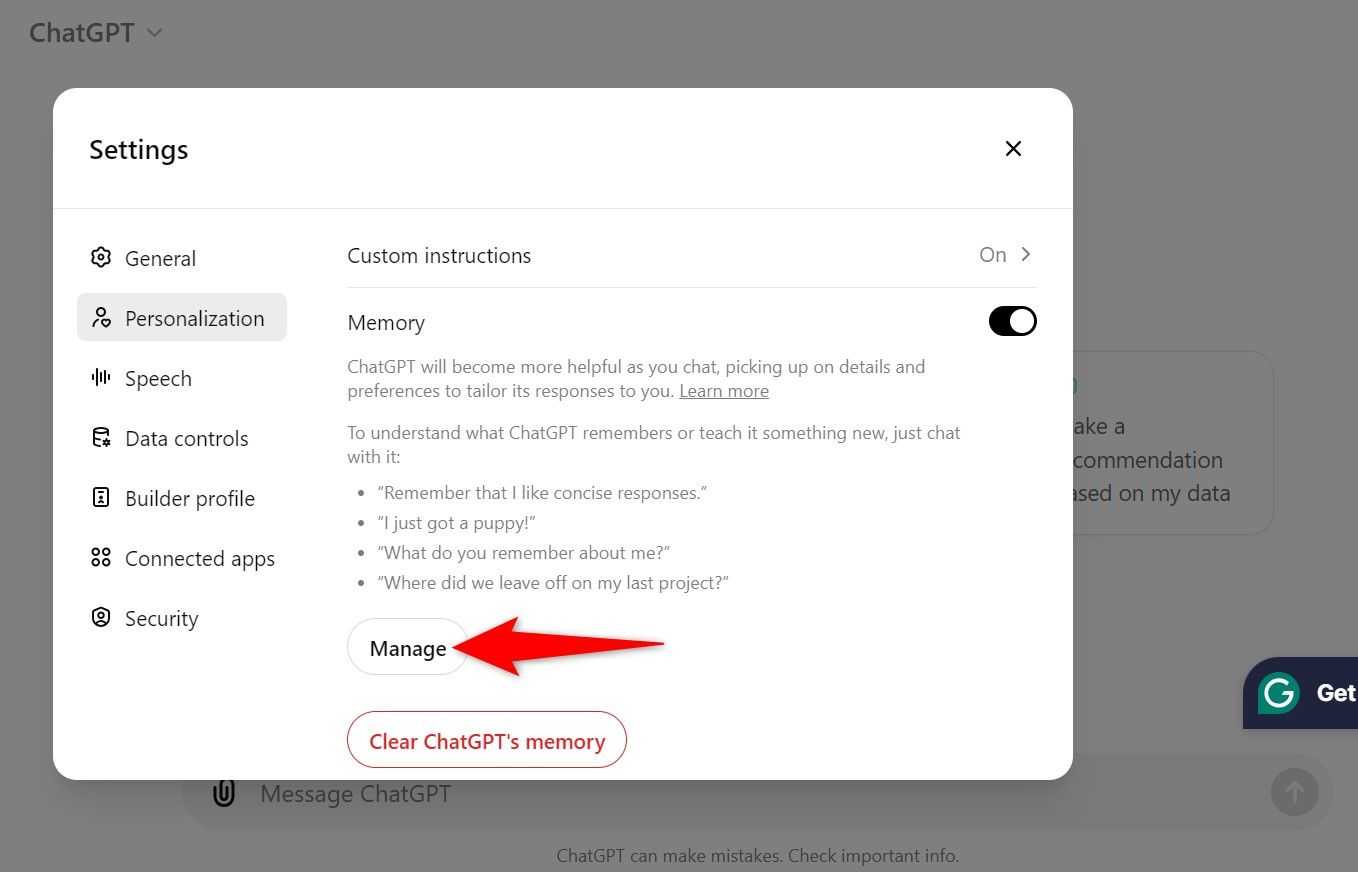
Want to start fresh with ChatGPT without it remembering previous chats? Clearing ChatGPT’s memory isn’t about wiping data on your device but resetting the conversation context within the chat itself. Simply starting a new chat session or refreshing the page will clear the current conversation history, giving you a clean slate to interact without past inputs influencing responses.
ChatGPT doesn’t retain memory between sessions by design—it only “remembers” the conversation while the chat is open. If you want to clear any stored context, just click “New chat” or refresh your browser. This resets the AI’s understanding and prevents it from referencing earlier discussions. Keep reading to learn more about how ChatGPT handles memory and why that matters for your privacy and chat experience.

How to Clear ChatGPT Memory: A Detailed Guide
Understanding how to clear ChatGPT memory is essential for users who want to manage their interactions effectively. While ChatGPT does not store personal chat histories between sessions, users often wonder how their information is handled and how to clear any accumulated data during use. In this section, we explore what memory means in ChatGPT, how it operates, and practical steps to ensure your conversations are managed properly.
What Does ChatGPT Memory Mean?
ChatGPT uses a type of memory called a context window, which means it remembers what you said during a conversation to maintain coherence. This memory lasts only during the single session and does not carry over once the session ends or the chat is refreshed. It does not have long-term memory like humans, so it cannot recall previous conversations after closing the interface.
This design protects user privacy while allowing for meaningful interactions. However, users might want to clear the session’s memory to start fresh or remove sensitive information from the current chat context.
How ChatGPT Handles Data During a Session
During an ongoing conversation, ChatGPT keeps track of all messages exchanged to generate relevant and context-aware responses. This temporary “memory” is all stored on OpenAI’s servers and is deleted after the session ends or the system clears it automatically.
It is important to note that while the AI processes your input to provide responses, it does not intentionally store or remember personal information beyond the active session. Understanding this helps users feel more confident in their privacy.
Steps to Clear ChatGPT Session Memory
Users can take straightforward steps to clear the memory during or after a chat session. Here are some common methods:
- Refresh the web page: This action resets the conversation and clears the current session’s memory immediately.
- Start a new chat: Many ChatGPT interfaces include a “New Chat” button, which clears the previous conversation and its context.
- Log out and log back in: This can ensure that your session is reset on the server side.
- Clear browser cookies and cache: While this affects your browser data, it also helps prevent any cached session info from lingering.
Taking these actions helps maintain privacy and allows you to reset the AI context whenever needed.
Why Clearing ChatGPT Memory Might Be Important
There are several reasons why clearing ChatGPT memory might matter to users:
- Privacy protection: Sensitive or private information shared during a session can be cleared to avoid unintended retention.
- Starting new topics: Clearing memory helps the AI avoid confusion caused by previous conversation threads.
- Improved response accuracy: Without past context, ChatGPT can generate answers that are more focused on the new input.
Regularly clearing session memory is a simple but effective way to control your interaction experience with ChatGPT.
Understanding ChatGPT’s Long-Term Data Policies
Besides session-based memory, it is important to recognize OpenAI’s data policies. The company states that conversations may be stored and used to improve model performance but anonymized and stripped of personal identifiers.
Users concerned about data security should review these policies and consider using ChatGPT in modes that disable history saving if available.
Use of Privacy Settings to Manage Your Interaction Data
Some ChatGPT platforms offer privacy settings that allow users to manage data retention preferences. For example, users may disable chat history, which stops saving their conversations to accounts.
Here are typical privacy options available:
- Disabling chat history: Prevents conversations from being saved.
- Data export and deletion: Allows users to request their data from OpenAI and request removal.
- Account-level controls: Manage all stored data linked to your user profile.
Using these settings adds an extra layer of control over your ChatGPT memory management.
How to Clear ChatGPT Memory on Different Devices
The process to clear session memory or chat history can vary depending on the device or platform you are using.
On Desktop Browsers
Refreshing the page or clicking “New Chat” is usually sufficient. You can also clear browser cache and cookies to remove any stored session data.
On Mobile Devices
If you are using a ChatGPT app or mobile browser, the same methods apply: start a new conversation, refresh the session, or clear app data through the device settings.
Third-Party Integrations
Some applications integrate ChatGPT via APIs. In these cases, clearing memory depends on how the app handles session data. Users should consult the app’s documentation for specific instructions.
Common Misconceptions About ChatGPT Memory
Many users think ChatGPT remembers everything indefinitely, but this is not the case. It only retains conversation data during the active session.
Another misconception is that clearing memory deletes all historical data from OpenAI servers. Clearing session memory only affects your current interaction context, not any anonymized training data handled by OpenAI.
Tips for Managing ChatGPT Conversations Safely
To maintain privacy and manage your ChatGPT interactions effectively, keep the following tips in mind:
- Avoid sharing highly sensitive personal information during interactions.
- Clear session memory often by starting new chats or refreshing the session.
- Use privacy settings to disable chat history whenever possible.
- Regularly review and manage your account’s stored data if you use ChatGPT through a logged-in platform.
- Check the latest OpenAI privacy policies to stay informed about data use.
What Happens to Data When You Clear ChatGPT Memory?
When you clear the current chat memory in ChatGPT, the conversation context stored in the session is deleted. This means the AI no longer references previous messages from that session during response generation.
However, this action does not erase any data that OpenAI collects separately for model improvement purposes unless you explicitly request data deletion from your account settings.
Future Developments Regarding ChatGPT Memory
OpenAI is continuously updating its models and platforms, including how memory is handled. Some advanced versions may introduce “memory” features that allow longer-term context while respecting user privacy.
Users should stay updated with OpenAI announcements to understand how these changes might affect memory clearing practices.
By understanding how to clear ChatGPT memory and manage session data properly, users can enjoy safer and more productive conversations with the AI. Always pair these actions with awareness of privacy settings and data policies to keep control over your information.
How To Clear ChatGPT Memory (Step By Step)
Frequently Asked Questions
Can I remove previous interactions from ChatGPT’s history?
Yes, you can delete your past conversations by accessing your ChatGPT account settings or the chat history section. Look for options like “Clear Conversations” or “Delete History” to erase previous chats, which helps you maintain privacy and start fresh interactions.
Does clearing browser cookies affect ChatGPT’s memory?
Clearing your browser cookies and cache removes stored data on your device but does not erase ChatGPT’s internal memory of your conversations. To clear chat data on ChatGPT’s platform, use the built-in options within the service rather than relying on browser settings alone.
How do I prevent ChatGPT from remembering my sessions?
To keep ChatGPT from retaining information between sessions, avoid enabling any chat history or data saving features on your account. Some platforms offer settings to disable conversation history, which stops the system from learning or recalling previous chats.
Is there a way to reset ChatGPT without logging out?
You can start a new conversation or session without logging out by clicking on “New Chat” or a similar button in the interface. This clears the context of the current chat, allowing you to begin again without carrying over previous messages.
Does deleting individual messages clear ChatGPT’s overall memory?
Deleting single messages within a chat only removes them from your visible conversation but does not necessarily erase all data stored by ChatGPT. To effectively clear memory, use the platform’s option to delete entire chats or clear data from your account settings.
Final Thoughts
Pour effacer la mémoire de ChatGPT, il suffit de supprimer l’historique de la conversation ou de réinitialiser la session. Cette action garantit que les données précédentes n’influencent pas les réponses futures.
Il est aussi possible de gérer les paramètres de confidentialité pour contrôler quelles informations restent sauvegardées. En suivant ces étapes simples, vous pouvez facilement maintenir votre interaction avec ChatGPT claire et privée.
Ainsi, savoir comment clear chatgpt memory aide à préserver la confidentialité et à améliorer l’expérience utilisateur.
