

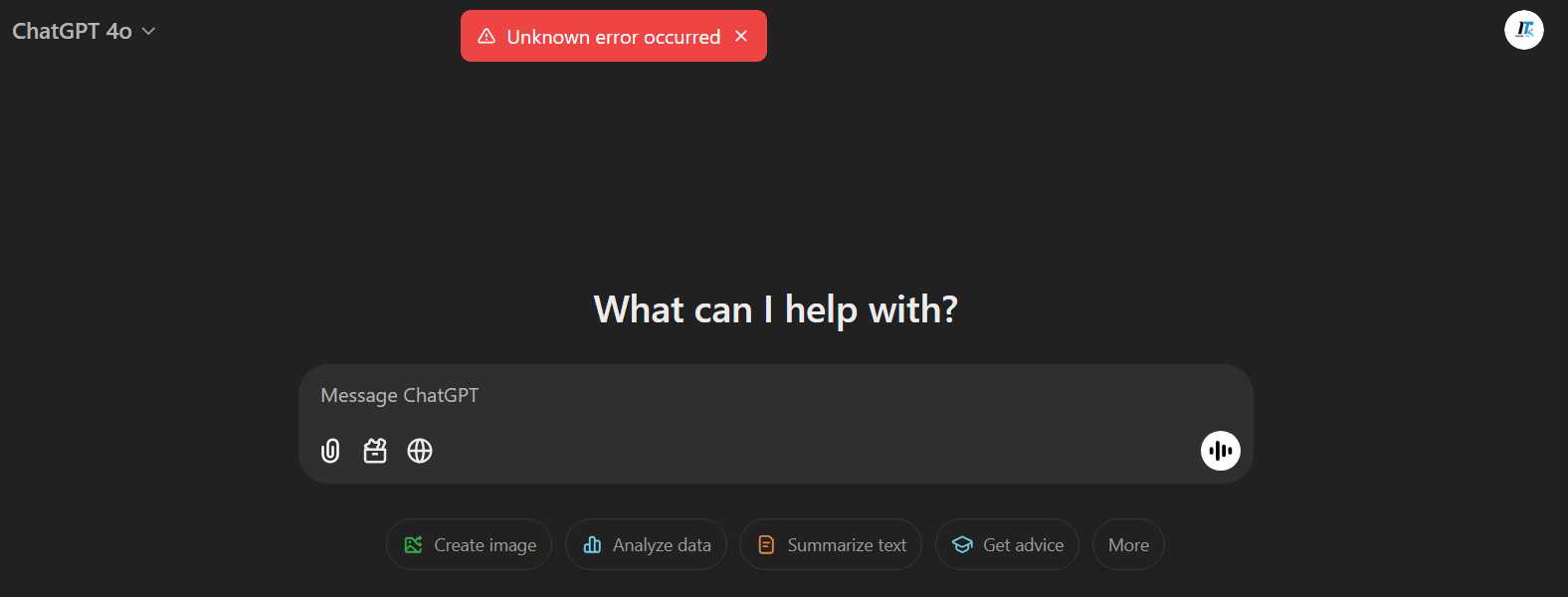
If you’re encountering an unknown error while uploading a PDF file to ChatGPT, you’re not alone, and there are some straightforward steps you can take to resolve this issue. First, ensure that your file is within the allowed size limits and that it’s in a supported format. Sometimes, clearing your browser’s cache or trying a different browser can also help. If the problem persists, consider checking your internet connection or waiting a while, as server issues may occasionally interfere with uploads. Navigating technical glitches can be frustrating, but with these tips, you’ll hopefully be able to upload your PDF without any further hurdles. Let’s dive deeper into the common causes and solutions for this issue.

ChatGPT Unknown Error When Uploading PDF File
Uploading PDF files to ChatGPT can sometimes lead to frustrating unknown errors. These issues can interrupt your workflow and leave you searching for solutions. Understanding these errors involves a closer look at potential reasons behind them and effective troubleshooting steps.
Understanding the PDF Upload Feature
ChatGPT allows users to interact with files like PDFs, making it easier to analyze and extract information. This capability is beneficial for students, researchers, and professionals. However, not all PDF files upload smoothly.
Some common file types include:
- Text-only PDFs
- Image-only PDFs
- PDFs with embedded fonts
- Encrypted or password-protected PDFs
Each of these formats can behave differently when uploaded to ChatGPT, and issues may arise from certain types.
Common Causes of Unknown Errors
When a user encounters an unknown error while uploading a PDF, several factors could be at play. Understanding these causes can help in identifying potential solutions.
File Size Limitations
One common reason for upload errors is file size. ChatGPT may have limitations on how large a PDF can be. If your document exceeds these limits, you may receive an error.
File Corruption
Sometimes the error may stem from a corrupted PDF. If the PDF has been improperly saved or has issues during creation, it may not upload correctly. Always ensure the document opens without problems on your device before uploading.
Network Issues
A stable internet connection is crucial for uploading files. If your connection is weak or unreliable, you may encounter errors. Checking your network status can save you time and frustration.
Compatibility Problems
Different PDFs may be created using various software, leading to compatibility issues. Some PDFs may contain complex formatting or features not supported by ChatGPT, causing upload issues.
Troubleshooting Steps for Upload Errors
If you face an unknown error while uploading a PDF to ChatGPT, don’t panic. Here are some troubleshooting tips you can follow:
Check the File Size
Start by verifying the size of your PDF. If it exceeds the recommended file size, reduce it. You can do this by:
- Compressing the PDF using online tools
- Removing unnecessary images or pages
Verify the PDF Integrity
Open your PDF with a standard PDF reader to check for corruption. If it does not display properly, consider creating a new version of the file. Use trusted software to generate a clean copy.
Test Your Internet Connection
Ensure your internet connection is stable. Consider resetting your router or switching to a wired connection for better reliability. This step can significantly reduce upload issues.
Convert to Different Format
If your PDF remains uncooperative, consider converting it to another format. For instance, converting it to a Word document may resolve compatibility issues. Use online converters or built-in features in word processing software.
Best Practices for PDF Uploads
By following specific best practices, you can minimize the chances of encountering errors during PDF upload.
- Always save PDFs with standard fonts to ensure compatibility.
- Avoid using encryption or password protection unless necessary.
- Regularly update your PDF software to the latest version.
Alternatives to PDF Uploads
If uploading PDFs to ChatGPT continues to present challenges, consider these alternatives.
Use Plain Text Files
Plain text files are less likely to result in upload errors compared to PDFs. If your content can be simplified to plain text, it may save you from issues altogether.
Utilize Link Sharing
Instead of uploading, you can share links to online documents or files. Platforms like Google Drive allow you to share access without uploading a file directly. Just ensure the file permissions are correctly set.
Advanced Troubleshooting Techniques
If basic troubleshooting does not resolve the issue, it may require more in-depth solutions.
Check for Software Updates
Both your browser and ChatGPT application may need updates. Ensure you run the latest versions of both to avoid known bugs that could affect file uploads.
Clear Browser Cache
Sometimes, a cluttered browser cache can interfere with uploads. Clearing your cache can resolve many hidden issues. Regular maintenance can keep your browser running smoothly.
Consult Technical Support
If you continue to face errors after trying all troubleshooting steps, consider reaching out to technical support. They can provide guidance tailored to your specific situation.
User Experiences and Solutions
Many users have encountered similar issues with PDF uploads. Sharing experiences can help others find solutions.
Community Forums
Engaging in community forums can uncover various user experiences. Many users share effective solutions that helped them overcome similar problems.
Online Resources
Several online resources provide comprehensive guides and troubleshooting tips. These platforms can help you find tried and tested methods for resolving upload issues.
Final Thoughts on PDF Upload Challenges
Facing an unknown error when uploading a PDF to ChatGPT can be frustrating, but understanding the causes and troubleshooting steps can help. Whether the issue arises from file size, network connection, or compatibility, knowing how to address these problems is essential.
Emphasizing best practices for uploads can also mitigate future issues. Always ensure your PDF files are clean, correctly formatted, and within size limitations. Exploring alternatives may also provide a seamless experience.
If all else fails, do not hesitate to seek assistance from support channels. Effective communication can lead to quicker resolutions. With these strategies, you can enhance your experience when utilizing ChatGPT for your PDF needs.
Unknown Error when uploading that scanned PDF to ChatGPT
Frequently Asked Questions
“`html
What could cause the PDF upload feature to malfunction in ChatGPT?
Several factors can lead to issues when uploading PDF files to ChatGPT. These may include file size limitations, unsupported file formats, or connectivity problems. Additionally, ensure that the PDF file does not contain any special characters or is corrupted, as these can affect the uploading process.
How can I troubleshoot an unknown error when attempting to upload a PDF?
Start by checking your internet connection to ensure it’s stable. Next, verify that the PDF file adheres to any size or format requirements. If the error persists, try renaming the file or converting it to a different format before uploading again. Clearing your browser cache may also help resolve the issue.
Is there a limit to the size of PDF files I can upload?
Yes, ChatGPT typically imposes a size limit for PDF uploads. While the exact limit may vary, it is advisable to keep your PDF files under a certain size, usually around 10 MB, to avoid upload errors. Always check the platform’s guidelines for the most accurate information.
What steps can I take if I consistently encounter upload errors with my PDF files?
If you repeatedly face issues uploading PDF files, first ensure you are using a supported browser and that it is updated to the latest version. Consider trying a different browser or device to see if that resolves the problem. If all else fails, reaching out to customer support may provide additional assistance.
Can I use other file formats besides PDF for uploads?
While PDF is a commonly used format, ChatGPT may support other formats for uploads, depending on the platform’s specifications. It’s best to check the official documentation or guidelines to determine which file formats are acceptable for your needs.
“`
Final Thoughts
The issue of ‘chatgpt unknown error when uploading pdf file’ can disrupt your workflow unexpectedly. Understanding the potential causes can help mitigate frustration.
Check your file size and format, as these factors often lead to complications. If the error persists, consider seeking support or trying alternative methods to upload your document.
Staying informed and troubleshooting effectively can ease the process and enhance your experience. Addressing the ‘chatgpt unknown error when uploading pdf file’ promptly will save you time and effort in the long run.
