

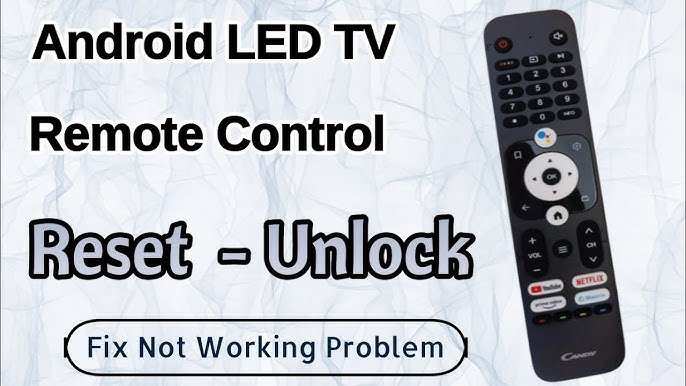
If your Android TV remote stops working, start by replacing the batteries to see if that resolves the issue. **This simple step often fixes the problem quickly.** If it doesn’t, ensure there are no obstructions between the remote and the TV’s sensor.
Next, try re-pairing the remote with your TV or restarting both devices. These quick actions can often get your remote functioning smoothly again.

What to Do If Android TV Remote Is Not Working
Having your Android TV remote stop working can be frustrating. It’s the main way to navigate your TV, change channels, and access apps. When it suddenly stops responding, it can ruin your viewing experience. But don’t worry—there are many simple steps you can take to fix this problem and get your remote working again. In this guide, we will explore all the common reasons your Android TV remote might stop working and show you how to fix them efficiently.
Check the Batteries First
One of the most common reasons your Android TV remote stops working is dead or weak batteries. It may seem simple, but it’s often overlooked. Here’s what you need to do:
- Remove the batteries: Open the battery compartment on your remote. Usually, it slides open or needs a small screwdriver.
- Inspect the batteries: Check for corrosion, leakage, or any signs of damage. If you see any white or greenish buildup, it’s time to replace them.
- Replace with fresh batteries: Use new, high-quality batteries. Ensure that you insert them correctly, paying attention to the positive (+) and negative (−) signs.
- Test the remote: Point it towards the TV and press some buttons to see if it responds.
**Tip:** Always keep spare batteries handy, especially if you use your remote frequently. Using high-quality batteries can also improve the remote’s performance and battery life.
Inspect for Physical Damage
Physical damage can often lead to remote malfunction. Check your remote closely for:
- Broken buttons: Buttons that are stuck, missing, or damaged may prevent proper contact and responsiveness.
- Cracks or breaks: Physical damage to the remote’s casing can interfere with the internal components or circuitry.
- Water damage: If your remote has been exposed to liquids, it can stop functioning. Look for signs of moisture or corrosion inside the battery compartment.
If you notice any damage, consider replacing the remote or getting it repaired if possible.
Check the Remote’s Signal and Line of Sight
Infrared (IR) remotes need a clear line of sight to work properly. Even the best remote won’t respond if the signal is blocked or if the remote’s IR sensor is malfunctioning. Here’s what to do:
- Ensure unobstructed view: Point the remote directly at the TV’s IR sensor. Remove any objects or furniture that might block the signal.
- Test with a camera: Use your smartphone camera to see if the remote emits IR signals. Point the remote at your phone’s camera and press a button. If you see a flashing light on the screen, your remote is sending a signal.
- Clean the IR sensor: Sometimes dirt or smudges on the remote’s IR window or the TV’s sensor can cause issues. Wipe both gently with a soft, dry cloth.
**Tip:** If your remote uses Bluetooth instead of IR, check for Bluetooth connectivity issues and ensure your TV supports Bluetooth remote functions.
Reset the Remote and TV
Sometimes, simply resetting the remote or the TV can solve the problem. Here’s how:
- Reset the remote: Remove the batteries, press and hold any button on the remote for about 15 seconds, then reinsert the batteries. This can clear temporary glitches.
- Restart the TV: Unplug the TV from the power outlet, wait about 30 seconds, then plug it back in. Turn the TV on and try using the remote again.
If the remote still doesn’t respond after reset, proceed to more advanced troubleshooting steps.
Re-Pair or Re-Connect Your Remote
Many Android TV remotes, especially Bluetooth ones, require pairing with the TV. If this connection is lost, the remote may stop working. Here’s how to re-pair:
For Bluetooth Remote
- Navigate to your TV’s Settings menu.
- Go to the “Remotes & Accessories” or “Bluetooth” menu.
- Select “Add accessory” or “Pair new device.”
- Put your remote in pairing mode. Usually, this involves pressing and holding certain buttons (like the Home or Back button) for a few seconds.
- When your remote appears on the screen, select it to pair.
**Tip:** Consult your remote’s manual for specific pairing instructions if these aren’t working.
For Infrared Remote
Infrared remotes typically don’t need pairing but may need new batteries and proper alignment. If your remote uses RF or Bluetooth, pairing steps will be necessary.
Update the TV Firmware and Remote Software
Outdated software can sometimes cause remote responsiveness issues. Follow these steps:
- Check for software updates: On your Android TV, go to Settings > About > Software Update. Download and install any available updates.
- Update remote firmware: Some smart remotes have firmware updates available either through the TV’s settings or an app. Refer to your remote’s manual for instructions.
Keeping your software current ensures compatibility and fixes known bugs.
Use a Universal Remote or Mobile App
If your original remote continues to malfunction, consider using a universal remote compatible with Android TV. These remotes often connect via Bluetooth or Wi-Fi and can be a quick fix.
Alternatively, Android TV remote apps are available for smartphones. You can download apps like Google TV Remote or Android TV Remote Control from the Google Play Store or Apple App Store. These apps turn your phone into a functional remote:
- Download and install the app on your smartphone.
- Ensure your phone and TV are connected to the same Wi-Fi network.
- Follow the app’s instructions to connect to your TV.
- Start controlling your TV directly from your phone.
This is a handy solution when your remote fails.
Replace the Remote
If none of the above steps work, it might be time to replace your remote. When shopping for a new remote, ensure it’s compatible with your Android TV model.
**Tips for choosing a replacement remote:**
- Opt for original manufacturer remotes for best compatibility.
- Check online stores or your TV retailer for replacements.
- Consider universal remotes that support Android TV functions.
Sometimes, a new remote is the easiest way to restore full control over your TV.
Troubleshoot Common Technical Issues
Technical problems can stem from deeper issues such as Wi-Fi interference, faulty hardware, or compatibility conflicts. Here are some additional checks:
- Check Wi-Fi connection: If you use a remote app or Bluetooth remote, ensure your TV and smartphone are on a stable Wi-Fi network.
- Reset your network settings: Consider resetting your TV’s network settings and reconnecting to Wi-Fi.
- Factory reset as a last resort: If all else fails, perform a factory reset on your TV. This should only be a last step, as it erases all settings and data.
Be sure to back up important data before performing a factory reset.
Prevent Future Remote Malfunctions
Once your remote is working again, take steps to avoid future issues:
- Use fresh batteries regularly and replace them before they run out completely.
- Keep the remote clean and free from dirt, dust, or liquid exposure.
- Avoid dropping or mishandling your remote.
- Store the remote in a safe, consistent place to prevent damage or loss.
Proper maintenance can extend the life of your remote and ensure smooth operation.
—
If your Android TV remote continues to malfunction after trying these troubleshooting steps, contacting customer support or seeking professional repair services may be necessary. Most problems can be solved with a little patience and some straightforward checks, so don’t give up—your TV and remote will be up and running in no time.
Frequently Asked Questions
How can I check if the batteries in my Android TV remote are functioning properly?
If your remote isn’t working, start by replacing the batteries with fresh, high-quality ones. Sometimes, low or dead batteries cause connectivity issues. Remove the current batteries, insert new ones, and see if the remote responds. Ensure the batteries are installed correctly, following the positive and negative markings inside the battery compartment.
What steps should I take if the remote’s buttons are unresponsive?
First, clean the remote’s buttons and sensor area to remove dust and debris that might interfere with signals. Check for visible damage, such as stuck buttons or cracks. If cleaning doesn’t help, try resetting the remote or pairing it again with your Android TV device. Sometimes, a simple restart of the TV itself can resolve the issue.
How do I re-pair my remote with the Android TV?
Navigate to your television’s settings menu, locate the Bluetooth or remote control settings, and select the option to pair a new device. Follow the on-screen instructions, which usually involve holding specific buttons on the remote for a few seconds. Ensure the remote is close to the TV during this process to establish a stable connection.
What troubleshooting steps should I follow if my remote still doesn’t work after replacing batteries?
Try resetting the remote by removing the batteries, pressing any button for 10 seconds, and then reinserting the batteries. Additionally, check for any obstructions or sources of interference between the remote and the TV. If possible, test the remote on another compatible device to determine if it functions properly. If it doesn’t, consider replacing the remote or contacting support for further assistance.
Final Thoughts
If your Android TV remote is not working, start by replacing the batteries to ensure it has enough power. Check for any obstructions or debris blocking the remote’s sensors. If problems persist, try resetting the remote or updating your TV’s firmware.
In conclusion, what to do if Android TV remote is not working involves simple troubleshooting steps like replacing batteries, cleaning sensors, or resetting devices. These actions often resolve common issues quickly, restoring your remote’s functionality and making your viewing experience smooth.
