

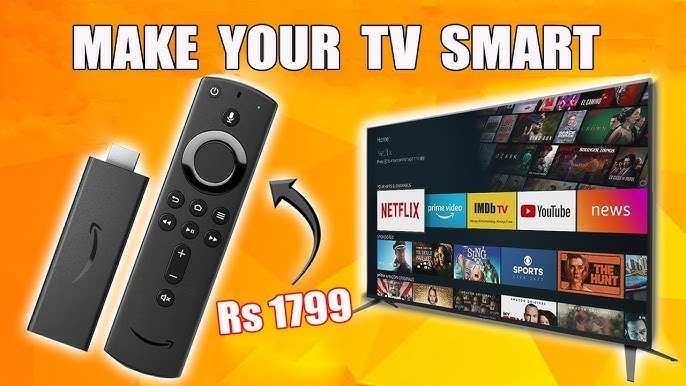
To make your smart TV Android, you simply need to install an Android-based operating system or use specific firmware updates. **Updating your TV’s software or installing custom firmware can turn it into an Android device.** Many models support this process, making it easier than you might think.
Knowing how to make your smart TV Android involves careful steps to ensure compatibility and functionality. Follow straightforward guides or tutorials to navigate the process seamlessly. Once completed, you’ll enjoy the flexibility of Android apps right on your TV screen.

How to Make Your Smart TV Android
Creating an Android experience on your smart TV can significantly enhance how you watch shows, browse the internet, and use apps. Whether you want to upgrade an older TV or customize your current device, turning your smart TV into an Android-powered device opens up a world of possibilities. In this guide, we detail the steps and tips to help you make your smart TV Android, covering everything from basic setup to advanced customization.
Understanding Your Smart TV and Its Operating System
Before diving into the process, it’s crucial to know what kind of smart TV you have. Smart TVs come with different operating systems, such as Tizen, WebOS, Roku, and Android TV. This distinction matters because the methods to make your TV Android depend on its original OS.
- Android TV: Built specifically with Android OS, this platform allows direct app installations, voice control, and integration with Google services.
- Other OS (Tizen, WebOS, Roku): These platforms don’t natively support Android apps, but there are ways to emulate or install Android features on them.
If your TV already runs Android TV, the process is straightforward—just ensure it’s updated. But if it’s another OS, you’ll need to consider additional steps like using external devices or software modifications.
Options to Convert Your Smart TV into an Android Device
There are several pathways to make your TV run Android. Your choice depends on your TV’s current OS, budget, technical skills, and what features you want.
- Using an Android TV Box: The simplest and most reliable way. Plug in a device like Chromecast with Google TV, NVIDIA Shield, or Xiaomi Mi Box. These boxes run Android TV out of the box.
- Installing Android on Your TV via Firmware Modification: This advanced method involves flashing custom firmware or Android-based ROMs onto your TV. It requires technical expertise and can void warranties.
- Using External Devices: Connecting devices like tablets or smartphones using screen mirroring or casting features to display Android content on your TV.
- Emulators and Software Solutions: Running Android emulators on connected computers or using apps that mimic Android environments.
In most cases, the easiest and most practical approach is to use an Android TV box. Let’s explore how each option works in detail.
Setting Up an Android TV Box
The above method provides the most seamless and user-friendly experience. Here’s a step-by-step guide:
- Choose the Right Android TV Box: Look for models with good reviews, sufficient RAM (at least 2GB), and storage (16GB or more). Popular options include Google Chromecast with Google TV, NVIDIA Shield, and Xiaomi Mi Box S.
- Connect the Device: Plug the box into your TV’s HDMI port. Power it up using a compatible power adapter.
- Initial Setup: Follow on-screen instructions to connect to Wi-Fi, log into your Google account, and customize settings.
- Install Your Favorite Apps: Access the Google Play Store to download streaming apps, games, and utilities.
- Optimize Settings: Adjust display, sound, and network settings for the best experience.
This method requires minimal technical knowledge, and the device’s interface feels just like using an Android phone or tablet.
Custom Firmware and Firmware Modification
If you own a smart TV that supports firmware upgrades or custom firmware, you can try installing an Android-based OS. Keep in mind, this process varies significantly among TV brands and models.
- Research Compatibility: Find out if your TV’s hardware supports Android firmware or custom ROMs.
- Gather Necessary Tools: This might involve downloading firmware images, flashing tools, and driver software.
- Create Backup: Always back up your current firmware to prevent bricking your device.
- Follow Guides Carefully: Refer to specific tutorials for your TV model. Websites like XDA Developers forums can be helpful.
Since firmware modification carries risks like voiding warranties or permanently damaging your TV, proceed only if you feel comfortable with such tasks.
Using External Devices for Android Features
You don’t always need to modify your TV. Instead, you can use external devices to add Android features:
- Connecting a Smartphone or Tablet: Use screen mirroring or casting options to display Android content on your TV. For example, Google Cast or Miracast tech.
- Using a Laptop or PC: Run Android emulators like BlueStacks or Nox Player on your computer and connect it to your TV via HDMI.
- Chromecast or Fire TV Stick: Use these devices to stream Android app content directly to your TV screen.
This approach is quick and doesn’t require changing your TV’s operating system.
App and Software Recommendations for Enhancing Your Android TV Experience
Once your TV runs Android, you can personalize it with various apps:
- Streaming Apps: Netflix, Hulu, Amazon Prime, Disney+, YouTube.
- Media Players: VLC, MX Player, Plex.
- Utilities: File manager apps, VPNs, screen recorders.
- Games: Download and enjoy casual and graphic-intensive games directly on your TV.
Additionally, certain apps can improve navigation, like remote control apps or voice command tools.
Connecting Your Devices and Ensuring Compatibility
When setting up your Android-enabled TV, ensure all devices work smoothly together:
| Device | Compatibility Tips |
|---|---|
| Android TV Box | Update firmware regularly; install trusted apps only. |
| Smartphone/Tablet for Casting | Ensure both devices are on the same Wi-Fi network for seamless casting. |
| External Storage Devices | Format USB drives in compatible formats like FAT32 or exFAT for smooth media playback. |
Proper setup guarantees a better user experience and fewer technical issues.
Tips for Troubleshooting Common Issues
If your Android TV setup encounters problems, consider the following solutions:
- Connectivity Problems: Restart your router and all devices. Check Wi-Fi settings and signal strength.
- App Crashes or Not Launching: Clear app cache or reinstall the problematic apps.
- Device Not Recognized: Ensure drivers or firmware are updated. Try reconnecting cables or devices.
- Performance Issues: Free up storage space, close background apps, and restart the device.
Remember, patience and careful troubleshooting often resolve most issues.
Maintaining Your Android-Enabled Smart TV
Once your TV runs Android, regular updates improve security and functionality. Follow these tips:
- Update Firmware and Apps: Check periodically for updates in the settings menu or app store.
- Manage Storage: Remove unused apps and clear cache to improve performance.
- Secure Your Device: Use strong passwords, enable security features, and install trusted apps only.
- Backup Settings: Save your preferences and app data regularly.
Proper maintenance extends the lifespan of your device and keeps it running smoothly.
Transforming your smart TV into an Android device offers many advantages, from a wider range of apps to more flexible controls. While the easiest method involves using an external Android TV box, more advanced users may explore firmware modifications or external device connections to enhance functionality further. Whichever route you choose, always prioritize safety, compatibility, and device integrity. With patience and proper setup, you can enjoy an Android-powered TV experience tailored to your entertainment needs.
Frequently Asked Questions
How can I install the Android operating system on my smart TV that runs on a different platform?
To install Android OS on a smart TV with a different system, first check if your TV supports firmware updates or custom ROMs. If it does, download a compatible Android firmware from a trusted source. Follow the manufacturer’s instructions to flash the new OS, which typically involves using a USB drive and entering recovery mode. Be sure to back up your data beforehand, and understand that this process can void your warranty or cause system issues if not done correctly.
What hardware modifications are necessary to convert my smart TV into an Android TV?
Converting your smart TV into an Android TV usually requires adding a device like a Chromecast with Google TV, an Android TV box, or a mini PC running Android. Connect the device to your TV via HDMI, then configure it with your Wi-Fi and Google account settings. No internal hardware changes are necessary, but ensure your TV has available HDMI ports and sufficient processing power for a smooth experience.
Are there specific apps or tools I should use to set up Android on my smart TV?
Yes, you can use tools like ADB (Android Debug Bridge) to sideload Android applications or flash custom ROMs if your TV is compatible. Additionally, apps like TeamViewer or scrcpy can help you control or troubleshoot the device from a computer. Always download apps and tools from official sources to ensure security and compatibility, and follow detailed guides tailored for your specific TV model and hardware.
Can I use my existing remote control with an Android TV setup?
In many cases, yes. If you use an Android TV device like a dongle or box, it should come with a compatible remote. Alternatively, you can connect a universal remote or use a smartphone app designed for remote control functionality. Make sure your remote supports the Bluetooth or infrared protocols used by your Android TV device for seamless operation.
What troubleshooting steps should I follow if the Android interface doesn’t load properly on my TV?
Start by checking all connections to ensure the device is properly plugged in and powered on. Restart the device and your TV. Confirm that your HDMI port is functioning by switching to other inputs. If the issue persists, consider resetting the Android device or re-flashing the firmware. Consult device-specific forums or support channels if you encounter hardware compatibility issues or software errors during setup.
Final Thoughts
To make your smart TV Android, start by installing the Android TV operating system on compatible models or using a TV box that supports Android. Ensure you update your device to the latest firmware for better performance. Customize your settings and download essential apps from the Google Play Store for an optimal experience.
In conclusion, how to make your smart TV android involves selecting the right hardware, installing the Android OS, and customizing your setup. These steps make your TV more functional and personalized, enhancing your entertainment experience seamlessly.
