

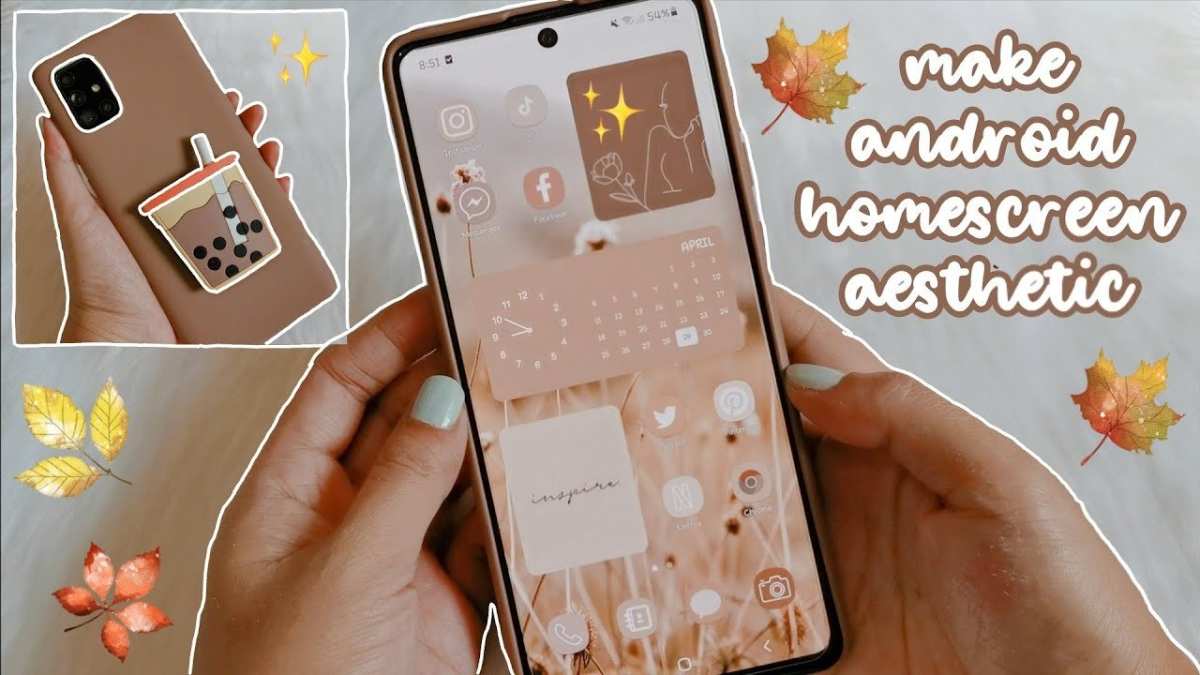
To make your android phone look aesthetic, start with customizing your wallpaper, icons, and widgets. **Choosing a cohesive color palette and sleek designs instantly enhances your phone’s appearance.** When you know how to make your android phone look aesthetic, you can create a stylish and personalized look effortlessly. Focus on minimalism or bold styles based on your taste. Regularly updating your themes and layouts keeps your device fresh and appealing.

How to Make Your Android Phone Look Aesthetic
Creating an aesthetic look for your Android phone can make your everyday device feel more personalized and enjoyable to use. Whether you like minimal designs, vibrant colors, or unique themes, the right setup can truly change how your phone appears. In this guide, you’ll find detailed steps to help you craft an aesthetic look that matches your style perfectly. From choosing the right wallpaper to customizing icons and layouts, this article breaks down everything you need to know to make your Android phone look stunning and organized.
Selecting the Perfect Wallpaper for Your Style
Your wallpaper sets the tone for your device’s entire appearance. Picking the right one can instantly make your phone look more appealing.
Types of Wallpapers to Consider
- Minimalist Wallpapers: These feature simple designs with soft colors or geometric shapes. They keep the focus on your icons and widgets.
- Nature-Inspired Wallpapers: Photos of beaches, mountains, or forests bring calmness and natural beauty to your screen.
- Abstract Art: Bright colors and patterns add a modern and artsy vibe.
- Custom Photos: Personal photos or artwork can make your device uniquely yours.
Tips for Choosing the Best Wallpaper
- Pick high-resolution images for a crisp look.
- Use images with a balanced color palette to avoid overwhelming visuals.
- Match your wallpaper with your overall theme or color scheme.
How to Change and Set Wallpapers
- Go to your home screen and tap and hold an empty space.
- Select “Wallpaper” or “Wallpapers” from the menu.
- Browse your gallery or explore pre-installed options.
- Select your favorite wallpaper and tap “Set wallpaper.”
Customizing Icons for a Sleek Look
Icons are crucial in shaping your phone’s aesthetic. Custom icons give your device a fresh and personalized appearance.
Using Icon Packs
- Download icon packs from the Google Play Store. Popular options include “Whicons,” “Moonshine,” or “Material Icons.”
- After installing, open your launcher settings and find the icon customization options.
- Apply your chosen icon pack to see your icons change instantly.
Changing Individual App Icons
- Tap and hold an app icon.
- Choose “Edit” or the pencil icon.
- Select a custom icon from your gallery or icon pack.
- Save the changes to see the new icon in place.
Creating Uniform Icon Layouts
- Organize your apps into folders based on categories like social, gaming, or productivity.
- Use consistent icon sizes to maintain a clean look.
- Simplify your home screen by removing unnecessary icons.
Applying a Custom Launcher to Elevate Your Aesthetic
Launchers give you more control over your home screen layout, icons, and overall appearance.
Popular Aesthetic Launchers
- Nova Launcher: Highly customizable with options for icon packs, layout grids, and gesture controls.
- YY Launcher: Known for its sleek design and smooth performance.
- Disney+ Launcher: Offers playful themes and icon styles for a fun aesthetic.
How to Install and Customize a Launcher
- Download your preferred launcher from the Google Play Store.
- Open the launcher and set it as your default home app.
- Explore the settings to change grid sizes, animations, and icon styles.
- Integrate your chosen themes or icon packs for a cohesive look.
Designing Your Home Screen Layout
How you arrange your apps and widgets plays a big role in the overall aesthetic.
Organizing Apps and Widgets
- Limit the number of visible apps to reduce clutter.
- Use folders to group similar apps together.
- Place your most-used apps in easily accessible spots.
Choosing the Right Widgets
- Opt for minimalist clock and weather widgets that blend seamlessly with your wallpaper.
- Use calendar or note widgets in small sizes to avoid crowding your screen.
- Position widgets strategically to create balance and harmony.
Creating Symmetry and Balance
- Align icons and widgets in a grid pattern for neatness.
- Maintain consistent spacing between icons and widgets.
- Use visual cues like color schemes or themes to tie the layout together.
Color Coordination for a Cohesive Look
Colors matter in making your phone look put-together. Decide on a palette that reflects your personality.
Picking Your Color Scheme
- Choose a dominant color to be reflected in wallpapers, icons, and widgets.
- Use complementary or analogous colors for harmony.
- Avoid overloading your screen with too many contrasting colors.
Applying Color Consistency
| Element | Recommended Color |
|---|---|
| Wallpaper | Soft pastels, neutral tones, or bold hues based on preference |
| Icons | Match or complement the wallpaper’s main colors |
| Widgets | Use background colors that blend with the overall palette |
Adding Personal Touches for Unique Style
To truly create an aesthetic that reflects you, personalize your device with custom elements.
Using Custom Fonts
- Download font apps like “iFont” or “Fonts for Android.”
- Apply fonts through your launcher or system settings.
- Pick fonts that match your theme—sleek, playful, or elegant.
Adding Unique Wallpapers and Graphics
- Create your own artwork or edit photos to match your theme.
- Use apps like Canva or PicsArt to design wallpapers or icons.
- Change wallpapers regularly to keep your device fresh.
Incorporating Fun Widgets and Extras
- Add custom clocks, battery meters, or social media feeds.
- Use transparent or minimal widgets to keep the aesthetic clean.
- Sync your wallpaper with widget designs for a harmonious look.
In conclusion, making your Android phone look aesthetic involves a thoughtful combination of wallpapers, icon packs, launcher choices, layout arrangements, and personal touches. By experimenting with different combinations, you can craft a device that feels and looks just right for you. Remember, the goal is to create a space that inspires you and makes your daily phone use more enjoyable. Take your time exploring options, and don’t hesitate to change elements as your style evolves. Your personalized, visually pleasing Android device is just a few steps away. Happy customizing!
Frequently Asked Questions
How can I customize my Android home screen to appear more aesthetic?
Personalizing your Android home screen involves selecting a visually pleasing wallpaper, organizing app icons neatly, and choosing a consistent color theme. You can also add widgets that match your aesthetic preferences and arrange apps in a way that creates a balanced look. Using icon packs and adjusting grid sizes can further refine the overall appearance.
What are some popular apps or tools to enhance the aesthetic of my Android device?
Apps like Nova Launcher, Lawnchair, or Action Launcher allow extensive customization of your home screen layout, icons, and themes. Icon pack apps such as Whicons or Moonshine can provide cohesive icon styles. Wallpaper apps like Walli or Unsplash offer high-quality images to complement your aesthetic. Additionally, widget apps like KWGT or Zooper help create personalized widgets that match your style.
How do I select the right wallpaper and color scheme for a cohesive look?
Choose wallpapers with minimalistic designs, soft colors, or images that resonate with your personal style. A consistent color scheme across wallpapers, icons, and widgets creates harmony. You can use color palette tools or apps to identify complementary colors and ensure all elements blend well together. Avoid overly busy backgrounds to keep the focus on your apps and widgets.
How can I organize my apps to maintain a clean and stylish appearance?
Group similar apps into folders and label them clearly to reduce clutter. Limit the number of home screen pages and use the dock for your most-used apps. Arrange icons symmetrically or follow a grid pattern that aligns with your aesthetic. Regularly review and remove apps you no longer use to keep your interface tidy and visually appealing.
Are there any specific themes or customization settings I should consider for a consistent aesthetic?
Browse theme stores or settings within your launcher to find themes that offer matching wallpapers, icons, and fonts. Adjust font styles and sizes to match your overall look, and enable dark or light modes based on your preference. Consistency across elements, such as matching icons and backgrounds, helps establish a unified and clean visual experience.
Final Thoughts
To make your android phone look aesthetic, start by choosing a cohesive wallpaper that reflects your style. Use icon packs and widgets to create a clean and organized home screen. Customizing app icons and settings allows you to personalize your device further.
In conclusion, how to make your android phone look aesthetic depends on your creativity and preferences. Focus on simple, consistent elements to achieve a visually pleasing appearance. A well-organized and stylish setup enhances your overall experience.
