

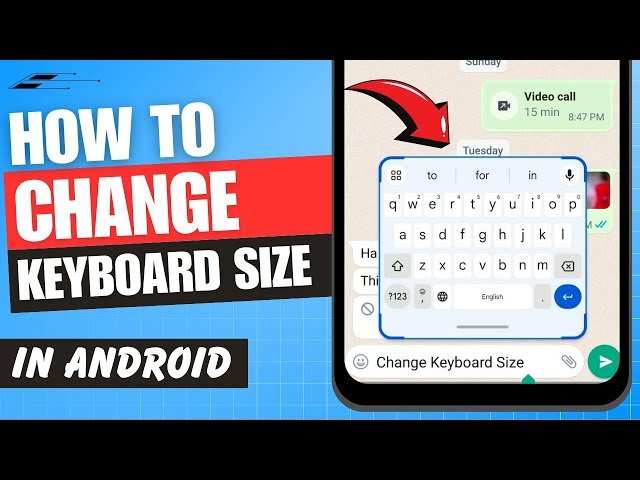
To make your keyboard bigger on Android, simply go to Settings > System > Languages & Input > On-screen keyboard > Gboard > Preferences, then adjust the keyboard height. If you’re wondering how to make the keyboard bigger on Android, this quick tweak helps.
Android how to make keyboard bigger varies slightly between devices but usually follows a similar process. Increasing the size improves typing comfort and reduces errors. A few taps can make a big difference in your daily device use.

Android How to Make Keyboard Bigger
Making your keyboard larger on an Android device can make typing easier and more comfortable, especially if you find small keys challenging to press accurately. Whether you want bigger keys for better precision, or you just prefer a larger keyboard for convenience, there are various ways to resize or customize your Android keyboard. In this comprehensive guide, we’ll go through the most effective methods, supportive tips, and important considerations to help you get a bigger and more functional keyboard experience on your Android phone or tablet.
Understanding Why Your Android Keyboard Might Be Small
Before diving into solutions, it’s helpful to understand why your keyboard might appear small. Common reasons include:
- Default keyboard size set by the device or app
- Screen size and resolution affecting how keyboard appears
- Limited customization options in the basic keyboard
- Using a third-party keyboard app with fixed size settings
Once you know why, choosing the best method to make your keyboard larger becomes easier. Let’s explore how to adjust settings or switch to different keyboards that offer better size customization.
Adjusting Built-in Android Keyboard Settings
Many Android devices come with a default keyboard that allows some modifications. While options vary depending on your device model and Android version, here’s a general approach:
Changing Keyboard Size via Settings
Some Android keyboard apps, like Gboard (Google Keyboard), offer size control directly through settings:
- Open Settings on your device.
- Scroll down to find and select System or General Management, then tap Language & Input.
- Tap on On-screen keyboard or Virtual Keyboard.
- Select your current keyboard app, such as Gboard.
- Go into Preferences or Keyboard Layout.
- Look for options like Keyboard height or Keyboard size.
- Adjust the slider or select a larger size as available.
Note: Not all Android keyboards support size modifications. If your current keyboard does not have these options, consider installing a third-party keyboard.
Using Gboard to Resize Your Keyboard
Gboard, Google’s official keyboard app, is popular because of its flexibility and customization options:
- Download Gboard from the Google Play Store if not already installed.
- Open the Gboard app or go to Settings > System > Languages & Input > Virtual Keyboard > Gboard.
- Tap Preferences.
- Scroll to find Keyboard height.
- Select Tall, Default, or Short based on your preference.
- Confirm the change and test your new keyboard size.
This adjustment can significantly increase the height of the keyboard, making keys larger and spacing more comfortable.
Installing Third-Party Keyboard Apps for Larger Keys
If your current keyboard app doesn’t support size changes or you want more control, switching to a third-party keyboard could be the ideal solution. Many apps offer extensive customization options to resize keys, adjust layout, and even change themes.
Popular Third-Party Keyboard Apps for Bigger Keys
- SwiftKey: Known for its predictive text, SwiftKey allows resizing and customizing key size in its settings.
- Fleksy: Focuses on large keys and gestures, perfect for users who want a bigger, more accessible keyboard.
- AnySoftKeyboard: An open-source option with adjustable keyboard size and layout options.
- Grammarly Keyboard: Adds grammar assistance with options for customized keyboard size.
- Download your preferred third-party keyboard from the Google Play Store.
- Follow the app’s setup instructions to enable it as your default keyboard.
- Access the keyboard settings within the app to find size and layout options.
- Adjust the key size or overall keyboard height according to your needs.
This method gives you total control over the size, spacing, and style of your keyboard.
Using Accessibility Features to Enlarge the Keyboard
Android offers accessibility options that can help improve typing comfort without necessarily changing keyboard size:
Enabling Magnification or Screen Zoom
- Open Settings and navigate to Accessibility.
- Look for options like Magnification or Display size.
- Adjust the display size slider to make everything, including the keyboard, appear larger.
- Use magnification gestures to zoom in on specific areas, making keys easier to tap.
While this doesn’t directly resize the keyboard keys, it helps make on-screen elements more reachable and visible.
Customizing Keyboard Layouts for Better Accessibility
Some keyboards let you create custom layouts or increase spacing:
- Go to your keyboard’s settings.
- Look for options like Custom layouts or Spacing and size.
- Adjust the margin, padding, or key size for better accessibility and comfort.
Experimenting with these options can help you find a layout that suits your hand size and typing style best.
Tips for Improving Typing Comfort on a Bigger Keyboard
Once you’ve enlarged your keyboard, keep these tips in mind:
- Use two fingers for faster and more accurate typing.
- Practice with larger keys to build muscle memory.
- Enable haptic feedback to confirm key presses and avoid mistakes.
- Maintain proper device grip to keep your hands steady.
Bigger keys can reduce errors and make typing more enjoyable when you get used to the new layout.
Summary of Methods to Make Your Android Keyboard Bigger
To recap, here are your main options:
| Method | Description | Best For |
|---|---|---|
| Adjusting in built-in settings | Change keyboard size via device settings or app preferences | Users with customizable default keyboards like Gboard |
| Switching to third-party keyboards | Install apps offering extensive size adjustments and customization | Users needing maximum flexibility and control |
| Using accessibility features | Improve visibility and reach by enlarging display elements | Users with visual or motor impairments |
| Custom layouts and spacing adjustments | Modify how keys are spaced and displayed for comfort | Users seeking a tailored keyboard experience |
By considering your device, preferences, and needs, you can choose the best way to make your Android keyboard bigger and more comfortable to use.
Whether adjusting settings, switching apps, or customizing layouts, enlarging your keyboard can significantly improve your typing experience. Take your time to explore different options and find the setup that feels best for you. Happy typing!
Frequently Asked Questions
How can I increase the size of my keyboard on an Android device?
To make your Android keyboard larger, go to your device’s Settings, then select System or General Management. Tap on Language & Input, choose your keyboard (such as Gboard), and look for the Preference or Layout settings. You can adjust the keyboard height or enable a one-handed mode that temporarily enlarges the keys for easier typing.
Is there a way to customize keyboard size temporarily for easier use?
Yes, many Android keyboards offer a quick toggle to change their size. For example, in Gboard, you can tap the gear icon for Settings, then select Preferences. From there, enable the One-Handed mode or adjust the Keyboard height slider. This temporary change makes the keys more accessible without permanently altering the overall layout.
Can I set a default larger keyboard size on my Android device?
Adjusting the default size involves going into your keyboard’s settings, then finding options for height or layout. Some keyboards, like Gboard, allow you to set a preferred height or activate an extended mode that remains active until you change it back. Once set, the keyboard retains this size across app sessions for consistent use.
Are there third-party keyboard apps that offer more size customization options?
Yes, third-party keyboards like SwiftKey or Fleksy provide extensive customization, including resizing options. You can download these apps from the Google Play Store, then access their settings to modify the keyboard size according to your preferences. These alternatives often allow more granular control over layout and key size.
Final Thoughts
To sum up, making your keyboard bigger on Android involves adjusting settings or customizing your keyboard app. You can access the keyboard settings directly through your device or within the app itself. Increasing the key size helps improve typing comfort and reduces errors.
In particular, if you’re wondering ‘android how to make keyboard bigger’ is simple to address by exploring settings or downloading a versatile keyboard app. This allows you to customize size effortlessly and enhance your overall typing experience.
