

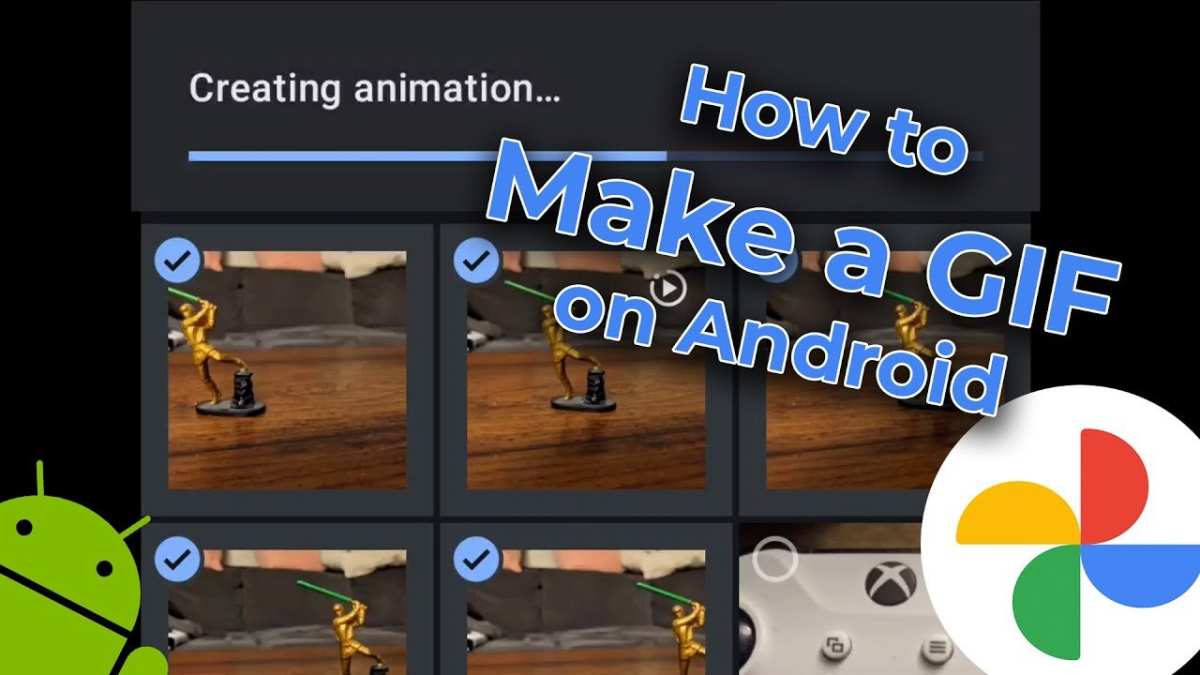
Creating a GIF on Android is simple and quick. **You can use various apps like Giphy or ImgPlay to make GIFs directly from your videos or photos.** Just select your media, edit it as needed, and save.
If you wonder how to make a GIF on Android, the process usually involves choosing clips, adding effects, and exporting the file. No need for complex tools or computers.
By following a few taps, you’ll be sharing fun animated images in no time.

Android How to Make GIF: A Complete Guide for Beginners
Making GIFs on your Android device might seem complicated at first, but with the right apps and simple steps, you can create fun, animated images easily. Whether you want to craft a quick meme, capture a funny moment, or make an eye-catching gif for social media, this guide will walk you through everything you need to know. From selecting the best apps to editing and sharing your GIFs, we cover it all in detail.
Understanding GIFs and Why They Matter
Before diving into how to make GIFs on Android, it’s helpful to understand what GIFs are and why they are so popular.
What is a GIF?
GIF stands for Graphics Interchange Format. It’s a type of image that can contain multiple frames, creating a short animation. Unlike videos, GIFs are usually small in size, making them perfect for quick sharing.
Why Use GIFs?
People love GIFs because they add expression and movement to conversations. They can be funny, cute, or informative. Using GIFs makes your messages more engaging and fun.
Top Apps for Creating GIFs on Android
The first step in making a GIF on Android is choosing the right app. Here are some popular and easy-to-use options:
GIF Maker – ImgPlay
This app lets you create GIFs from videos or photos. It offers editing tools and effects to enhance your animations.
Google Photos
If you already have videos or photos stored, Google Photos can quickly turn them into GIFs by using its built-in tools or third-party integrations.
GIF Maker – GIF Editor
A simple app that allows you to combine images, add text, and apply filters, perfect for creating customized GIFs.
Giphy Cam
Ideal for capturing live moments and turning them into GIFs with fun filters and effects.
Steps to Make a GIF Using Android Apps
Let’s walk through the general process of creating GIFs with these apps. The steps may vary slightly depending on the app, but the core process remains similar.
Select Your Source Material
– Choose photos or videos stored on your device.
– For live capturing, use the app’s camera feature.
Import or Record Content
– Open your selected app.
– Tap on the option to create a new GIF.
– Import photos or videos or record a new clip.
Edit Your GIF
– Trim videos to select the exact segment you want.
– Adjust the speed of the animation.
– Add text, stickers, or filters for extra flair.
– Rearrange frames if needed.
Preview and Save
– Play the GIF to see how it looks.
– Make any final adjustments.
– Save the GIF to your device or directly share it.
Tips for Making Better GIFs
Creating eye-catching GIFs involves more than just pressing record. Here are some tips to improve your GIF-making skills:
Keep it Short and Sweet
GIFs work best when they’re brief, usually lasting no more than a few seconds. Focus on capturing a clear moment or expression.
Use Good Lighting and Clear Shots
Ensure your source material is well-lit for better quality GIFs. Clear images look more appealing.
Experiment with Speed and Effects
Adjust the speed to make your GIF funnier or more dramatic. Add effects sparingly to avoid cluttering.
Loop Seamlessly
Try to pick moments that loop smoothly without a jarring jump. This makes your GIF more natural and pleasing to watch.
Editing Techniques to Enhance Your GIFs
Beyond basic creation, editing can make your GIFs stand out more.
Add Text Overlays
Including captions or quotes adds context and humor. Most apps let you choose fonts, colors, and placement.
Apply Filters and Effects
Use filters to match your GIF’s aesthetic or add visual effects like blurring or glows to make them pop.
Combine Multiple Clips
Create a story or a sequence by stitching several short clips together into one GIF.
Sharing Your GIFs on Android
Once you create a GIF, sharing it is just a tap away.
Social Media Platforms
– Upload GIFs directly to Instagram, Facebook, Twitter, or TikTok.
– Use the share button within the app for quick posting.
Messaging Apps
– Send your GIFs via WhatsApp, Messenger, or Telegram.
– Most apps support GIFs directly in chat.
Save and Use Later
– Save GIFs to your device gallery or cloud storage.
– Use them as reactions, profile pictures, or in presentations.
Common Challenges and How to Overcome Them
Making GIFs on Android can sometimes present obstacles. Here are solutions to common issues:
GIFs Are Too Large
– Reduce the resolution.
– Shorten the duration.
– Use compression features within apps.
Low-Quality Output
– Record or select high-quality source material.
– Adjust settings to increase resolution.
Difficulty Looping Seamlessly
– Pick the right segment with natural start and end points.
– Use apps that offer seamless looping options.
Advanced Techniques for Creating Unique GIFs
For those wanting to step up their GIF game:
Adding Subtitles or Narration
– Incorporate voice or text for storytelling.
– Use audio-to-GIF tools or overlay features.
Using External Editing Tools
– Edit your GIFs in desktop software for more control.
– Transfer your GIF to a PC for finer adjustments.
Creating Animated Stickers
– Convert your GIFs into stickers for messaging apps.
– Use specific apps like Giphy or Sticker Maker.
Making GIFs on Android is straightforward once you understand the process. Choose a user-friendly app, select your content carefully, and experiment with editing options to craft GIFs that express exactly what you want. Whether for fun, social media, or personal projects, creating GIFs is a creative way to bring images to life right from your Android device. Don’t be afraid to try different styles and techniques—your perfect GIF is just a few taps away.
Frequently Asked Questions
How can I create a GIF from my videos on an Android device?
To create a GIF from your videos, open a GIF-making app such as GIPHY or GIF Maker. Import the video clip you want to convert, select the specific portion if needed, and then export it as a GIF. Save the GIF to your device or share it directly from the app.
Are there any apps that allow me to make GIFs easily on Android?
Yes, several user-friendly apps like GIF Maker, ImgPlay, and GIF Studio enable you to create GIFs effortlessly. These apps typically offer features such as trimming videos, adding text or stickers, and customizing the frame rate before saving your GIF.
What steps should I follow to turn a series of photos into a GIF on Android?
Use apps like GIF Maker or Giphy Cam to combine multiple photos into a GIF. Import your images in the desired order, adjust the display duration of each frame, and then generate the GIF. Save the file to your gallery or share it directly through messaging platforms.
Can I make a GIF from live photos or screen recordings on my Android?
Yes, you can convert live photos or screen recordings into GIFs using specific apps. For screen recordings, record your screen using built-in tools or third-party apps, then import the video into a GIF converter app. Follow the app’s prompts to edit and save your GIF.
Final Thoughts
To conclude, understanding how to make a gif on Android enhances your creativity and sharing ability. The process involves selecting images or videos, editing them as needed, and exporting as a gif. By following these simple steps, you can create fun and engaging gifs directly on your device. Practicing these methods allows you to produce personalized animations effortlessly. If you seek to make a gif on Android, these tips will guide you through a straightforward process, making it quick and easy.
