

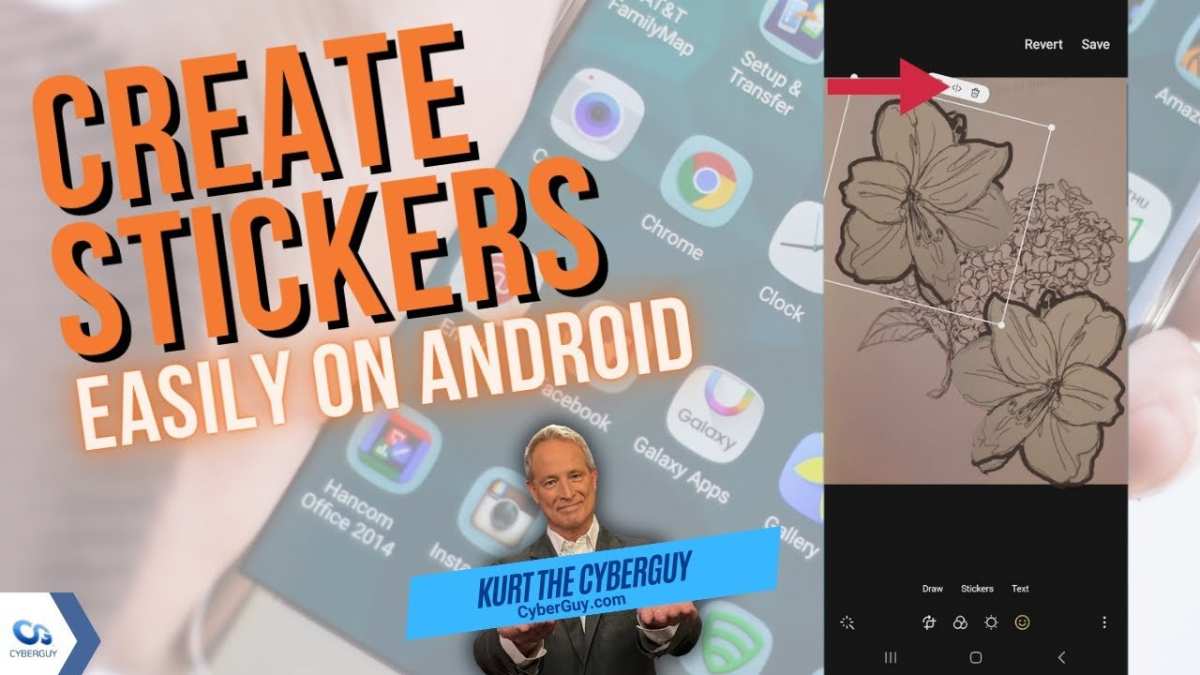
To make stickers from photos android, you simply need a photo editing app and a little creativity. **You can easily cut out your images and save them as stickers directly on your device.** Learning how to make stickers from photos android is quick and fun, even if you’re new to editing. Just select your photo, remove the background, and save it as a sticker to use in messaging apps. This simple process lets you personalize your chats with unique images.

How to Make Stickers from Photos on Android Devices
Creating custom stickers from your photos on an Android device is an enjoyable activity that allows you to personalize your messages and social media posts. Whether you’re a hobbyist, a content creator, or just someone who loves to add fun visuals to your chats, knowing how to turn your photos into stickers opens up a world of creativity. In this guide, we’ll explore step-by-step methods, recommended apps, tips for perfect stickers, and ways to use your custom creations.
Understanding Why Making Stickers from Photos is Popular
Before diving into the “how,” let’s look at why making stickers from photos has grown in popularity. Stickers add a layer of fun and expressiveness to conversations that words alone can’t always convey. Custom stickers, especially those from your favorite photos, are unique and can be tailored perfectly to your style.
Some reasons people love making their own stickers include:
- Personal touch: Use your own photos to craft meaningful stickers.
- Creative freedom: Design stickers that match your mood or theme.
- Enhanced communication: Make conversations more lively and expressive.
- Sharing fun moments: Share memorable photos in a fun sticker format.
Essential Tools and Apps for Creating Stickers from Photos on Android
To make high-quality stickers from your photos, you will need the right tools. Several apps are available on the Google Play Store that simplify this process, often with built-in features for cutting out objects, background removal, and sticker creation. Here’s a look at some popular options:
Photo Editing and Sticker Apps
- Sticker Maker for WhatsApp: A simple app that lets you create custom stickers from your photos and add them directly to WhatsApp.
- PicsArt Photo & Video Editor: Offers advanced editing features like background removal and fun effects to prepare your photos for stickers.
- Background Eraser: Specializes in quickly removing backgrounds from photos to create transparent images for stickers.
- Canva: Provides templates, backgrounds, and creative tools to design stickers from scratch or photos.
- Sticker Studio: Allows batch creation of stickers and supports importing photos directly from your gallery.
Choosing the Right App for Your Needs
When selecting an app, consider the following:
- User interface: Is it easy to navigate and understand?
- Features: Does it allow background removal, cropping, and adding effects?
- Output format: Can it export stickers in PNG with transparent backgrounds?
- Sharing options: Does it easily share stickers to messaging apps?
Step-by-Step Guide to Making Stickers from Photos
Once you’ve chosen your preferred app, follow these steps to create stickers from your photos:
Select Your Photo
Start by choosing a photo from your gallery. Opt for images with clear subjects and simple backgrounds for easier editing.
Remove Backgrounds (if necessary)
Most sticker-making apps have tools to remove backgrounds:
- Use automatic background removal features for quick results.
- If needed, manually outline the object for precise cutouts.
- Ensure the background is fully transparent for a seamless sticker look.
Crop and Resize Your Image
Trim the photo down to the main object or person you want in your sticker:
- Use cropping tools to eliminate unnecessary areas.
- Resize the image to fit typical sticker dimensions, usually around 512×512 pixels.
Add Effects and Text (Optional)
Enhance your sticker with:
- Filters and effects to give it a fun or artistic vibe.
- Text overlays for personalized messages.
- Decorative elements like emojis or stickers to spice up the design.
Save Your Sticker
Save the final sticker as a PNG file with a transparent background. This ensures your sticker will look good over any chat background.
Creating a Sticker Pack for Messaging Apps
Now that you have your individual stickers ready, it’s helpful to organize them into a pack for easy sharing:
Using WhatsApp as an Example
Many apps support creating sticker packs for WhatsApp:
- Open your preferred sticker maker app.
- Import your saved sticker images.
- Arrange your stickers as desired within the pack.
- Follow the app’s instructions to add the pack directly to WhatsApp.
Other messaging apps like Telegram or Messenger often follow similar processes, with minor variations depending on the app.
Tips for Making Better Photo Stickers
To improve your sticker quality, keep these tips in mind:
- Choose high-resolution photos: Clear images produce better stickers.
- Contrast is key: Photos with good contrast make background removal easier.
- Keep it simple: Avoid overly complicated images, which can be hard to cut out cleanly.
- Pay attention to edges: Smooth, rounded edges look more natural as stickers.
- Use transparent backgrounds: PNG format with transparency makes your stickers more versatile.
Advanced Techniques for Professional-Looking Stickers
Once you’re comfortable with basic steps, you can experiment with more advanced techniques:
- Layering images: Combine multiple photos or add elements for more complex stickers.
- Adding shadows and outlines: Helps your stickers stand out on different backgrounds.
- Using masking tools: Create intricate cutouts for detailed subjects like hair or fur.
Sharing and Using Your Custom Stickers
After creating your stickers or sticker packs, it’s time to incorporate them into your chats:
- Upload your sticker pack to messaging apps like WhatsApp, Telegram, or Facebook Messenger.
- Use them in conversations to add humor, emotion, or personal flair.
- Share your sticker creations with friends and family to showcase your creativity.
Making stickers from photos on Android is a fun and straightforward process that opens up new creative possibilities for your messaging experience. With the right tools, some basic editing skills, and a little imagination, you can turn your favorite moments into personalized stickers that enhance your chats. Remember to choose clear and simple photos, use effective background removal techniques, and experiment with effects to produce eye-catching stickers. Whether for fun or to express your personality, creating custom stickers adds a unique touch to your conversations.
Keep exploring new apps and techniques, and most importantly, have fun crafting your own custom stickers from photos on your Android device.
Frequently Asked Questions
What are some popular apps for creating stickers from photos on Android?
Several apps efficiently help you make stickers from photos on Android devices. Popular options include Sticker Maker, PicsArt, and Background Eraser. These apps offer user-friendly tools to cut out parts of your photos and save them as stickers for messaging apps or personal use.
How can I remove backgrounds from images before making stickers?
You can use apps like Background Eraser or Edit Photos to quickly erase unwanted backgrounds. These apps provide precise tools to outline your subject and remove the background, ensuring your stickers look clean and professional. Make sure to zoom in for detailed areas to achieve the best results.
What are some tips for creating high-quality stickers from photos on Android?
To create clear and attractive stickers, use high-resolution images and pay attention to the edges during background removal. Adjust the cutout to avoid rough edges, and consider adding borders or shadows for better visibility. Save your stickers in a supported format like PNG with transparent background for versatility.
Can I create animated stickers from photos on Android?
Yes, some apps like Sticker Maker and Giphy allow you to animate your images. You can add simple movements or effects to create animated stickers. Make sure to follow the app’s guidelines for animation formats and sizes to ensure your stickers work smoothly in messaging apps.
Final Thoughts
To make stickers from photos android, start by choosing a photo with a clear subject. Use a photo editing app to cut out the background and refine the edges. Save your cutout as a PNG file for transparency. Finally, import your sticker into messaging apps that support custom stickers. Knowing how to make stickers from photos android makes your messaging more fun and personalized. Practice with different images to create a variety of stickers.
