

To make your speaker louder on Android, simply access the device settings or use third-party apps. **Adjust the volume levels and enable any sound enhancements available.** If your speaker still sounds quiet, try increasing the volume in the app you’re using or check for software updates.
Sometimes, basic adjustments aren’t enough, and you need to dive into specific settings. Increasing the media volume or activating equalizer features can make a noticeable difference. These quick steps can help you get clearer, louder sound from your Android device.

How to Make Your Speaker Louder on Android
When your Android device’s sound isn’t loud enough, it can be frustrating, especially when you’re trying to enjoy music, watch videos, or make calls in noisy environments. Fortunately, there are multiple ways to boost your speaker volume and ensure your device gets the sound level you need. This guide will walk you through different methods, tips, and tricks to make your Android speaker louder, covering everything from simple settings adjustments to advanced options.
Let’s dive into how you can enhance your Android device’s sound output effectively and safely.
Understanding Your Android Speaker and Volume Controls
Before jumping into solutions, it’s helpful to understand how your Android device manages sound. Most Android phones have three main volume settings:
- Media Volume: Controls sound for music, videos, games, and other media apps.
- Call Volume: Adjusts the sound for phone calls and voice messages.
- Alarm Volume: Sets the loudness of alarms and notifications.
You can usually modify these settings by pressing the physical volume buttons on your device. When pressed, a volume slider appears on your screen, giving you quick access to adjust each control.
However, increasing volume beyond the maximum set point using these sliders can sometimes be limited, requiring additional steps or tools.
Let’s explore the various solutions to get more volume from your Android speaker.
Adjusting in Built-in Settings for Maximum Volume
The first step to making your Android speaker louder is to ensure that your device’s settings are optimized:
Check the Volume Levels
– Use the physical volume buttons to increase media volume to the top.
– Tap on the volume slider to ensure it’s at full capacity.
– Remember, some Android versions have separate volume sliders for media, notifications, and system sounds. Adjust each accordingly.
Disable Volume Limiters
Some Android devices include a volume limiter to prevent hearing damage:
– Go to Settings > Sound & Vibration or Sound.
– Look for options like “Volume Limiter” or “Media Volume Limit.”
– If enabled, disable or increase the limit cautiously to allow higher volume.
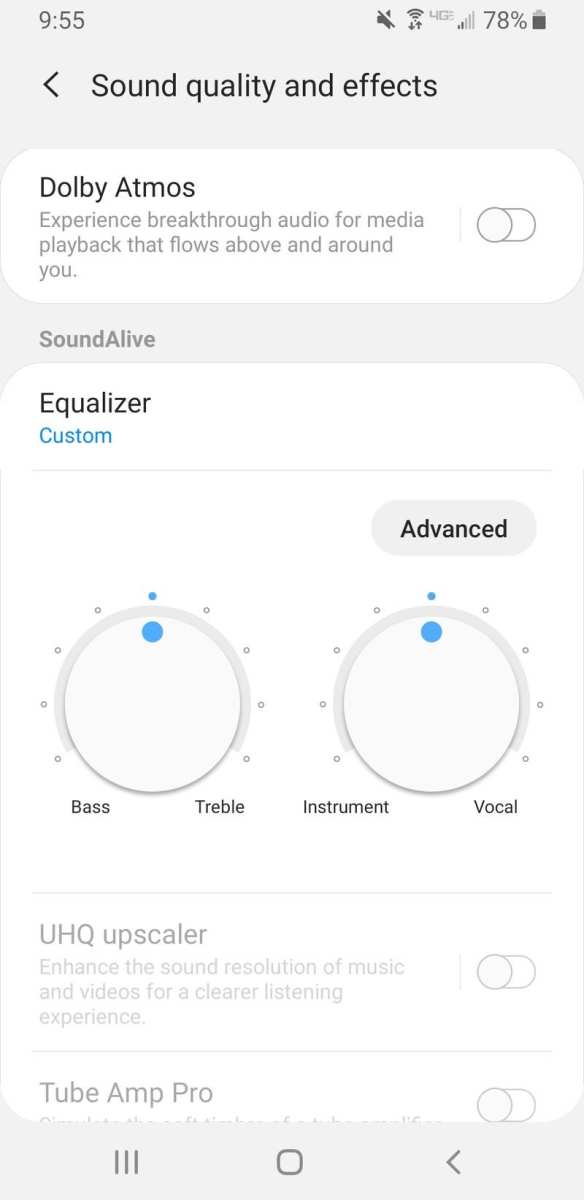
Enable Dolby Atmos or Equalizer Settings
– Some phones come with built-in sound enhancements like Dolby Atmos or equalizers.
– Access these settings via Settings > Sound > Advanced Sound or a dedicated app.
– Adjust the equalizer to boost mid and high frequencies for richer, louder sound.
Using Third-Party Equalizer and Sound Booster Apps
If your device’s built-in settings aren’t enough, you can turn to apps designed to optimize sound output:
Popular Equalizer Apps
- Equalizer FX
- Wavelet
- Music Equalizer
These apps allow you to create custom sound profiles that can increase overall loudness. Here’s how to use them:
– Download and install a reputable equalizer app from Google Play Store.
– Open the app and grant necessary permissions.
– Increase the gain or bass boost features carefully to avoid distortion.
– Save your custom profile and activate it whenever you want louder sound.
Sound Booster Apps
Apps like Volume Booster GOODEV or Super Volume Booster claim to amplify your device’s volume beyond the normal limits. Use these with caution:
– Download from a trusted source.
– Launch the app and toggle the volume booster.
– Adjust the boost level gradually to prevent speaker damage.
**Important note**: While third-party apps can increase loudness, overdoing it can cause sound distortion or harm your device’s speakers. Use these tools responsibly and avoid setting volumes too high.
Modifying System Files with Custom ROMs and Apps
For tech-savvy users, modifying system files or flashing custom ROMs can offer more control over volume settings:
Using a Volume Boosting App with Root Access
– Root your Android device (note: rooting can void your warranty and poses risks).
– Install a system-level sound control app, such as Viper4Android.
– Use the app to manipulate system files and set higher maximum volume levels.
– Follow instructions carefully; improper modification can brick your device.
Installing Custom ROMs with Better Audio Control
– Some custom ROMs, like LineageOS, come with enhanced audio features.
– Flashing these ROMs requires unlocking your bootloader and installing custom recovery.
– These ROMs often offer advanced sound settings to boost speaker loudness significantly.
**Caution**: This method involves advanced steps and risks. Proceed only if you’re experienced with Android modifications.
Hardware Solutions to Increase Speaker Loudness
If software methods aren’t enough, hardware adjustments or accessories can help:
Use External Speakers or Bluetooth Devices
– Connect your Android device to portable Bluetooth speakers.
– External speakers usually produce louder and clearer sound than built-in speakers.
Upgrade Your Device’s Speaker
– Some phones have replaceable or upgradeable speakers.
– Consult a professional technician for potential hardware upgrades if your device supports it.
Position Your Device Correctly
– Place your phone on a flat, hard surface.
– Avoid covering the speaker area with protective cases or hands.
– Point the speaker directly toward your listening area for maximum sound projection.
Additional Tips for Louder and Better Sound
Beyond increasing volume, improving sound quality can make the audio seem louder and more enjoyable:
- Clean Your Speakers Regularly: Dust and debris can muffle sound. Use a soft brush or compressed air to keep the speaker grills clean.
- Use High-Quality Audio Files: Lower-quality audio files can sound flat and less loud. Use high-resolution files for better sound clarity and volume.
- Reduce Background Noise: Playing in a quiet environment makes the sound seem louder and clearer.
- Enable Mono Sound: For some devices, switching to mono can make audio more prominent. Check in Accessibility settings if available.
Safety Precautions When Increasing Volume
– Avoid setting the volume too high for extended periods to prevent hearing damage.
– Slightly increase volume over time rather than jumping immediately to maximum.
– Be cautious with third-party apps claiming to boost loudness; excessive use can damage your device’s speakers.
By following these methods, you can significantly enhance your Android device’s speaker volume, making your media experiences more enjoyable. Remember, balancing sound quality with volume levels is key to protecting your device and your hearing.
Frequently Asked Questions
How can I increase the volume of my Android device beyond the maximum level?
Android devices often have a built-in limit for volume. To go beyond this, you can enable “Absolute Volume” in your device settings or use third-party volume booster apps. Some devices also support hardware modifications, but these are more advanced and may void your warranty. Always be cautious to avoid damaging your speakers with excessive volume.
Are there any specific settings within the Android OS that can help boost speaker volume?
Yes, adjusting settings like the “Media volume” via the volume buttons or the sound settings in your device’s menu can help. Additionally, enabling options like “Adaptive Sound” or “Sound Enhancer” in your device’s sound settings can improve audio output. Some manufacturers also include custom equalizer settings that allow you to increase certain frequencies for louder sound.
Can external accessories improve my Android speaker volume?
Using external accessories such as portable Bluetooth speakers or amplifiers can significantly increase the overall sound output. Connecting your device to high-quality speakers via Bluetooth or audio jack provides louder and clearer sound. Ensure these accessories are compatible with your device to get the best results.
What role does app selection play in enhancing speaker volume on Android?
Some apps specifically designed for volume boosting can help increase your device’s sound output. These apps adjust audio settings and optimize sound output for louder volume. However, make sure to choose reputable apps to prevent potential security risks or sound distortion.
Is there a way to fix low speaker volume issues caused by software bugs?
If your speaker volume is unexpectedly low, restarting your device can sometimes resolve temporary software glitches. Updating your device to the latest software version can also fix bugs affecting sound. If the issue persists, resetting your device’s settings or performing a factory reset might help, but back up your data first.
Final Thoughts
To make your speaker louder on Android, start by adjusting the volume settings. Use the volume buttons and ensure the media volume is maxed out. You can also access the sound settings in your device to boost the volume beyond the default limits using specific options or apps.
Consider enabling any equalizer features available on your device or through third-party apps to enhance sound output. Additionally, eliminating obstructions near your speaker can significantly improve sound clarity and loudness.
In conclusion, how to make your speaker louder on Android involves increasing the volume, optimizing sound settings, and removing potential barriers. Implement these tips to enjoy louder, clearer sounds from your Android device efficiently.
