

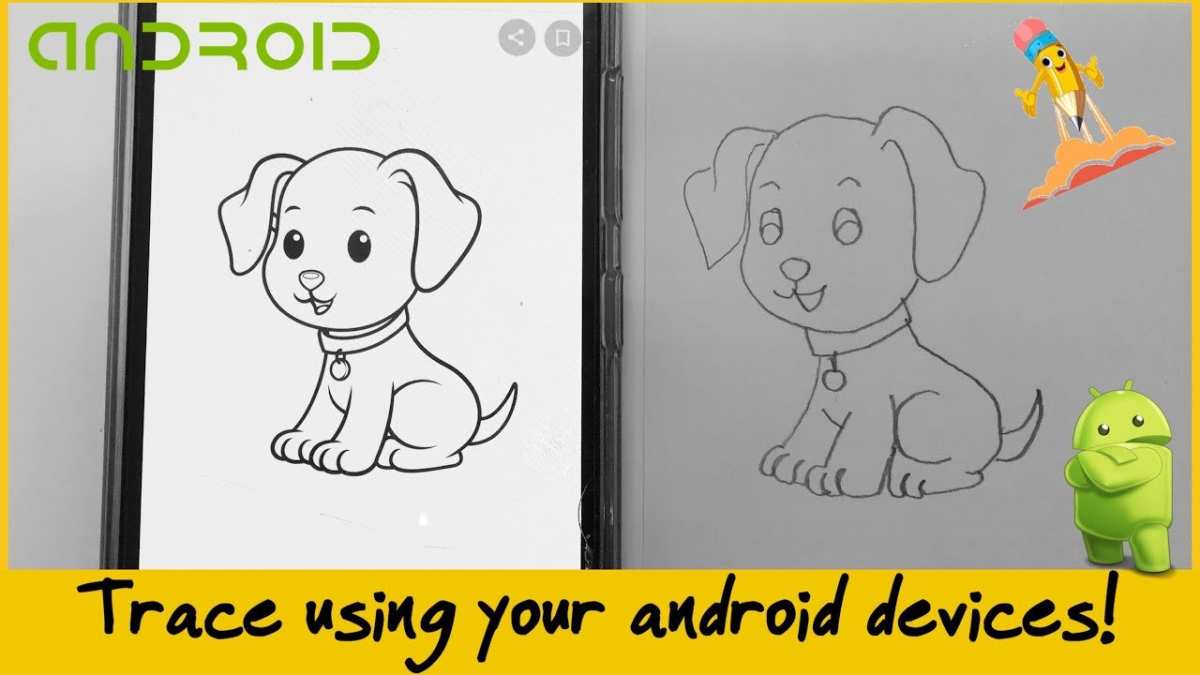
To prevent your screen from moving when tracing on Android, the key is to lock the screen or use specific app settings. **You just need to enable the “Screen Lock” feature or activate “Fixed Mode” within your tracing app.** This keeps your view steady, making tracing smoother.
Knowing how to make your screen not move when tracing Android can save you frustration and improve accuracy. Simply adjust your device settings or app options, and you’re ready to work without interruptions.

How to Make Your Screen Not Move When Tracing Android
When you’re tracing on your Android device, it can be frustrating if the screen keeps shifting or moving unexpectedly. This not only makes your work difficult but can also cause mistakes in your drawings or annotations. Luckily, there are several strategies to keep your screen steady while tracing, whether you’re using a stylus, finger, or specific apps. In this guide, you’ll learn practical methods to prevent your Android screen from moving during tracing sessions, ensuring a smoother, more precise experience.
Understanding Why Your Screen Moves During Tracing
Before diving into solutions, it’s helpful to understand why your Android screen might shift while you’re tracing. Common reasons include:
- Unintentional touch inputs or accidental gestures.
- Device sensitivity settings that are too high.
- Automatic screen rotation activating during your work.
- Using apps that don’t lock the screen or have poor touch controls.
- Hardware issues like a loose or overly sensitive screen.
Knowing the cause can help you choose the best method to fix the issue.
Lock Your Screen Orientation to Prevent Unwanted Rotation
One of the simplest ways to keep your screen from moving unexpectedly is to lock the orientation. When your screen’s orientation is locked, your device won’t switch between portrait and landscape mode, which can often cause the display to shift during tracing.
Steps to Lock Screen Orientation
- Swipe down from the top of your screen to open the notification shade.
- Look for the orientation lock icon—it looks like a lock with a circular arrow around it.
- Tap the icon to enable orientation lock. You’ll see a small icon confirming it’s active.
Once activated, your device will stay in the current orientation, preventing accidental rotations that disrupt your tracing process.
Use Screen Pinning for Focused and Stable Work
Screen pinning keeps your app fully focused and prevents accidental navigation or movement outside the tracing app.
How to Enable Screen Pinning
- Open your device’s Settings app.
- Navigate to Security & Privacy or Biometrics & Security, depending on your device.
- Find the Screen Pinning option and turn it on.
Pin Your Tracing App
- Open the app you use for tracing.
- Tap the Overview button (square or recent apps button).
- Swipe up slightly if necessary to reveal the pin icon (usually a pin symbol at the bottom of the app preview).
- Tap the pin icon to lock the app on the screen.
Now, your device stays locked into your tracing app, and accidental touches outside won’t cause the screen to shift or change.
Adjust Touch Sensitivity and Screen Settings
Sometimes, high touch sensitivity or overly responsive screens make it easy to accidentally move the display. Adjusting your device’s touch sensitivity can help prevent this.
How to Adjust Touch Sensitivity
- Go to Settings > Display or Display & Brightness.
- Look for options related to “Touch Sensitivity” or “Glove Mode” (useful if you’re wearing gloves).
- Reduce sensitivity or turn off glove mode if activated.
Also, consider reducing the screen’s auto-brightness or disabling features that might cause unintended gestures, such as lift-to-wake or double-tap to wake.
Disable Auto-Rotation to Keep Your Screen Steady
Auto-rotation can cause your screen to shift unexpectedly, especially when you move your device slightly or change its orientation unintentionally during tracing.
Steps to Disable Auto-Rotation
- Swipe down from the top of your device to open the quick settings menu.
- Find the Auto-Rotate icon—it often looks like a rotating phone or tablet.
- Tap it to turn auto-rotation off.
This keeps your display fixed in your chosen orientation, reducing the chance of accidental movement.
Use a Stylus or Touch Tool for More Control
Using a stylus instead of your finger can significantly improve control over your tracing and reduce accidental touches that shift the screen.
Choosing the Right Stylus
- Look for styluses designed for touchscreen tablets or smartphones.
- Some styluses come with adjustable pressure sensitivity.
- Wireless or Bluetooth styluses often offer better precision.
How to Use a Stylus Effectively
- Hold the stylus gently but firmly to avoid unintended gestures.
- Keep your hand steady and avoid resting your palm on the screen unless your device supports palm rejection.
- Use the stylus tip for detailed tracing rather than your finger.
This method minimizes accidental movements and gives you more accurate control during tracing.
Optimize Your App Settings for Better Stability
Many tracing or drawing apps have built-in features to prevent the screen from moving.
Check for Lock or Stabilize Options within Your App
- Look for options labeled “Lock Canvas,” “Stabilize,” or “Prevent Movement.”
- Enable these features to keep your drawing area fixed during editing.
- Some apps offer a “Lock View” option that disables panning or zooming while tracing.
Use a Dedicated Tracing Mode or Layer
If your app supports layers, set your tracing layer as fixed or lock it to prevent accidental movements. This allows you to trace without zooming or panning the background.
Secure Your Device for a Steady Workspace
Sometimes, physical factors like unstable surfaces or device positioning can cause the screen to shift.
Using a Stable Surface
- Place your device on a flat, stable surface like a table or desk.
- Use a drawing board or stand to keep the device at an optimal angle.
Fix Your Device with a Holder or Clamp
If you’re working on a detailed project, using a mount or holder can keep your device steady for the entire tracing session.
Additional Tips for a Better Tracing Experience
– **Use Screen Protectors:** A matte or anti-glare screen protector can reduce accidental slips and enhance grip.
– **Keep Your Hands Clean and Dry:** Moisture or dirt can cause your touch to be less precise.
– **Adjust Brightness and Contrast:** Better visibility reduces the need for unnecessary movement to view details.
– **Take Breaks:** Rest your hand periodically to avoid fatigue that can lead to unintentional movements.
This detailed approach helps ensure your Android screen remains steady during tracing, making your work much easier and more accurate. Implementing these steps not only enhances your tracing efficiency but also makes your digital drawing experience more enjoyable.
Frequently Asked Questions
How can I prevent the screen from moving while tracing on my Android device?
To stop the screen from shifting during tracing, enable the lock or stabilization feature within your tracing app. Some apps have a dedicated option to lock the current view, which prevents accidental movements. Additionally, using a steady hand or placing your device on a stable surface can help maintain a fixed view.
Is there a way to lock the zoom level when tracing on Android?
Yes, many drawing or tracing applications allow you to lock the zoom level. Find the zoom settings within the app and set it to a fixed level to avoid accidental zooming or panning. This ensures your workspace stays consistent throughout your tracing session.
Can I utilize screen lock features to keep the display still during tracing?
While screen lock features like sleep mode or screen timeout can prevent accidental touches, they may interfere with your tracing activities. Instead, look for specific options within your app to lock the view or use a stylus with a high precision tip for better control, minimizing unintentional movements.
Are there any accessories that help keep my screen steady while tracing?
Using a stable surface or a drawing board can help keep your device steady. Some artists prefer using a tablet stand or tripod to secure their device, reducing hand shake and accidental movements. A stable grip or placing the device on a non-slip surface can also improve stability during tracing.
Final Thoughts
To make your screen not move when tracing android, lock the screen orientation in your device settings. This prevents unwanted shifts during tracing.
Use a stable tripod or mount if you work on a tablet or phone. Securing your device minimizes movement and enhances precision.
Additionally, activate any available built-in screen lock options in your tracing app. This feature keeps the display steady, ensuring smoother tracing sessions.
In conclusion, understanding how to make your screen not move when tracing android helps improve accuracy and comfort. Focus on locking orientation, securing your device, and enabling screen lock features for the best results.
