

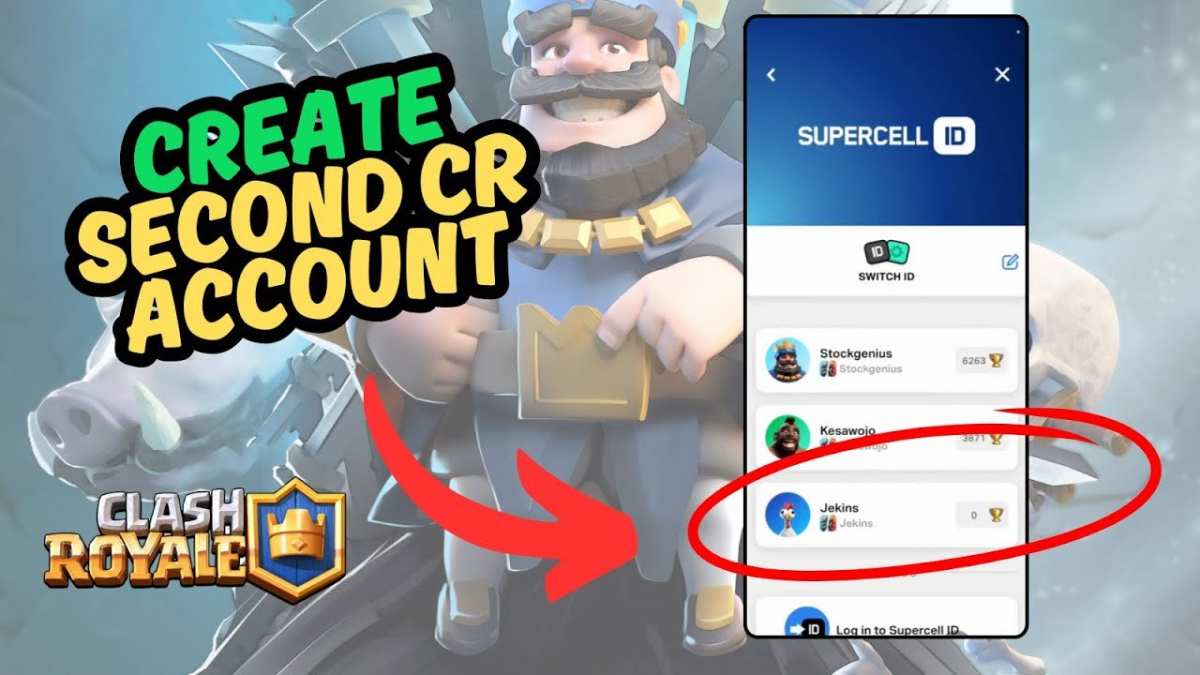
To make a second account on Clash Royale Android, simply create a new Google Play account or use a different email. **This is the quickest way to set up an extra account.** Many players wonder how to make a second account on Clash Royale Android without risking bans or losing progress.
Switching accounts is easier than you think once you understand the process. Keep reading to find out the simple steps to manage multiple Clash Royale accounts smoothly.

How to Make a Second Account on Clash Royale Android
Playing Clash Royale is exciting, but sometimes players want to have more than one account. Maybe you want a fresh start, practice new strategies, or simply keep different decks separate. Whatever your reason, creating a second account on Clash Royale Android is quite doable with the right steps. In this section, we will explore the easiest ways to set up a second account and provide helpful tips to ensure everything runs smoothly.
Why Have a Second Clash Royale Account?
Before diving into the process, it’s good to understand why many players choose to create a second account. Here are some common reasons:
- New Player Experience: Starting fresh allows beginners to experience the game from the beginning without losing progress in their main account.
- Test New Strategies: Practice with different decks or tactics without risking your main account’s trophies or cards.
- Multiple Devices: Some players own multiple Android devices and want to keep their accounts separate on each device.
- Friends and Family: Share the game with family members or friends without giving them access to your main account.
Knowing your motivation will help you choose the best method to create and manage your second Clash Royale account.
Methods to Create a Second Clash Royale Account on Android
There are several ways to set up a new account on your Android device. Below, we explain the most popular and effective methods in detail.
Using Multiple Game Accounts via Guest Mode or Multiple User Profiles
Android devices often have built-in features that let users create multiple profiles or switch between accounts easily.
- Multiple User Profiles: You can set up different user profiles on your device, each with its own app data. This method allows you to run separate Clash Royale accounts without interference.
- Guest Mode: Android’s guest mode provides a quick way to switch between accounts. Each guest profile has its own game data and settings.
Steps to Set Up Multiple User Profiles
Creating multiple user profiles is straightforward:
- Open your device’s Settings.
- Navigate to Users & Accounts or System > Multiple Users (varies by device).
- Tap on Add User or Guest.
- Follow prompts to create a new user profile.
- Switch to the new profile from your device’s quick settings or user menu.
- Download Clash Royale from Google Play Store under that profile.
- Start the game and create your second account either by logging in with a different Google account or creating a new one.
This method keeps both accounts entirely separate and prevents data overlap.
Using Multiple Google Accounts
Google Play Games allows you to link multiple accounts, which makes managing more than one Clash Royale account easier.
- Register a different Google account on your device or switch accounts in Google Play Games app.
- Open Clash Royale and log in with the Google account linked to your second account.
- This way, your second account remains associated with that specific Google account.
Remember, switching Google accounts can sometimes cause issues, so always ensure you log out properly before switching.
Utilizing App Cloning or Third-Party Cloning Apps
Several Android apps let you clone or duplicate existing apps, including Clash Royale. This is especially useful if your device doesn’t support multiple user profiles.
- Popular Cloning Apps: Parallel Space, Dual Apps, and App Cloner.
- Download and install one of these apps from the Google Play Store.
- Follow the app’s instructions to clone Clash Royale.
- Open the cloned instance of Clash Royale and register a new account.
Using cloning apps is simple but make sure to choose a trusted app to avoid security issues.
Best Practices for Managing Multiple Clash Royale Accounts
Handling more than one account requires organization and care. Here are some tips:
- Keep Track of Login Details: Save your account Google email addresses or game login info securely.
- Switch Accounts Carefully: Always log out or switch profiles properly to prevent data loss or account corruption.
- Use Different Email Addresses and Google Accounts: To avoid confusion, assign unique email addresses to each account.
- Regularly Backup Data: Use Google Play Games or the game’s built-in backup options to save progress.
Remember, managing multiple accounts is easier when you stay organized and follow proper switching procedures.
Important Tips and Cautions
While creating a second account on Clash Royale is simple, there are some points to keep in mind:
- Account Security: Always use secure passwords and avoid sharing login info.
- Compliance with Terms of Service: Cloning apps or creating multiple accounts should not violate Clash Royale’s rules. Avoid using cheating or hacking tools, as they can lead to bans.
- Synchronization: Remember that your game progress may be saved to Google Play or your Clash Royale account. Make sure to link your accounts for easier recovery.
- Device Storage and Performance: Running multiple app instances or profiles can take up more space and resources. Ensure your device has enough storage and RAM.
Being cautious ensures a smooth gaming experience across all your accounts.
Creating a second Clash Royale account on your Android device is a manageable process that offers you flexibility in gameplay. Whether you prefer to set up different user profiles, use app cloning, or switch Google accounts, each method has its advantages. Remember to stay organized, protect your login information, and adhere to game rules to enjoy multiple accounts without issues. With these tips, you can expand your Clash Royale experience, trying out new strategies and keeping your gaming fun fresh.
Frequently Asked Questions
Can I use the same device to have multiple Clash Royale accounts?
Yes, you can have multiple Clash Royale accounts on a single device. You need to log out of the current account and then log in with a different account. This process often requires clearing app data or using multiple user profiles on your device to switch between accounts smoothly.
What steps do I follow to create a new Clash Royale account without losing my current progress?
To create a new account without affecting your existing one, you can use the game’s built-in account linked to your Google Play or Game Center. Simply log out of your current account and then sign in with a different Google account or create a new one. Alternatively, you can use the app’s account switching feature if available.
Are there third-party tools that assist in managing multiple Clash Royale accounts on Android?
Some third-party tools and apps can help you manage multiple accounts, such as cloning apps or dual app features provided by your device manufacturer. These tools allow you to run multiple instances of Clash Royale simultaneously, making it easier to switch between accounts without logging out repeatedly.
How can I avoid losing progress when switching between accounts on my Android device?
To prevent losing progress, always link each account to your Google Play or Game Center profile. Use the game’s account management features to switch accounts instead of uninstalling and reinstalling the app. Regularly backing up your game data via connected accounts helps safeguard your progress.
Is it possible to transfer progress from one Clash Royale account to another on Android?
Directly transferring progress between accounts is not supported for safety reasons. However, you can link your accounts to your Google Play or Game Center and access your progress from any device by signing into the respective account. For account recovery or transfers, contact Clash Royale support with proof of ownership.
Final Thoughts
Pour faire un second compte sur Clash Royale Android, commencez par télécharger le jeu sur un autre appareil ou utilisez une autre adresse Google Play. Créez un nouveau compte Google si nécessaire pour séparer vos profils. Ensuite, connectez-vous à Clash Royale avec ce nouveau compte Google pour commencer à jouer distinctement.
En utilisant plusieurs comptes, vous pouvez tester différentes stratégies ou garder votre progression séparée. La gestion de plusieurs comptes est simple grâce à la fonctionnalité de gestion des comptes Google sur Android.
En conclusion, faire un second compte sur Clash Royale Android est facile en utilisant une nouvelle connexion Google. Si vous cherchez à faire cela, n’oubliez pas que faire un second compte sur Clash Royale Android est une opération simple qui vous donnera plus de flexibilité dans votre expérience de jeu.
