

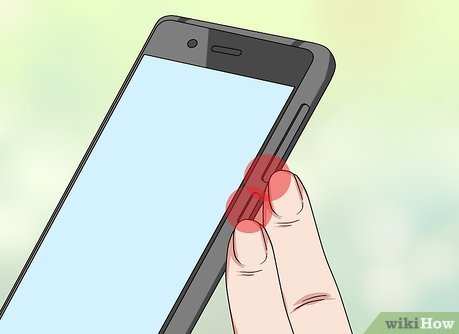
To take a screenshot on your Android device, simply press the Power button and Volume Down button simultaneously. That’s the quickest way to capture what’s on your screen. If you’re wondering how to make screenshot on android, this method works on most devices. Once you try it, you’ll see how effortless it is to save important moments or info quickly and easily. Knowing this simple trick helps you share or keep things for later without hassle.

How to Make Screenshot on Android
Taking a screenshot on an Android device is a simple process that can save you time and effort when you want to capture something on your screen. Whether you want to save a funny meme, preserve important information, or share a moment with friends, knowing how to take a screenshot is a useful skill. In this guide, we’ll walk through various methods to capture your screen, explain how to edit your screenshots, and explore tips for troubleshooting common issues.
Basic Method: Using Hardware Buttons
One of the easiest and quickest ways to take a screenshot on most Android phones involves using the physical buttons on your device.
Step-by-Step Guide
- Locate the power button and the volume down button on your Android device. Usually, the power button is on the right side, and the volume down button is on the left or right depending on your phone model.
- Press and hold both the power button and the volume down button at the same time. Hold them for about 1 to 2 seconds.
- If successful, you’ll see a quick flash on your screen, hear a shutter sound, or both. This indicates the screenshot has been captured.
- The screenshot will typically appear in your notification panel, where you can tap to view, edit, or share it immediately.
Tips for Success
- If pressing both buttons simultaneously doesn’t work, try pressing and holding them a little longer.
- Be cautious not to press the volume up and power buttons together, as this may trigger different functions.
- Some phones might require you to press the buttons in quick succession rather than at exactly the same time.
Alternative Methods for Different Devices
Different Android devices may have unique ways to take screenshots, especially if manufacturers add custom features.
Using Palm Swipe Gesture
Some Samsung phones and other Android devices support gesture-based screenshot methods.
- Enable the palm swipe feature in your device’s settings under “Motions and Gestures”.
- Once enabled, place the side of your hand vertically on one edge of the screen.
- Swipe your hand horizontally across the screen from left to right or vice versa.
- If the gesture works, you’ll hear a shutter sound or see an animation indicating a screenshot has been taken.
Using Quick Settings Panel
Many Android phones include a screenshot icon in the quick settings menu.
- Swipe down from the top of your screen to access the notification shade.
- Look for a “Screenshot” or “Capture” icon in the quick settings tiles.
- Tap the icon, and your device will automatically take a screenshot.
- Some devices may require you to customize the quick settings menu to add the screenshot shortcut.
Using Google Assistant
If you prefer voice commands, you can use Google Assistant to take screenshots on your Android device.
Steps to Use Google Assistant for Screenshots
- Activate Google Assistant by saying “Hey Google” or pressing and holding the home button.
- Say “Take a screenshot” clearly and confidently.
- Google Assistant will process your command and capture the current screen.
- The screenshot will appear in your gallery or notification panel, ready for editing or sharing.
Editing Your Screenshots
After capturing your screenshot, you might want to edit it before sharing or saving. Most Android devices offer built-in editing tools.
Accessing the Editing Tools
- Tap the notification that appears after you take a screenshot. It usually provides options to edit, share, or delete.
- Alternatively, go to your gallery or photos app and locate the screenshot in your albums.
- Open the screenshot and select the “Edit” option.
Common Editing Features
- Crop: Trim unnecessary parts of the screenshot to focus on specific content.
- Annotate: Add text, arrows, or highlights to emphasize parts of the image.
- Draw: Use drawing tools to sketch directly on the screenshot.
- Adjustments: Modify brightness, contrast, or apply filters to improve visibility.
Saving and Sharing Your Screenshots
Once you’ve edited your screenshot, you’ll want to save or share it easily.
Saving Your Screenshot
Most devices automatically save screenshots to your gallery or photos app. To find your saved screenshots:
- Open the Photos or Gallery app on your device.
- Navigate to the “Screenshots” album or folder.
- Select the image to view, edit further, or share.
Sharing Your Screenshot
- Open the screenshot in your gallery or photos app.
- Tap the share icon, which often looks like three connected dots or an arrow.
- Select your preferred platform: messaging apps, email, social media, etc.
- Follow the prompts to complete sharing.
Troubleshooting Common Screenshot Issues
Sometimes, taking or finding screenshots may not go as planned. Here are solutions for common problems.
Why Can’t I Take a Screenshot?
- Ensure you’re pressing the correct buttons simultaneously.
- Check if your device’s software is up to date.
- Some apps or settings may restrict screenshot capabilities—try closing the app or adjusting settings.
My Screenshots Are Not Saving
- Verify your device storage isn’t full.
- Check the default save location, usually in the Photos or Gallery app.
- If issues persist, restart your device and try again.
How to Capture Scrolling Screenshots
For longer content, like webpages or chats, some devices offer scrolling screenshots.
- After taking a regular screenshot, look for a “Scroll” or “Capture More” option in the editing or sharing menu.
- Tap this option to continue capturing additional content below the current view.
- Repeat until you’ve captured all desired content, then save your extended screenshot.
Summary
Knowing how to make a screenshot on Android makes it easier to save and share moments, important information, or funny content. Whether you prefer using hardware buttons, gestures, quick settings, or voice commands, Android offers multiple ways to capture your screen effortlessly. Remember to explore your device’s specific features, as manufacturers often add custom options, making the process even more convenient. With a little practice, taking screenshots will become second nature, and you’ll never miss an important moment on your phone again.
Frequently Asked Questions
What are the different methods to capture a screenshot on Android devices?
Android devices offer several ways to take a screenshot. The most common method is pressing the Power button and the Volume Down button simultaneously for a couple of seconds. Alternatively, some devices allow you to use gestures, such as swiping the side of your hand across the screen or using a quick settings menu where a screenshot option is available. Additionally, certain manufacturers include built-in features or apps that facilitate capturing screenshots with a single tap.
How can I take a screenshot on an Android device that has a physical home button?
If your Android phone features a physical home button, you typically press and hold the Power button and the Home button at the same time. Hold both buttons briefly until you see an animation or hear a shutter sound, indicating the screenshot has been saved. This method works on many older devices like Samsung Galaxy models and some HTC phones.
What should I do if the screenshot function doesn’t work on my Android phone?
If taking a screenshot doesn’t work, first restart your device to clear temporary bugs. Ensure that no other app is interfering with system functions. Check if your device’s software is up to date, as updates often fix issues related to device features. If needed, consult your device’s user manual or support site for specific instructions, or consider using third-party screenshot apps available on the Google Play Store.
Are there any built-in tools for editing screenshots on Android?
Many Android devices include editing tools accessible immediately after capturing a screenshot. Once you take a screenshot, a preview often appears with options to crop, add annotations, or draw on the image. If your device lacks these features, you can download third-party editing apps like Google Photos or Snapseed to modify your screenshots easily after saving them in your gallery.
Can I automate the process of taking multiple screenshots on Android?
Android doesn’t natively support automating multiple screenshots, but you can use third-party automation apps like Tasker or Automate. These apps let you set up triggers, such as specific gestures or commands, to capture screenshots automatically. Keep in mind that automating screenshots may require some configuration and permissions, so follow the app instructions carefully to ensure it works smoothly.
Final Thoughts
To make a screenshot on Android, press the power button and volume down button simultaneously. Hold them for about a second until the screen flashes or a shutter sound confirms the capture. Some devices might have different methods, like using a palm swipe or quick settings menu.
Once captured, the screenshot saves automatically to your gallery or photos app. You can edit or share it immediately from there. Remember, knowing how to make screenshot on android simplifies saving important information quickly.
