

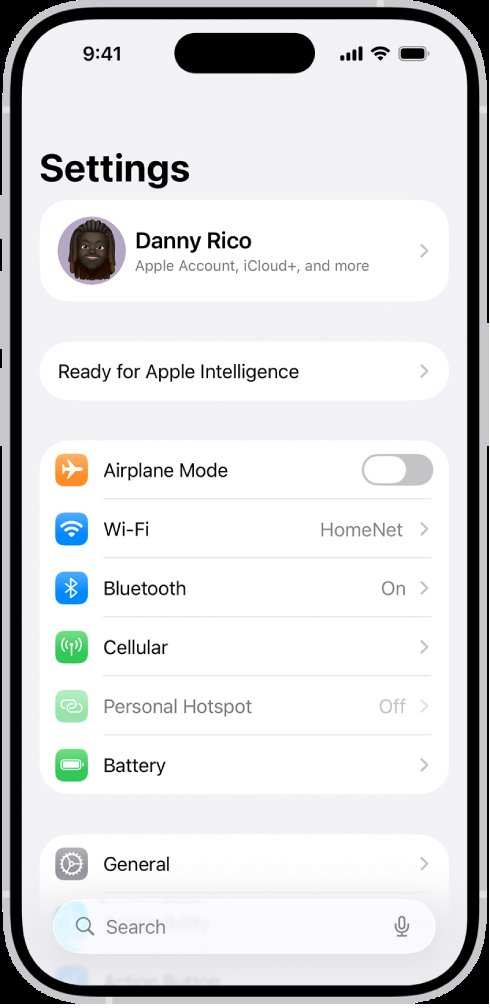
The iPhone setting screen is your gateway to customizing your device effortlessly. If you’re wondering how to quickly access and navigate it, **simply swipe down from the top right corner and tap the gear icon**. This screen lets you adjust everything from display to privacy settings with ease.
Understanding how to manage your iPhone setting screen makes everyday tasks smoother. Whether updating preferences or troubleshooting, knowing where to go saves time and frustration. Dive into these simple steps to personalize your iPhone experience effectively.

The iPhone Setting Screen: Your Complete Guide to Navigating and Customizing
The iPhone setting screen is a key part of your device that allows you to personalize your experience and manage how your phone works. Whether you want to change your display brightness, organize your notifications, or secure your device with a password, the settings menu is where all those options live. Understanding this screen gives you better control over your iPhone, helps you troubleshoot issues easily, and makes your device work exactly as you want it to.
Getting to the Settings Screen
First things first, locating the settings screen is simple. You will recognize it by the gear icon, commonly called the “Settings” app. To access it, just find the gear icon on your home screen or in your app library. Tap it once, and you’ll open the comprehensive settings menu.
- Shortcut on the home screen: Look for the gray gear icon.
- Swipe down on your home screen and use the search bar to type “Settings” and select it from the results.
- You can also ask Siri, “Open Settings,” and it will launch the menu for you.
Overview of the Settings Menu Layout
The settings menu is organized into sections that group related options together. Some of the main sections include:
- Wi-Fi & Cellular Data: Manage network connections.
- Notifications: Control how and when you receive alerts.
- Display & Brightness: Adjust screen appearance and brightness.
- Sound & Haptics: Customize sounds and vibrations.
- Privacy & Security: Set privacy permissions and security features.
- General: Manage software updates, storage, and more.
- Accessibility: Set features to assist users with different needs.
Deep Dive into Key Settings Sections
Wi-Fi and Cellular Settings
This section is essential for managing your internet connectivity. Here, you can connect to Wi-Fi networks, turn cellular data on or off, and manage data plans. To connect to a Wi-Fi network:
- Tap Wi-Fi.
- Ensure Wi-Fi toggle is turned on.
- Choose a network from the list and enter the password if needed.
For cellular data:
- Tap Cellular.
- Switch Cellular Data on to access the internet outside Wi-Fi zones.
- Manage data usage, enable Data Roaming, or set up Personal Hotspot.
Notifications Settings
This section helps you decide which apps can send you alerts, sounds, or banners. To customize notifications:
- Open Notifications.
- Choose an app from the list.
- Toggle Allow Notifications on or off.
- Adjust alert style: banners, alerts, or none.
- Set sound, badge icons, or lock screen notifications.
Display & Brightness Options
The display controls define how your screen looks and feels. You can manage brightness, text size, and display styles.
- Adjust Brightness Slider for optimal viewing in different lighting conditions.
- Enable Auto-Brightness to have the phone adjust brightness automatically.
- Modify Text Size and Display Zoom to enhance readability.
Sound & Haptics
Customize sounds for calls, messages, and notifications. You can also manage vibrations for different alerts.
- Set ringtones and alert tones.
- Adjust volume levels for media, ringtones, and notifications.
- Enable or disable vibrate on ring and silent mode.
- Manage system haptics for tactile feedback.
Privacy & Security Features
This critical area controls user privacy and device security. It includes options like:
- Location Services: Decide which apps can access your GPS data.
- App Permissions: Control access to camera, microphone, contacts, and more.
- Face ID & Passcode: Set up facial recognition or passcodes to secure your device.
- Find My iPhone: Enable tracking and remote wiping if your device gets lost.
- Security Updates: Keep your device protected with the latest patches.
General Settings for Advanced Control
The General section offers miscellaneous options, including software updates, storage management, and date/time settings.
- Software Update: Keeps your device current with the latest iOS version.
- About: Check device info like model, serial number, and software version.
- Keyboard & Language: Customize input methods and language preferences.
- Reset: Restore settings or erase your device if needed.
Customizing Your Settings for Better Performance
Adjusting your settings can make your iPhone easier to use and more personalized. Here are some tips:
- Set Up Accessibility Features: Use VoiceOver, Magnifier, or Larger Text to enhance visibility and navigation.
- Organize Your Notifications: Prioritize essential alerts and silence others to reduce distractions.
- Optimize Battery Life: Use Low Power Mode and reduce screen brightness.
- Configure Privacy Settings: Limit app access to sensitive data and control permissions.
- Manage Storage: Regularly check storage to delete unused apps and files.
Best Practices for Managing Your iPhone Setting Screen
To get the most out of your device, keep these habits in mind:
- Regularly explore new updates to discover new features.
- Customize your control center for quick access to frequently used settings.
- Back up your device before making major changes.
- Use the search function within Settings to find options quickly.
- Create a routine to review privacy and security settings periodically.
Troubleshooting Common Settings Issues
If you run into problems with your iPhone’s settings, here are some quick fixes:
- Restart your device to clear temporary glitches.
- Update your iOS to the latest version for bug fixes and security patches.
- Reset individual settings if certain features aren’t working correctly:
- Go to Settings > General > Reset > Reset All Settings.
- This won’t delete your apps or data but will reset Wi-Fi passwords, wallpapers, and other preferences.
- Contact Apple Support if issues persist, especially hardware-related problems.
Understanding and managing your iPhone’s setting screen allows you to customize your device to fit your daily needs perfectly. From managing notifications to securing your privacy and optimizing battery life, the settings menu is a powerful tool for making your iPhone truly your own. Explore these options regularly to keep your device running smoothly and efficiently.
Frequently Asked Questions
How can I customize my iPhone’s display settings?
You can personalize your iPhone’s display by going to Settings > Display & Brightness. From there, you can adjust the brightness level, switch between Light and Dark modes, and enable features like Night Shift to reduce blue light. You can also change text size and enable bold text for better readability. These options allow you to tailor the visual experience to your preferences and enhance overall usability.
What options are available to manage privacy settings on my iPhone?
Privacy settings on your iPhone help control which apps access sensitive information like location, contacts, photos, and camera. Visit Settings > Privacy to see the different categories. You can enable or disable permissions for individual apps, review app activity, and manage services such as advertising and analytics. Adjusting these settings helps safeguard your personal data and ensures apps only access information you approve.
How do I set up notifications for specific apps on my iPhone?
To customize notifications, open Settings > Notifications. Select the app you want to configure and toggle Allow Notifications on or off. You can choose how notifications appear by selecting alert styles, sounds, and badges. For further customization, access the app’s notification settings to define alert tones, enable or disable banners, and decide whether notifications show on the lock screen. This way, you receive alerts tailored to your preferences.
Where can I change language and region preferences on my iPhone?
Language and region settings are accessible through Settings > General > Language & Region. Here, you can select your preferred language from a list, which updates the interface language accordingly. Additionally, you can set your region to adjust formats for dates, times, and currency. Changing these settings ensures your device displays information in a way that suits your locale and language preferences.
How do I modify security features like passcodes and Face ID on my iPhone?
To update security features, go to Settings > Face ID & Passcode or Touch ID & Passcode, depending on your device. Here, you can create, change, or disable your passcode. You also have options to enable or disable Face ID or Touch ID for unlocking your device, making purchases, and using other apps. Regularly updating your security settings helps protect your data and ensures only authorized access to your device.
Final Thoughts
The iPhone setting screen offers quick access to customize your device efficiently. Navigating this menu allows you to adjust essential features with ease. Knowing how to locate and modify settings empowers you to optimize your iPhone usage. In conclusion, understanding the iPhone setting screen simplifies managing your device and enhances your experience.
